The Excel MODE functions return the most frequently occurring number in a list. MODE.SNGL returns one value; MODE.MULT returns all of them when there’s a tie.
PurposeMost frequent number
ReturnsA number, or several with MODE.MULT
Available inAll versions; MODE.SNGL and MODE.MULT in Excel 2010 and later
number1 |
The first number or range. |
|---|---|
number2, ... optional |
More numbers or ranges. |
Table of Contents
Basic example
To find the most common shoe size sold:
=MODE.SNGL(B3:B9)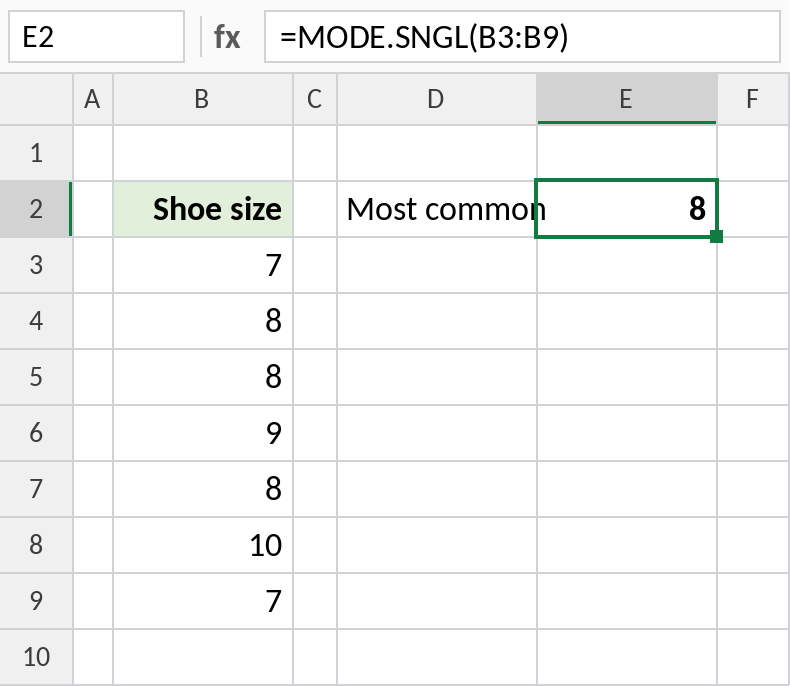
Size 8 appears three times, more than any other: 8. The older =MODE(B3:B9) gives the same result.
When there's a tie
Sizes 7 and 8 both appear twice. MODE.SNGL returns only the first; MODE.MULT returns both:
=MODE.MULT(B3:B8)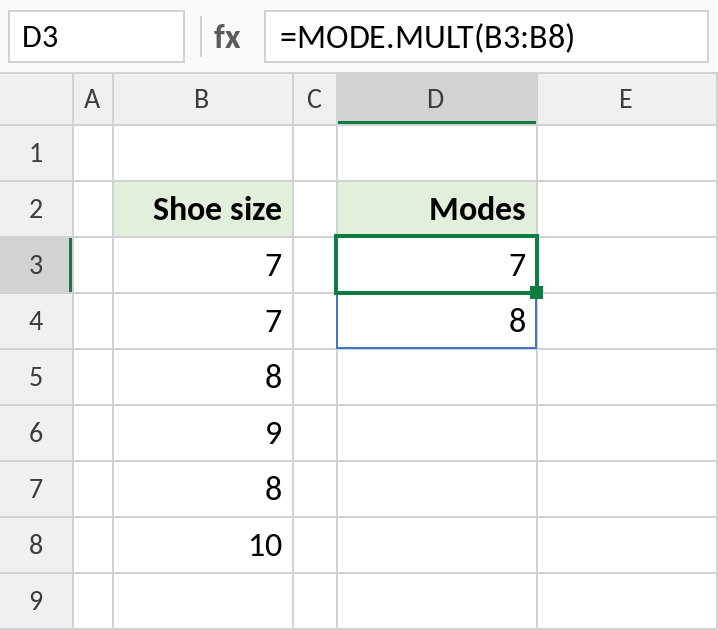
7 and 8 spill down from D3. In Excel 2019 and earlier, select D3:D4 and press Ctrl+Shift+Enter.
When nothing repeats
If every value is different, MODE returns #N/A. IFERROR shows a message instead:
=IFERROR(MODE.SNGL(B3:B7),"No repeats")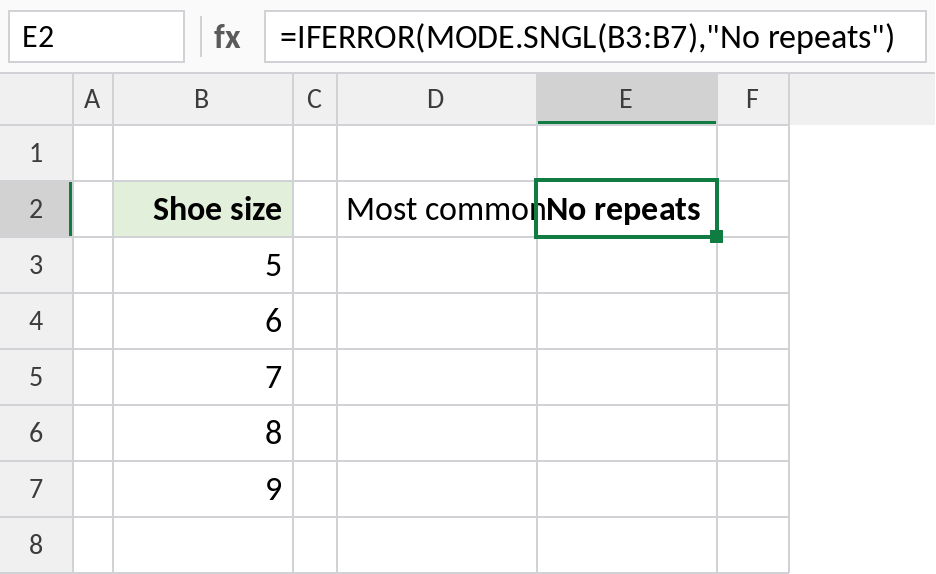
All five sizes are different, so the result is No repeats.
MODE vs MEDIAN vs AVERAGE
For 7, 8, 8, 9, 8, 10, 7:
Notes
- MODE works with numbers only. For the most common text, see the formula page linked below.
- With a tie, MODE.SNGL returns the value that appears first in the list.
- MODE is the original function, kept for compatibility. It works the same as MODE.SNGL.
Common errors
| Problem | Cause | Fix |
|---|---|---|
#N/A |
No number appears more than once | Wrap in IFERROR |
| Text ignored | MODE only counts numbers | Use the most-frequent-value formula for text |
Practice file
All three examples in one workbook.