The Excel AVERAGE function returns the arithmetic mean of a set of numbers: their total divided by how many there are.
number1 |
The first number, cell or range, such as C3:C8. |
|---|---|
number2, ... optional |
More numbers, cells or ranges, up to 255 in total. |
Table of Contents
Basic example
To find the average Maths score, give AVERAGE the range of scores:
=AVERAGE(C3:C8)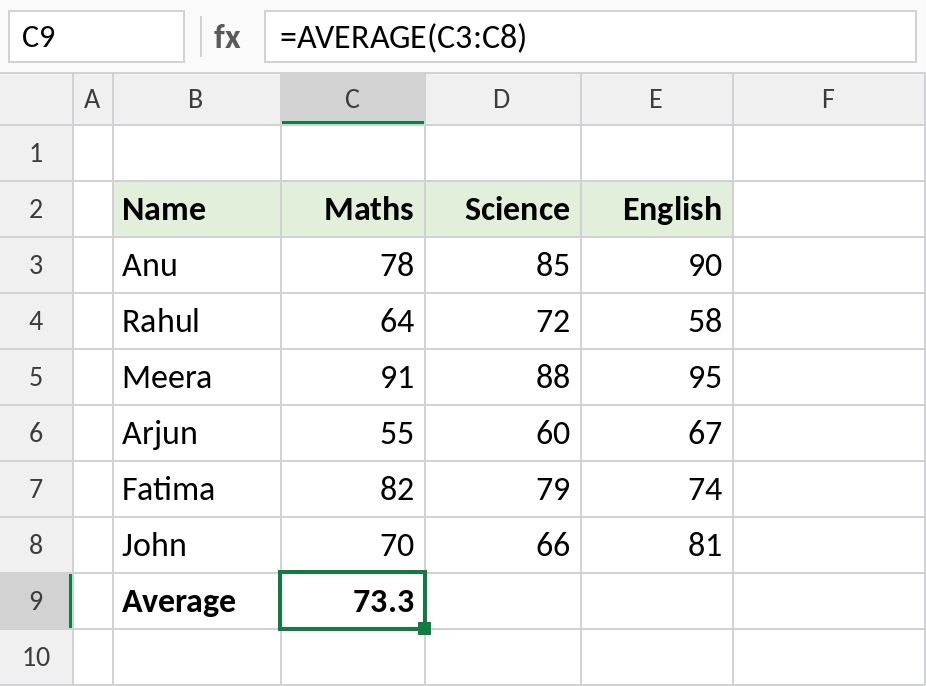
The six scores add up to 440, and 440 ÷ 6 = 73.3 (shown to one decimal place).
Average each row
To get each student’s average across all three subjects, average the row and fill the formula down:
=AVERAGE(C3:E3)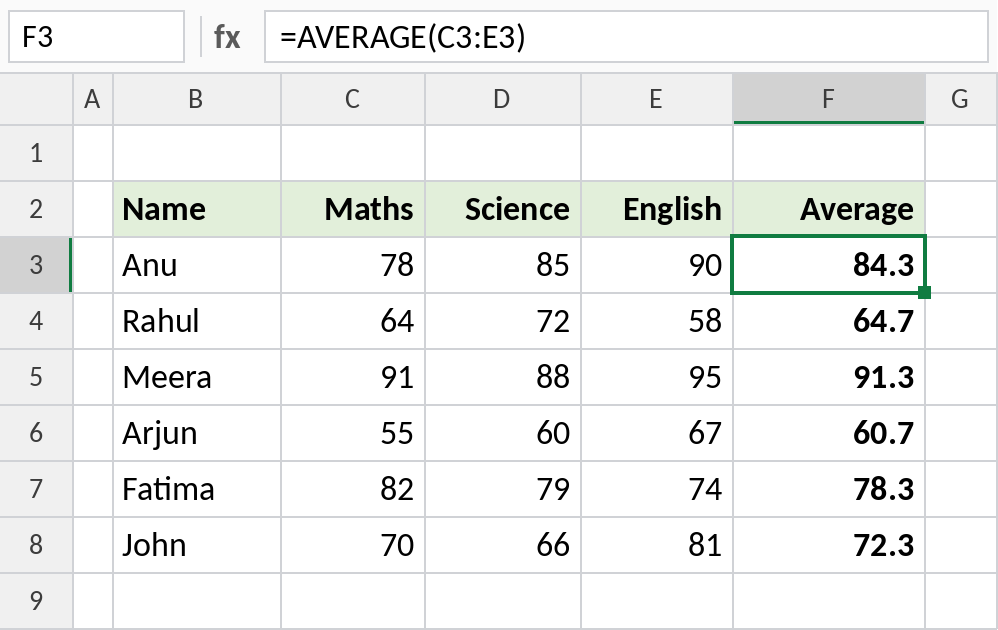
Anu’s average is (78 + 85 + 90) ÷ 3 = 84.3. The references move with each row, so F4 averages C4:E4.
Blank cells vs zeros
AVERAGE skips empty cells but counts zeros. Rahul missed both tests: Test 1 is left blank, and Test 2 has a 0:
=AVERAGE(D3:D6)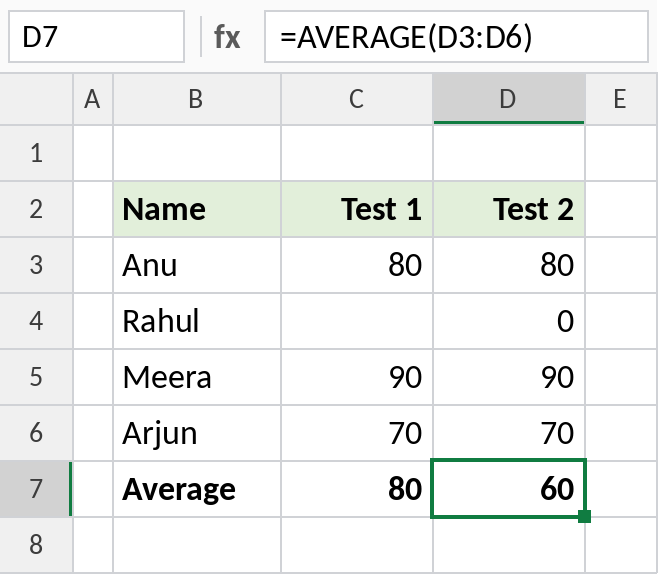
Test 1 averages 3 scores: 240 ÷ 3 = 80. Test 2 averages 4 scores, including the 0: 240 ÷ 4 = 60. Leave a cell empty when a value is missing, and enter 0 only when the score really is zero.
More ways to average
| Formula | Result | What it does |
|---|---|---|
=AVERAGE(C3:E8) |
75.3 | Averages all 18 scores at once |
=ROUND(AVERAGE(C3:C8),1) |
73.3 | Rounds the average to one decimal |
=AVERAGEIF(C3:C8,">=60") |
77 | Averages only scores of 60 or more |
=MEDIAN(C3:C8) |
74 | The middle value, less affected by extremes |
Notes
- Text, logical values and empty cells inside a range are ignored. Zeros are included.
- If the range has no numbers at all, AVERAGE returns
#DIV/0!. - The number of decimals you see depends on the cell format. Use ROUND if you need the value itself rounded.
- An average of averages is not the same as the overall average when groups have different sizes. Average the original data instead.
Common errors
| Problem | Cause | Fix |
|---|---|---|
#DIV/0! |
The range is empty or contains only text | Check the range, or use IFERROR(AVERAGE(...),"") |
| Average too low | Zeros entered for missing values | Leave missing values blank, or use AVERAGEIF(range,"<>0") |
| Some values ignored | Numbers stored as text | Convert them to real numbers |
Practice file
All three examples plus the extra formulas in a cheat sheet.