In many organizations—whether private companies or government offices—managers require team members to submit daily or weekly work reports. A very common approach is asking employees to send updates through messaging apps like WhatsApp. However, this forces managers to manually copy and paste details into Excel or Google Sheets every single day, creating a tedious administrative bottleneck.
Fortunately, you do not need to collect data manually. By leveraging Google Sheets and the powerful IMPORTRANGE formula, you can build an automated reporting system where individual employee logs instantly sync into a central Master Workbook.
For a full visual walkthrough, you can refer to the following tutorial video.
Below is the complete, step-by-step guide to building this automated system yourself.
Key Benefits of an Automated System
- Eliminates Manual Data Entry: Employees log updates directly into their assigned workbooks, removing the need for copy-pasting from chat messages.
- Real-Time Master Updates: Data syncs live into your Master Workbook even when the master file is closed.
- Scalable Architecture: You can connect 10, 20, or 30+ individual employee workbooks to a single master sheet.
- Mobile Friendly: Staff can submit reports on the go using the Google Sheets mobile app.
Step 1: Set Up the Central Master Workbook
- Open Google Sheets and create a new spreadsheet named “Master Workbook”.
- Adjust Date Formatting (Locale): By default, Google Sheets uses the US date standard (MM/DD/YYYY). To switch to local formatting (DD/MM/YYYY), navigate to File > Settings, change the Locale setting, and click Save and reload.
- Enter your start date (e.g., September 1, 2026) in Column A and drag it down across cells to populate subsequent dates (e.g., through September 15).
- Label the remaining column headers with your team members’ names—such as Abhilash, Gokul, and David.
Step 2: Create Individual Workbooks for Each Employee
Rather than giving all employees access to the master sheet, create separate workbooks for each team member.
- In Google Sheets, select File > Make a copy and title it after the employee (e.g., “Abhilash”).
- Delete unnecessary team columns and customize the main logging header (e.g., rename it to “Location, Calls” so the employee can record places visited and customer contacts).
- Repeat File > Make a copy to create separate workbooks for remaining team members (e.g., “Gokul” and “David”).
Step 3: Link Employee Workbooks using IMPORTRANGE
To automatically pull live entries from an employee’s sheet into the Master Workbook, use the IMPORTRANGE formula.
- Open your Master Workbook and click the first empty cell under the employee’s column (e.g., cell B2 under Abhilash).
- Enter the formula structure:
=IMPORTRANGE("spreadsheet_url", "range_string")
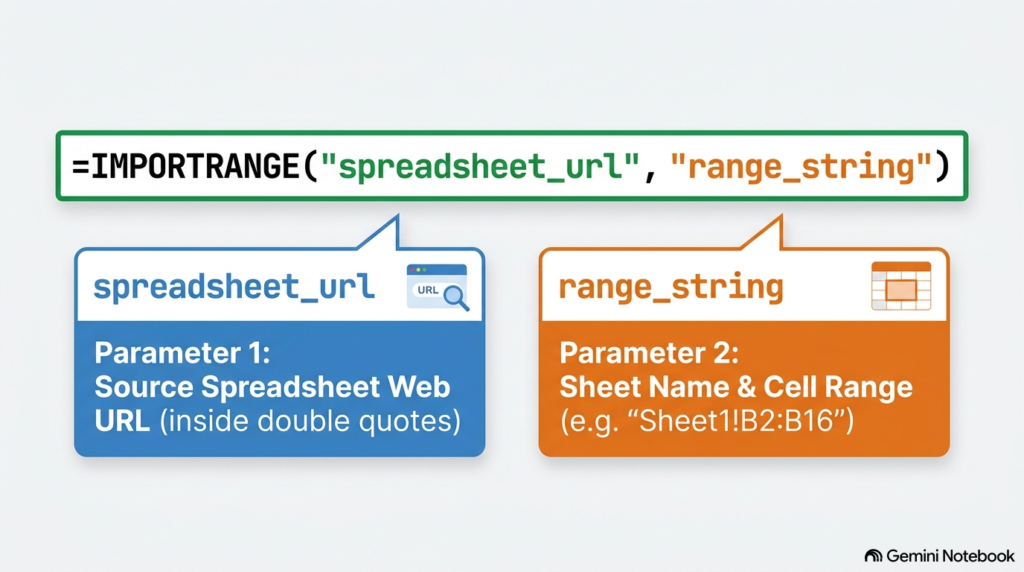
- Get the Spreadsheet URL: Open the employee’s workbook (e.g., Abhilash’s sheet), copy its web address from the browser address bar, and paste it into the formula inside double quotation marks.
- Define the Range String: Specify the sheet name and cell range to pull data from—for example,
"Sheet1!B2:B16". - Your final formula will look similar to:
=IMPORTRANGE("https://docs.google.com/spreadsheets/d/YOUR_SHEET_ID/edit", "Sheet1!B2:B16")
- Press Enter, click on the cell, and select “Allow access” to grant permission for data linking between spreadsheets.
Step 4: Share Workbooks & Enable Mobile Reporting
- Grant Access: Open each employee’s workbook, click File > Share > Share with others, enter their email address, and send the invite. You can also copy the direct sheet link and share it via WhatsApp or email.
- Mobile Submission: Instruct team members to download the free Google Sheets app from the Play Store on their mobile devices. They can log locations visited and tasks completed directly from their phones while working in the field.
- Automated Background Sync: As soon as employees input their data, the Master Workbook automatically populates and updates in real-time. You do not need to keep the Master Workbook open continuously; simply open it whenever you wish to review consolidated team performance.
Summary
By transitioning from manual messaging reports to a linked Google Sheets framework, you eliminate daily administrative overhead while maintaining real-time visibility across your team. For a step-by-step visual demonstration of setting up formulas and interface settings, refer back to the video Send Daily Reports using Google Sheets | Malayalam Tutorial.