STOCKHISTORY pulls historical share prices and currency rates straight into Excel: daily, weekly or monthly, for NASDAQ, NSE, BSE and other exchanges. One formula returns the whole table, and it can be refreshed any time.
Table of Contents
Syntax
=STOCKHISTORY(stock, start_date, [end_date], [interval], [headers], [property0], ...)| Argument | What it means |
|---|---|
stock |
Ticker in quotes, such as "MSFT" or "XNSE:TCS", or a cell with the Stocks data type |
start_date |
First date. Use DATE(2026,1,1) rather than typed text |
end_date |
Optional. Last date; default is today |
interval |
Optional. 0 daily (default), 1 weekly, 2 monthly |
headers |
Optional. 0 no headers, 1 headers (default), 2 headers and the instrument name |
property0… |
Optional. Which columns to show, in any order (table below). Default: Date and Close |
| Code | Column |
|---|---|
| 0 | Date |
| 1 | Close |
| 2 | Open |
| 3 | High |
| 4 | Low |
| 5 | Volume |
Example 1: Closing prices for a date range
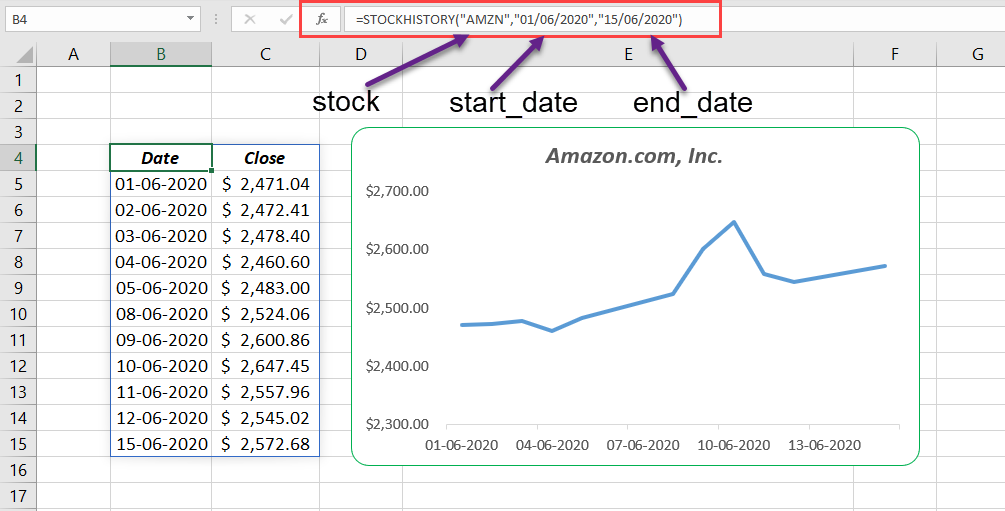
=STOCKHISTORY("AMZN",DATE(2020,6,1),DATE(2020,6,15))Without an exchange code, Excel looks the ticker up on its default exchange, here NASDAQ. It returns one row per trading day: 11 rows for these two weeks.
Example 2: Indian stocks on NSE or BSE
Put the exchange code before the ticker: XNSE for the National Stock Exchange, XBOM for BSE.
=STOCKHISTORY("XNSE:GAIL",DATE(2020,6,1),DATE(2020,6,15))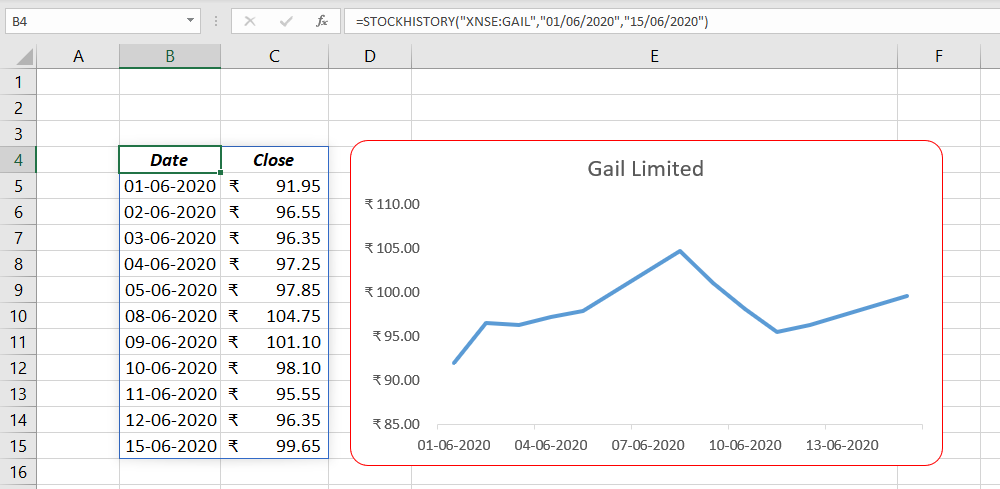
Or convert the company name in a cell to the Stocks data type (Data → Stocks) and point to that cell:
=STOCKHISTORY(E2,DATE(2020,6,1),DATE(2020,6,15))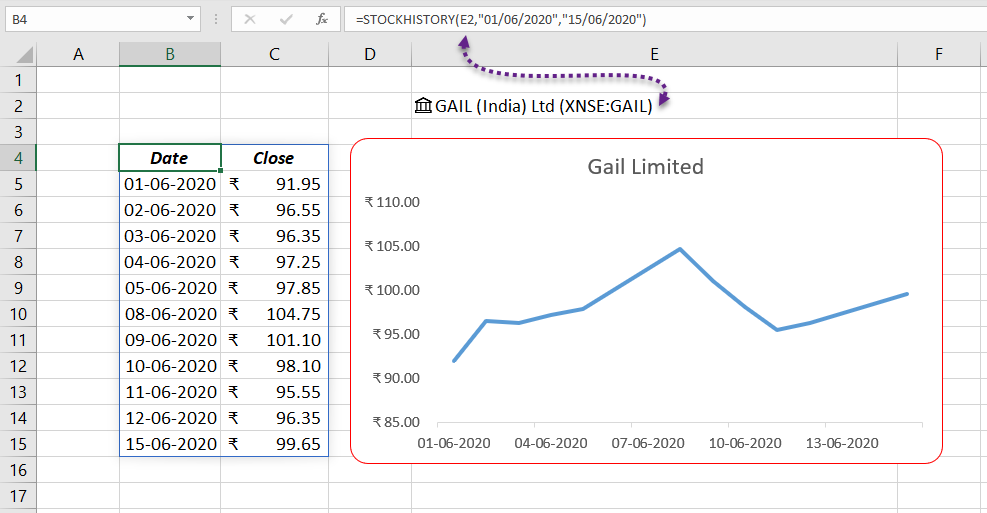
Example 3: Daily, weekly or monthly
The fourth argument sets the interval. With the stock in C2 and dates in C3 and C4:
| Formula | Returns |
|---|---|
=STOCKHISTORY(C2,C3,C4,0) |
Every trading day |
=STOCKHISTORY(C2,C3,C4,1) |
The first trading day of each week |
=STOCKHISTORY(C2,C3,C4,2) |
The first trading day of each month |
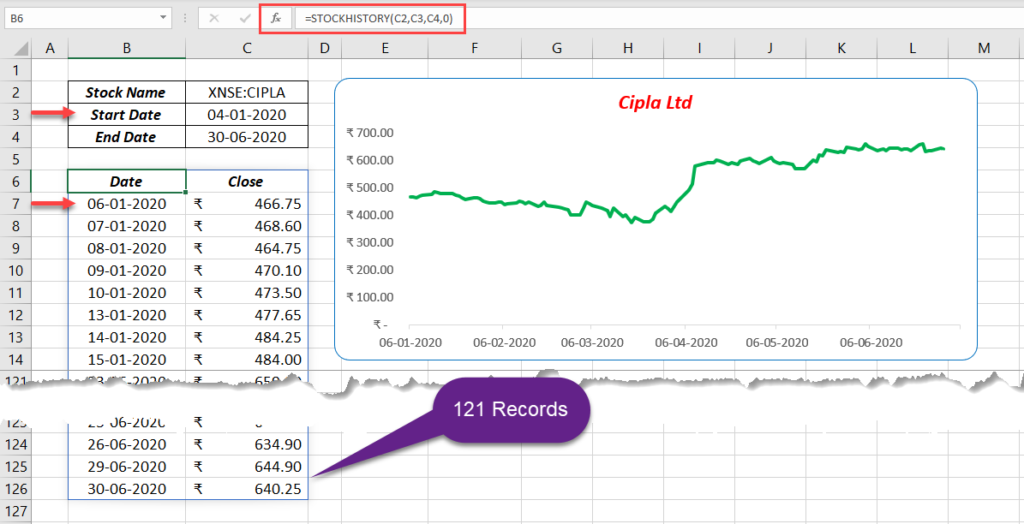
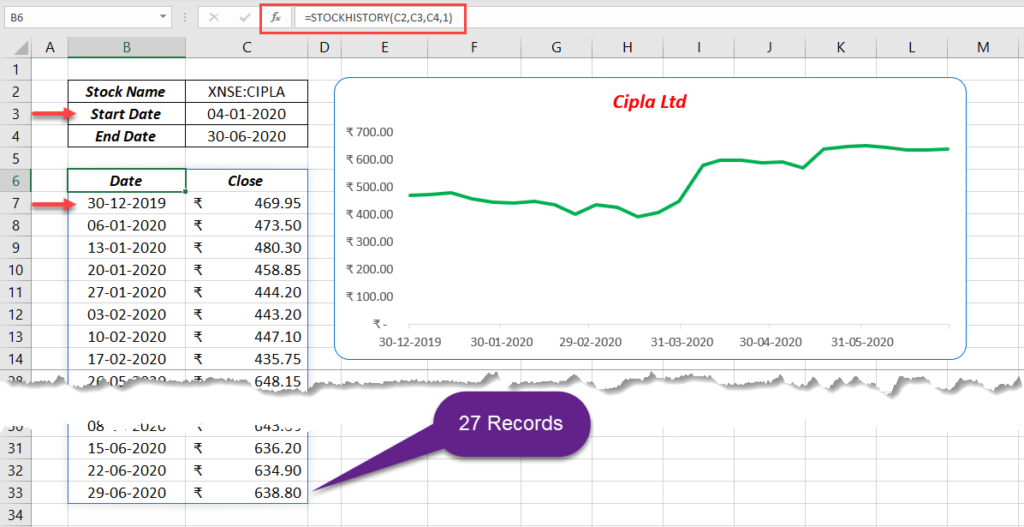
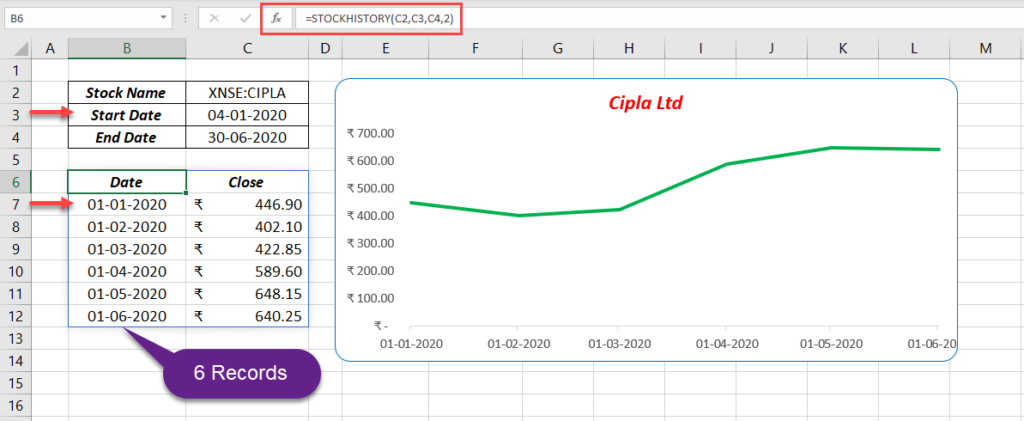
Holidays are skipped: if the start date falls on a market holiday, the list starts on the next trading day.
Example 4: Headers
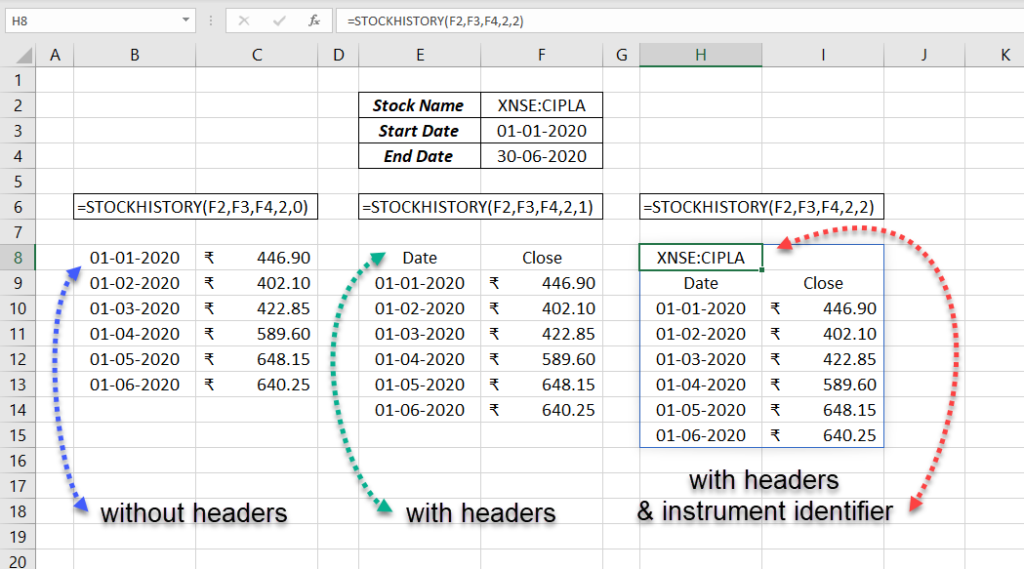
The fifth argument controls the header row: 0 none, 1 column headers, 2 the stock name above the headers.
Example 5: Choose and order the columns
List the property codes you want, in the order you want them. All six columns, weekly, without headers:
=STOCKHISTORY(C2,C3,C4,1,0,0,1,2,3,4,5)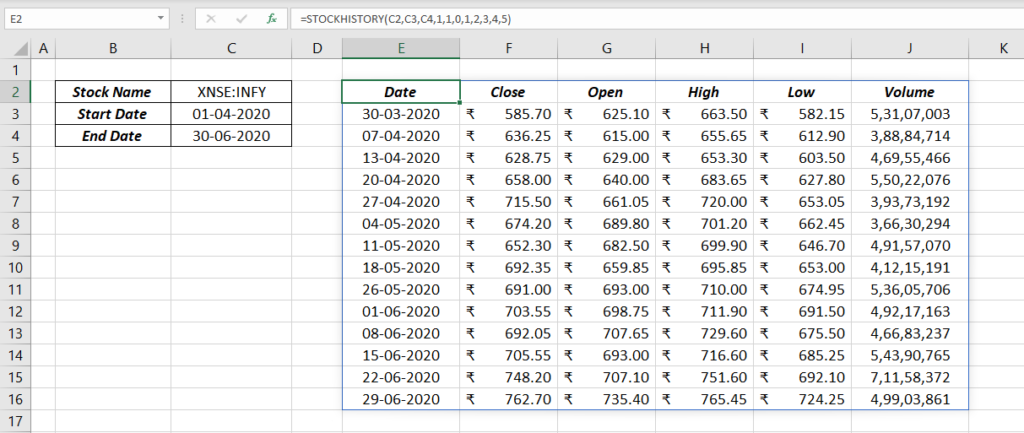
Volume first, then close and date:
=STOCKHISTORY(C2,C3,C4,1,0,5,1,0)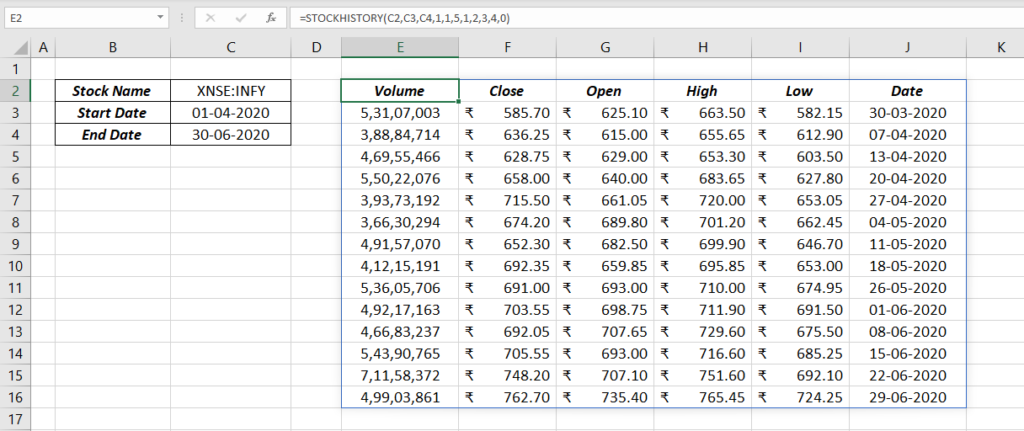
Currency exchange rates
Use two currency codes as the ticker. Saudi riyal to Indian rupee, monthly:
=STOCKHISTORY("SARINR",DATE(2020,1,1),DATE(2020,7,18),2)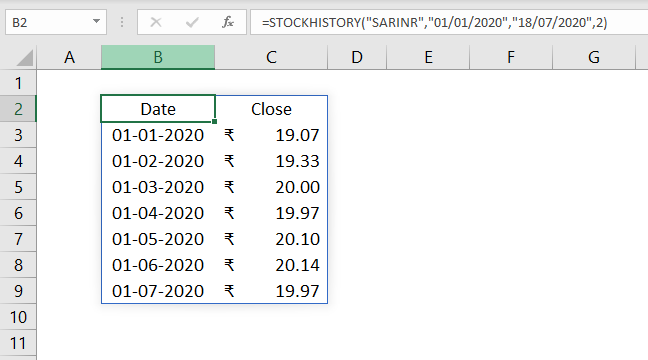
USDINR, USD/INR and USD-INR all work. Results carry their own currency format, so ₹ or $ appears automatically.
Errors
| Error | Meaning |
|---|---|
#BUSY! |
Excel is still fetching the data. Wait a moment |
#CONNECT! |
No internet connection, or the data service can’t be reached |
#BLOCKED! |
Data access is turned off, often by an organization’s settings |
#VALUE! |
Wrong ticker, or the dates are text Excel can’t read |
#SPILL! |
Cells below or to the right aren’t empty |
Things to know
- Prices are historical and can be delayed. Don’t use them for live trading.
- Use
DATE()for dates: typed text like “01/06/2020” can mean 1 June or 6 January depending on your settings. - The result is a spilled array. Leave space below and to the right of the formula.
- Screenshots on this page are from 2020; the formulas work the same today.
Frequently asked questions
Is STOCKHISTORY still in beta?
No. It is available to all Microsoft 365 subscribers. It is not included in one-time-purchase versions such as Excel 2021 or 2024.
Can STOCKHISTORY show today’s live price?
It returns end-of-day history. For the current price, convert the name to the Stocks data type and use a field such as =A2.Price.