How to Write Excel VBA Macros with AI (ChatGPT, Claude, Gemini and Copilot)
To write a VBA macro with AI, describe the task in a chat with ChatGPT, Claude, Gemini or Copilot, paste the code into a module in the VBA editor (Alt + F11), save the file as .xlsm and run the macro with Alt + F8. The AI add-ins that work inside Excel can’t create or run VBA themselves, so the chat is the right place for macros. Always test a new macro on a copy of your file first.
Which AI tools can write VBA macros?
All the main AI assistants can write VBA in a normal chat, including on their free plans. None of the Excel add-ins insert VBA into your workbook: ChatGPT for Excel, Claude for Excel and Copilot’s editing mode change your sheet with Excel’s own features (and Python, in Copilot’s case), not with macros.
| Tool | Writes VBA in chat | Adds VBA inside Excel | Free plan |
|---|---|---|---|
| ChatGPT | Yes | No; the add-in doesn’t fully support macros | Yes |
| Claude | Yes | No; the add-in can’t run macros or VBA | Yes |
| Gemini | Yes | No (Gemini works in Google Sheets, which uses Apps Script, not VBA) | Yes |
| Microsoft Copilot | Yes, in the Copilot app or chat | No; Copilot edits workbooks with Excel features and Python | Copilot app is free |
How do you add an AI-written macro to Excel?
It takes six steps and about two minutes. You only need to do step 1 once.
- Show the Developer tab — go to File → Options → Customize Ribbon and tick Developer.
- Ask the AI for the macro — use the prompt template below, with your sheet name and ranges.
- Open the VBA editor — press Alt + F11, then choose Insert → Module.
- Paste the code into the empty module window.
- Save as a macro-enabled workbook — File → Save As and choose Excel Macro-Enabled Workbook (*.xlsm). A normal .xlsx file deletes the macro when you save.
- Run the macro — press Alt + F8, select the macro and click Run.
Note: macros run in Excel for Windows and Mac. They don’t run in Excel for the web or on phones.
How do you write a good prompt for a macro?
A good macro prompt names the sheet, the exact ranges, what should happen, and what the macro must not touch. Ask for short code with comments, so you can read what it does before you run it.
Examples: three useful macros written with AI
Each example shows the prompt, the code the AI should give you, and the result. The code is short on purpose: shorter macros are easier to check.
1. Highlight values above a target
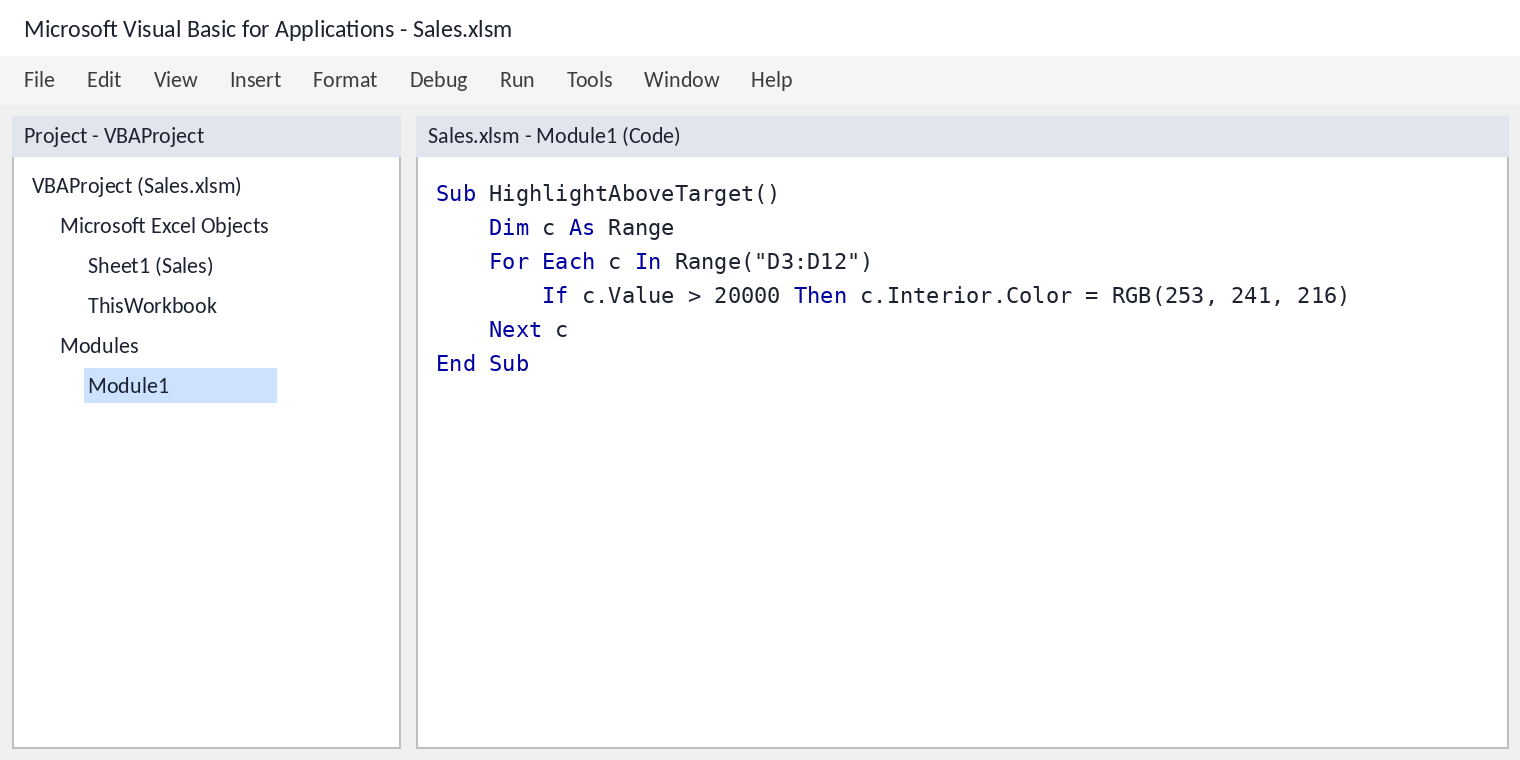
Sub HighlightAboveTarget()
    Dim c As Range
    For Each c In Range("D3:D12")
        If c.Value > 20000 Then c.Interior.Color = RGB(253, 241, 216)
    Next c
End Sub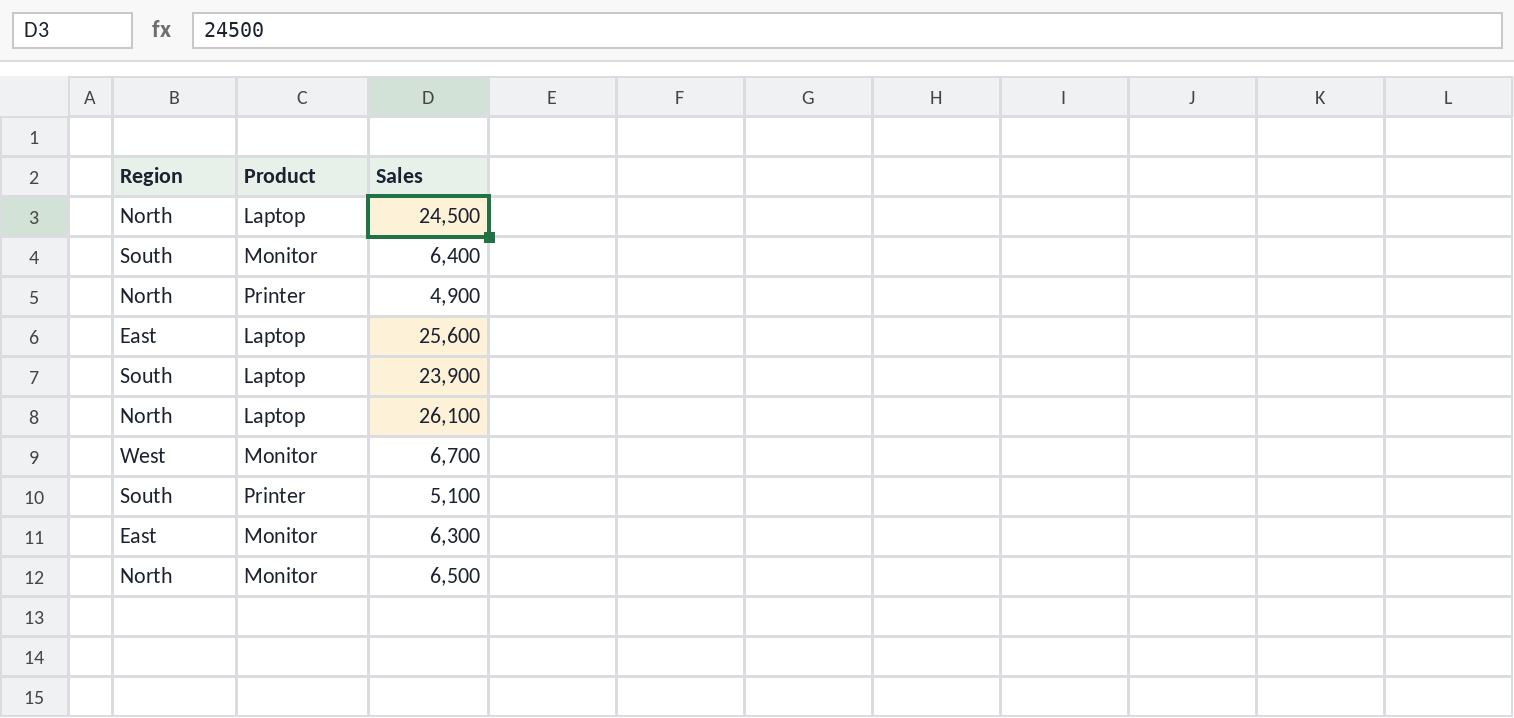
The macro checks each cell in D3:D12 one by one. For a highlight that updates by itself when values change, conditional formatting is the better tool; a macro is useful when you want a fixed result.
2. Delete blank rows
Sub DeleteBlankRows()
    Dim r As Long
    With ActiveSheet.UsedRange
        For r = .Row + .Rows.Count - 1 To .Row Step -1
            If WorksheetFunction.CountA(Rows(r)) = 0 Then Rows(r).Delete
        Next r
    End With
End Sub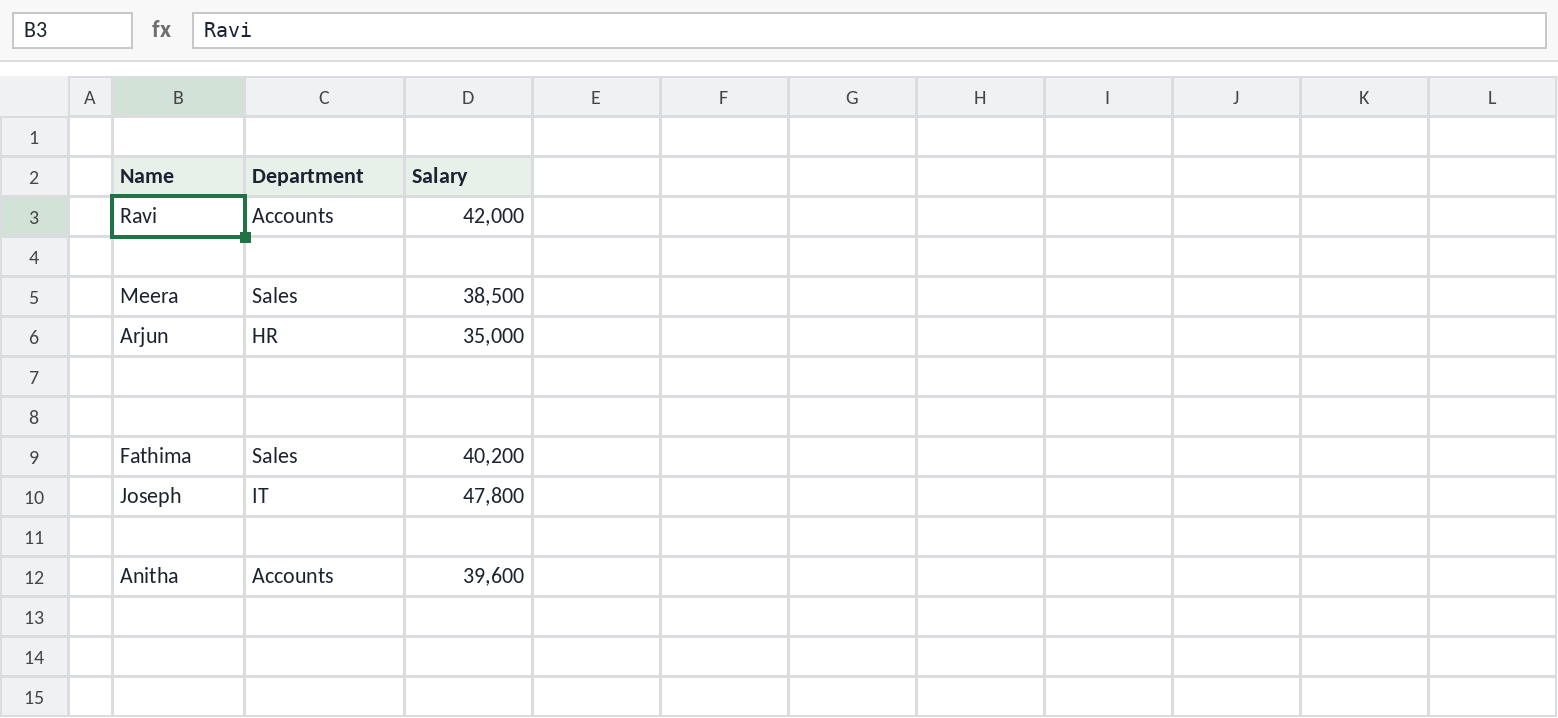
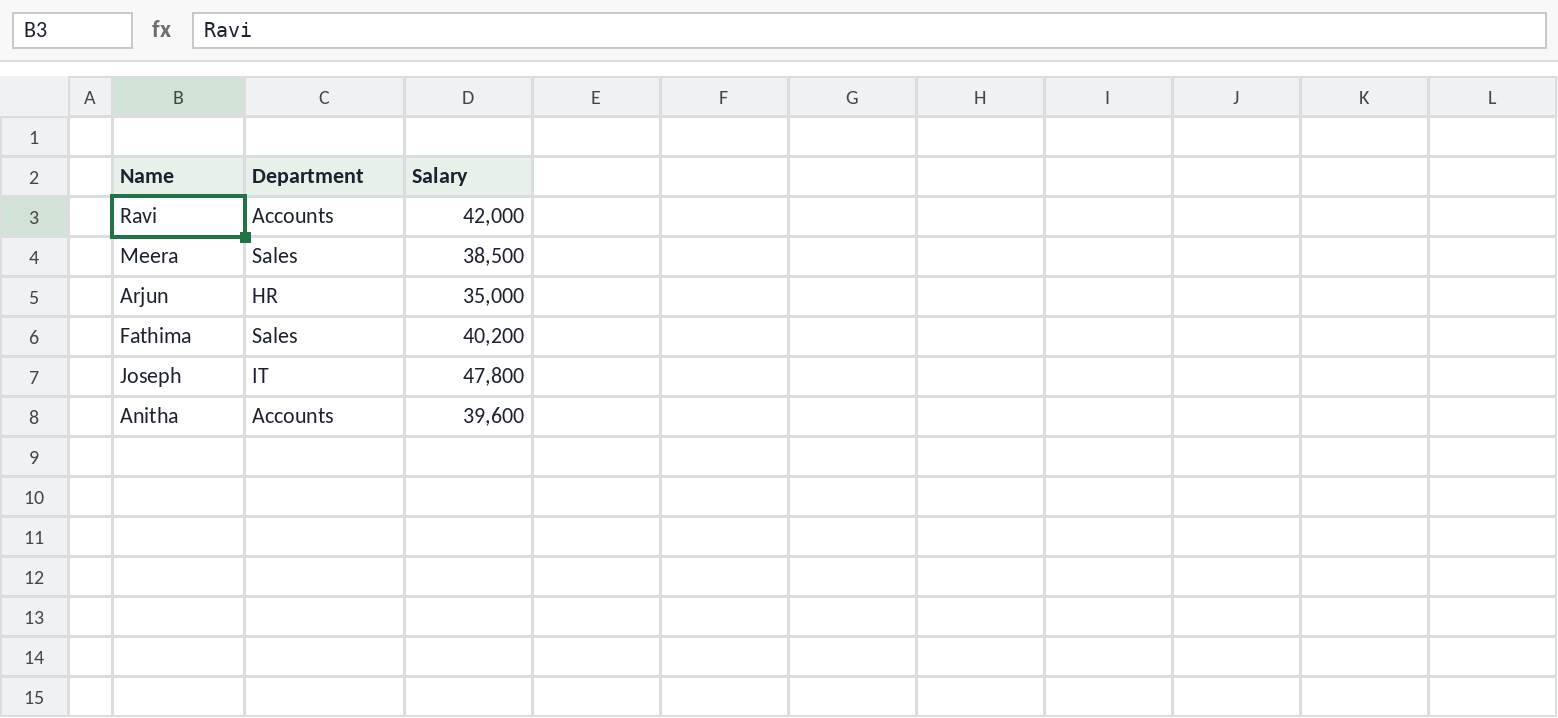
The loop runs from the bottom row up (Step -1). Deleting from the top down would skip rows, because each deletion moves the rows below it up by one. This is a common mistake in AI code, so check for it.
3. Save each sheet as a PDF
Sub SaveSheetsAsPDF()
    Dim ws As Worksheet
    For Each ws In ThisWorkbook.Worksheets
        ws.ExportAsFixedFormat xlTypePDF, ThisWorkbook.Path & "\" & ws.Name & ".pdf"
    Next ws
End Sub
Save the workbook before you run this macro, because an unsaved file has no folder path. On a Mac, ask the AI for a version that uses Application.PathSeparator instead of “\”.
For more ready-made code, see my collection of Excel VBA macros.
How do you test a macro from AI safely?
A macro can’t be undone with Ctrl + Z, so test every AI-written macro on a copy of your file. Read the code first: if it deletes, clears or overwrites anything, make sure the ranges are right.
- Work on a copy — save a backup before you run any new macro.
- Read the ranges — check every sheet name and range in the code against your data.
- Step through it — in the VBA editor, press F8 to run one line at a time and watch what happens.
- Ask the AI to explain — paste the code back and ask what each line does.
- Don’t run macros you don’t understand from files or websites you don’t trust.
What errors do AI-written macros cause?
Most errors come from a mismatch between the code and your workbook, not from the AI’s logic. Paste the exact error message back into the chat, and the AI can usually fix it.
| Error | Usual cause | Fix |
|---|---|---|
| Subscript out of range | The sheet name in the code doesn’t match your sheet | Correct the sheet name, including spaces |
| Compile error: Sub or Function not defined | A typo, or a function that doesn’t exist in VBA | Paste the error into the chat and ask for a fix |
| Run-time error 1004 | The code refers to a range or file that doesn’t exist | Check the ranges and file paths |
| Macro disappears after saving | The file was saved as .xlsx | Save as .xlsm |
| Macros are blocked | The file came from the internet or email | Right-click the file → Properties → tick Unblock, if you trust it |
FAQ
Can ChatGPT write VBA code for Excel?
Yes. ChatGPT can write, explain and fix VBA macros in a chat, including on the free plan. Paste the code into a module in the VBA editor to use it.
Can Copilot write macros inside Excel?
Copilot can write VBA code when you ask in chat, but its editing mode in Excel changes your workbook with Excel features and Python, not with VBA. Paste the code into the VBA editor yourself.
Is AI-written VBA code safe?
It’s as safe as the code itself. Read it, test it on a copy of your file, and don’t run code that deletes or overwrites data until you’ve checked the ranges.
Which AI is best for VBA?
ChatGPT and Claude both write reliable VBA for everyday tasks. Claude is often stronger on longer, more complex code. Whichever you use, a clear prompt with sheet names and ranges matters more than the tool.