How to Use AI to Write Excel Formulas (ChatGPT, Gemini, Claude and Copilot)
AI can write most Excel formulas for you if you describe your data clearly: where it is, what you want, and where the answer should go. You can ask in a chat and paste the formula into Excel, or use an AI add-in that works inside your workbook. Always test the formula on a few rows before you trust it.
Which AI tools can write Excel formulas?
ChatGPT, Claude, Gemini and Microsoft Copilot can all write Excel formulas. The main difference is where they work and what they cost. ChatGPT’s Excel add-in is free on every plan, Claude’s needs a paid plan, Gemini works best in Google Sheets, and Copilot needs a Microsoft 365 plan that includes it.
| Tool | Where it works | What it costs |
|---|---|---|
| ChatGPT | Chat, plus add-ins for Excel and Google Sheets | Free on all plans, with usage limits |
| Claude | Chat, plus an Excel add-in | Chat is free; the Excel add-in needs Pro (about ₹2,000 a month) or higher |
| Gemini | Chat, plus built into Google Sheets | Chat is free; most Sheets features need Google AI Pro |
| Copilot in Excel | Inside Excel | Microsoft 365 Personal or Family with an AI credits plan, Microsoft 365 Premium, or a business Copilot plan |
Note: Microsoft retired the =COPILOT() worksheet function on 14 September 2026. Copilot in Excel now works through the Copilot side pane.
How do you write a good prompt for an Excel formula?
A good prompt tells the AI five things: where your data is, what result you want, which cell the formula goes in, what to do with missing or blank values, and which version of Excel you use. With those five details, you usually get a working formula on the first try.
- Where the data is — the sheet name, the range and the header row, for example “product names in B3:B8, prices in D3:D8”.
- What you want — the result in plain words, for example “the price of the product typed in F3”.
- Where the answer goes — the exact cell, for example “the formula goes in G3 and will be filled down”.
- Edge cases — what to show if the value is missing, blank or an error.
- Your Excel version — Microsoft 365, Excel 2021 or Excel 2019. Newer functions such as XLOOKUP and TEXTBEFORE don’t work in older versions.
Prompt template
Copy this template, fill in the brackets and paste it into any AI tool:
Vague prompt vs clear prompt
| Vague prompt | Clear prompt |
|---|---|
| Give me a formula to find the price. | Write a formula in G3 that finds the price of the product in F3 from the table in B3:D8 (product names in column B, prices in column D). Show “Not found” if it’s missing. I use Microsoft 365. |
Examples: prompts and the formulas they produce
Here are six everyday tasks, the prompt to use for each one, and the formula that does the job. Every example uses the same layout: headers in row 2 and data from row 3.
1. How do you look up a value with AI?
Ask for a lookup when you want to find one value in a table, like a price, a phone number or a department.
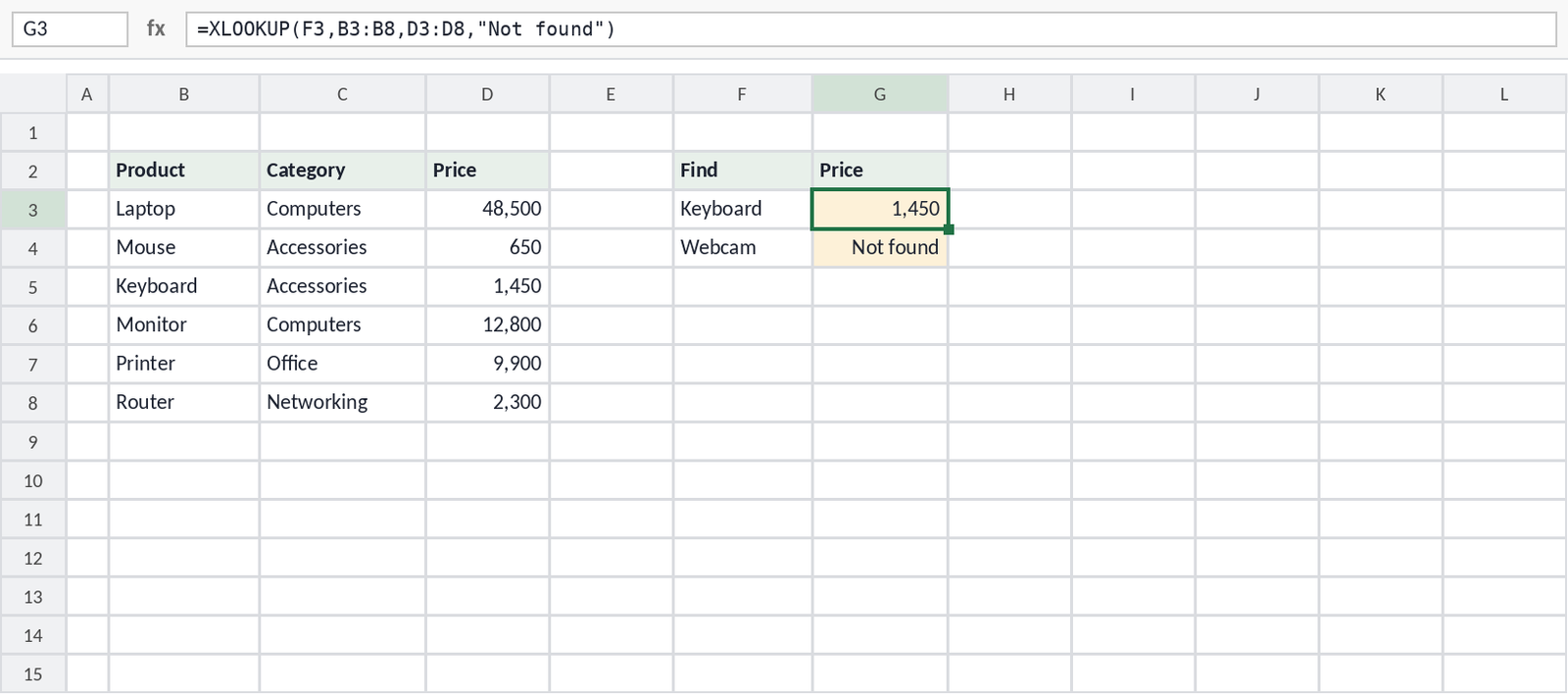
=XLOOKUP(F3,B3:B8,D3:D8,"Not found") returns 1,450 for Keyboard, and “Not found” for Webcam.XLOOKUP looks for F3 in B3:B8 and returns the matching value from D3:D8. The fourth argument is what to show when there’s no match. In Excel 2019 or older, ask the AI for an INDEX and MATCH version instead.
2. How do you add up values with two conditions?
Use this when you need a total that meets more than one condition, like sales for one region and one product.
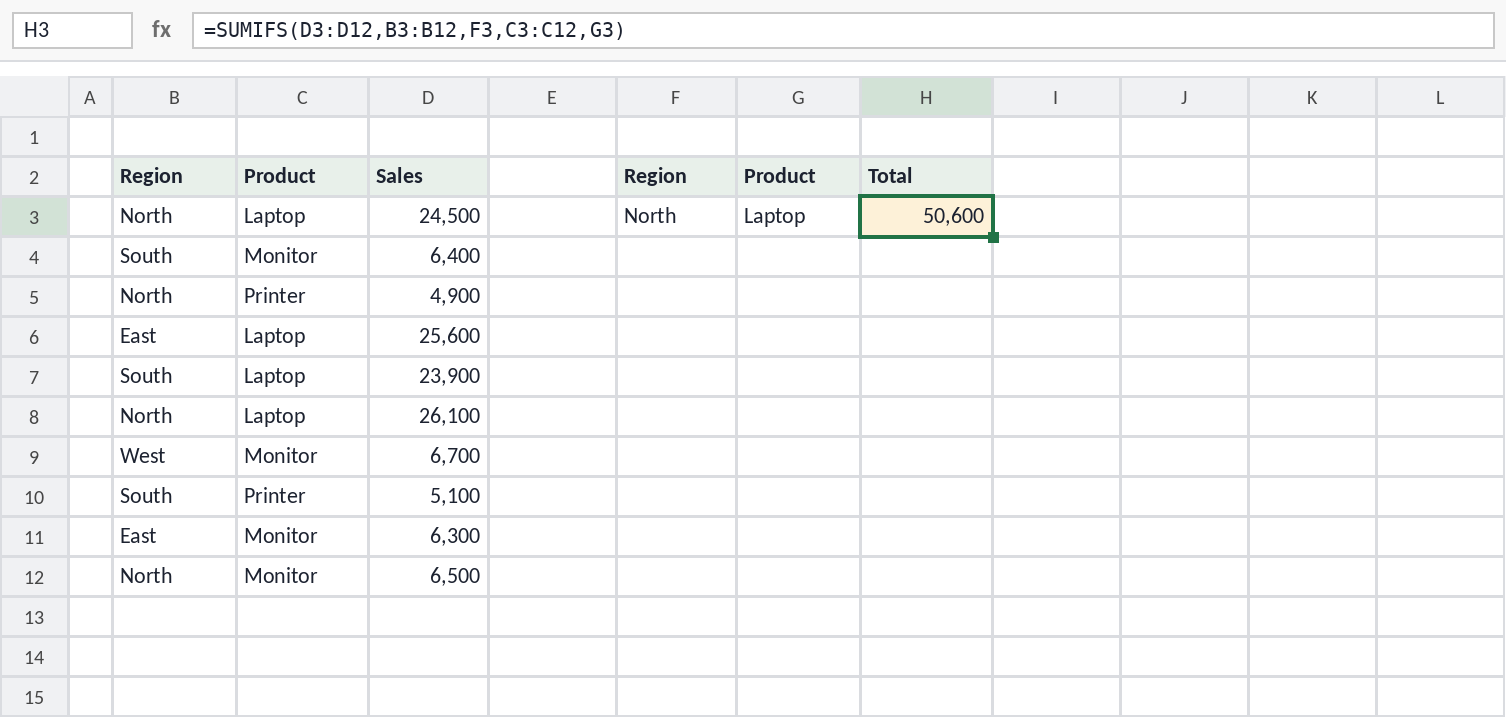
=SUMIFS(D3:D12,B3:B12,F3,C3:C12,G3) adds the two North Laptop sales: 24,500 + 26,100 = 50,600.SUMIFS takes the range to add first, then pairs of “range, condition”. You can keep adding pairs for more conditions.
3. How do you count rows that meet conditions?
Use this to count orders, students or entries that match one or more rules.
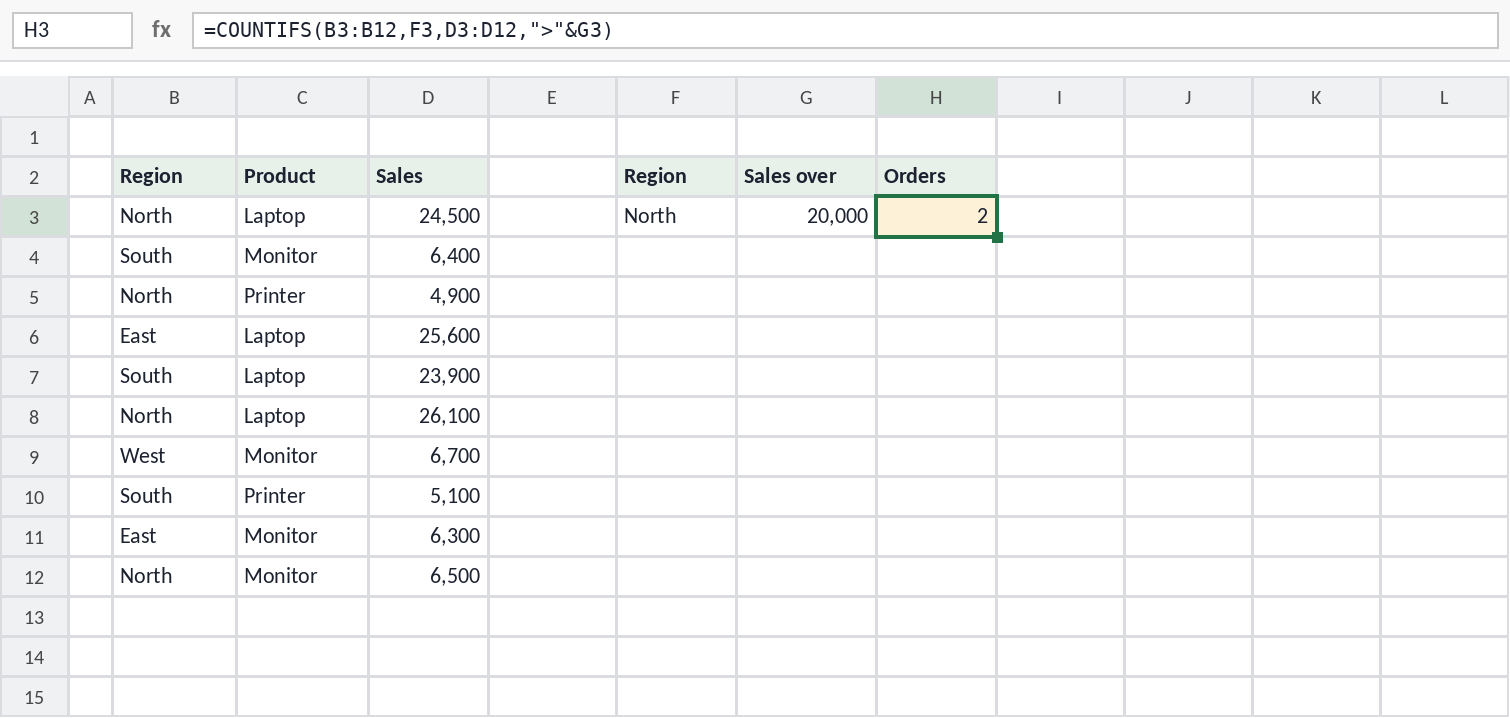
=COUNTIFS(B3:B12,F3,D3:D12,">"&G3) counts 2 North orders above 20,000.The condition ">"&G3 joins the greater-than sign to the number in G3. This lets you change the limit in G3 without editing the formula.
4. How do you assign grades with AI?
Use this when a number needs to become a label, like a grade, a rating or a tax slab.
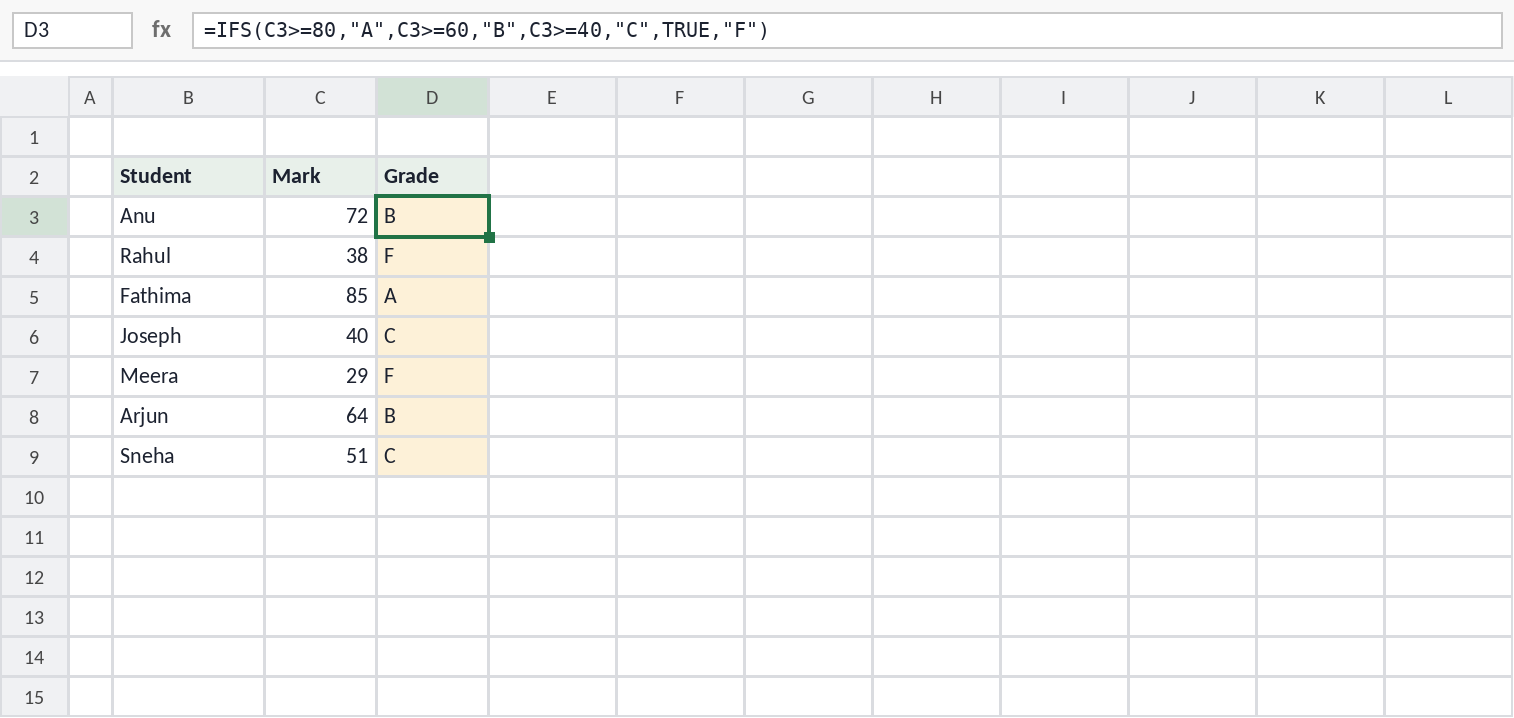
=IFS(C3>=80,"A",C3>=60,"B",C3>=40,"C",TRUE,"F") gives each student a grade.IFS checks each condition in order and stops at the first one that’s true. The final TRUE catches everything else. Always list the highest limit first.
5. How do you clean messy names?
Use this for names or text copied from forms or other systems, with extra spaces and mixed capitals.
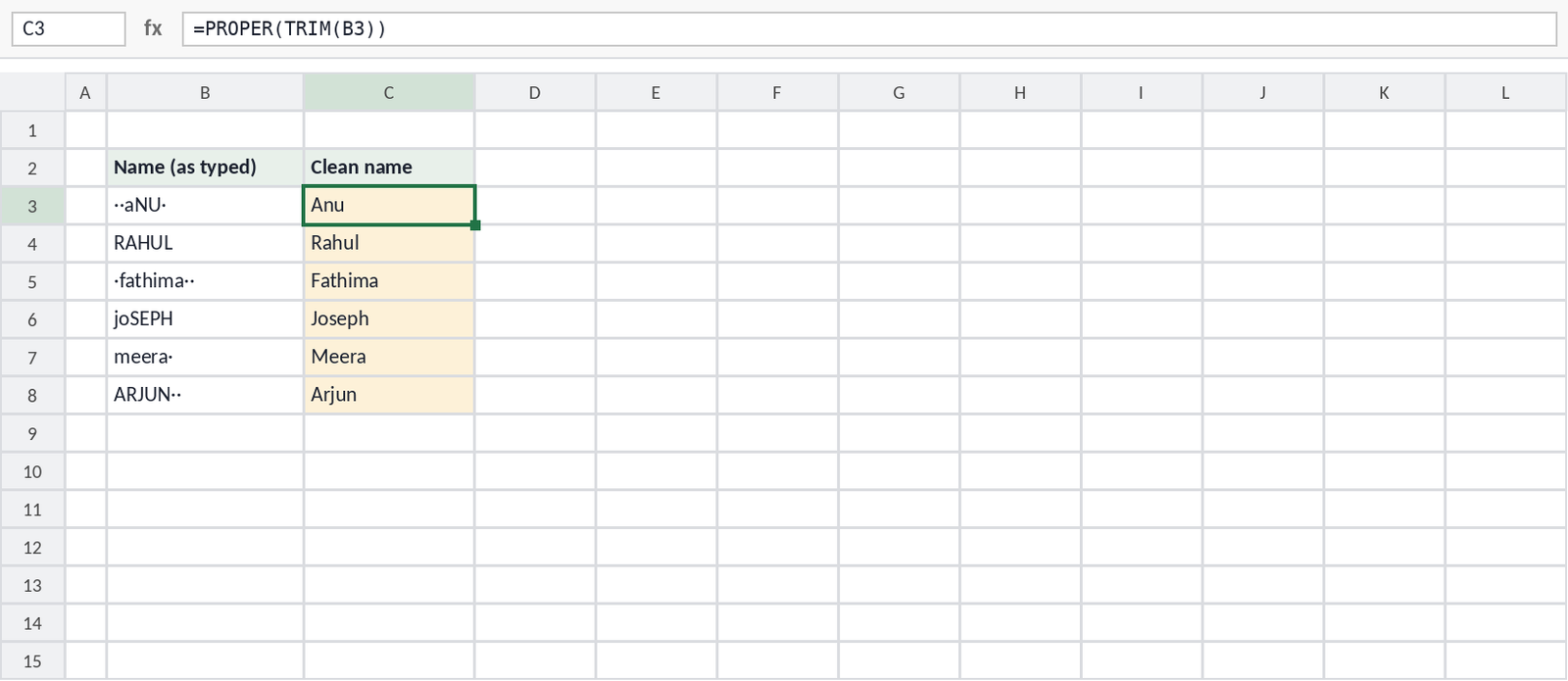
=PROPER(TRIM(B3)) removes extra spaces (shown here as dots) and fixes the capitals.TRIM removes spaces at the start and end and turns double spaces into single ones. PROPER then capitalises the first letter of each word.
6. How do you pull out part of a code?
Use this when one cell holds several pieces of information, like an order code, an email address or a full name.
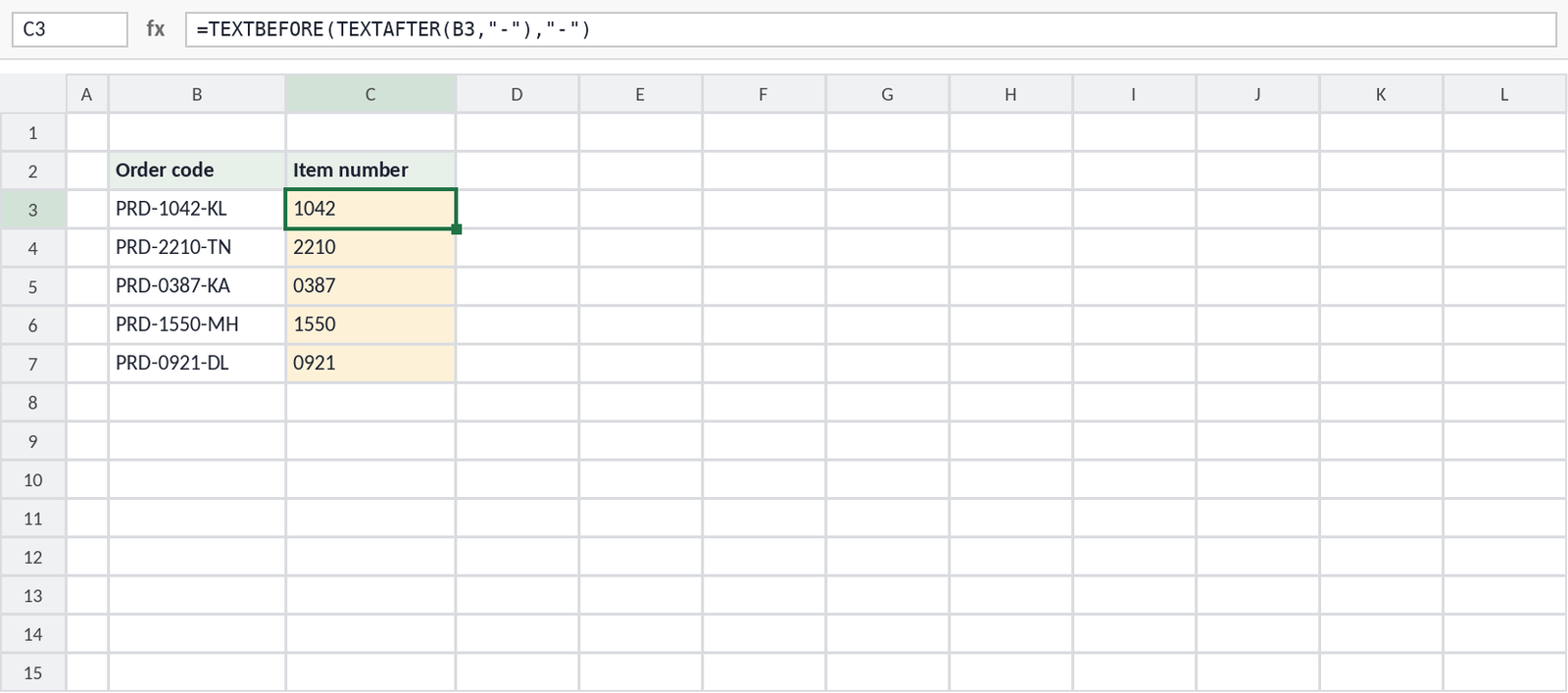
=TEXTBEFORE(TEXTAFTER(B3,"-"),"-") returns the part between the two dashes.TEXTAFTER takes everything after the first dash, and TEXTBEFORE keeps everything before the next dash. These functions are only in Microsoft 365. For older versions, ask the AI for a MID and FIND formula instead.
How do you check a formula from AI?
Test every AI formula before you use it on real work. AI tools are usually right with common formulas, but they can pick the wrong range, miss an edge case or use a function your Excel doesn’t have.
- Check a few rows by hand — work out two or three results yourself and compare.
- Test the edge cases — try a missing value, a blank cell and the highest and lowest numbers.
- Check the ranges — make sure they cover every row of your data, not just the first few.
- Check the $ signs — ranges that shouldn’t move when you fill down need $, like $D$3:$D$12.
- Step through it — use Formulas → Evaluate Formula to see how Excel calculates each part.
- Ask for an explanation — if you can’t explain the formula yourself, ask the AI to explain it step by step.
What mistakes does AI make with Excel formulas?
Most AI formula errors fall into a few patterns, and each one shows up in a predictable way. This table shows what to look for and how to fix it.
| Mistake | What you see | How to fix it |
|---|---|---|
| Uses a function your Excel doesn’t have | #NAME? | Tell the AI your Excel version and ask for an alternative |
| Ranges of different sizes | #VALUE! or wrong totals | Make sure every range covers the same rows |
| Missing $ signs | Correct in the first row, wrong after filling down | Ask for absolute references on the data ranges |
| Numbers stored as text | Lookups return #N/A even though the value is there | Convert the column to numbers, or ask for a formula that handles both |
| Semicolons instead of commas | Excel says there’s a problem with the formula | Ask for commas, or match your regional settings |
| A function that doesn’t exist | #NAME? | Ask the AI which Excel version the function is from, then for a real alternative |
Should you use an AI chat or an Excel add-in?
Use a chat for quick, one-off formulas, and use an add-in when you want the AI to read your actual workbook. An add-in sees your sheet names, ranges and data, so it makes fewer range mistakes. A chat only knows what you type, so the prompt template above matters more.
For macros, use the chat: describe the task and paste the VBA code into Excel yourself. For ready-made code, see my collection of Excel VBA macros.
FAQ
Can ChatGPT write Excel formulas?
Yes. ChatGPT can write, explain and fix Excel formulas in a chat, and its Excel add-in works inside your workbook on every plan, including Free.
Which AI is best for Excel formulas?
ChatGPT is the easiest place to start because its Excel add-in is free. Claude’s Excel add-in is strong for complex multi-sheet models but needs a paid plan. For Google Sheets, use Gemini. See ChatGPT vs Gemini vs Claude for the full comparison.
Is it safe to use AI formulas without checking?
No. Test every AI formula on a few rows, including missing and blank values, before you rely on it.
Do AI formulas work in Excel 2019?
Only if you tell the AI your version. Functions such as XLOOKUP, TEXTBEFORE and TEXTAFTER need newer versions of Excel, so ask for an alternative that works in Excel 2019.