Power Query's Text.Reverse reverses each text string in a column, so Ajay becomes yajA. Wrap it in Text.Proper to tidy the capitals, and refresh whenever the list changes.
M functionText.Reverse
Tidy capitalsText.Proper(Text.Reverse(…))
Works inExcel 2016 and later, Power BI
Step 1: Load the list
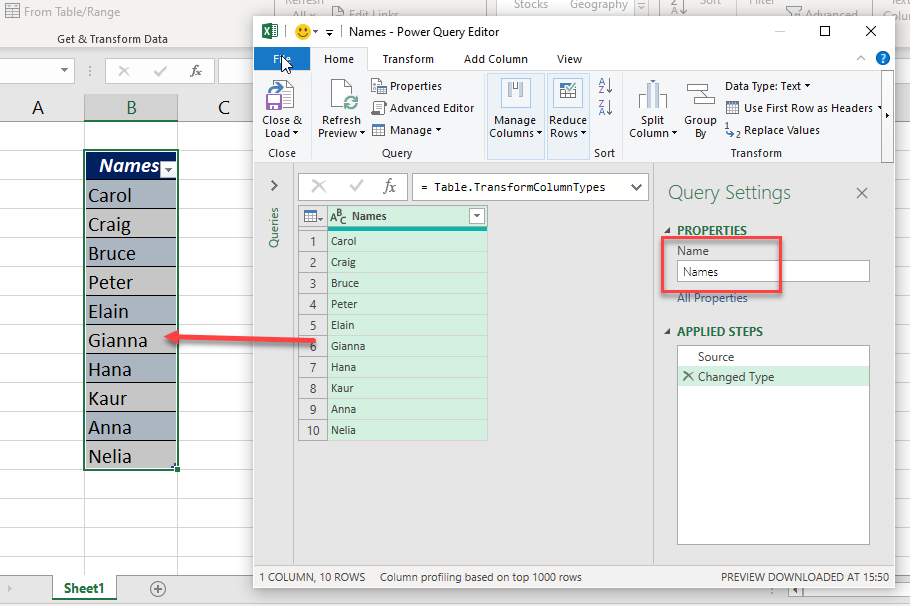
Click in the list → Data → From Table/Range → OK.

Step 2: Add a reversed column
Add Column → Custom Column, name it Reversed, and enter:
Text.Reverse([Names])

Step 3: Fix the capitals
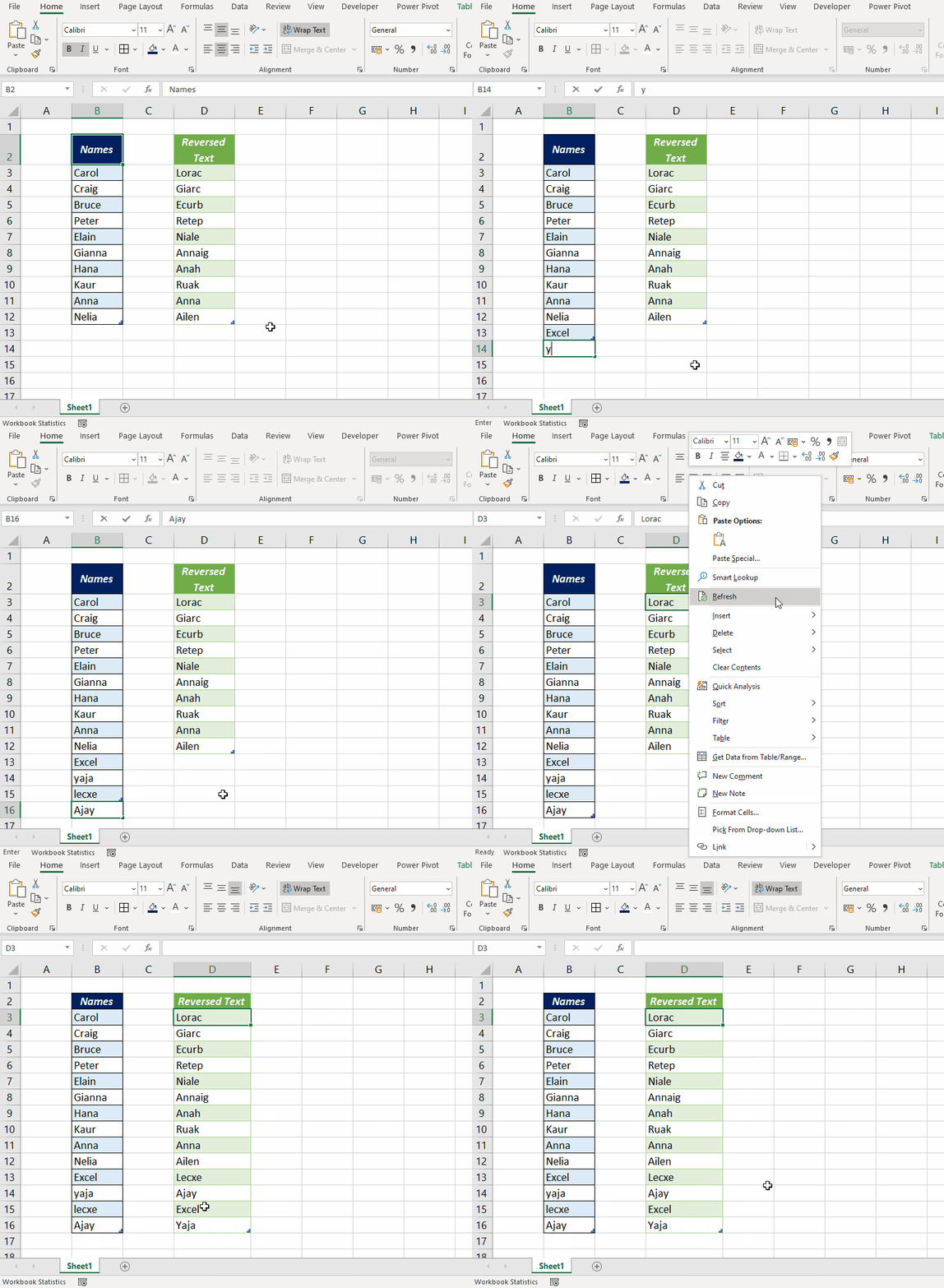
Reversing Ajay gives yajA, with the capital at the end. Edit the step (double-click Added Custom in Applied Steps) and change the formula to:
Text.Proper(Text.Reverse([Names]))
Now it's Yaja.
Step 4: Load and refresh
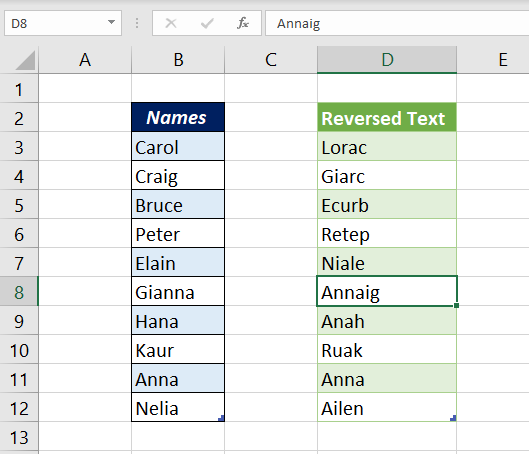
Remove the original column if you don't need it, then Home → Close & Load To. Right-click the result → Refresh after adding names.
Other ways
An Excel 365 formula, a one-line VBA function and a macro are compared in reverse text in Excel. To reverse the order of words or of rows, see that page and reverse a list.