The Excel TRUNC function cuts off the decimal part of a number without rounding. 8.79 becomes 8, not 9.
PurposeRemove decimals without rounding
ReturnsA number
Available inAll Excel versions, Excel for the web, Google Sheets
number |
The number to truncate. |
|---|---|
num_digits optional |
How many decimal places to keep. Default is 0. |
Table of Contents
Basic example
TRUNC drops everything after the decimal point:
=TRUNC(B3)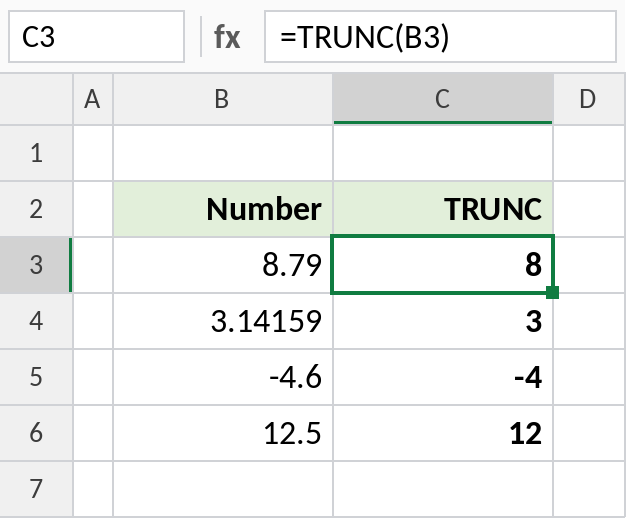
8.79 becomes 8. -4.6 becomes -4: TRUNC simply cuts, so negative numbers move towards zero.
Keep some decimals
Give the number of decimals to keep. Nothing is rounded up:
=TRUNC(B4,2)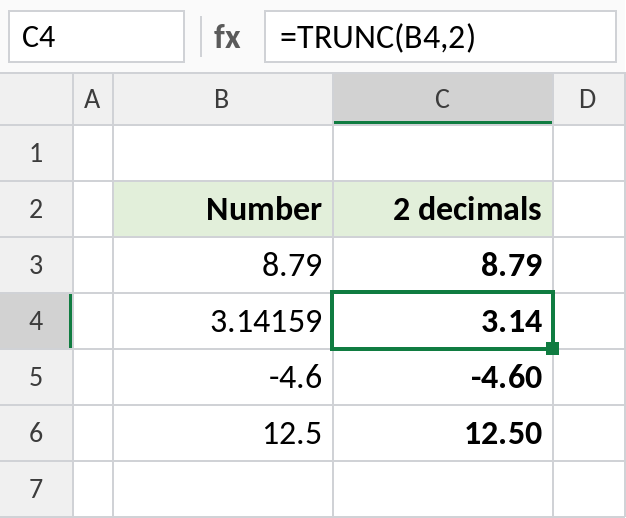
3.14159 becomes 3.14, and 8.79 stays 8.79.
Remove the time from a date
Dates with times are whole numbers plus a decimal for the time. TRUNC keeps just the date:
=TRUNC(B3)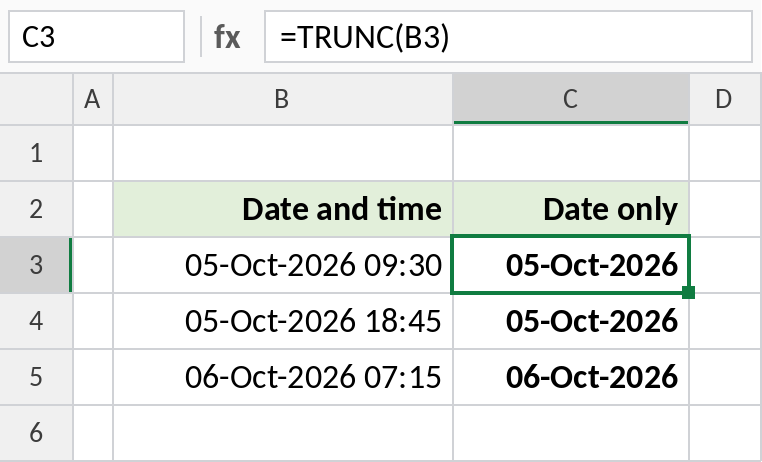
05-Oct-2026 09:30 becomes 05-Oct-2026, ready for grouping or matching by date.
TRUNC vs INT vs ROUND
| Formula | For 8.79 | For -4.6 |
|---|---|---|
=TRUNC(x) |
8 | -4 |
=INT(x) |
8 | -5 |
=ROUND(x,0) |
9 | -5 |
=ROUNDDOWN(x,0) |
8 | -4 |
TRUNC and ROUNDDOWN give the same results. INT always goes down, so negative numbers become more negative.
Notes
- A negative num_digits truncates to the left of the decimal point:
=TRUNC(123.456,-1)returns 120. - TRUNC changes the actual value. Number formatting only changes what’s displayed.
- For negative numbers, TRUNC and INT give different results.
Common errors
| Problem | Cause | Fix |
|---|---|---|
| Unexpected result for negatives | INT expected | Use INT to always round down |
#VALUE! |
Text instead of a number | Convert it with VALUE |
Practice file
All three examples plus the comparison in a cheat sheet.