The Excel ROUND function rounds a number to a given number of decimal places. It changes the stored value, not just how the number looks.
number |
The number to round, or a cell or formula that returns one. |
|---|---|
num_digits |
How many decimal places to keep. Use 0 for a whole number and a negative number to round to tens, hundreds and so on. |
Table of Contents
Basic example
To round each value to two decimal places, use 2 as num_digits and fill the formula down:
=ROUND(B3,2) 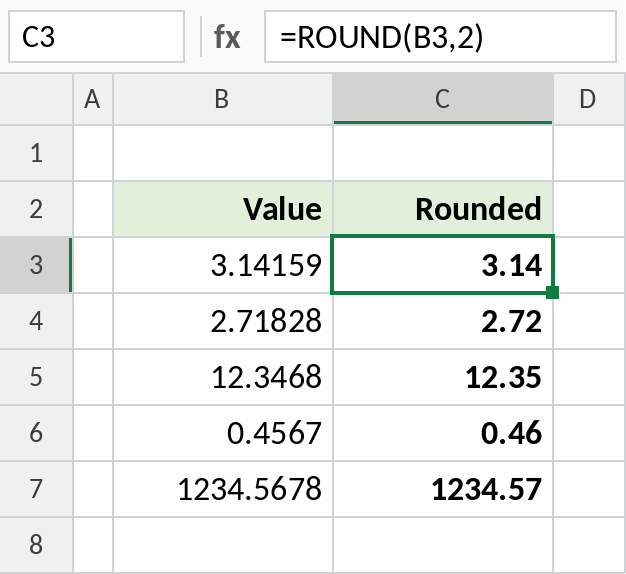
3.14159 becomes 3.14 and 2.71828 becomes 2.72. When the next digit is 5 or more, ROUND rounds up. Otherwise it rounds down.
How num_digits works
This table rounds the same number, 1234.5678, with different values of num_digits:
=ROUND($E$3,B3) 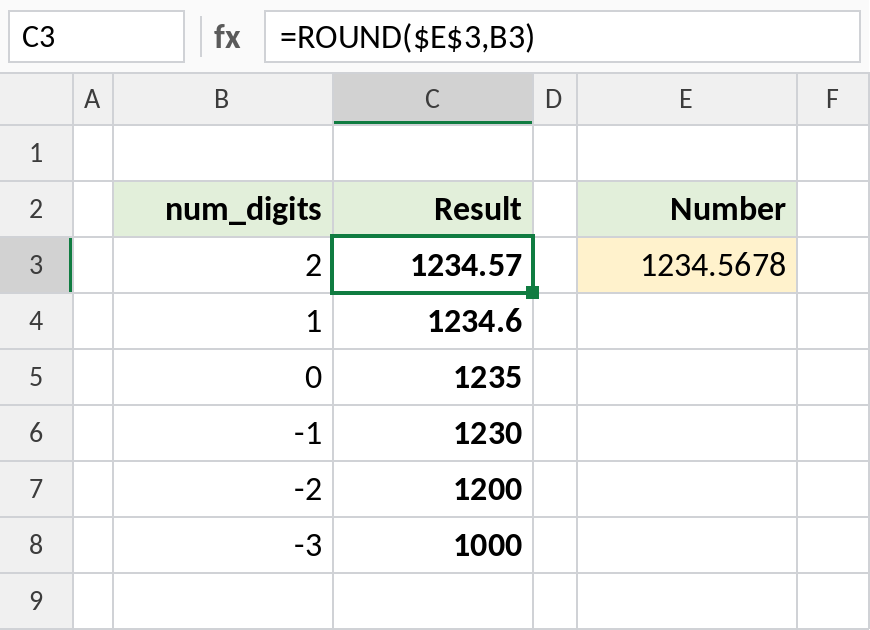
Positive values keep decimals, 0 gives a whole number (1235), and negative values round to the left of the decimal point: -1 to tens (1230), -2 to hundreds (1200), -3 to thousands (1000).
Round the result of a calculation
Wrap ROUND around a formula to round its result. Here, 18% GST is rounded to two decimals:
=ROUND(B6*18%,2) 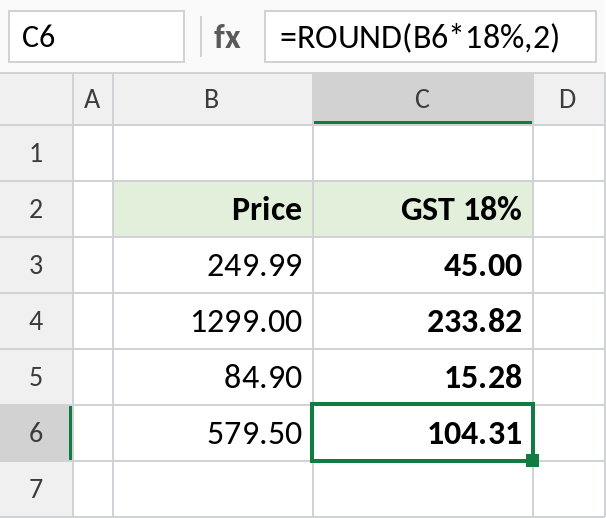
579.50 × 18% is exactly 104.31, while 84.90 × 18% is 15.282, which rounds to 15.28. Rounding each line like this makes your totals match what you see on an invoice.
ROUND and its relatives
Each function below rounds 7.45 or -7.45 in a different way:
| Formula | 7.45 | -7.45 | What it does |
|---|---|---|---|
ROUND(x,1) |
7.5 | -7.5 | Nearest, halves away from zero |
ROUNDUP(x,1) |
7.5 | -7.5 | Always away from zero |
ROUNDDOWN(x,1) |
7.4 | -7.4 | Always toward zero |
MROUND(x,0.5) |
7.5 | -7.5 | Nearest multiple of 0.5 |
INT(x) |
7 | -8 | Down to the whole number below |
TRUNC(x) |
7 | -7 | Cuts off the decimals |
Notes
- ROUND rounds halves away from zero: 2.5 becomes 3 and -2.5 becomes -3.
- Changing the number format, for example with the Decrease Decimal button, only changes how a number looks. The full value is still used in calculations. ROUND changes the value itself.
- To round to the nearest 5, 10 or 0.25, use MROUND. To always round up or down, use ROUNDUP or ROUNDDOWN.
- With MROUND, the number and the multiple must have the same sign, so
MROUND(-7.45,0.5)returns#NUM!. UseMROUND(-7.45,-0.5).
Common errors
| Problem | Cause | Fix |
|---|---|---|
| Total is off by 0.01 | Cells are formatted to 2 decimals but not rounded, so hidden decimals add up | Round each line with =ROUND(...,2) before totalling |
#VALUE! |
number is text |
Convert the text to a number first |
| Result looks unrounded | The cell format shows more decimals than ROUND kept, such as 1234.60 | Reduce the decimals shown, or use General format |
Practice file
All three examples plus a cheat sheet of the ROUND family.