
To join first name, last name and other columns into one cell, use &, CONCAT, or TEXTJOIN, which adds a separator and skips blanks. Flash Fill and Power Query do it without formulas.
Table of Contents
1. The & operator
=B3&" "&C3&" "&D3" " adds a space between the values.

2. CONCATENATE
=CONCATENATE(B3," ",C3," ",D3)Still works, but it’s kept only for compatibility; CONCAT and TEXTJOIN replace it.

3. CONCAT
=CONCAT(B3:D3)Unlike CONCATENATE, CONCAT accepts a range, but it doesn’t add separators.
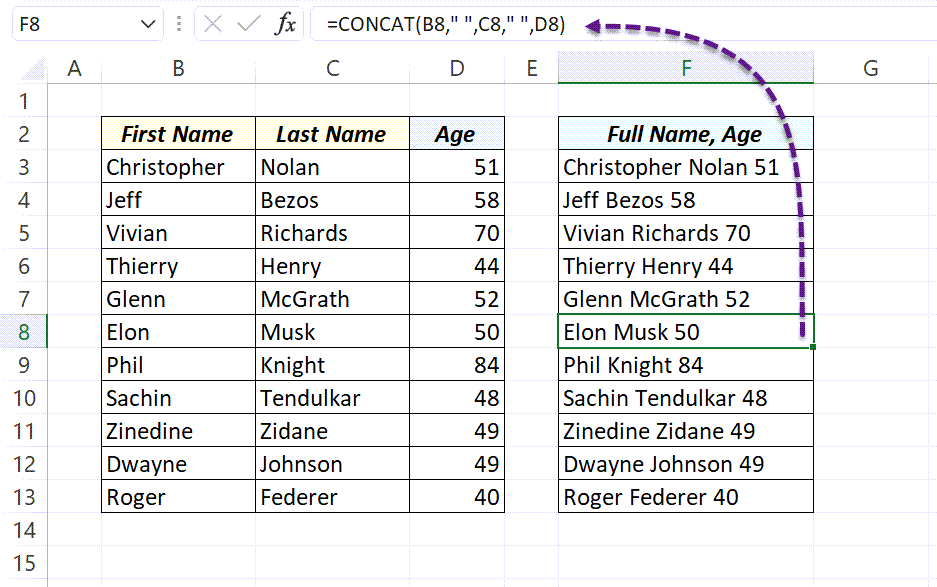
4. TEXTJOIN (best)
=TEXTJOIN(" ",TRUE,B3:D3)The separator goes in once, and TRUE skips empty cells, so a missing middle name doesn’t leave a double space.

To keep a number’s format, such as a date, wrap it in TEXT: =TEXTJOIN(" ",TRUE,B3,TEXT(E3,"dd-mmm-yyyy")).
5. Flash Fill
Type the combined result for the first row, then press Ctrl + E. Excel follows the pattern for the rest.

Flash Fill results don’t update when the source changes.
6. Macro
Joins the three columns to the left of the selected column into the column on its right, all at once:
Sub CombineColumns()
    Dim c As Range
    For Each c In Selection
        c.Offset(0, 1).Value = Application.WorksheetFunction.TextJoin(" ", True, c.Offset(0, -2).Resize(1, 3))
    Next c
End SubSelect the cells in the third column first. See also the join text macro.

7. Power Query
Load the table, select the columns, then Add Column → Merge Columns and choose a separator. Or use a Custom Column:
[First Name] & " " & [Last Name] & " " & Text.From([Age])
