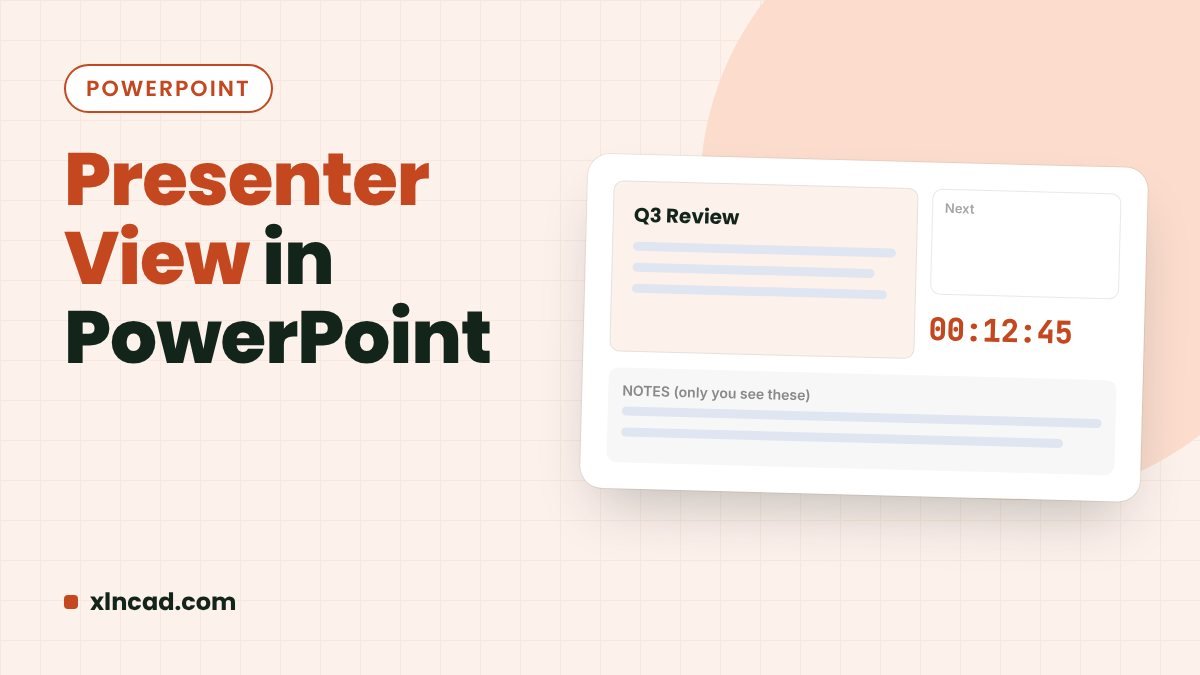
Presenter View shows your speaker notes, the next slide and a timer on your laptop, while the projector shows only the current slide. Press Alt + F5 to start it.
ShortcutAlt + F5
SettingSlide Show › Use Presenter View
Works inPowerPoint 2013 and later, Microsoft 365
Set it up
- Connect the projector or second screen.
- On the Slide Show tab, tick Use Presenter View.
- In Monitor, choose the projector screen.
- Press F5 to start. The projector shows the slide; your laptop shows Presenter View.
What you see
| Area | Use it to |
|---|---|
| Current slide | See what the audience sees |
| Next slide | Know what’s coming |
| Notes | Read your speaker notes; use the A buttons to make the text bigger |
| Timer | Keep track of time; pause or reset it |
| Tools | Pen, laser pointer, zoom into part of a slide, see all slides, black screen |
Practise with one screen
Press Alt + F5 on your laptop alone. Presenter View opens on the one screen so you can rehearse with your notes.
Screens are the wrong way round
Click Display Settings › Swap Presenter View and Slide Show at the top of Presenter View.
FAQ
Where do I type notes?
Click Notes at the bottom of the PowerPoint window in Normal view and type below the slide.
Can I jump to any slide?
Yes. Type the slide number and press Enter, or click See all slides. More in PowerPoint shortcuts.