Reports often show a group name once and leave the rows below it blank. Power Query’s Fill Down copies each value into the empty cells beneath it, and Fill Up copies upwards, so the data is ready for a PivotTable.
The data
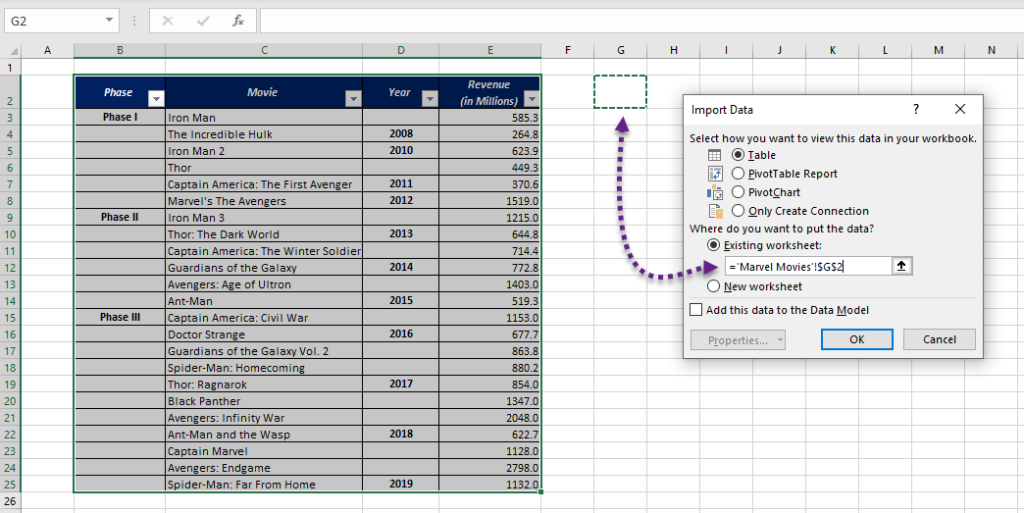
Box-office figures for 23 Marvel films in three phases. The phase appears only on the first row of each group, and the year only on the last.

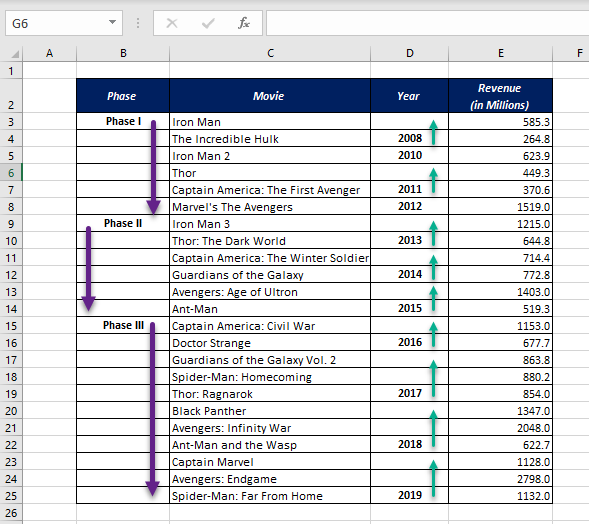
A PivotTable would put every blank row under (blank), so the gaps must be filled first.
Step 1: Load the data
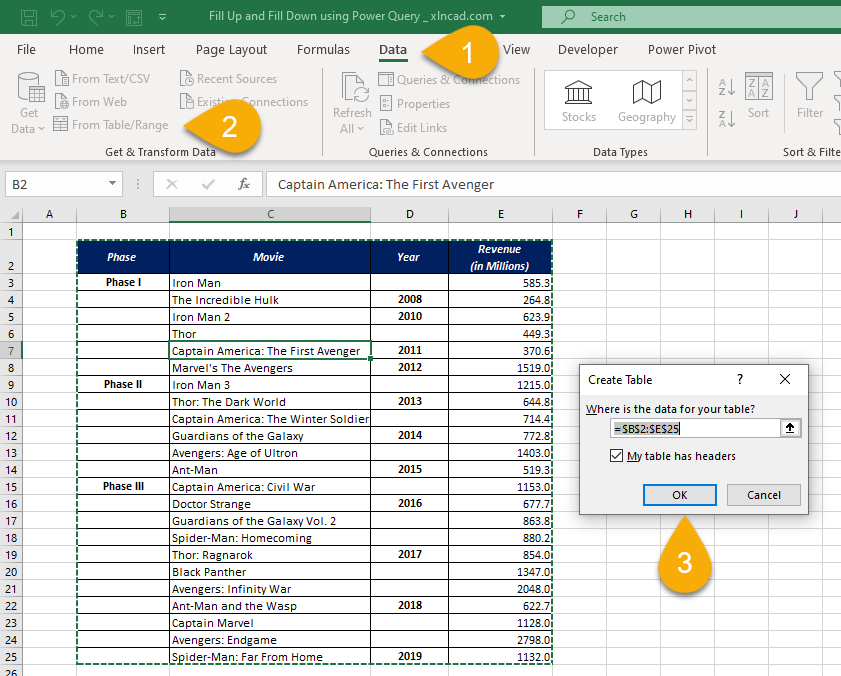
Click in the data → Data → From Table/Range → OK.
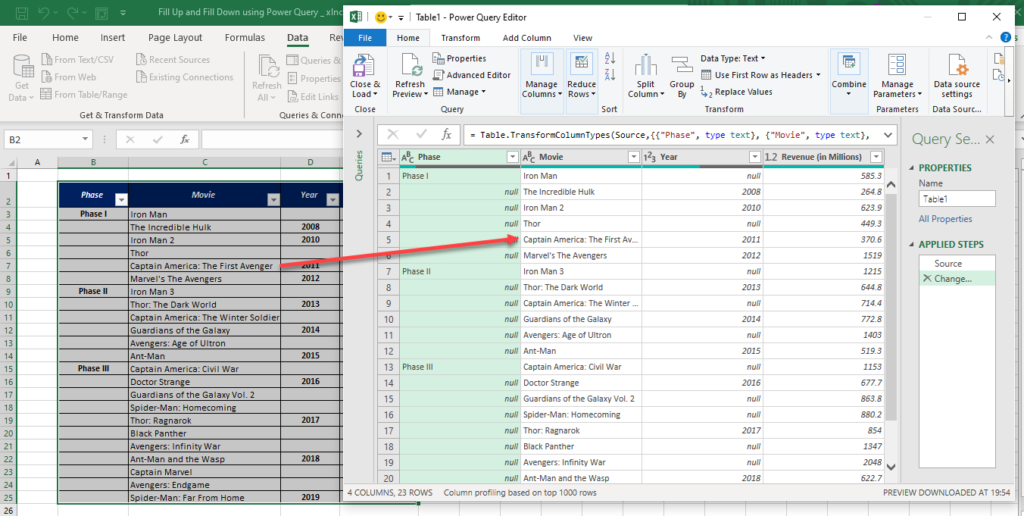
Step 2: Fill Down
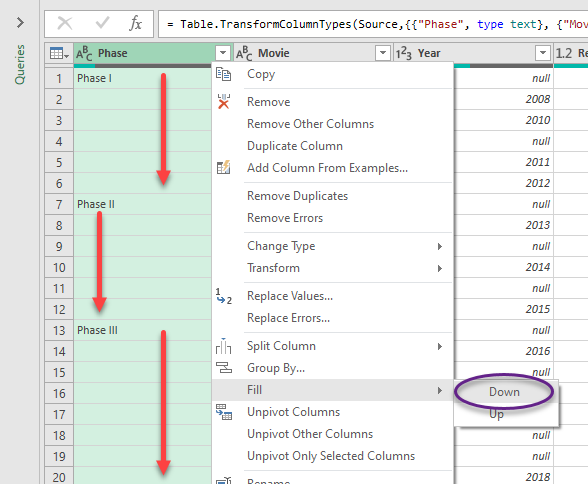
Right-click the Phase header → Fill → Down. Each phase is copied into the empty rows below it.

Step 3: Fill Up
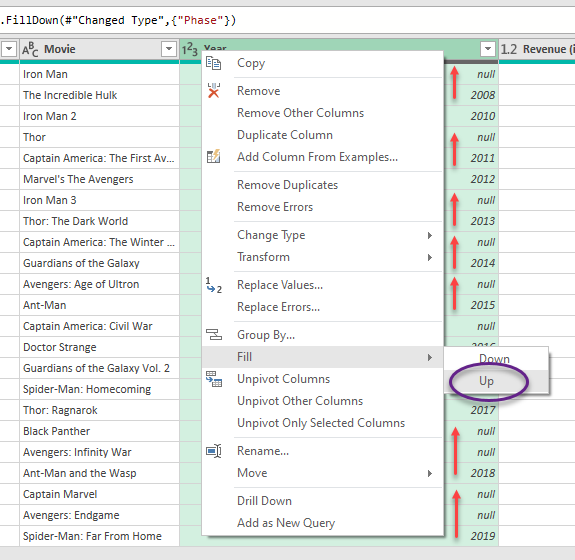
The year is on the last row of its group, so right-click Year → Fill → Up.

Step 4: Load and summarise
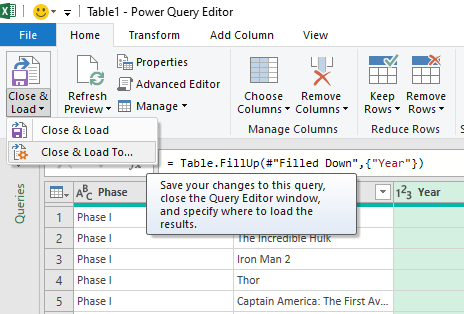
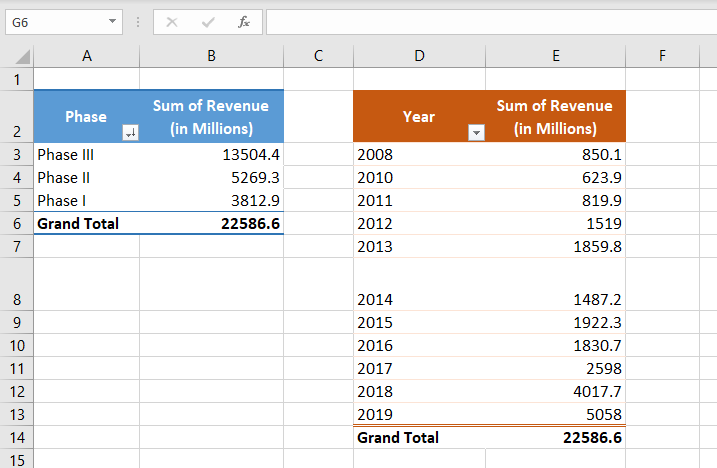
Home → Close & Load To → Existing worksheet, then build PivotTables by phase and by year.

When Fill doesn’t work
Fill only replaces null. Cells that look empty but contain an empty text or spaces are skipped. Select the column → Transform → Replace Values, leave Value to find empty, and type null in Replace with. Then Fill again.
Without Power Query
Select the column → F5 → Special → Blanks → type = and press {↑} → Ctrl + Enter. Then copy and paste as values. It’s quick, but you have to repeat it for new data.