The Excel TRANSPOSE function flips a range: rows become columns and columns become rows. Unlike Paste Special, the result stays linked to the source and updates when it changes.
PurposeSwap rows and columns
ReturnsAn array that spills
Available inAll versions; spills automatically in Excel 2021 and 365
array |
The range or array to flip. |
|---|
Table of Contents
Basic example
Regions run down and months across. To swap them, transpose the whole table, headers included:
=TRANSPOSE(B2:E5)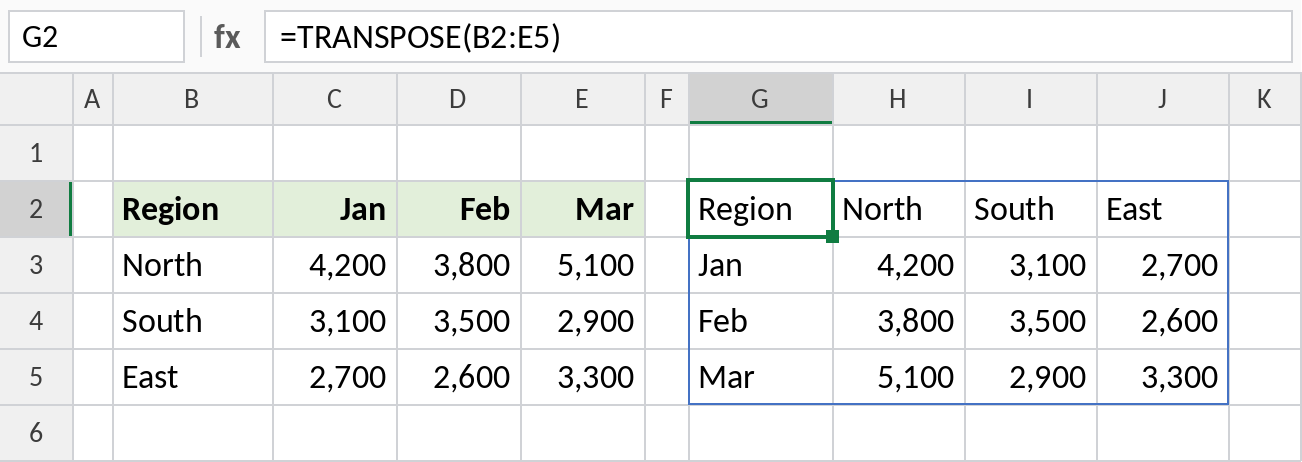
The 4 × 4 table spills from G2 with months down the side and regions across the top. Change a number in the source and the transposed copy updates.
Turn a list into a row
UNIQUE returns a column. Wrap it in TRANSPOSE to lay the regions out across a row, ready to use as report headers:
=TRANSPOSE(SORT(UNIQUE(B3:B10)))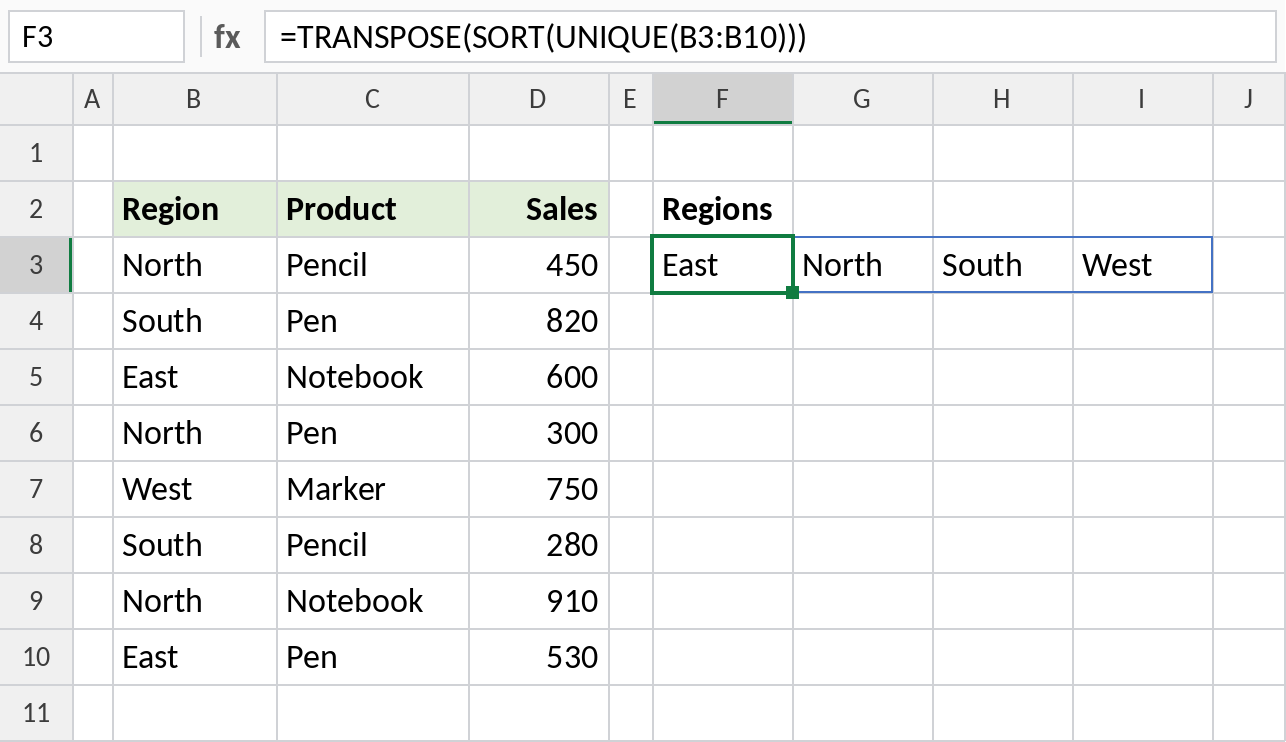
The four regions spill across the row: East, North, South, West.
TRANSPOSE vs Paste Special → Transpose
| TRANSPOSE function | Paste Special → Transpose | |
|---|---|---|
| Updates with the source | Yes | No, it’s a one-time copy |
| Keeps formatting | No | Yes |
| Can be edited cell by cell | No, it’s one formula | Yes |
| How | =TRANSPOSE(B2:E5) |
Copy, then Ctrl+Alt+V → tick Transpose |
Notes
- The result spills. Keep enough empty cells: a 3 × 5 range becomes 5 × 3.
- In Excel 2019 and earlier, select the output range first, type the formula and press Ctrl+Shift+Enter.
- Empty source cells show as 0. Use
=TRANSPOSE(IF(B2:E5="","",B2:E5))to keep them blank. - Formatting isn’t copied. Format the result separately.
Common errors
| Problem | Cause | Fix |
|---|---|---|
#SPILL! |
Cells in the spill range aren’t empty | Clear them |
| Zeros for blanks | Empty source cells | Wrap with IF as shown above |
#VALUE! in old Excel |
Entered without Ctrl+Shift+Enter | Select the range and confirm as an array |
Practice file
Both examples plus the Paste Special comparison.