The Excel INDEX function returns the value at a given position in a range: the 4th item in a list, or the value at row 2, column 3 of a table.
array |
The range to pick from. |
|---|---|
row_num |
The row position inside the range, counting from 1. |
column_num optional |
The column position inside the range. Needed when the range has more than one column. |
Table of Contents
Basic example
To get the 4th product in the list, give INDEX the range and the position:
=INDEX(B3:B8,H3) 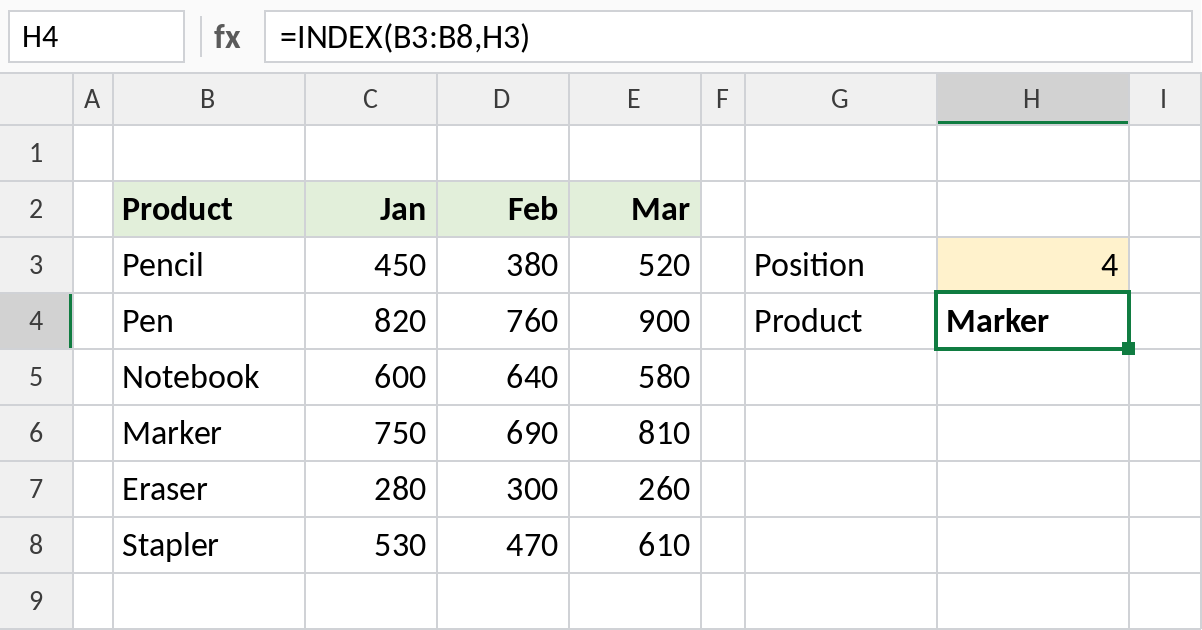
The 4th cell in B3:B8 is B6, so INDEX returns Marker. Positions count from the start of the range, not from row 1 of the sheet.
Row and column in a table
For a table with several columns, give both a row and a column number:
=INDEX(C3:E8,H3,H4) 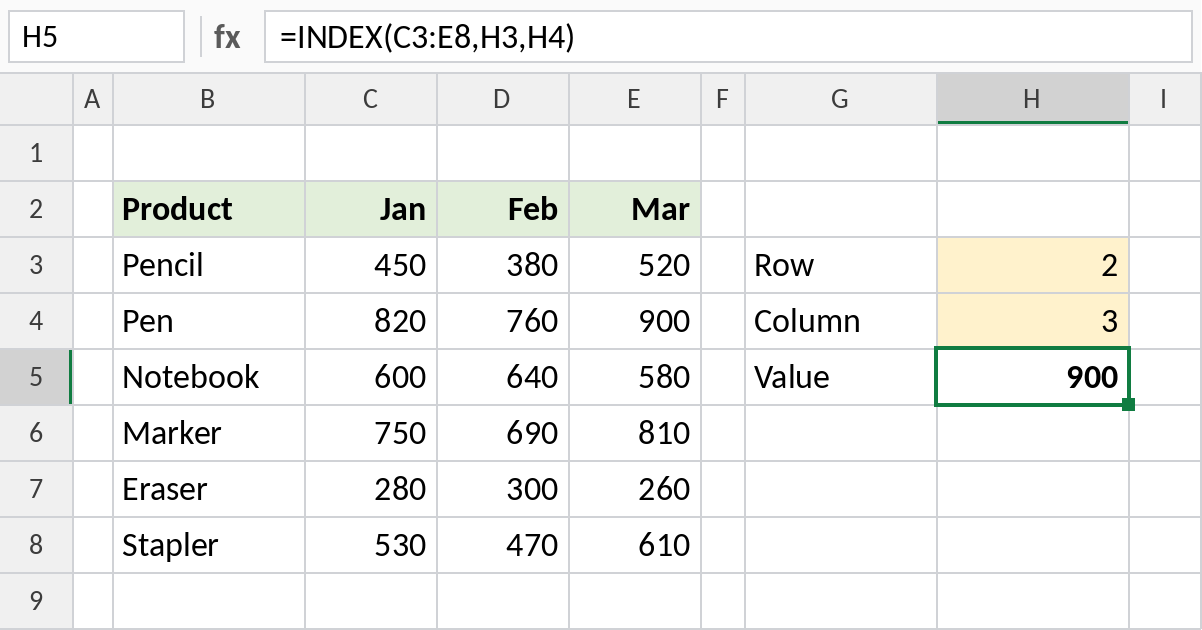
Row 2 of C3:E8 is Pen, and column 3 is Mar, so INDEX returns 900.
Two-way lookup with INDEX and MATCH
Typing positions by hand isn’t practical. Let MATCH find the row from the product name and the column from the month:
=INDEX(C3:E8,MATCH(H3,B3:B8,0),MATCH(H4,C2:E2,0)) 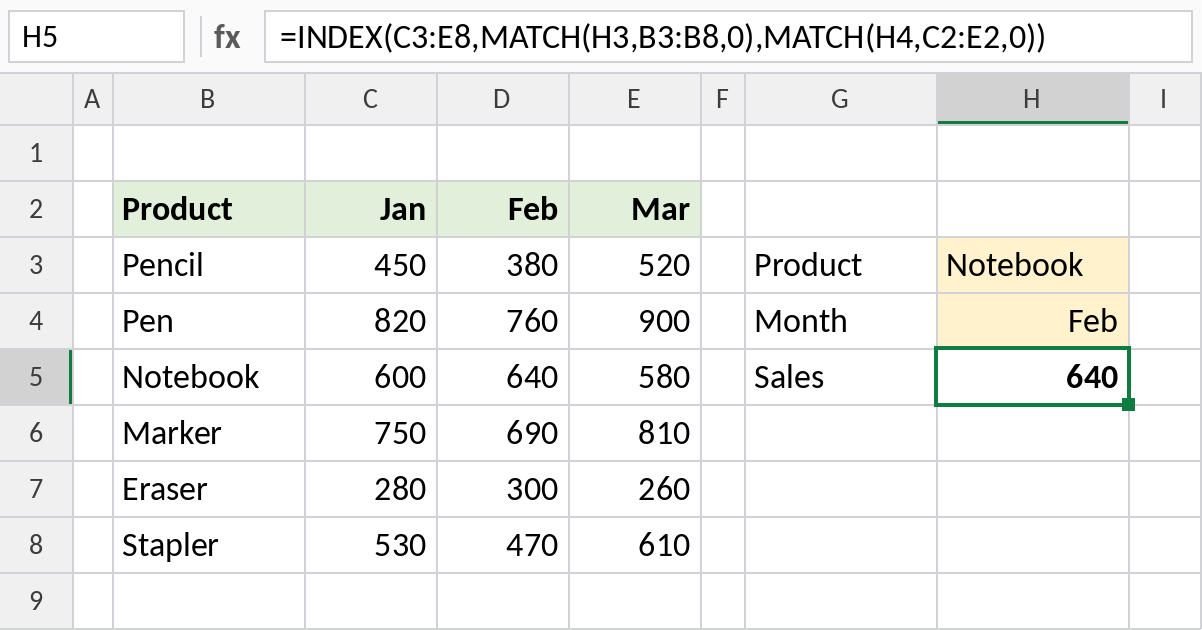
The first MATCH finds Notebook at position 3, and the second finds Feb at position 2. INDEX returns the value at row 3, column 2: 640. Change either input and the result updates.
Why INDEX and MATCH
| VLOOKUP | INDEX + MATCH | |
|---|---|---|
| Look up to the left | No | Yes |
| Survives inserted columns | No | Yes |
| Two-way lookups | Awkward | Natural |
| Works in all Excel versions | Yes | Yes |
In Excel 365, XLOOKUP does most of this in one function, but INDEX and MATCH still work everywhere.
Notes
row_numandcolumn_numare positions inside the range, starting at 1.- Use 0 as the row or column number to return a whole column or row:
=SUM(INDEX(C3:E8,0,2))adds the Feb column. - INDEX returns a reference, so it can be used inside other functions like SUM.
- A position larger than the range returns
#REF!.
Common errors
| Problem | Cause | Fix |
|---|---|---|
#REF! |
Row or column number is outside the range | Check the size of the range |
#VALUE! |
A position that isn’t a number, such as text | Use MATCH to get the position |
| Wrong value | Positions counted from row 1 of the sheet instead of the range | Count from the first cell of the range |
Practice file
All three examples plus extra formulas in a cheat sheet.