To place room names, chainages or labels at known coordinates, build a -TEXT command for each row in Excel and paste the column into AutoCAD. Hundreds of text objects appear in seconds.
The data
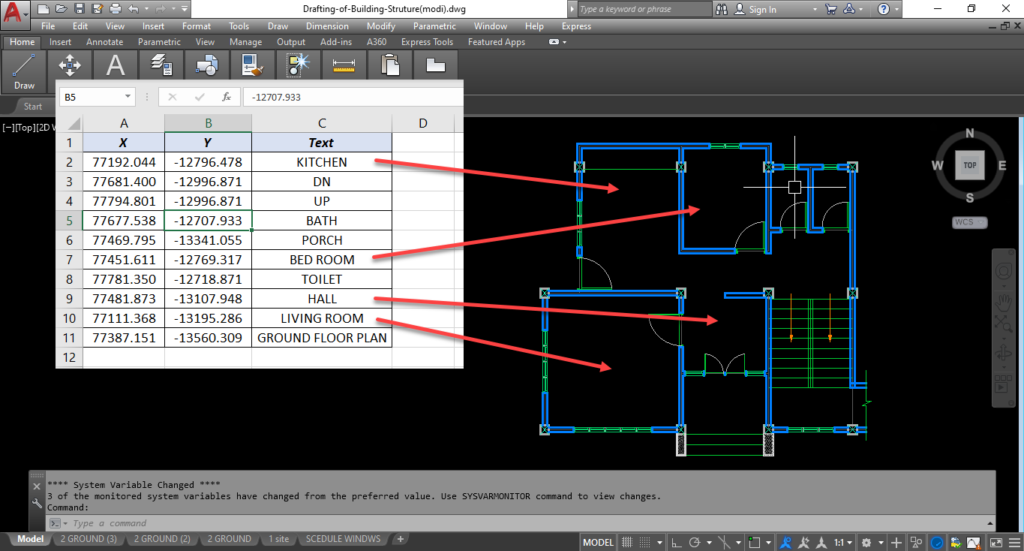
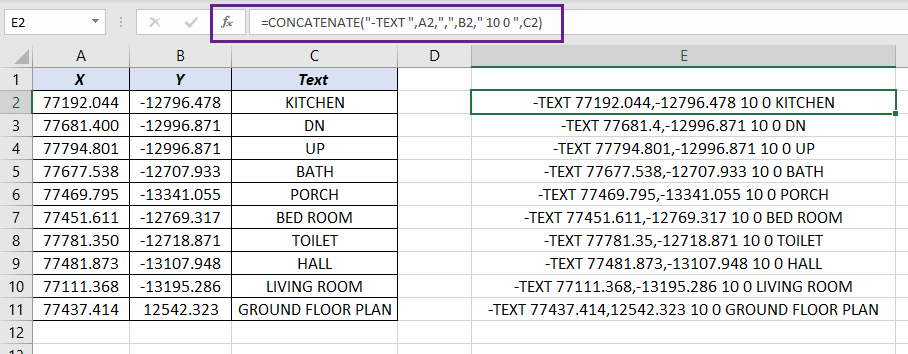
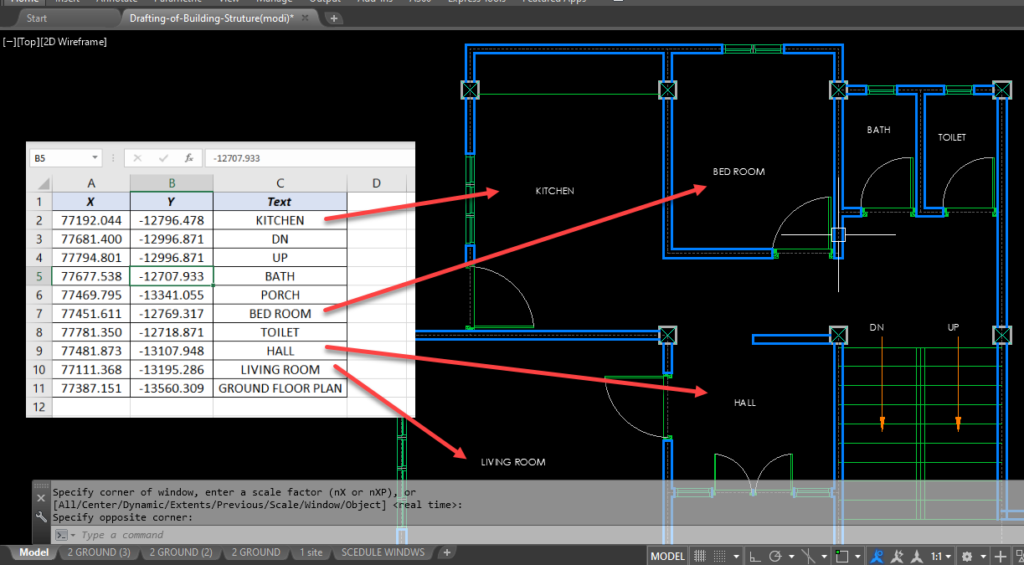
The text to place is in column C, with its X and Y insertion point in columns A and B.
How -TEXT works
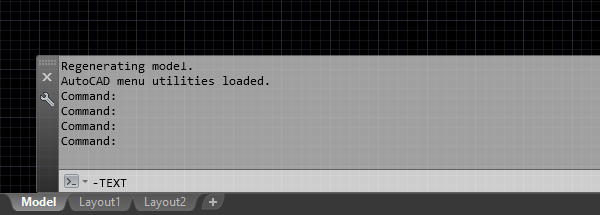
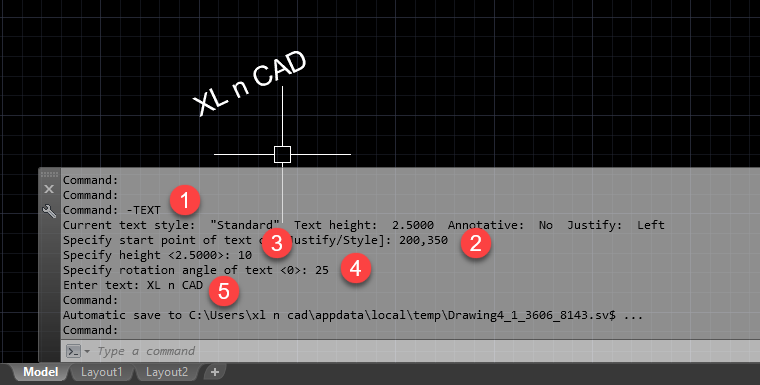
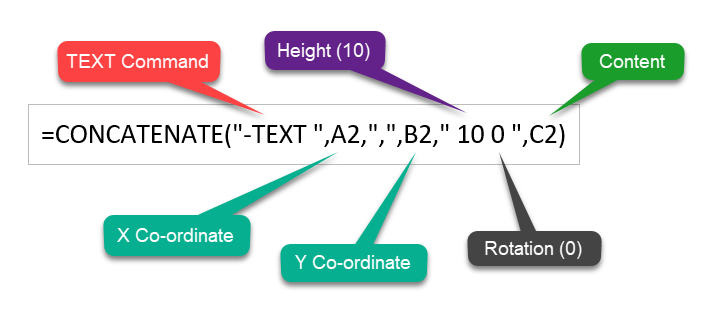
The -TEXT command (with a hyphen) asks for everything in the command line: start point, height, rotation angle and the text itself.
| Prompt | Example |
|---|---|
| Start point | 200,350 |
| Height | 10 |
| Rotation angle | 25 |
| Text | XL n CAD |
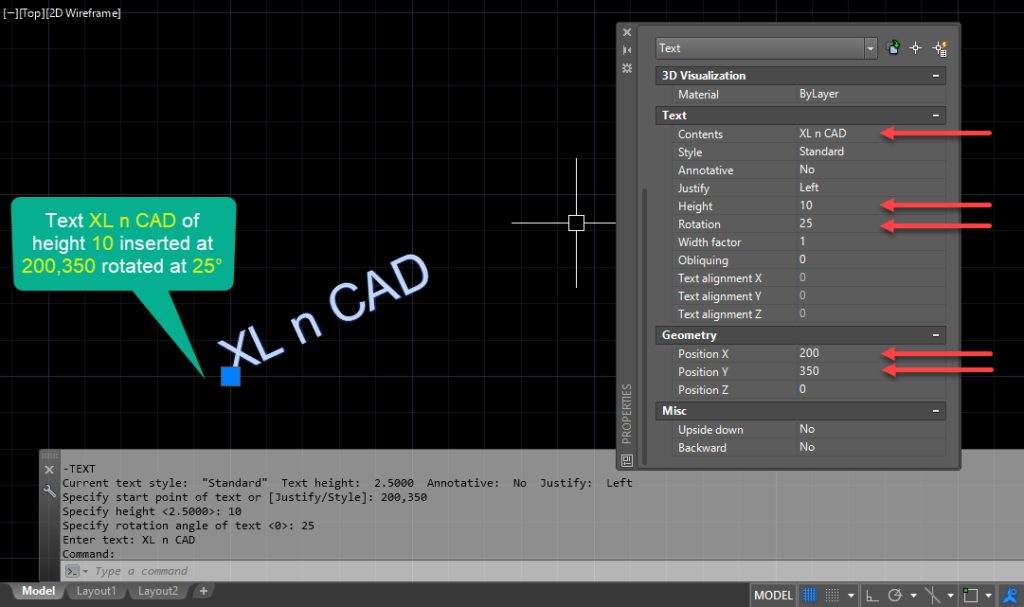
So one line, -TEXT 200,350 10 25 XL n CAD, creates the text. Each space acts as Enter, except in the text itself, where spaces are kept until the line ends.
Step 1: Build the commands in Excel
="-TEXT "&A2&","&B2&" 10 0 "&C2This gives -TEXT 77192.044,-12796.478 10 0 KITCHEN: height 10, rotation 0. Put height and rotation in their own cells if they vary.
Step 2: Paste into AutoCAD
Copy the formula column, click in AutoCAD’s command line and press Ctrl + V. For thousands of labels, paste into Notepad and save as a .scr script instead.
Avoid these problems
| Problem | Fix |
|---|---|
| Text appears in the wrong place or wrong text | The current text style has a fixed height, so AutoCAD skips the height prompt. Remove the height from the formula, or use a style with height 0 |
| Points snap to nearby objects | Turn off Object Snap (F3) first |
| Justification needed | Add J: -TEXT J MC 77192,-12796 10 0 KITCHEN places text by its middle-centre |
| Comma decimals | Set Windows to use a dot as the decimal separator |