
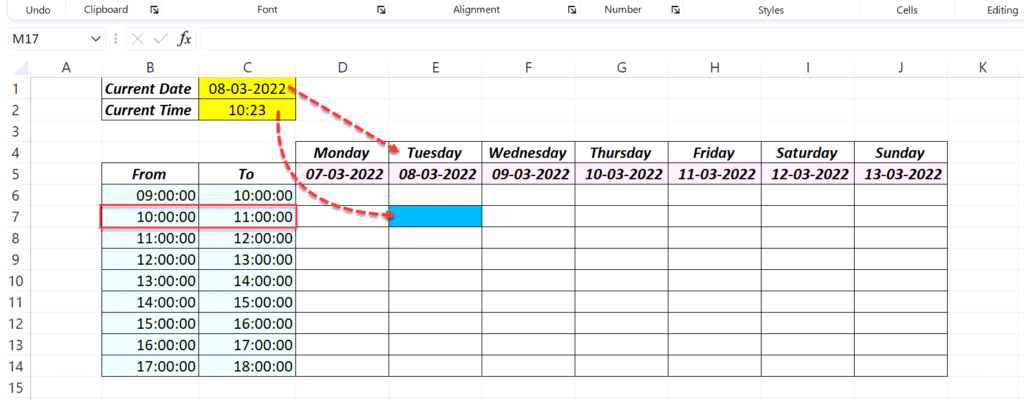
In a timesheet or schedule with dates across the top and hourly slots down the side, conditional formatting with NOW() highlights the cell for the current date and hour, so you can see at a glance where you are in the day.
The schedule
Dates are in row 5 (D5 onwards), hour start times in column B and end times in column C, from row 7.
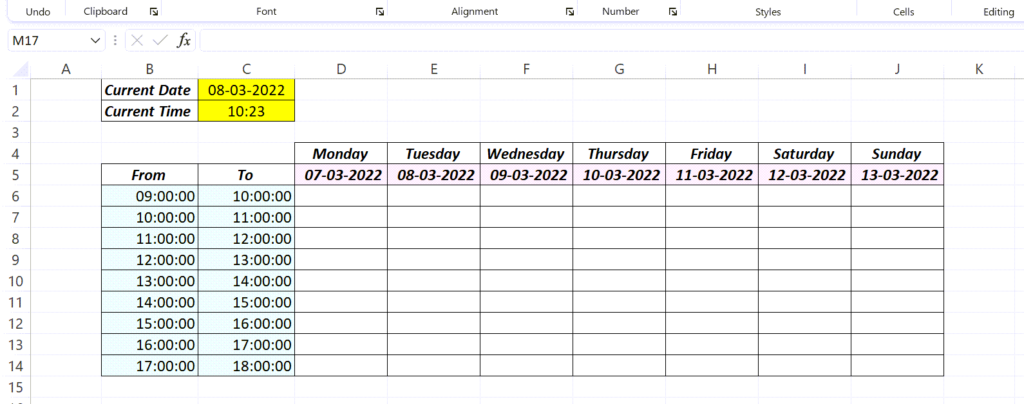
Step 1: Test the formula
Select the grid and type this, then press Ctrl + Enter:
=AND(NOW()>=D$5+$B7,NOW()<D$5+$C7)Date plus start time gives the slot's start moment, and date plus end time gives its end. Only the cell where now falls between them shows TRUE.
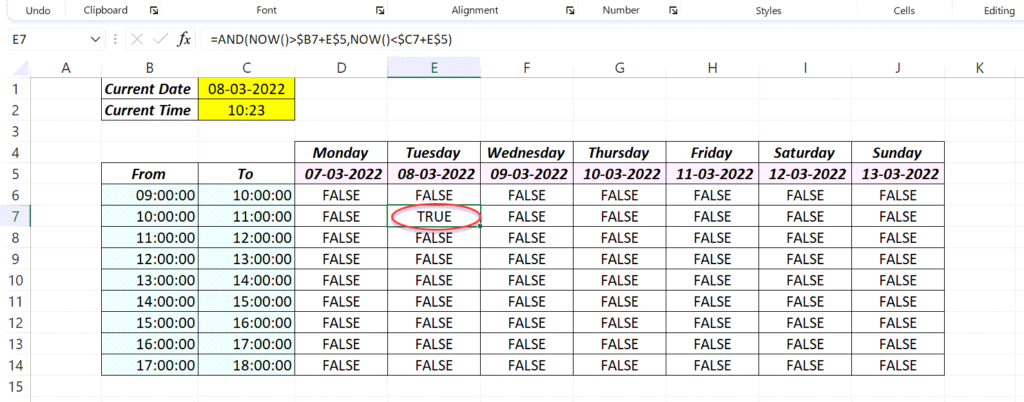
Delete these test formulas before the next step.
Step 2: Turn it into a rule
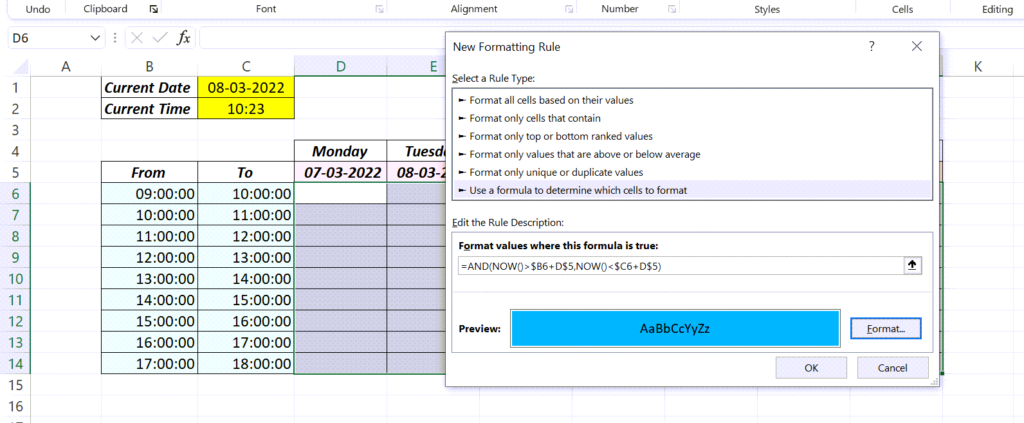
Select the grid (starting at D7) → Home → Conditional Formatting → New Rule → Use a formula, paste the same formula without the test, and choose a fill colour.
More rules for the same sheet
| To highlight | Rule (grid starts at D7) |
|---|---|
| Today's whole column | =D$5=TODAY() |
| The current hour on every day | =AND(MOD(NOW(),1)>=$B7,MOD(NOW(),1)<$C7) |
| Past slots, greyed out | =D$5+$C7<NOW() |
Put the specific rule (current hour) above the general ones in Manage Rules, so it wins.
Things to know
- NOW() doesn't tick on its own. The highlight moves when the sheet recalculates: when you type anything, or press F9.
>=for the start and<for the end means 11:00 belongs to the 11–12 slot, not both.- The dates in row 5 must be real dates and the times real times, not text.