A slicer is a panel of buttons that filters an Excel Table or PivotTable with one click, and always shows what's filtered. One slicer can also control several PivotTables at once, which makes simple dashboards easy.
Table of Contents
Add a slicer to an Excel Table
The table SalesData holds chocolate sales by product, region and sales rep in Kochi.
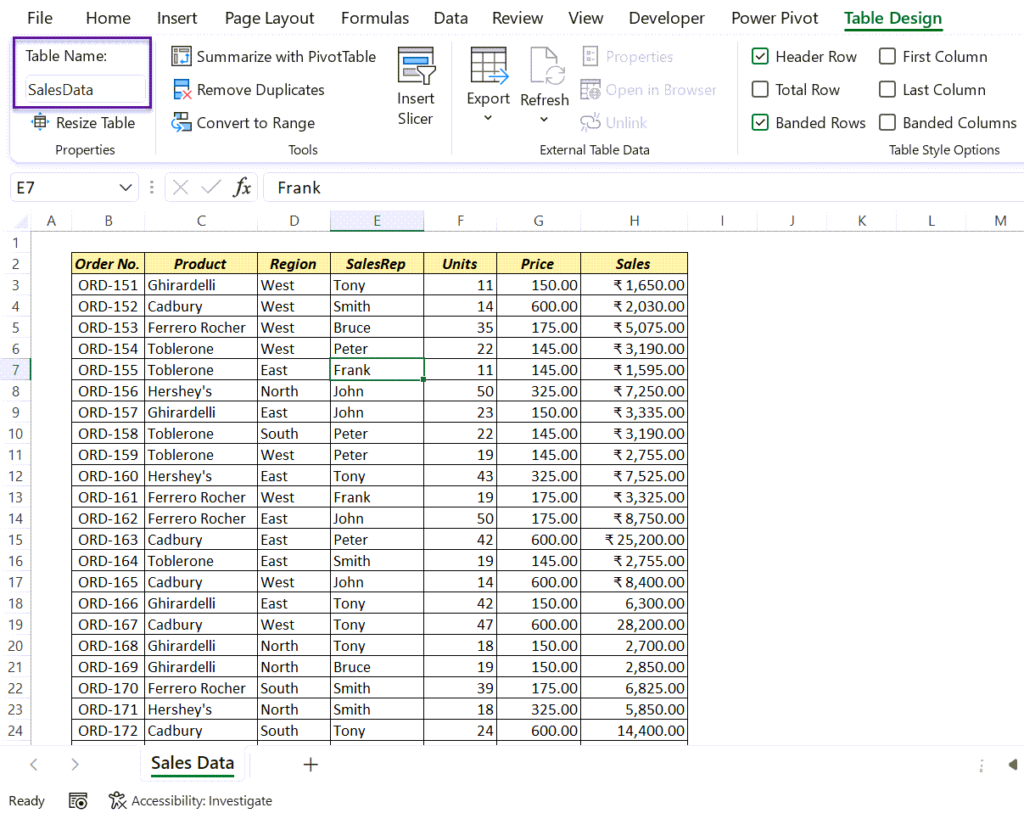
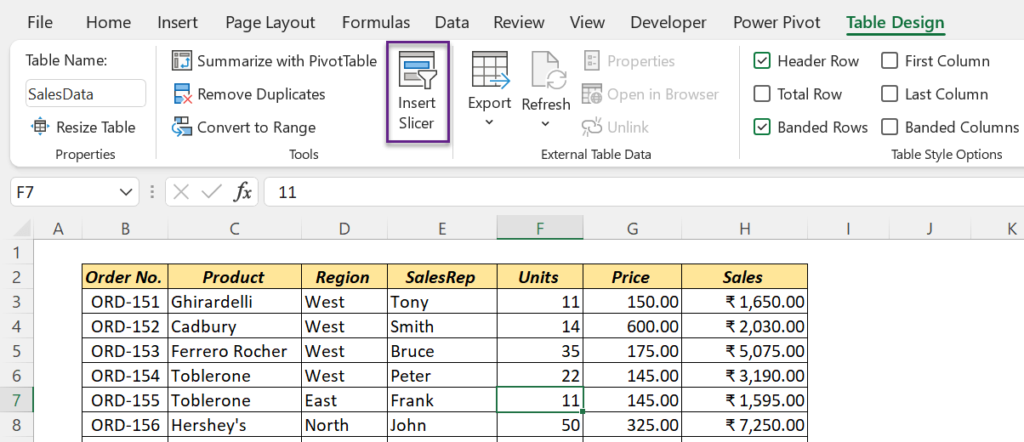
- Click in the table → Table Design → Insert Slicer.
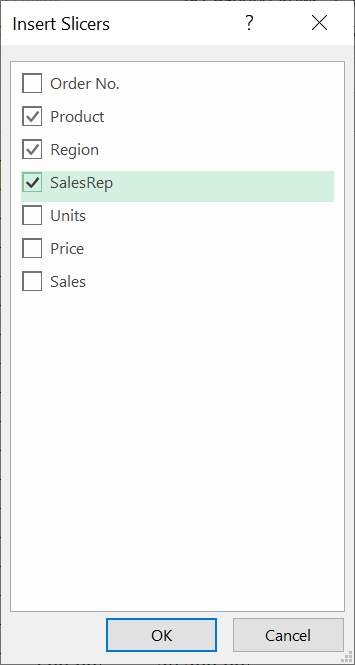
- Tick the columns to filter by, here Product, Region and SalesRep, and click OK.
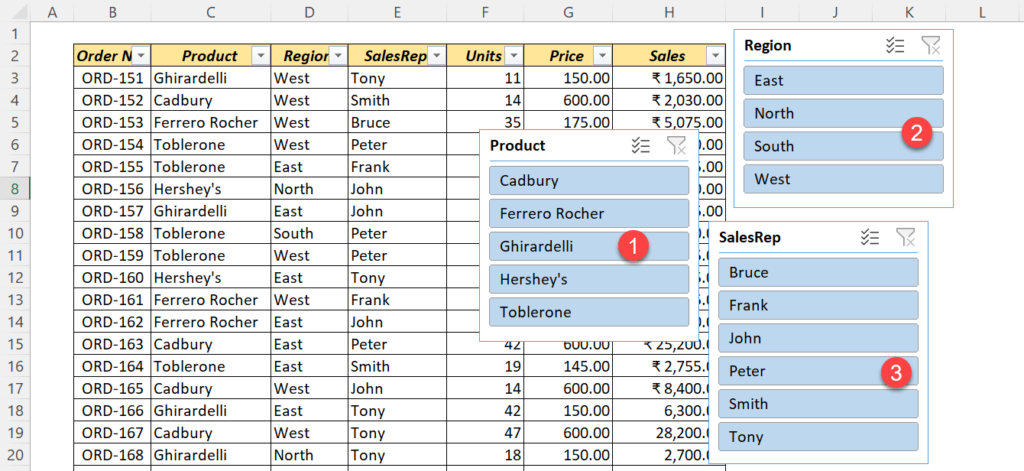
Use a slicer
| To | Do this |
|---|---|
| Show one item | Click its button |
| Show several items | Ctrl + click, or turn on Multi-Select (the tick-list icon) and click |
| Clear the filter | Click the funnel-with-cross icon at the top right, or Alt + C when the slicer is selected |
| Remove the slicer | Select it and press Delete |
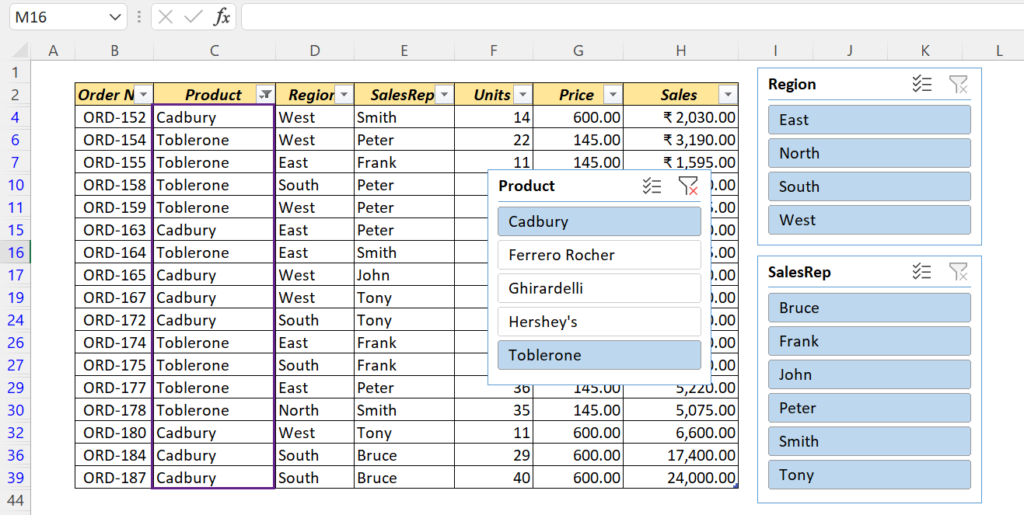
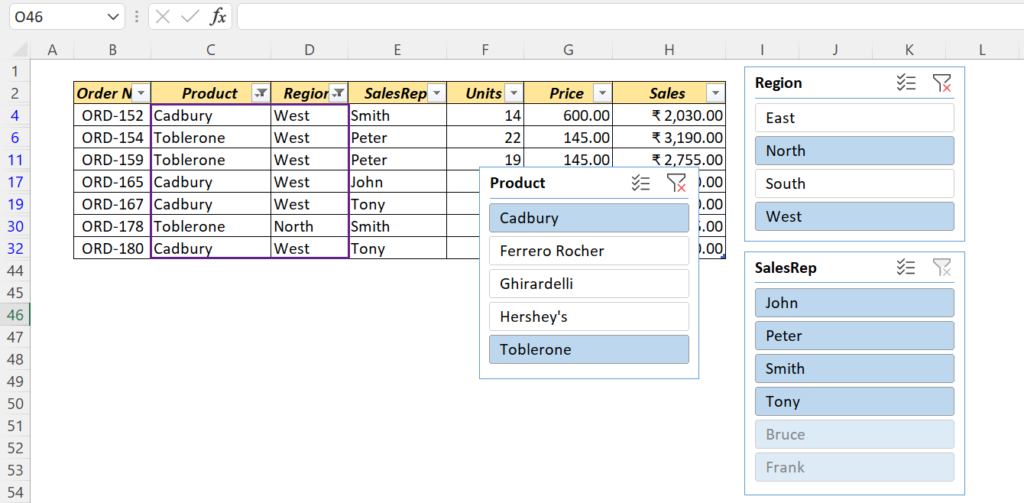
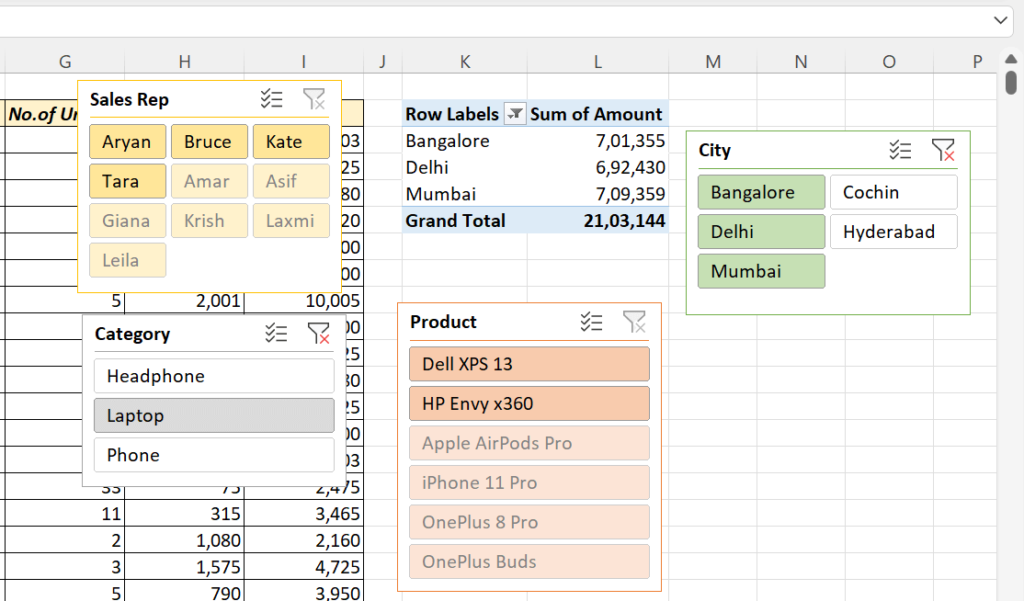
Faded buttons are items that are filtered out. Items with no data left show at the end in a lighter colour.
Format a slicer
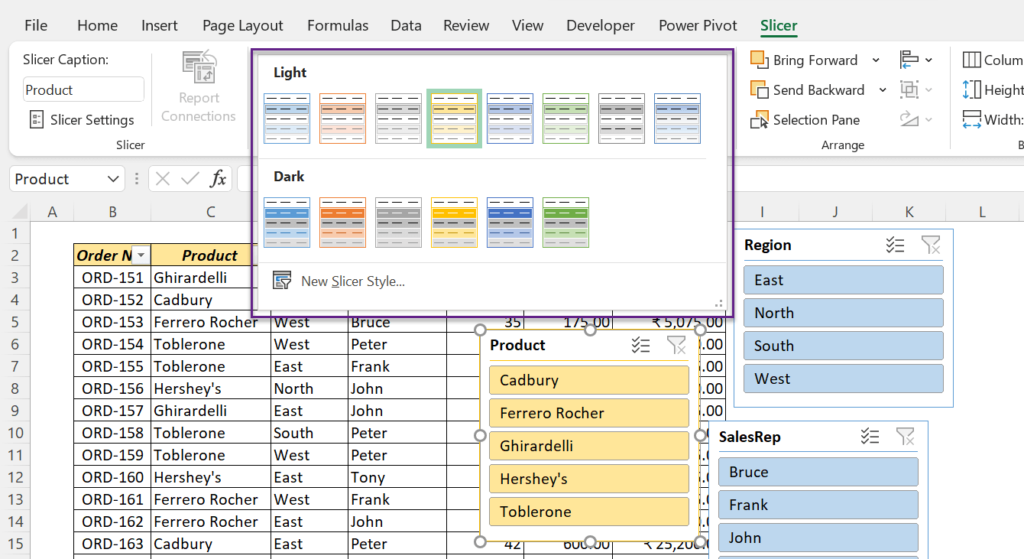
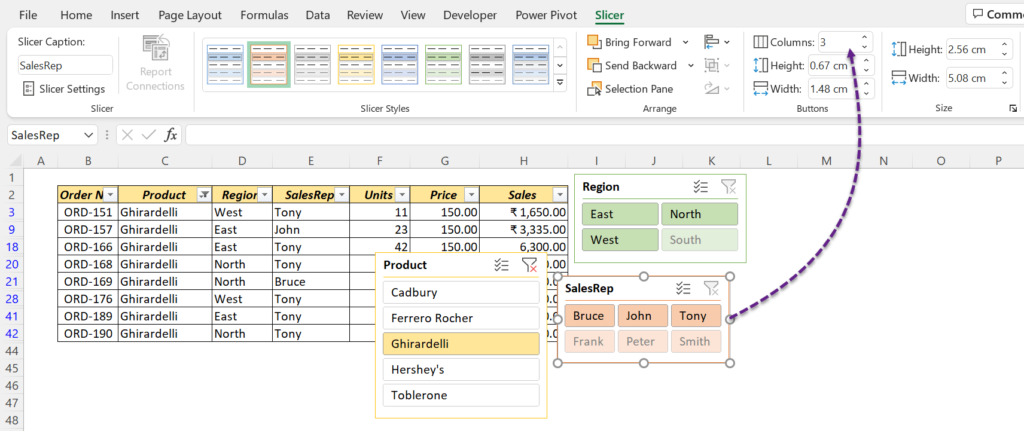
On the Slicer tab, pick a style, set the number of Columns of buttons, and change the button height and width. Slicer Settings lets you hide items with no data and change the sort order.
Add a slicer to a PivotTable
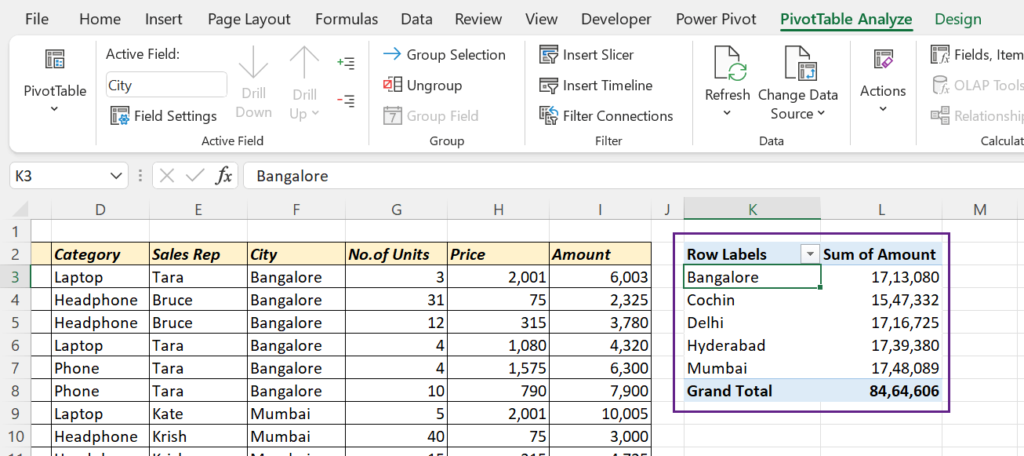
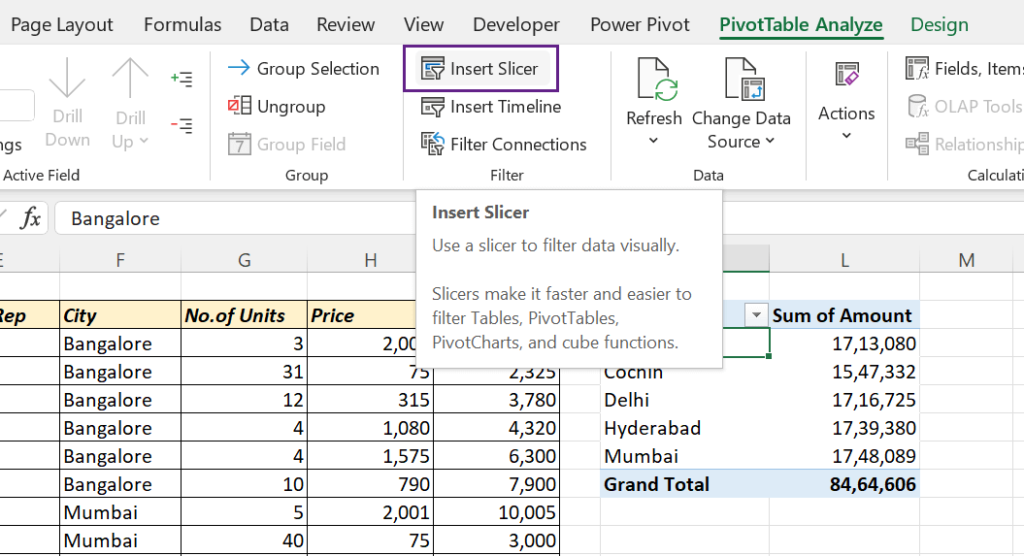
Click the PivotTable → PivotTable Analyze → Insert Slicer, tick the fields, OK.
One slicer for several PivotTables
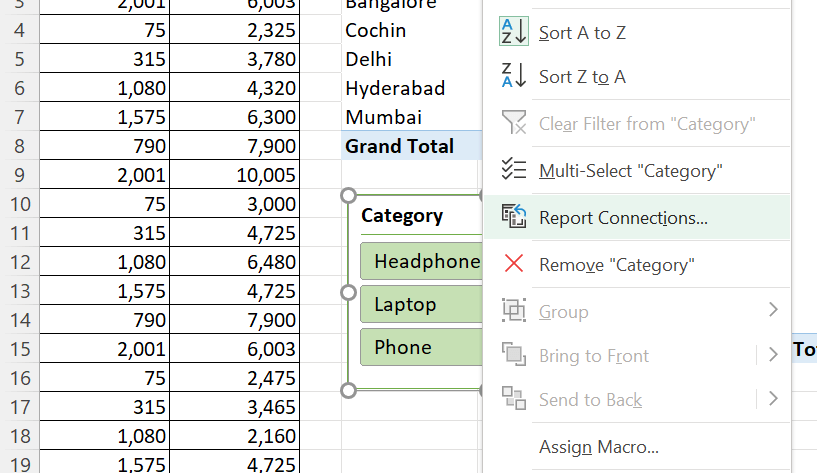
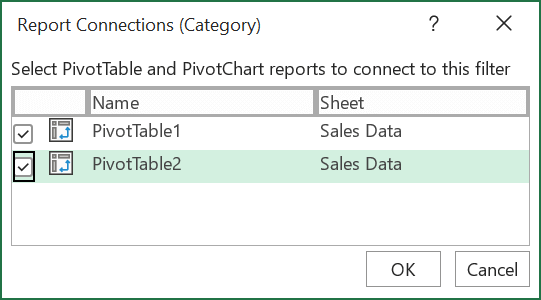
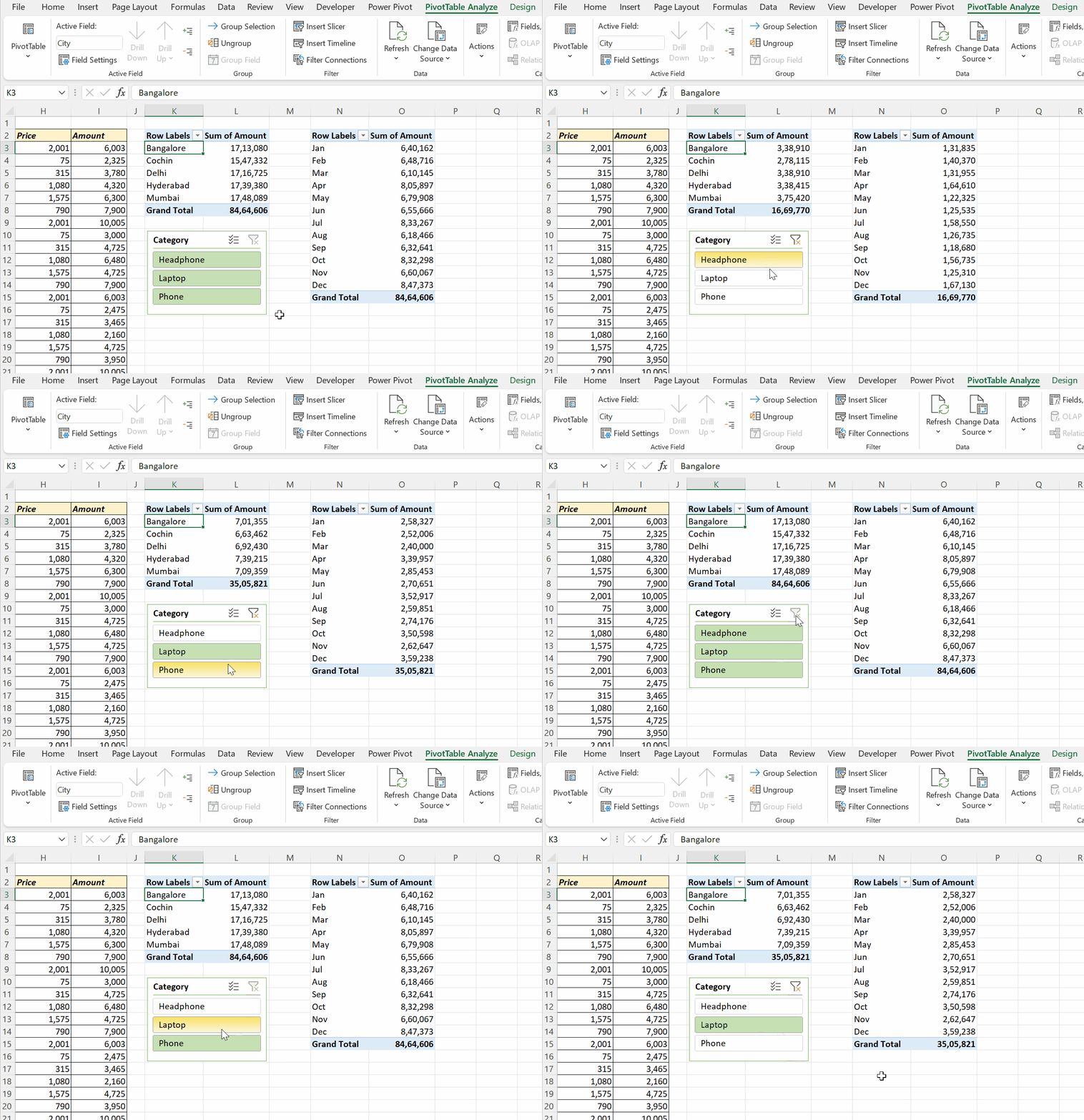
Right-click the slicer → Report Connections, tick each PivotTable it should control, and click OK. The PivotTables must come from the same source data.
Timeline: a slicer for dates
For a date field in a PivotTable, PivotTable Analyze → Insert Timeline gives a slider to pick days, months, quarters or years.
Things to know
- Slicers work in Excel 2013 and later for Tables, 2010 and later for PivotTables, and in Excel for the web.
- Formulas like SUM still add hidden rows. Use
=SUBTOTAL(109,Sales[Amount])to total only what the slicer shows. - When you protect the sheet, tick Use PivotTable & PivotChart and unlock the slicers so they still work.