To bring a .txt or .csv file into Excel, open it directly, drag it in, use Data → From Text/CSV (best, because it refreshes and keeps leading zeros if you set the column type), or use a short macro.
Table of Contents
Video
1. From Text/CSV (Power Query)
- Data → Get Data → From File → From Text/CSV and choose the file.
- Check the preview. Set File Origin to 65001: Unicode (UTF-8) if Malayalam, Hindi or other non-English text looks garbled, and choose the right Delimiter.
- Click Load, or Transform Data to clean it first.
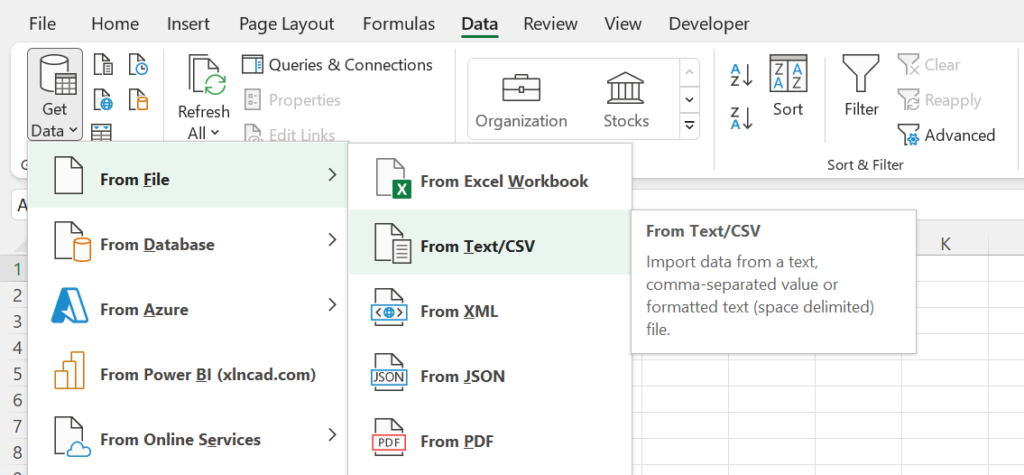
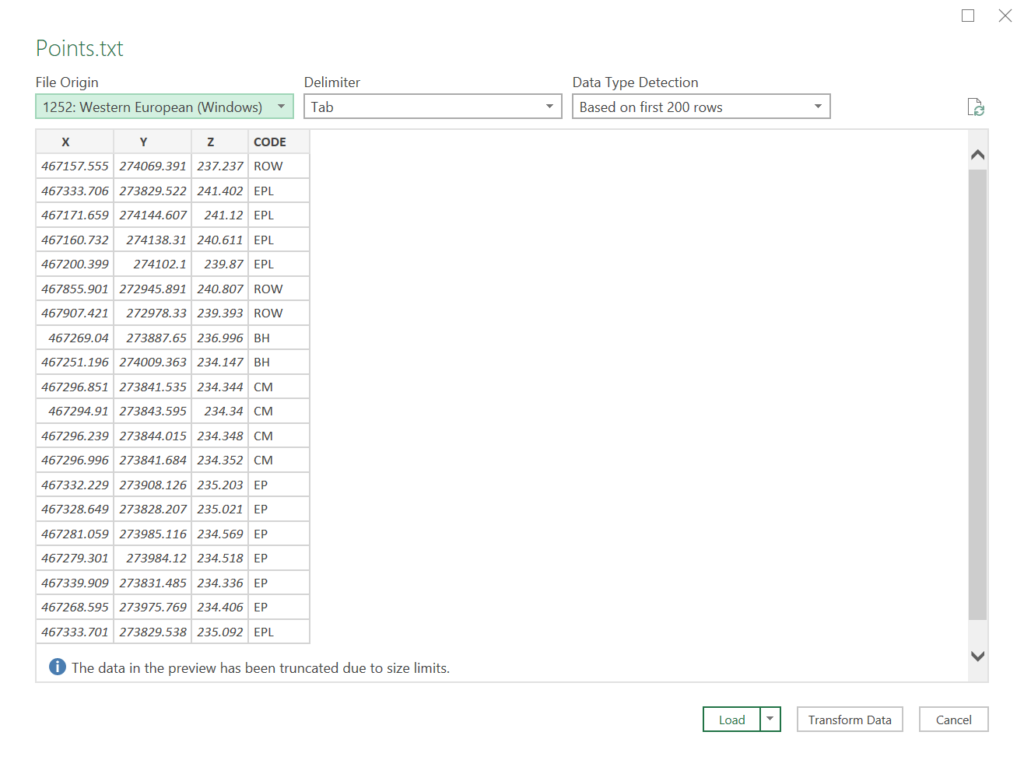
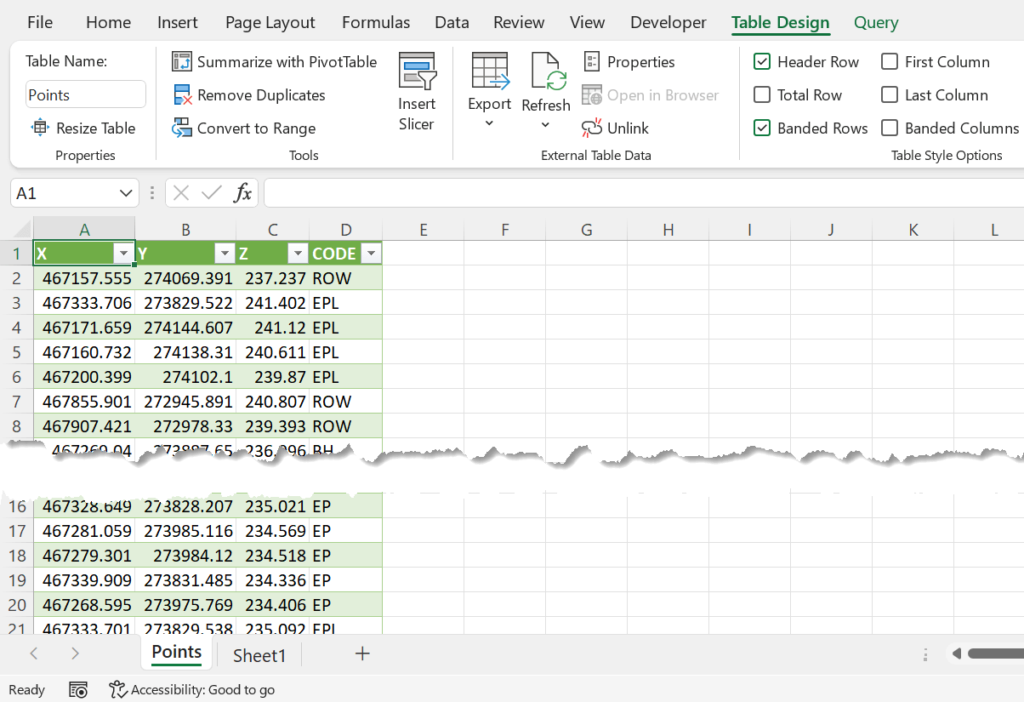
When the text file changes, click Data → Refresh All. Power Query guesses each column's type; for IDs, phone numbers and PIN codes, click Transform Data and set those columns to Text so leading zeros aren't lost.
For a folder of text files with the same layout, use Get Data → From File → From Folder to combine them all.
2. Open it with File → Open
File → Open → Browse, choose All Files, and open the text file. Excel starts the Text Import Wizard: choose Delimited, tick the delimiter (Tab, Comma…), and click Finish.
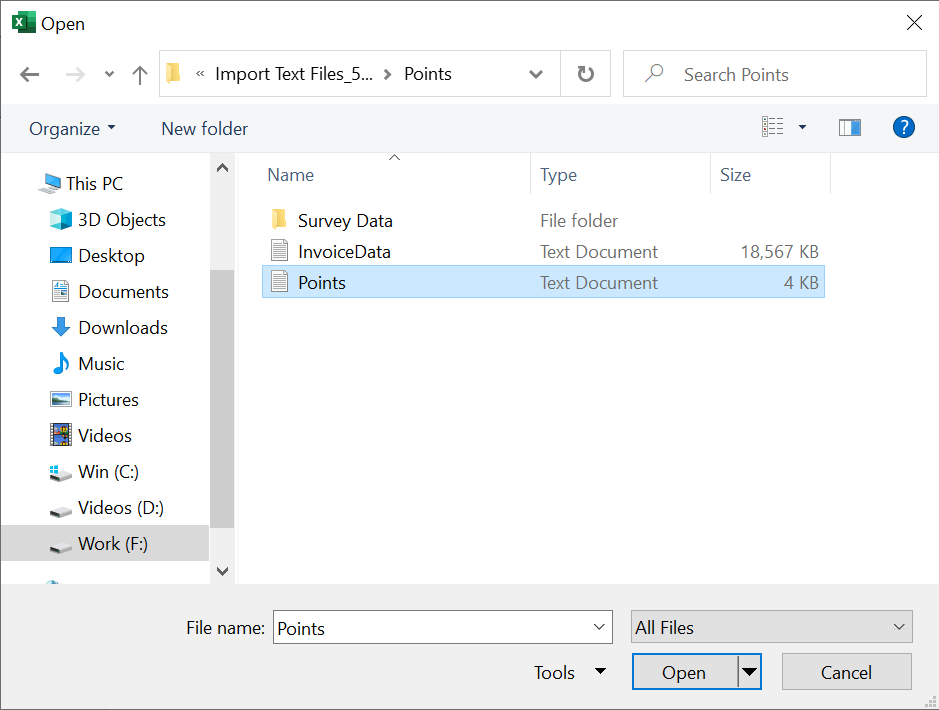
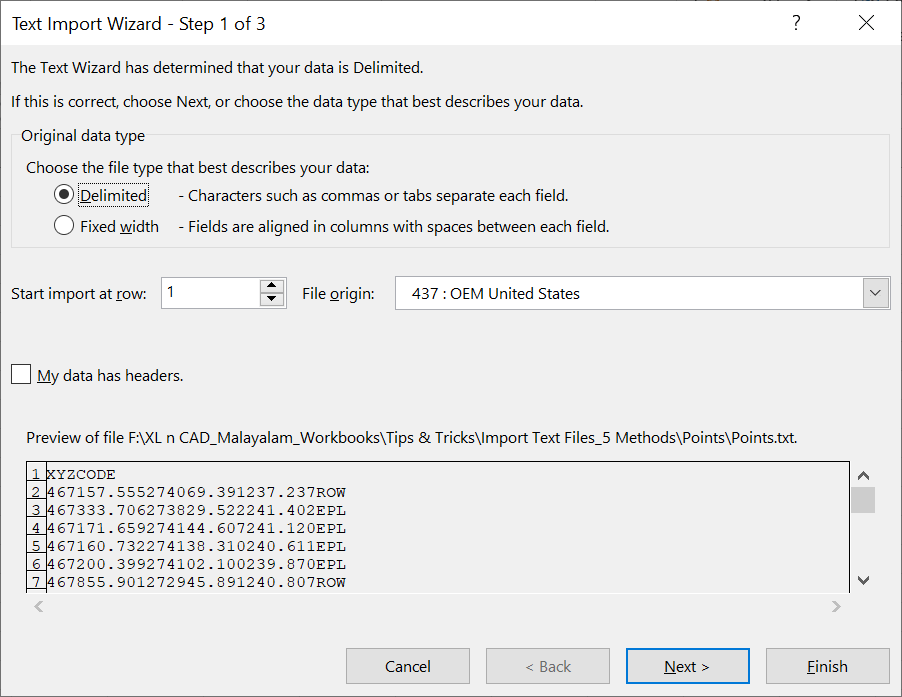
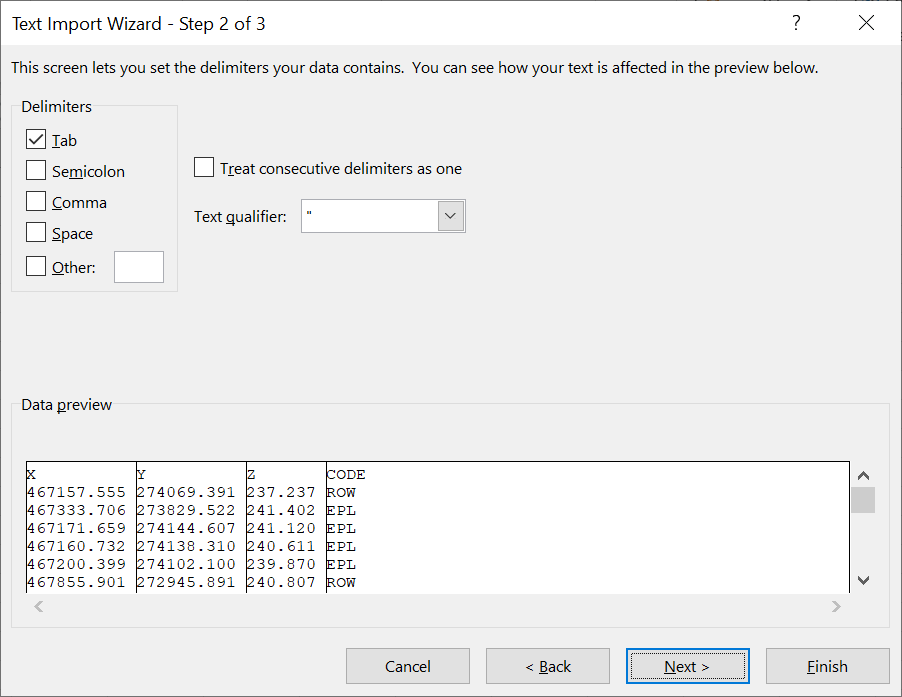
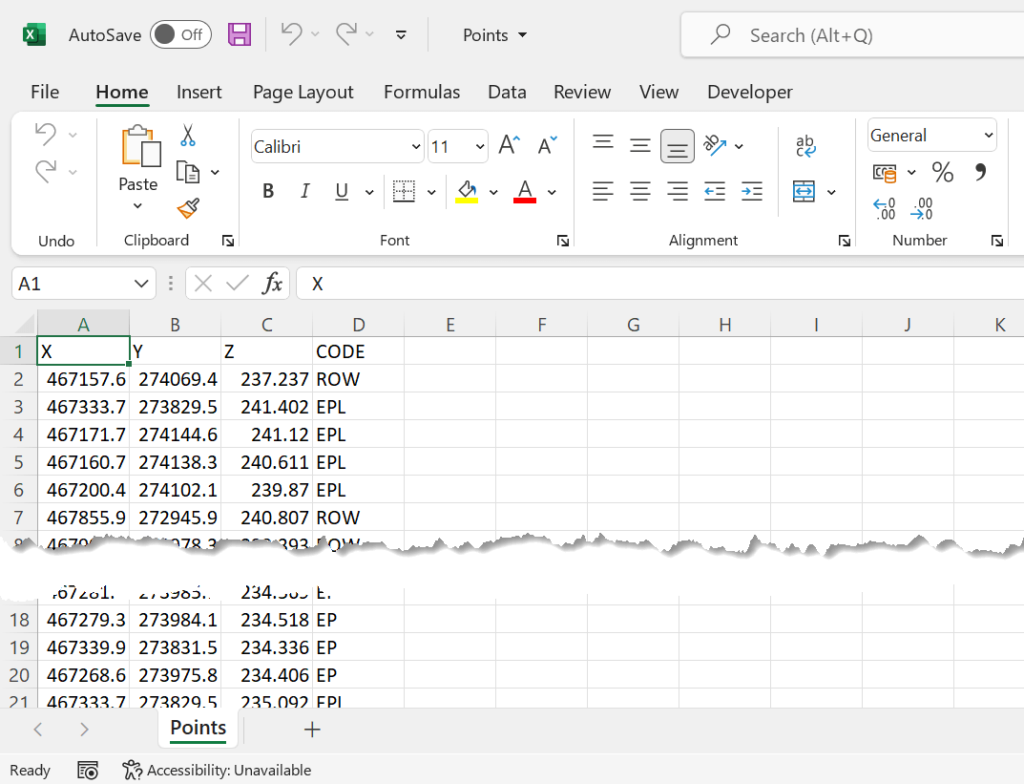
In step 3 of the wizard, select a column and choose Text to keep leading zeros.
3. Drag and drop
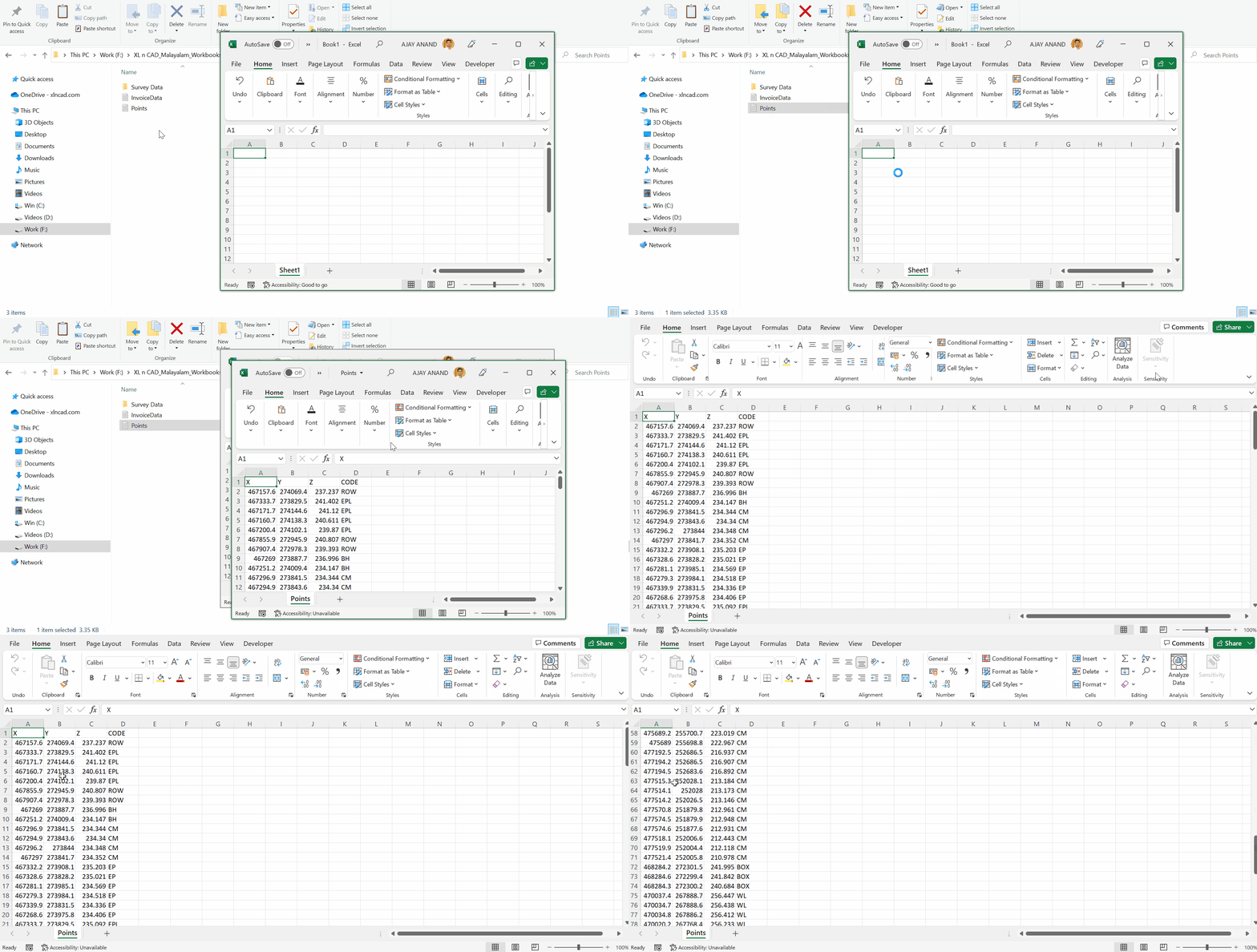
Drag a .txt or .csv file onto the Excel window. It's fast, but Excel decides the column types for you, so long numbers and leading zeros may change.
4. A macro
Asks for a file, puts each line in column A, then splits it at tabs and commas:
Sub ImportTextFile()
    Dim f As Variant, s As String, r As Long
    f = Application.GetOpenFilename("Text files (*.txt;*.csv),*.txt;*.csv")
    If f = False Then Exit Sub
    Open f For Input As #1
    Do Until EOF(1)
        Line Input #1, s
        r = r + 1
        Cells(r, 1).Value = s
    Loop
    Close #1
    Columns(1).TextToColumns DataType:=xlDelimited, Tab:=True, Comma:=True
End SubThe original version used Input #, which stops at every comma and puts each value on a new row. Line Input # reads a whole line at a time. Run it on an empty sheet.
Which method?
| Method | Use when |
|---|---|
| From Text/CSV | The file is updated regularly, or needs cleaning |
| File → Open | A one-off file with tricky columns |
| Drag and drop | A quick look |
| Macro | The same import, many times, with no Power Query |
No Excel at hand? The CSV to Excel converter works in your browser.