The Excel PIVOTBY function builds a cross-tab summary with one formula: one field down the rows, another across the columns, and the values summarised where they meet.
row_fields |
The field to show down the rows, such as Region. |
|---|---|
col_fields |
The field to show across the columns, such as Product. |
values |
The values to summarise. |
function |
SUM, AVERAGE, COUNT, MAX, MIN and others. |
row_total_depth optional |
0 hides row totals, 1 shows a grand total (default). |
col_total_depth optional |
0 hides column totals, 1 shows a grand total (default). |
Table of Contents
Basic example
To see sales for every region and product combination, put Region down the rows and Product across the columns:
=PIVOTBY(B3:B10,C3:C10,D3:D10,SUM) 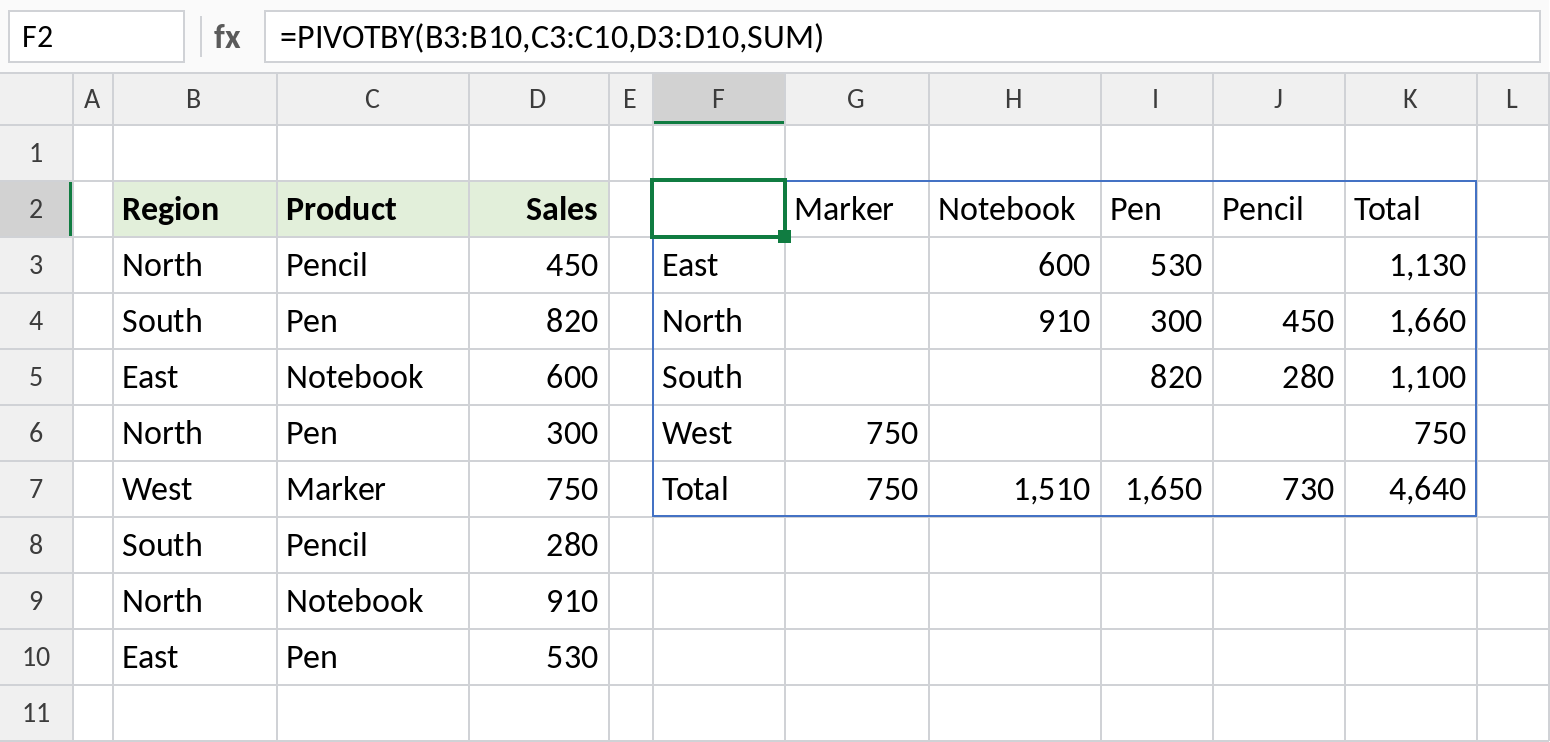
North sold 910 of Notebook and 1,660 in total. Empty cells mean that combination had no sales. Totals are added on the right and at the bottom: 4,640 overall.
Count instead of sum
Change the function to COUNT to see how many orders each combination had:
=PIVOTBY(B3:B10,C3:C10,D3:D10,COUNT) 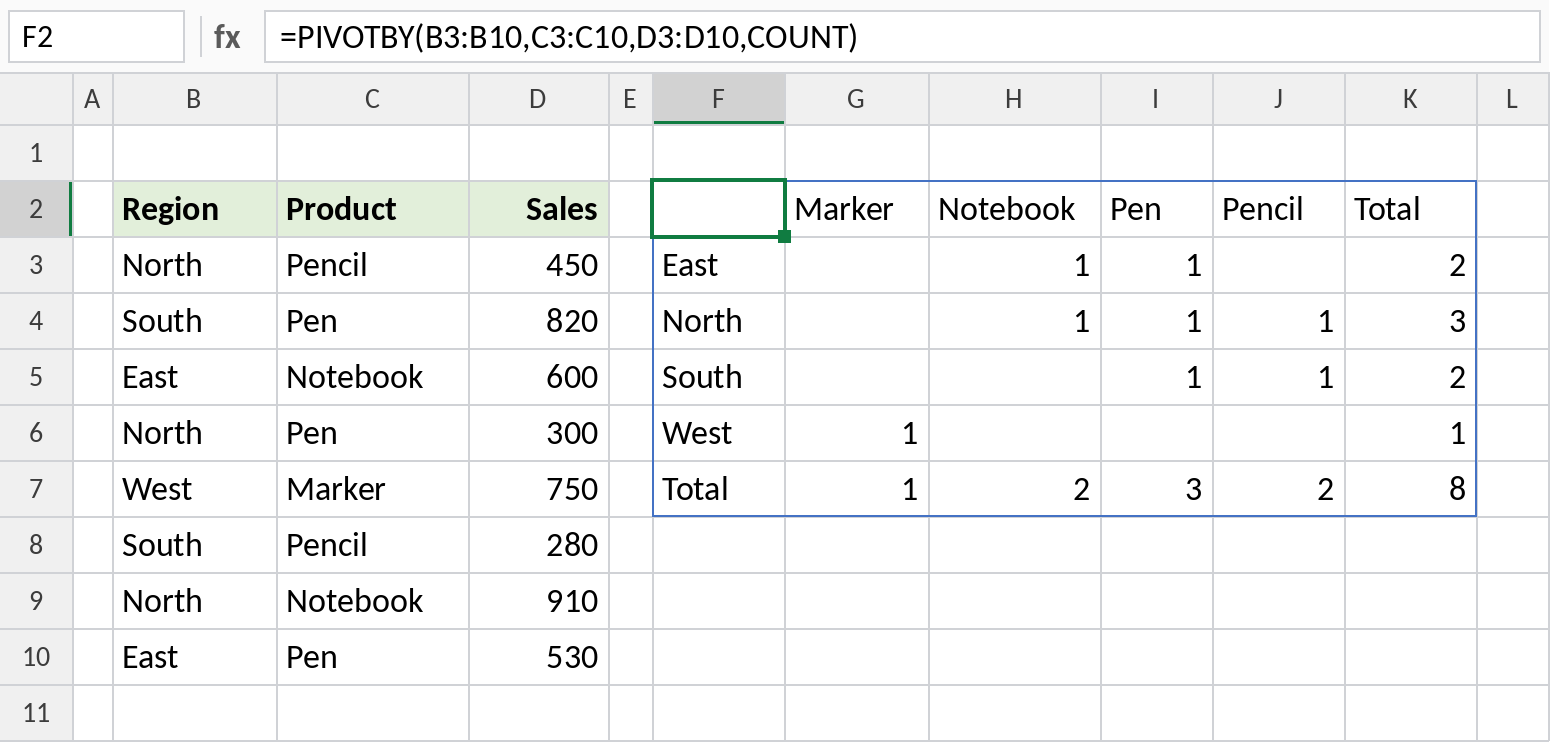
North has 3 orders, one of each product it sells. Overall there are 8 orders.
Remove the totals
Set row_total_depth and col_total_depth to 0 for a plain grid, ready to chart:
=PIVOTBY(B3:B10,C3:C10,D3:D10,SUM,,0,,0) 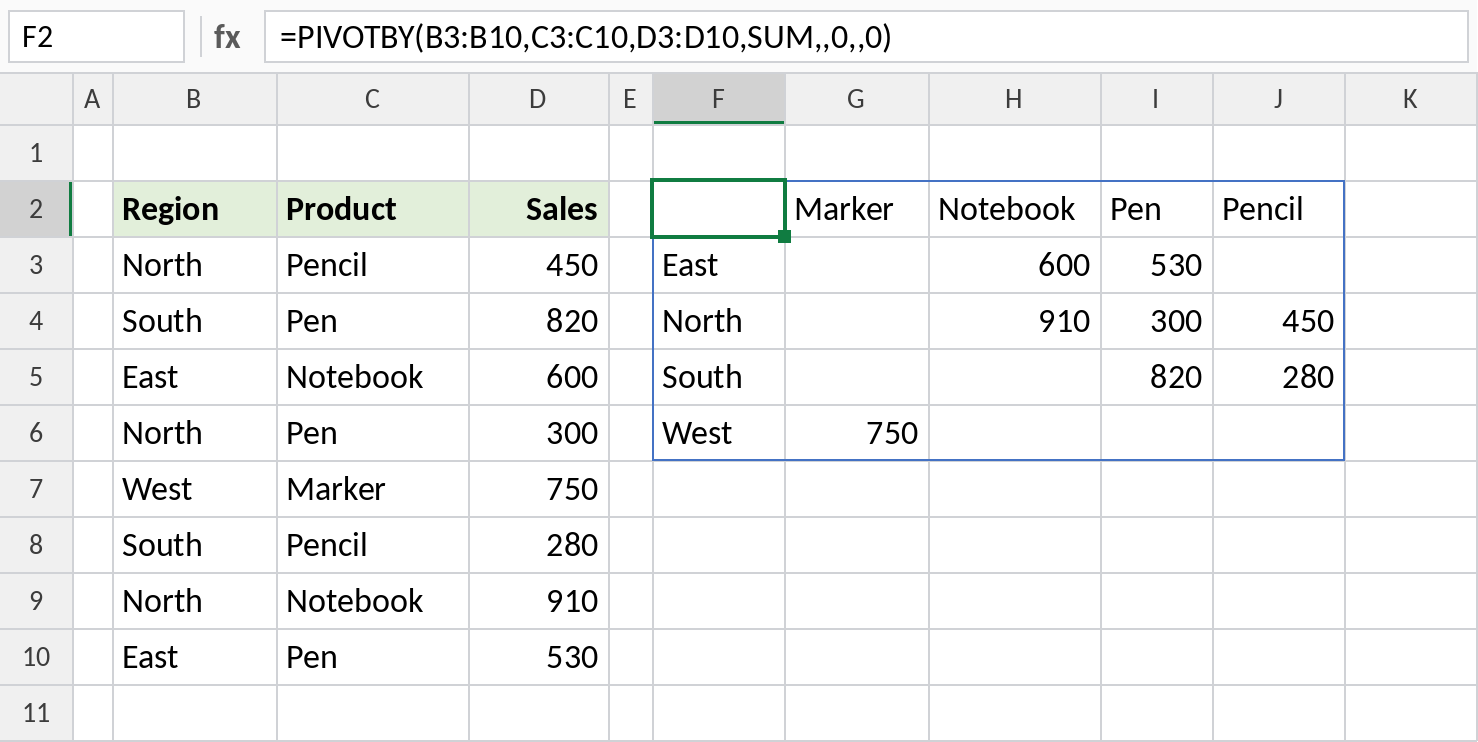
The Total row and column are gone, leaving just the 4 × 4 grid.
PIVOTBY vs GROUPBY
| GROUPBY | PIVOTBY | |
|---|---|---|
| Groups by | Rows only | Rows and columns |
| Result shape | A list with totals | A cross-tab grid |
| Typical use | Totals by region | Region × product, month × category |
For a single list of totals, GROUPBY is simpler.
Notes
- Write the function without brackets:
SUM, notSUM(). - Rows and columns are sorted A to Z unless you set the sort arguments.
- Empty cells mean there was no data for that combination.
- PIVOTBY is only in Excel 365 and Excel for the web.
Common errors
| Problem | Cause | Fix |
|---|---|---|
#NAME? |
Not Excel 365, or the function typed with brackets | Use Excel 365, and type SUM without brackets |
#VALUE! |
The ranges are different heights | Make them cover the same rows |
#SPILL! |
Cells in the spill range aren’t empty | Clear the space to the right and below |
Practice file
All three examples with working formulas (Excel 365).