This Excel template works out when each policy, subscription or document expires, counts the days left and flags anything Expired or Expiring Soon in colour. Because it uses TODAY, the alerts update every time you open the file.
Video
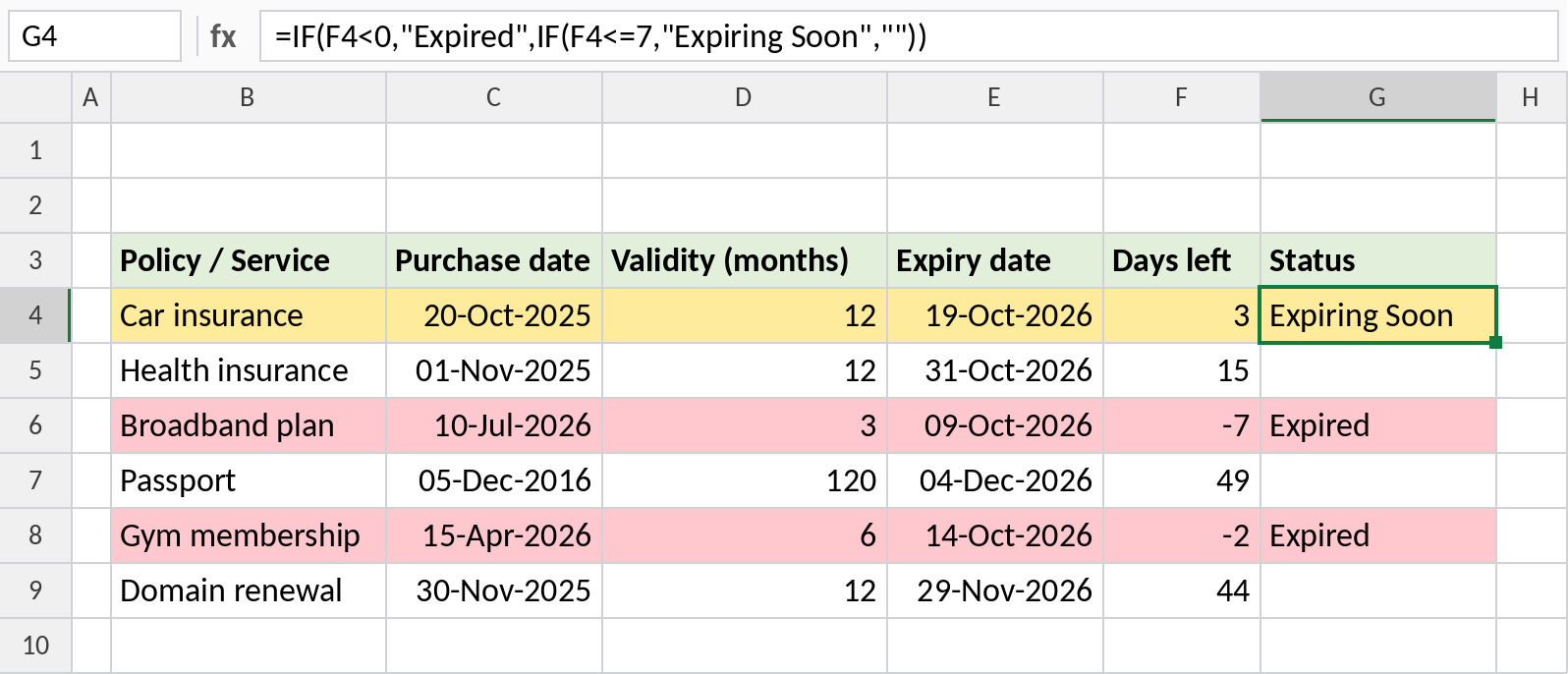
Step 1: The columns
Type the headings in row 3: Policy / Service (B), Purchase date (C), Validity in months (D), Expiry date (E), Days left (F) and Status (G). Fill in your items from row 4.
Step 2: Expiry date
In E4, add the validity months to the purchase date and take off one day:
=EDATE(C4,D4)-1A 12-month car policy bought on 20-Oct-2025 expires on 19-Oct-2026. Format the column as a date.
Step 3: Days left
In F4:
=E4-TODAY()Format it as General or Number, or it shows as a date. A negative number means the item has already expired.
Step 4: Status
In G4:
=IF(F4<0,"Expired",IF(F4<=7,"Expiring Soon",""))Copy E4:G4 down for every row. Change the 7 to give yourself more warning, for example 30 days for insurance.
Step 5: Colour the rows
- Select the data, B4:G9.
- Home → Conditional Formatting → New Rule → Use a formula to determine which cells to format.
- Enter
=$G4="Expired"and choose a light red fill. - Add a second rule:
=$G4="Expiring Soon"with a light yellow fill.
The $ before G keeps every cell in the row looking at the Status column, so the whole row is coloured.
Things to know
- EDATE handles month ends correctly: one month after 31-Jan is 28-Feb (or 29-Feb).
- For validity in years, multiply by 12 inside EDATE, for example
=EDATE(C4,D4*12)-1. - Pair it with WhatsApp messages from Excel to send renewal reminders.
Just need the number? Use the date difference calculator on Quick Easy Calculators, our sister site.