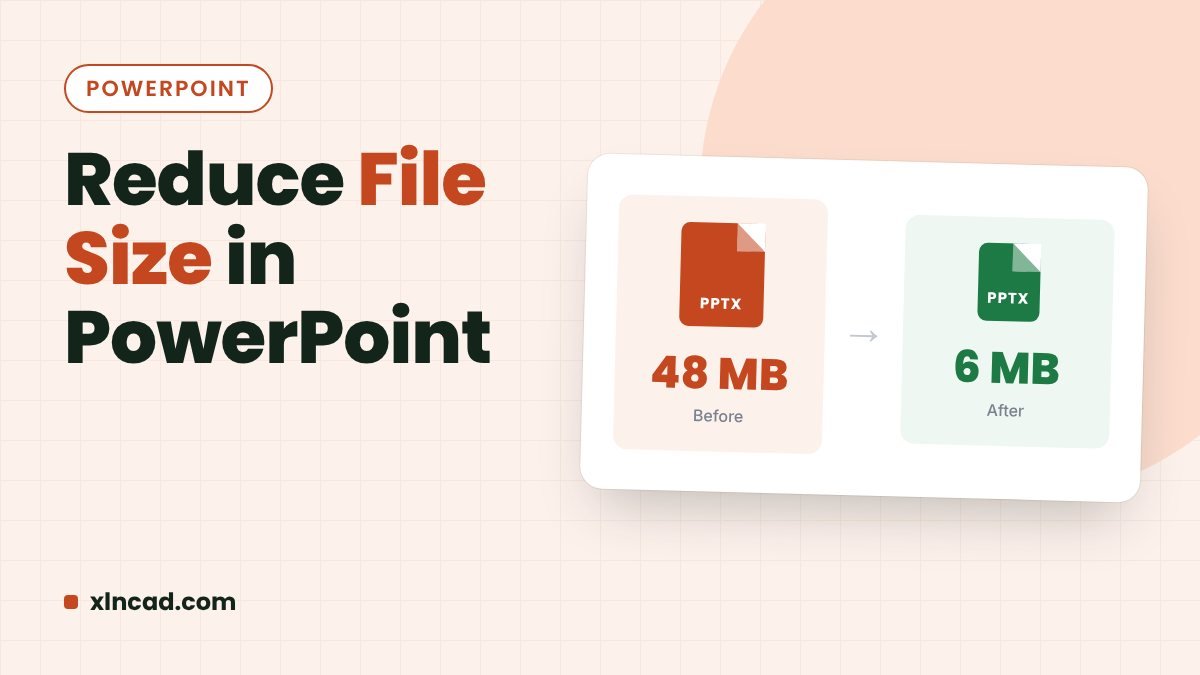
Large PowerPoint files are almost always caused by pictures and videos. Compressing them usually cuts the file to a fraction of its size, so it fits in an email.
1. Compress all pictures
- Click any picture.
- Go to Picture Format › Compress Pictures.
- Untick Apply only to this picture and tick Delete cropped areas of pictures.
- Choose Web (150 ppi) for screens, or E-mail (96 ppi) for the smallest file. Click OK.
2. Compress videos and audio
Go to File › Info › Compress Media and choose Full HD or Standard.
3. Set default picture quality
In File › Options › Advanced › Image Size and Quality, tick Discard editing data and set the default resolution to 150 ppi.
4. Don’t embed fonts
In File › Options › Save, untick Embed fonts in the file, unless the presentation will open on a computer without your fonts.
5. Delete unused layouts
In View › Slide Master, right-click layouts you don’t use and choose Delete Layout. Extra masters copied from other decks add size.
6. Save as .pptx
Old .ppt files are larger. Use File › Save As and choose PowerPoint Presentation (.pptx). For sharing to read only, save a PDF.
FAQ
Will compression make pictures blurry?
At 150 ppi, pictures look sharp on screen. Use 220 ppi or higher only for printing.
How do I see which slides are heavy?
Rename a copy of the file from .pptx to .zip and open the ppt/media folder to see the size of each picture and video.