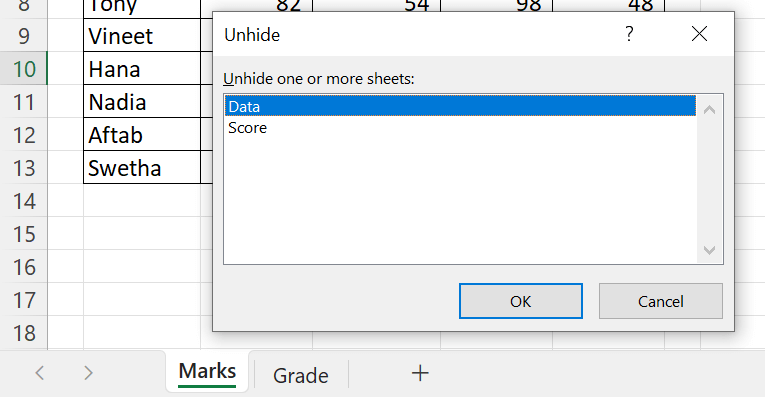
A very hidden sheet doesn't appear in the Unhide list. You can only hide or show it from the VBA editor, which makes it useful for lookup tables and calculations you don't want users to change by accident.
Three visibility settings
| Setting | Value | How to change it |
|---|---|---|
| Visible | −1 xlSheetVisible |
Normal |
| Hidden | 0 xlSheetHidden |
Right-click a tab → Hide / Unhide |
| Very hidden | 2 xlSheetVeryHidden |
Only from the VBA editor or a macro |
Hide and unhide normally
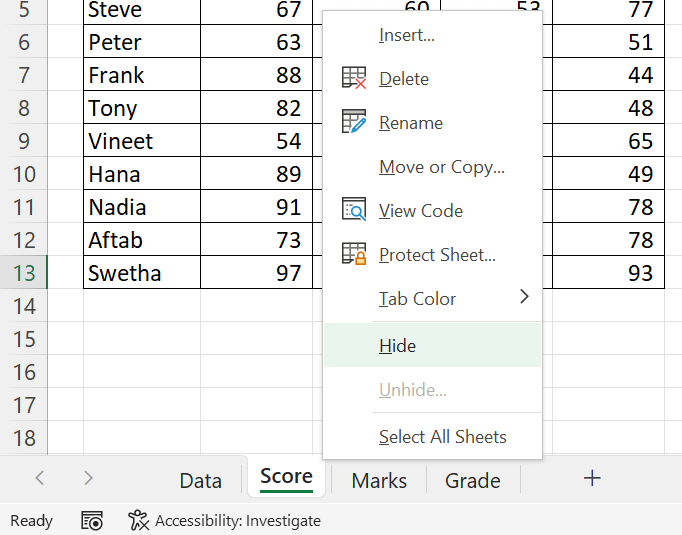
Right-click a sheet tab → Hide. To bring it back, right-click any tab → Unhide, select the sheets (several at once in Microsoft 365) and click OK.
Make a sheet very hidden
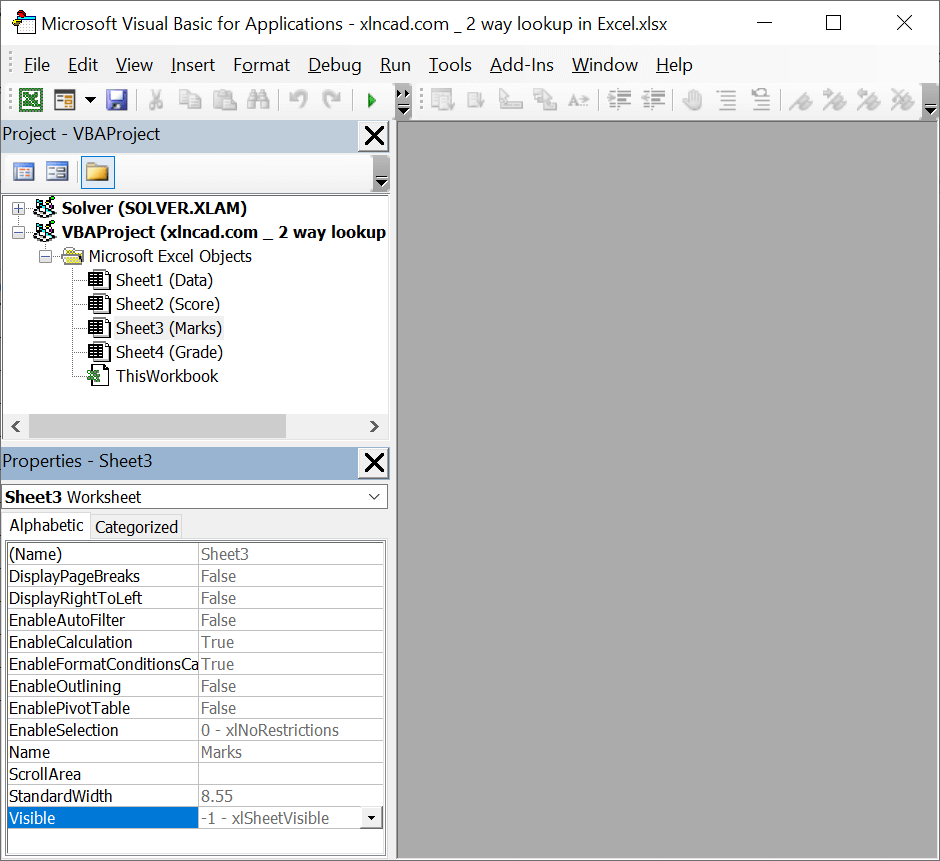
- Press Alt + F11 to open the VBA editor.
- Select the sheet in the Project pane on the left. Press F4 if the Properties window isn't showing.
- Set Visible to 2 – xlSheetVeryHidden.
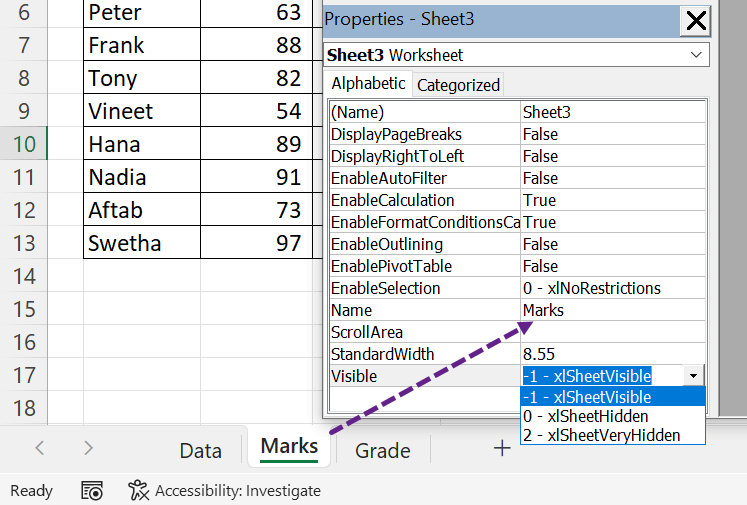
The tab disappears, and the sheet isn't listed in the Unhide dialog.
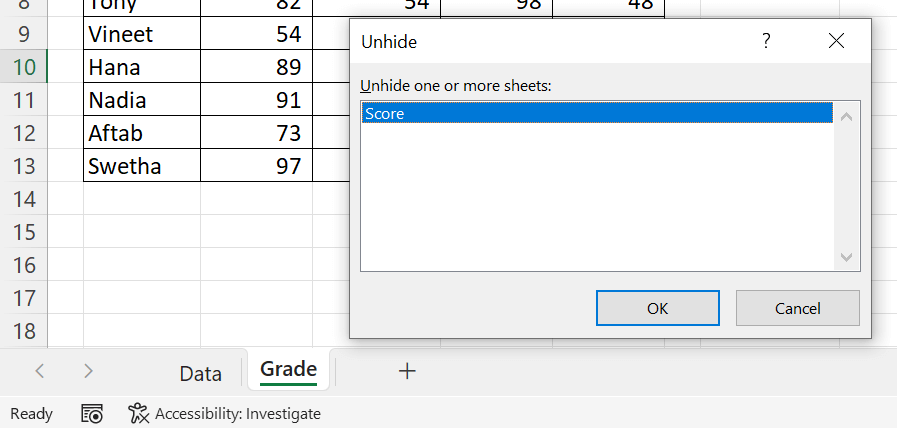
To show it again, set Visible back to -1 – xlSheetVisible. This works in any workbook, including .xlsx files; no macros are needed.
With macros
| To | Code |
|---|---|
| Very-hide one sheet | Sheets("Marks").Visible = xlSheetVeryHidden |
| Very-hide the selected sheets | ActiveWindow.SelectedSheets.Visible = xlSheetVeryHidden |
| Show every very hidden sheet | Loop with If ws.Visible = xlSheetVeryHidden Then ws.Visible = xlSheetVisible |
The full macros, with steps to run them, are on the very hidden sheet macro page.
Sub ShowVeryHiddenSheets()
    Dim ws As Worksheet
    For Each ws In ActiveWorkbook.Worksheets
        If ws.Visible = xlSheetVeryHidden Then ws.Visible = xlSheetVisible
    Next ws
End SubMake it harder to undo
Anyone who knows the VBA editor can unhide the sheet. To stop that:
- In the VBA editor: Tools → VBAProject Properties → Protection, tick Lock project for viewing and set a password.
- Save as .xlsm and reopen.
- Also use Review → Protect Workbook (structure) so sheets can't be inserted, renamed or unhidden normally.
Even then, Excel protection stops accidents, not determined people. Don't use hidden sheets for passwords or confidential data; keep those in a separate file.
Things to know
- At least one sheet must stay visible; Excel won't let you hide the last one.
- Formulas on other sheets still read very hidden sheets normally.
- To check a workbook for very hidden sheets, open the VBA editor and look at each sheet's Visible property.