Power Query’s Merge compares two tables and returns matching or non-matching rows, depending on the join kind. Here are all six, explained with two cast lists, and the steps to use any of them.
WhereData → Get Data → Combine Queries → Merge
Join kinds6
Works inExcel 2016 and later, Power BI
Table of Contents
The six joins at a glance

| Join kind | Returns | Example question |
|---|---|---|
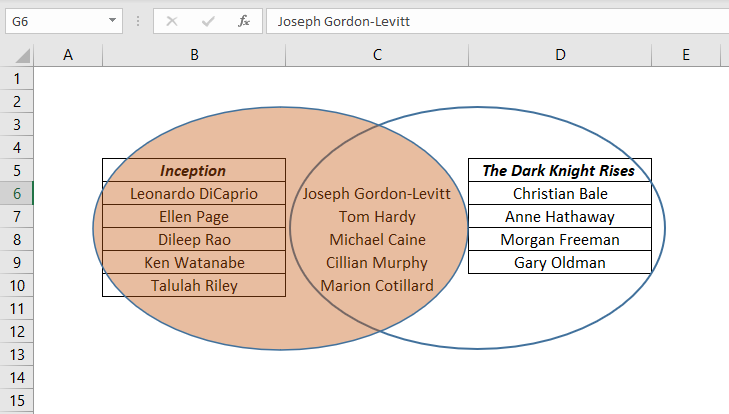
| Inner | Only rows in both tables | Actors in both films |
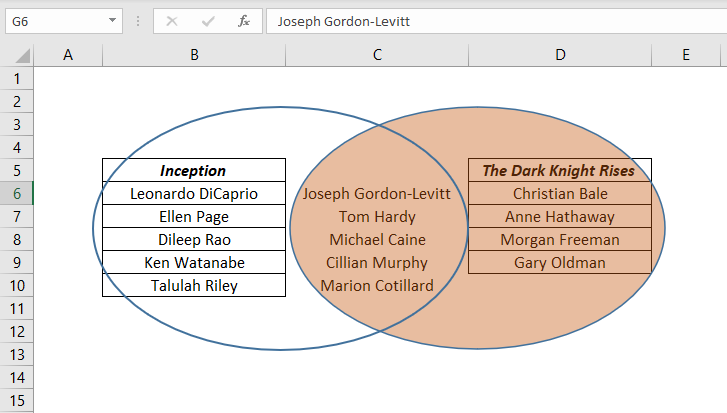
| Full Outer | All rows from both tables | Everyone in either film |
| Left Outer | All rows from the first, matches from the second | Inception’s cast, with their other film if any |
| Right Outer | All rows from the second, matches from the first | The Dark Knight Rises cast, with matches |
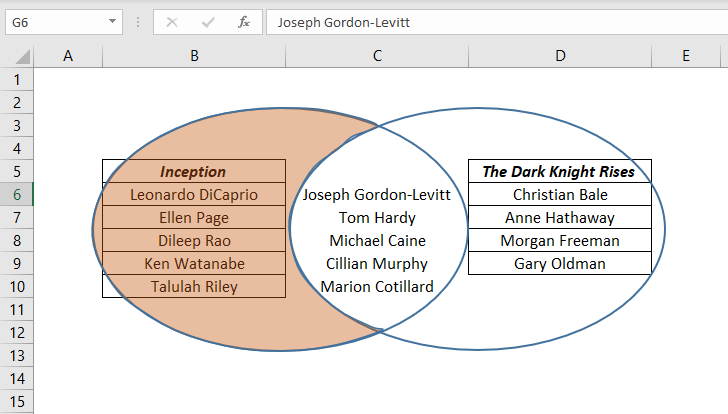
| Left Anti | Rows only in the first table | Actors only in Inception |
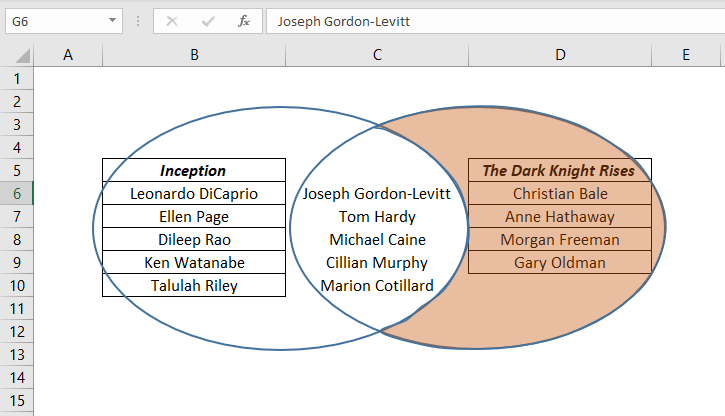
| Right Anti | Rows only in the second table | Actors only in The Dark Knight Rises |
The example tables
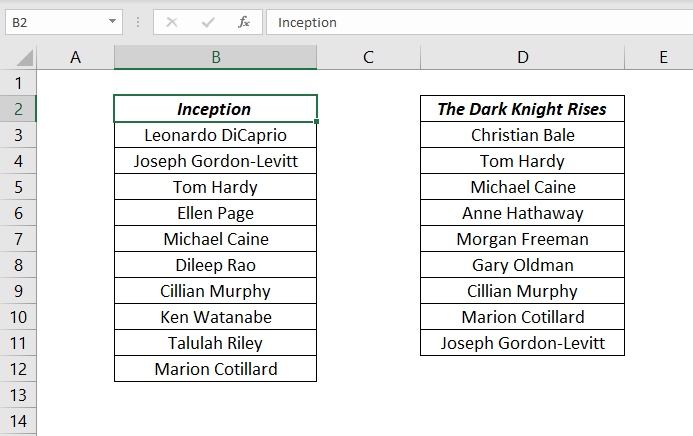
Two cast lists: Inception and The Dark Knight Rises. Some actors, like Michael Caine, appear in both.
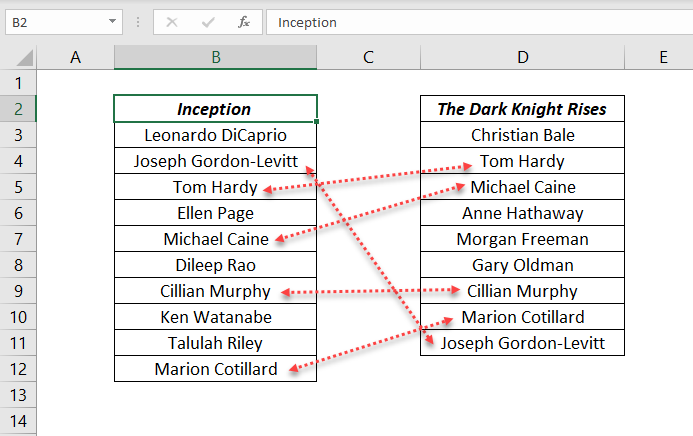
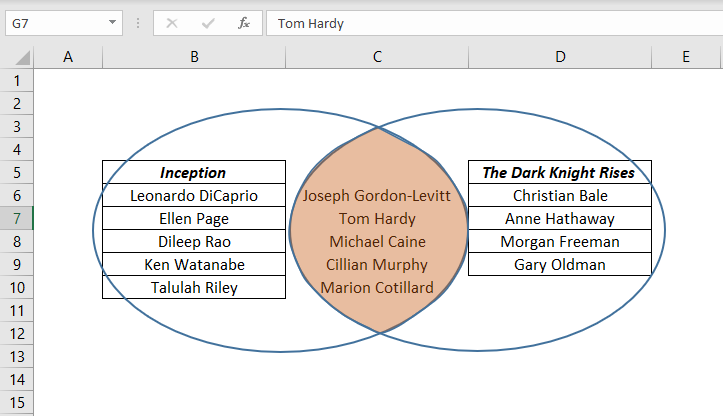
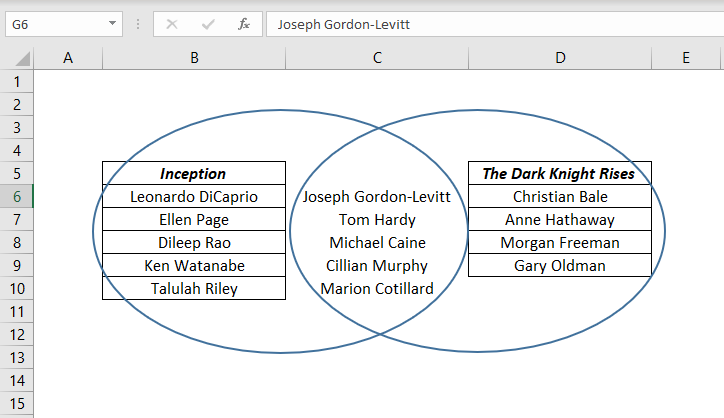
Each join in pictures
How to merge two tables
Step 1: Load both tables as connections
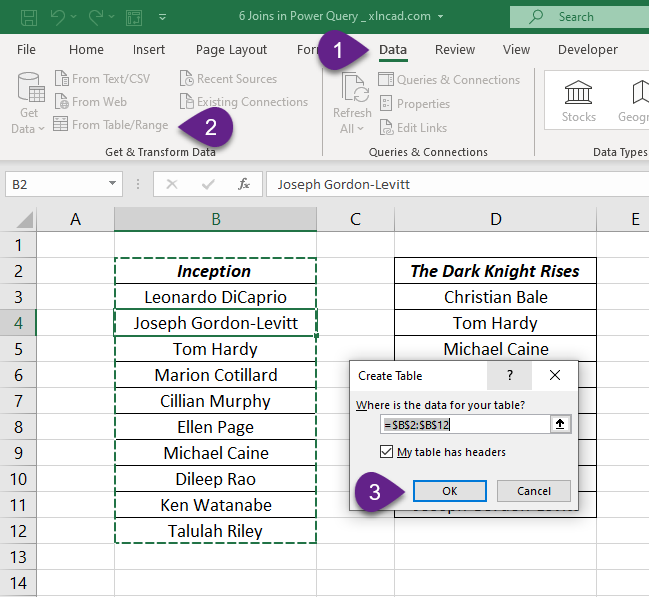
- Click in the first table and go to Data → From Table/Range.
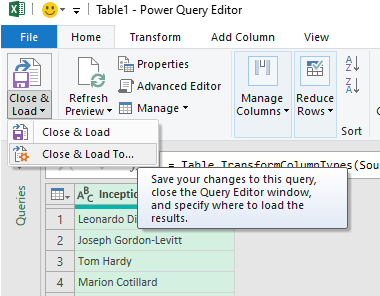
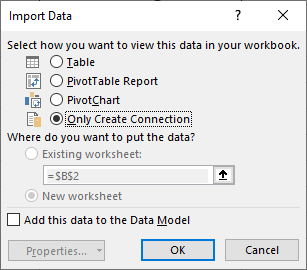
- In the editor, choose Home → Close & Load → Close & Load To → Only Create Connection.
- Repeat for the second table.
Step 2: Merge
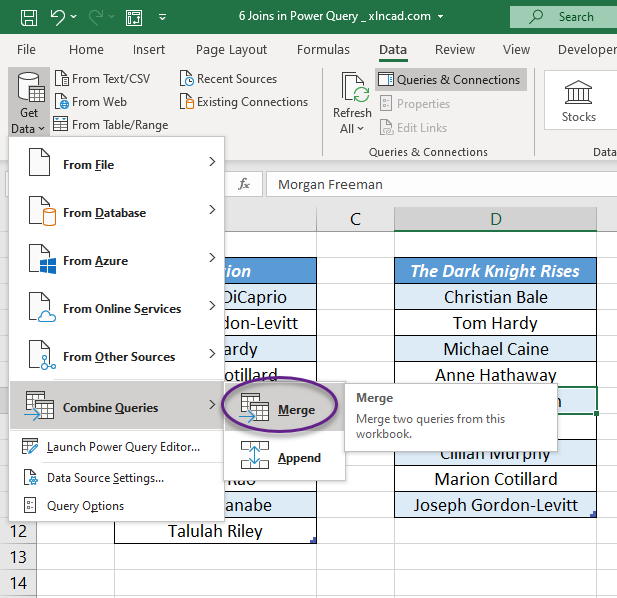
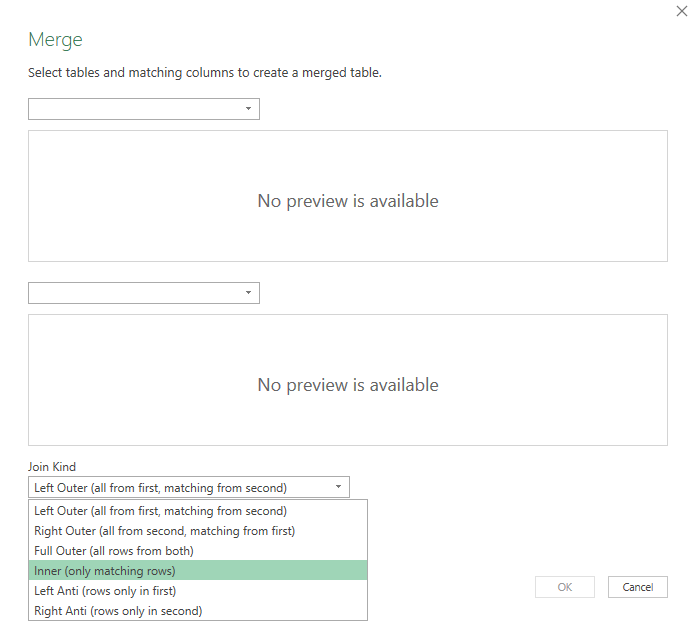
- Go to Data → Get Data → Combine Queries → Merge.
- Pick the first and second tables and click the matching column in each (here, Actor).
- Choose the Join Kind and click OK.
Step 3: Tidy and load
The second table arrives as a column of nested tables. Click the expand icon in its header to pick columns, or remove it if you only need the names. Then Close & Load.
Things to know
- Matching is case-sensitive and exact: “Tom Hardy ” with a trailing space won’t match. Use Transform → Format → Trim and Clean first.
- You can match on two or more columns: hold Ctrl and click them in the same order in both tables.
- Fuzzy matching (tick Use fuzzy matching) finds near matches like Bengaluru and Bangalore Urban. Check the results carefully.
- Anti joins are the quickest way to find what’s missing between two lists, such as unpaid invoices.
Frequently asked questions
What is the difference between a left outer and a left anti join?
Left outer keeps every row from the first table and adds matches. Left anti keeps only first-table rows that have no match.