Power Query’s Text.Select keeps only the characters you list, and Text.Remove throws them away. With one custom column you can strip !@#$%&* from messy text, or pull out just the numbers, capitals or letters.
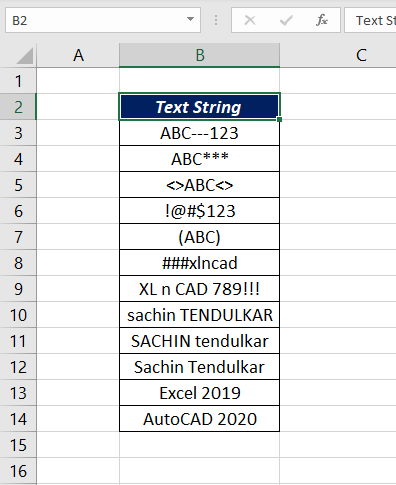
The data
Step 1: Load the data into Power Query
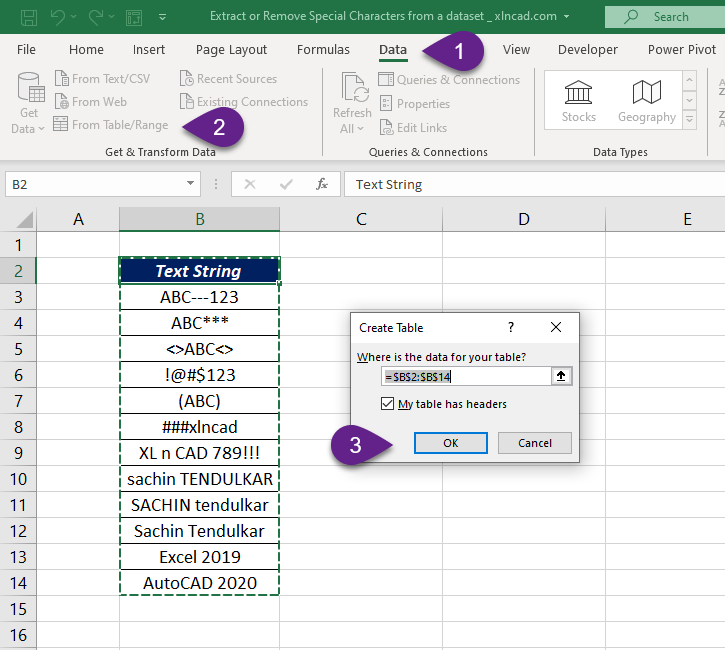
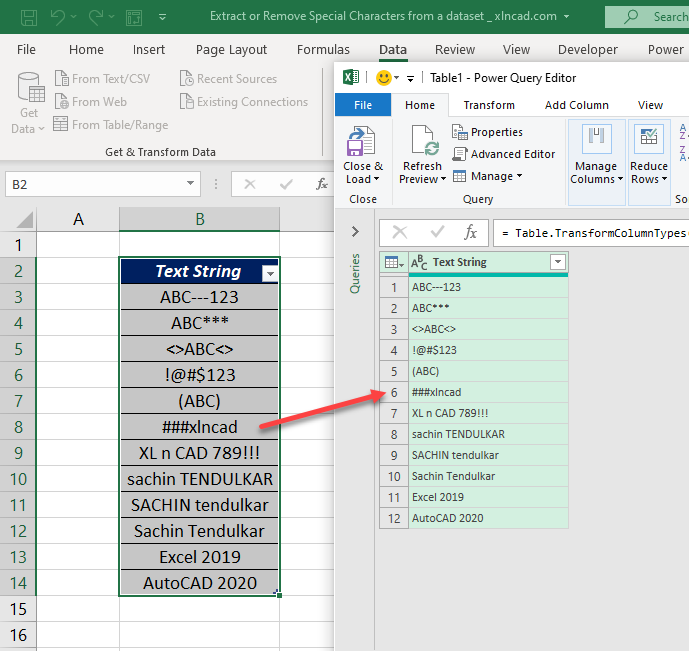
Click a cell in the data, go to Data → From Table/Range, and click OK in Create Table.
Step 2: Add a custom column
Go to Add Column → Custom Column, name the column, and enter one of the formulas below.
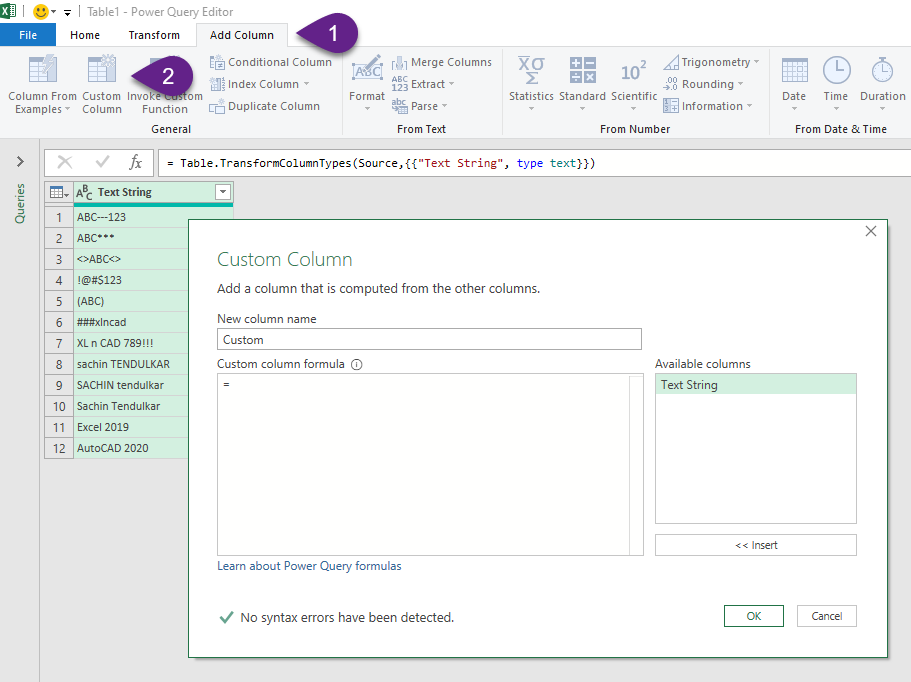
Remove special characters (keep letters, numbers and spaces)
Text.Select([Text String], {"A".."Z", "a".."z", "0".."9", " "})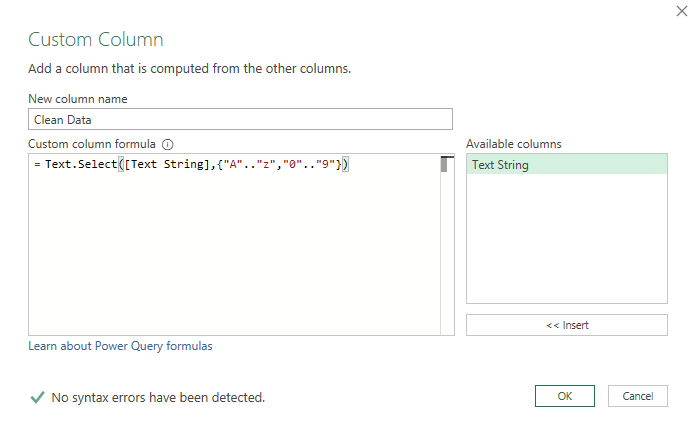
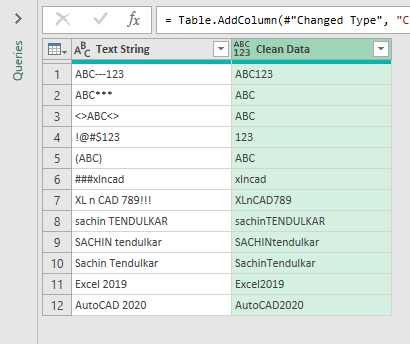
Why not {"A".."z"}? A range runs through every character in between, and between Z and a sit [ \ ] ^ _ “. List capitals and small letters separately so those don’t slip through.
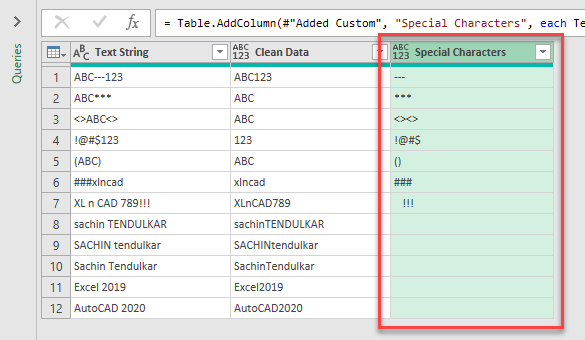
Extract only the special characters
Text.Remove([Text String], {"A".."Z", "a".."z", "0".."9", " "})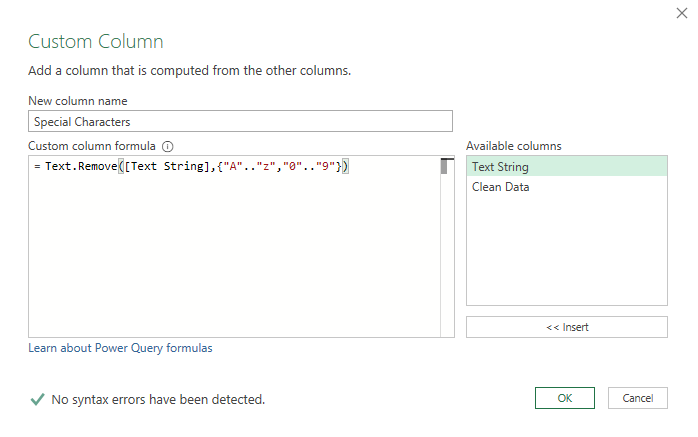
More patterns
| To keep | Formula |
|---|---|
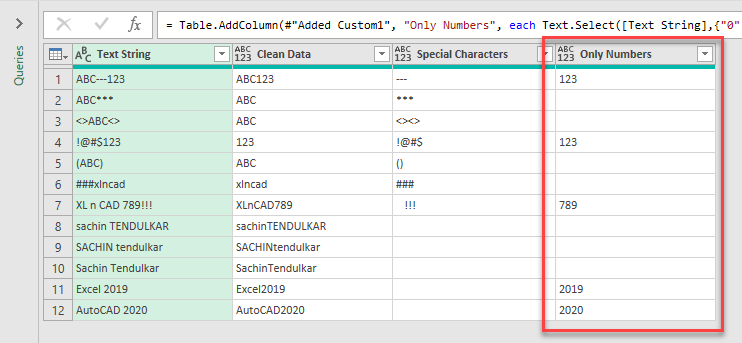
| Numbers only | Text.Select([Text String], {"0".."9"}) |
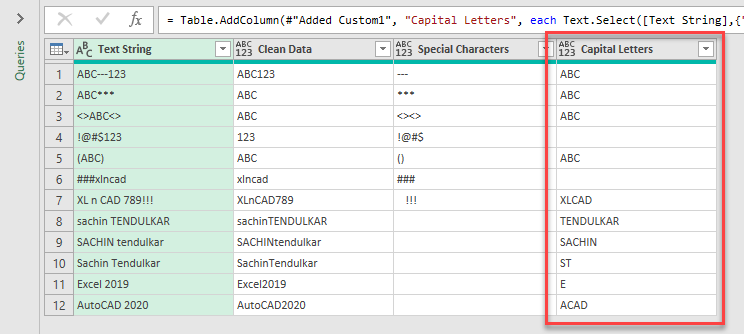
| Capital letters only | Text.Select([Text String], {"A".."Z"}) |
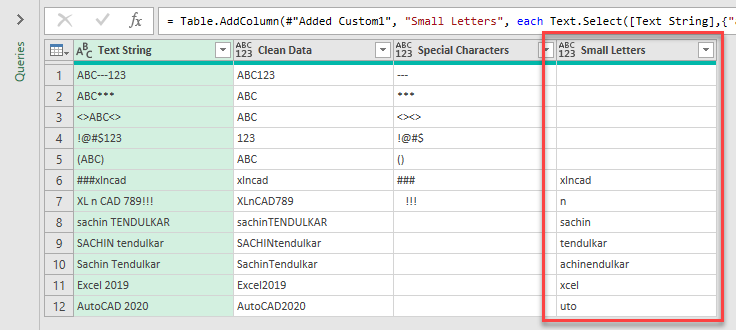
| Small letters only | Text.Select([Text String], {"a".."z"}) |
| All English letters | Text.Select([Text String], {"A".."Z", "a".."z"}) |
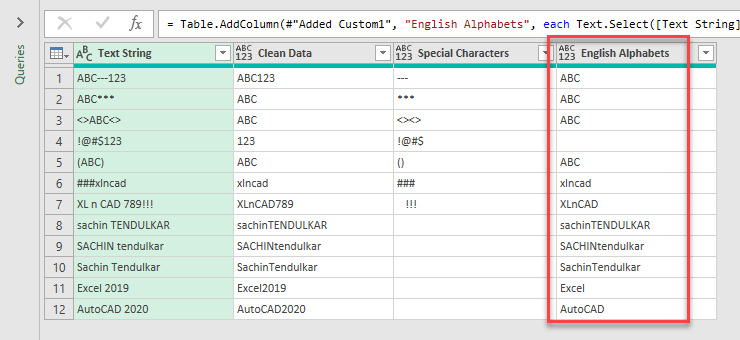
Step 3: Load and refresh
Remove any columns you don’t need (right-click the header → Remove), then Home → Close & Load To → Existing worksheet.
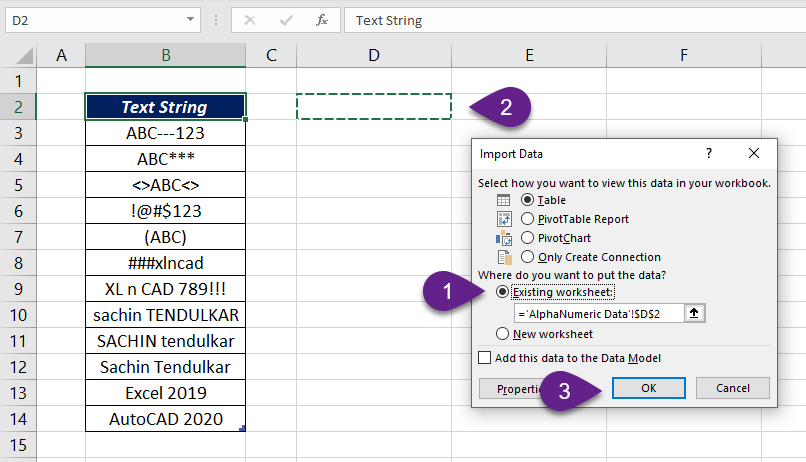
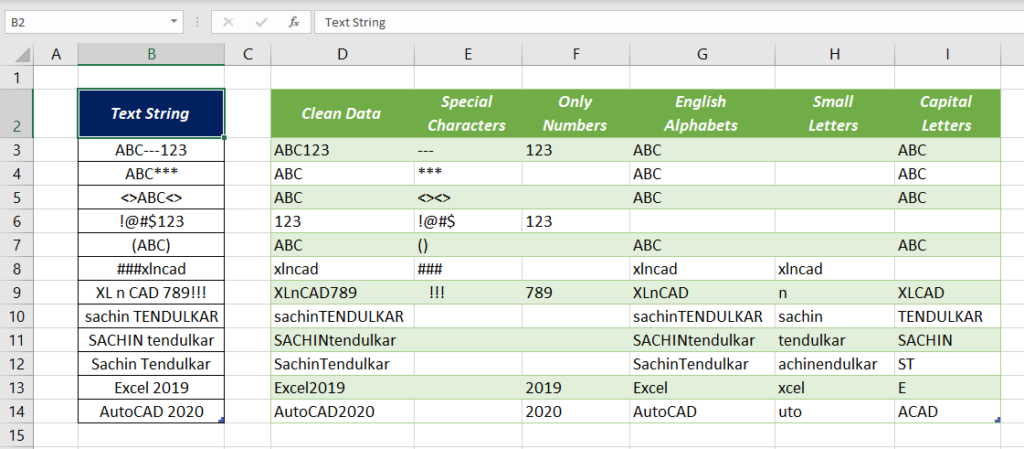
When new rows are added to the source, right-click the result and choose Refresh.
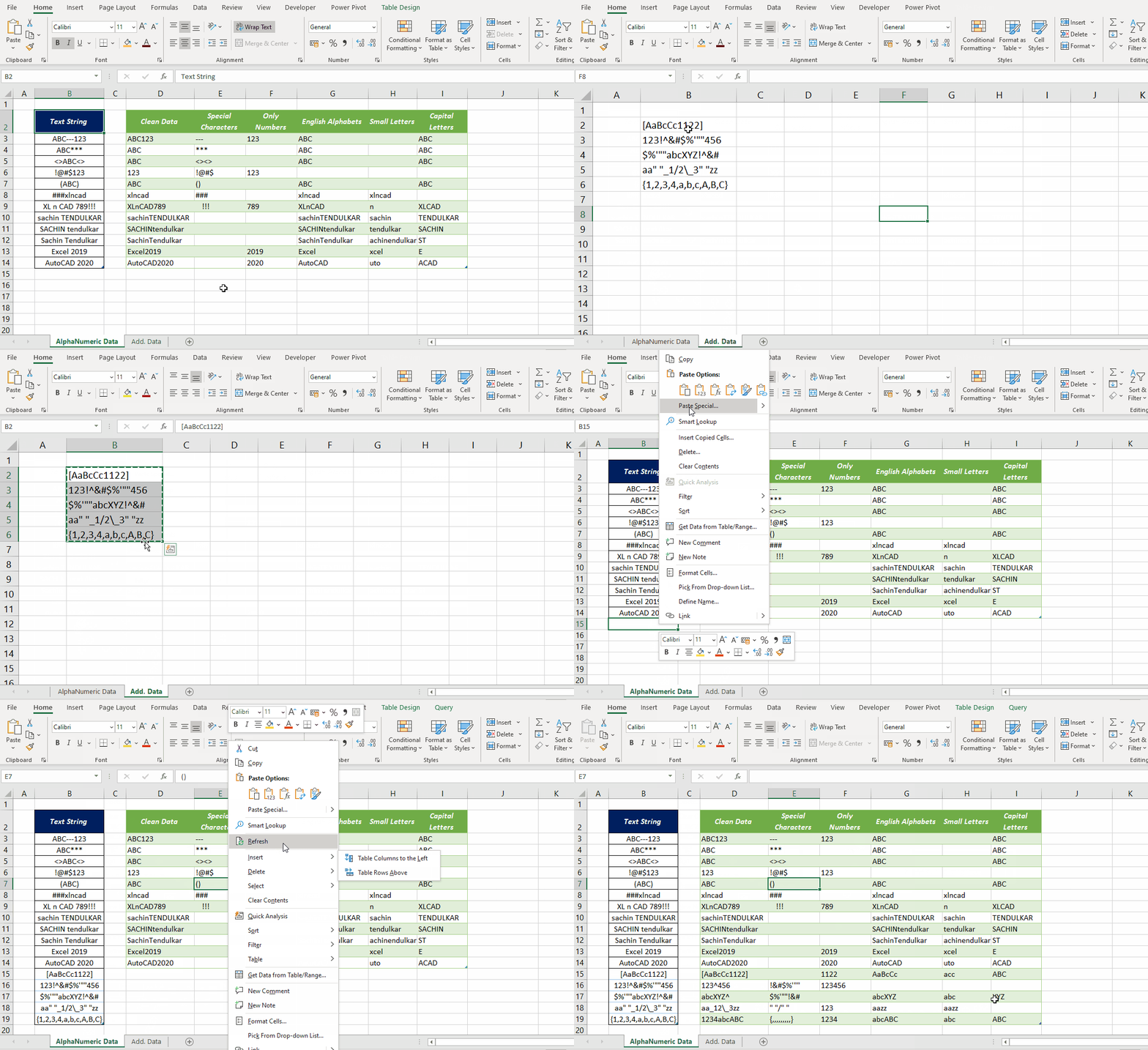
Excel 365: a formula alternative
In current Microsoft 365, REGEXREPLACE does the same in a cell:
=REGEXREPLACE(A2,"[^A-Za-z0-9 ]","")[^...] means anything not in this list, so every other character is replaced with nothing.
Things to know
- Text.Select and Text.Remove are case-sensitive:
"A".."Z"doesn’t include small letters. - Accented letters (é, ñ) and Indian scripts are outside
A..Z, so they are treated as special characters. Add them to the list if you need them. - Power Query formulas are written without the leading
=in the Custom Column box; Excel adds it for you.