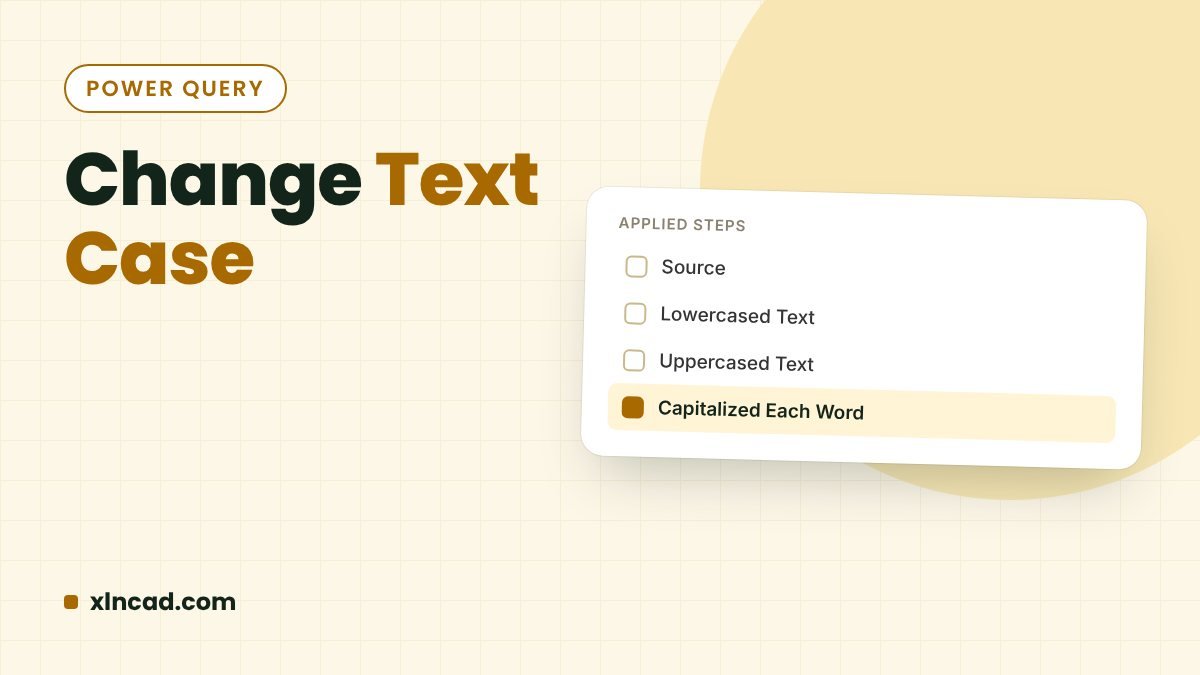
Power Query converts text to UPPERCASE, lowercase or Capitalize Each Word in two clicks, and the result refreshes when the source changes. Use Transform to change a column in place, or Add Column to keep the original.
WhereTransform → Format, or Add Column → Format
M functionsText.Upper, Text.Lower, Text.Proper
Works inExcel 2016 and later, Power BI
The data

Step 1: Load the data
Click in the list → Data → From Table/Range → OK.


Step 2: Change the case
Replace the column
Right-click the column header → Transform → choose a case.
| Option | Result for “aJAY anand” | Excel equivalent |
|---|---|---|
| UPPERCASE | AJAY ANAND | UPPER |
| lowercase | ajay anand | LOWER |
| Capitalize Each Word | Ajay Anand | PROPER |


Keep the original and add new columns
Select the column → Add Column → Format → choose a case. Repeat for each case you need.


Double-click a header to rename it.
Step 3: Load and refresh
Home → Close & Load To → Existing worksheet, pick a cell, OK. Right-click the result → Refresh after adding names.


Things to know
- Capitalize Each Word also lowercases the rest of each word, so McDonald becomes Mcdonald and XL n CAD becomes Xl N Cad. Fix exceptions afterwards with Replace Values.
- Changing case is a good first step before matching or removing duplicates, because Power Query compares text case-sensitively.
- For a quick one-off without Power Query, use the free text case converter.