The Excel PROPER function capitalises the first letter of each word and makes the other letters lowercase. It’s the quickest way to tidy names.
text |
The text or cell to convert. |
|---|
Table of Contents
Basic example
PROPER fixes names typed in any case:
=PROPER(B4)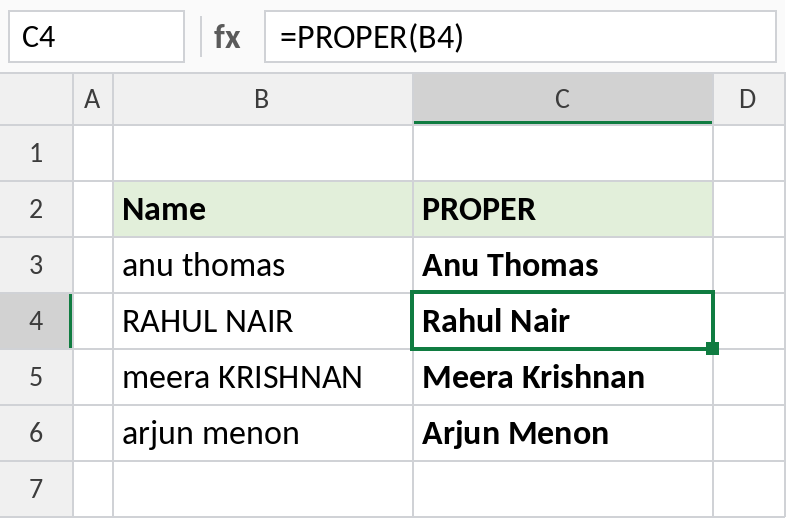
RAHUL NAIR becomes Rahul Nair, and meera KRISHNAN becomes Meera Krishnan.
Watch out for short forms
PROPER treats every word the same, so abbreviations lose their capitals:
=PROPER(B3)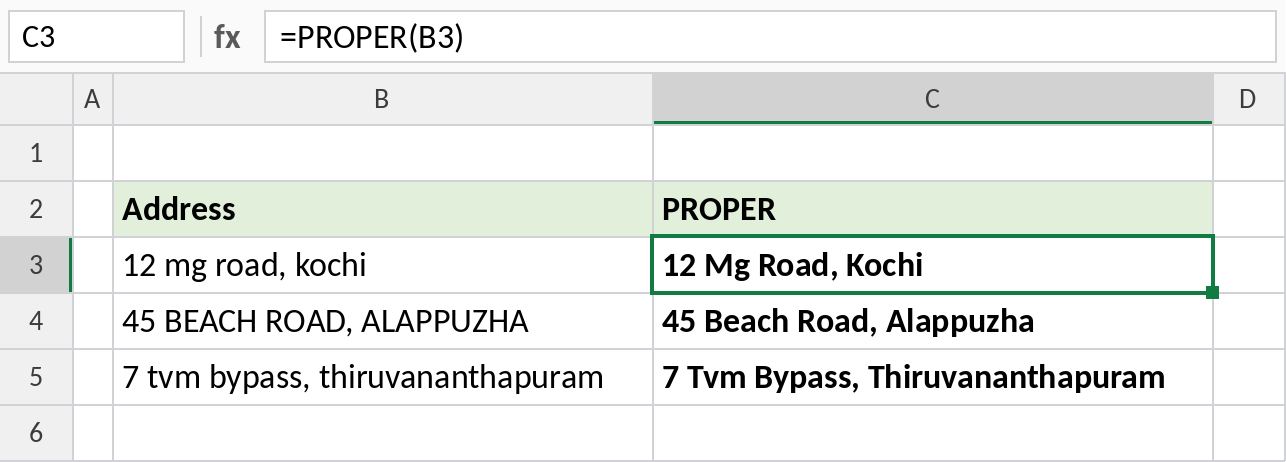
mg road becomes Mg Road and tvm becomes Tvm. Fix these afterwards with SUBSTITUTE, for example =SUBSTITUTE(PROPER(B3),"Mg ","MG ").
Clean spaces and case together
Names from forms often have extra spaces as well as odd capitals. Wrap TRIM inside PROPER:
=PROPER(TRIM(B3))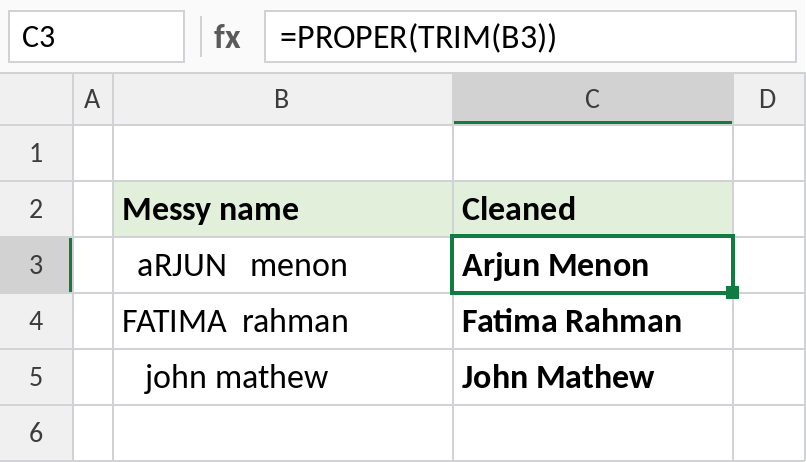
aRJUN menon becomes Arjun Menon. TRIM removes the extra spaces and PROPER fixes the case.
PROPER quirks
| Text | PROPER result | Why |
|---|---|---|
| o’brien | O’Brien | Capitalises after the apostrophe |
| it’s done | It’S Done | Same rule, unwanted here |
| anu-mary | Anu-Mary | Capitalises after the hyphen |
| 3rd floor | 3Rd Floor | Capitalises after a number |
PROPER capitalises any letter that follows a character that isn’t a letter. Check results with apostrophes or numbers.
Notes
- PROPER capitalises the first letter after any non-letter: spaces, hyphens, apostrophes and numbers.
- Abbreviations and acronyms like MG, ID or GST lose their capitals. Fix them with SUBSTITUTE.
- Combine with TRIM to clean spacing at the same time.
- To capitalise only the first letter of a sentence, see the formula page linked below.
Common errors
| Problem | Cause | Fix |
|---|---|---|
| Acronyms in lowercase | PROPER treats them like ordinary words | Use SUBSTITUTE to restore them |
| Odd capitals after apostrophes | PROPER rule, such as It’S | Fix with SUBSTITUTE, or edit by hand |
| Extra spaces remain | PROPER doesn’t remove spaces | Use PROPER(TRIM(B3)) |
Practice file
All three examples plus the quirks in a cheat sheet.