A drop-down list lets people pick a value instead of typing it, so entries are consistent and typing mistakes disappear. You make one with Data Validation, from a range of cells, a typed list, or a Table that grows by itself.
Table of Contents
Create a drop-down list from cells
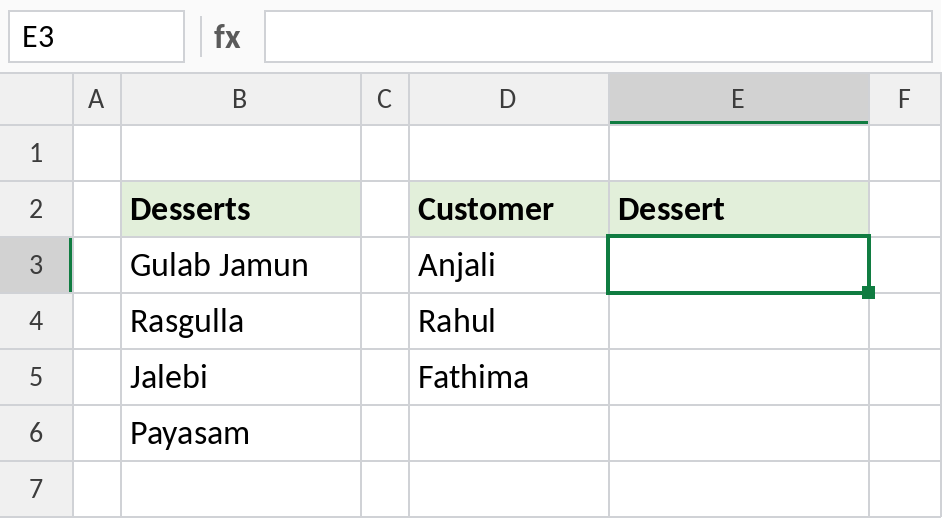
- Type the options in a column, for example the desserts in B3:B6.
- Select the cells that should get the drop-down.
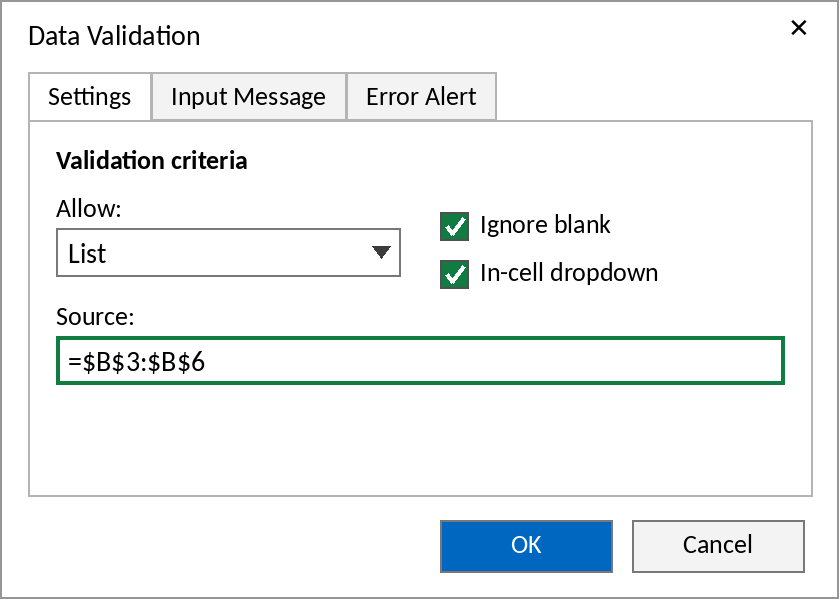
- Data → Data Validation. In Allow, choose List.
- Click in Source and select B3:B6 (Excel adds the
$signs). Click OK.
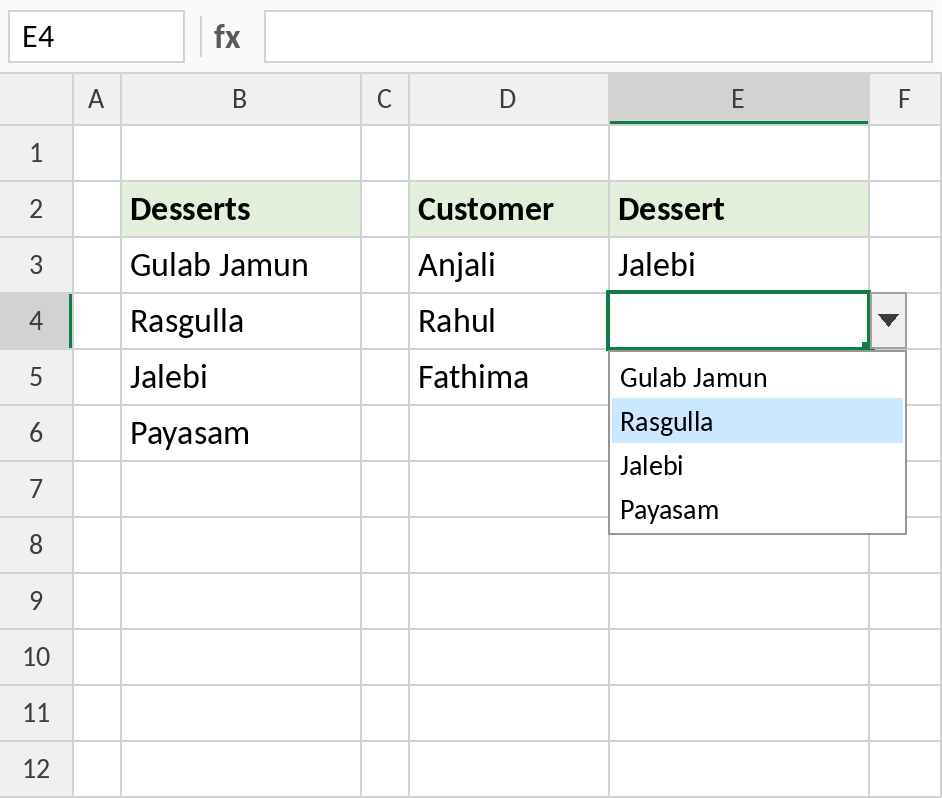
Each cell now shows an arrow when selected. Click it, or press Alt + ↓, to pick a value.
Type the options instead
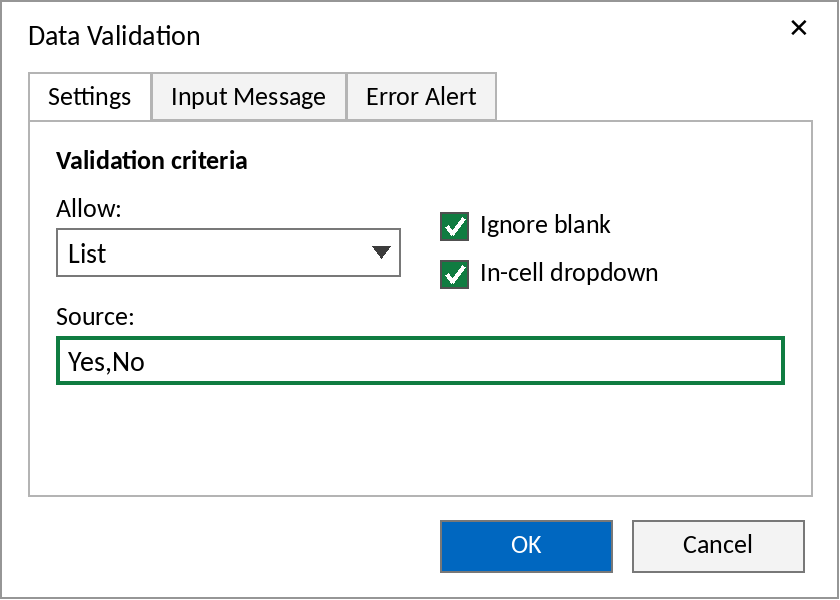
For a short list that won't change, such as Yes and No, type the options in Source separated by commas: Yes,No.
In some regional settings, use a semicolon instead: Yes;No.
A drop-down list that updates by itself
Make the source an Excel Table and new items appear in the drop-down automatically:
- Click in the source list and press Ctrl + T → OK.
- In Table Design, name the Table, for example Food.
- In Data Validation's Source, type the formula below.
=INDIRECT("Food[Desserts]")Food is the Table name and Desserts is the column header. Data Validation doesn't accept Table references directly, so INDIRECT is needed.
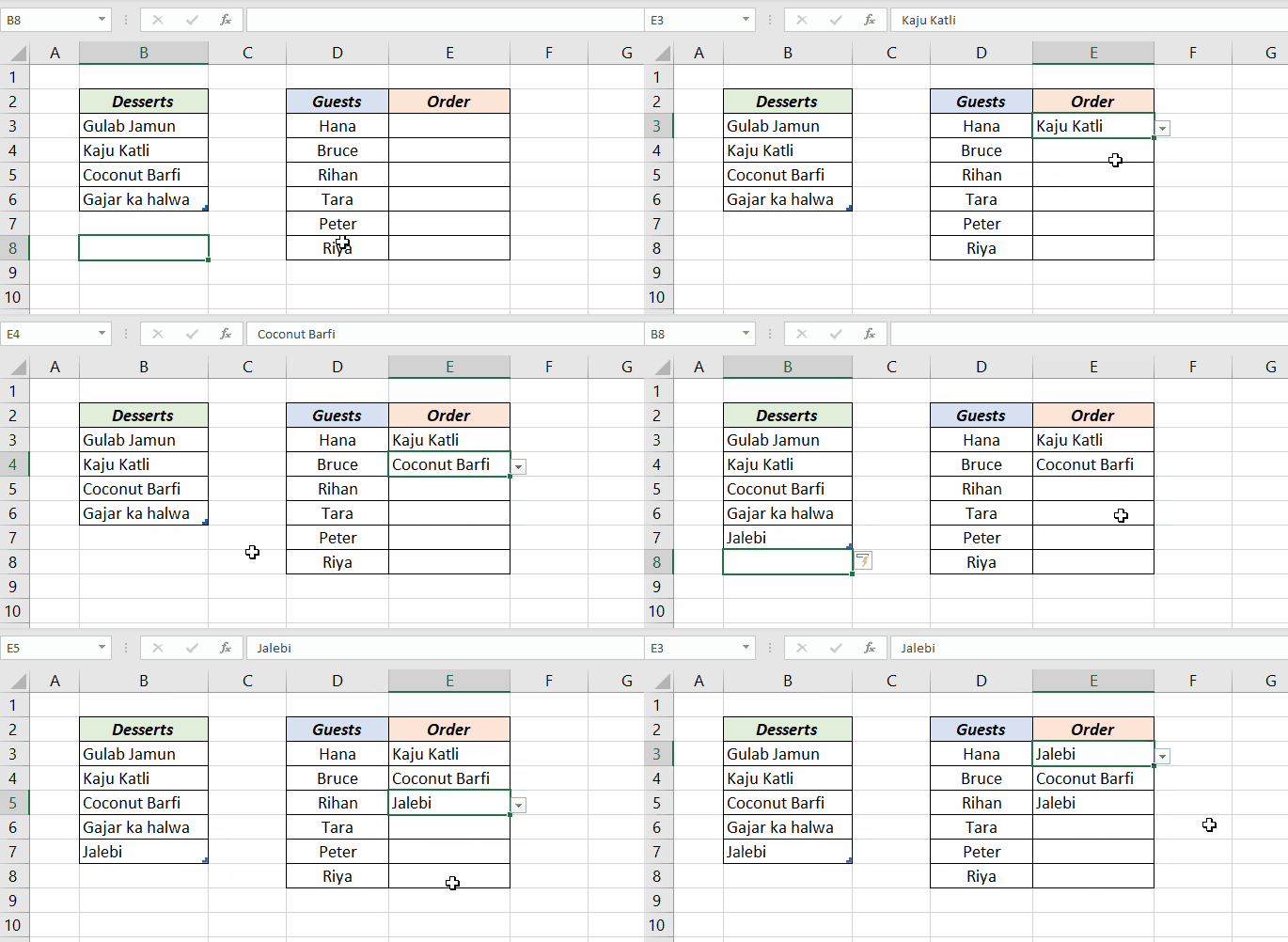
In Microsoft 365, you can also point the source to a spilled formula. If =SORT(UNIQUE(A2:A100)) is in E2, use =$E$2# as the source for a sorted list with no duplicates.
Allow other entries, or show a message
By default, Excel rejects anything not in the list.
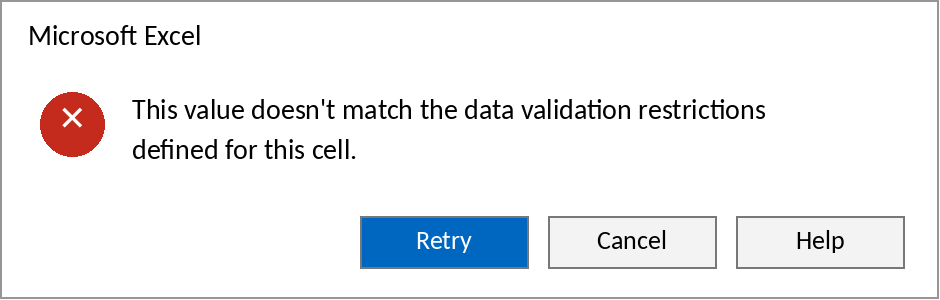
- To allow other entries: Data Validation → Error Alert tab → untick Show error alert after invalid data is entered.
- To guide people: the Input Message tab shows a note whenever the cell is selected.
Copy, find and remove drop-down lists
| Task | How |
|---|---|
| Copy to more cells | Drag the fill handle, or copy and Paste Special → Validation |
| Find every cell with a drop-down | F5 → Special → Data validation → All |
| Remove one | Select the cells → Data Validation → Clear All |
| Remove from a whole sheet | See the remove data validation macro |
For a second list that changes with the first (choose a state, then see only its districts), see the dependent drop-down list.
Frequently asked questions
Can a drop-down list be searchable?
Yes, in Microsoft 365: start typing in the cell and the list filters to matching items. Older versions only jump to the first letter.
Why is my drop-down arrow missing?
The arrow only shows when the cell is selected. If it's still missing, Data Validation → Settings → make sure In-cell dropdown is ticked.