The Developer tab holds macros, the VBA editor, form controls and add-ins, but it’s hidden when Excel is installed. Turn it on once and it stays.
WindowsFile → Options → Customize Ribbon
MacExcel → Preferences → Ribbon & Toolbar
Time30 seconds
Windows
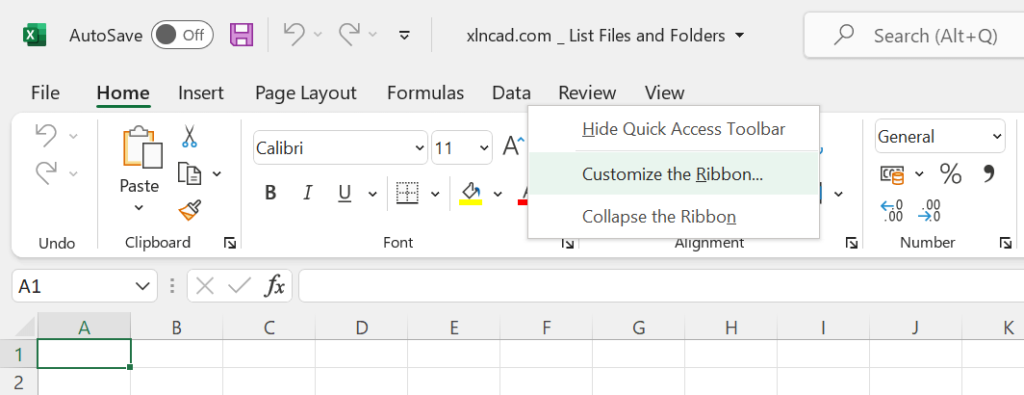
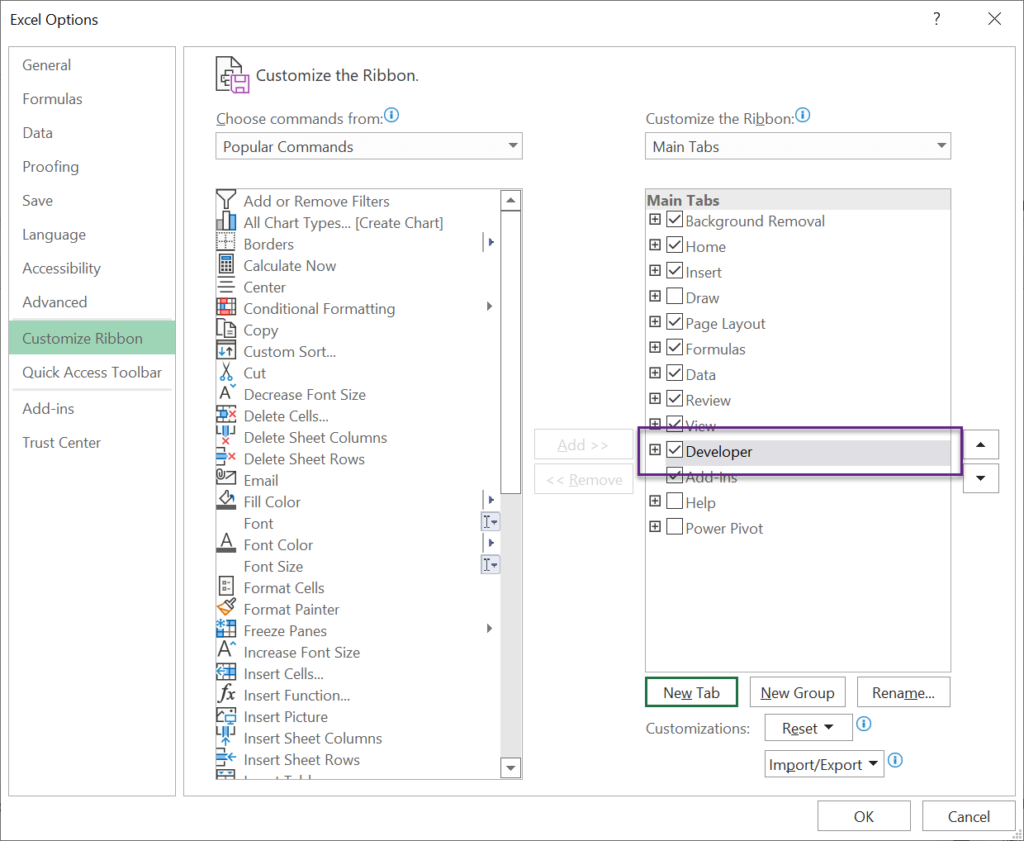
- Right-click any ribbon tab and choose Customize the Ribbon (or File → Options → Customize Ribbon).
- In the list on the right, tick Developer.
- Click OK.

Mac
Go to Excel → Preferences → Ribbon & Toolbar, tick Developer under Main Tabs, and click Save.
What’s on the Developer tab
| Group | Used for |
|---|---|
| Code | Visual Basic editor (Alt + F11), Macros (Alt + F8), Record Macro |
| Add-ins | Excel and COM add-ins |
| Controls | Form controls and ActiveX controls, such as checkboxes and buttons |
| XML | Importing and exporting XML maps |
Next: how to use the macros on this site, or add a checkbox.
Hide it again
Untick Developer in the same dialog. The same steps show or hide any other tab, such as Draw.