A simple Excel sheet can track your income, expenses and savings month by month. You type the figures; SUM totals each section and one subtraction gives your savings, all updating as you go.
Video
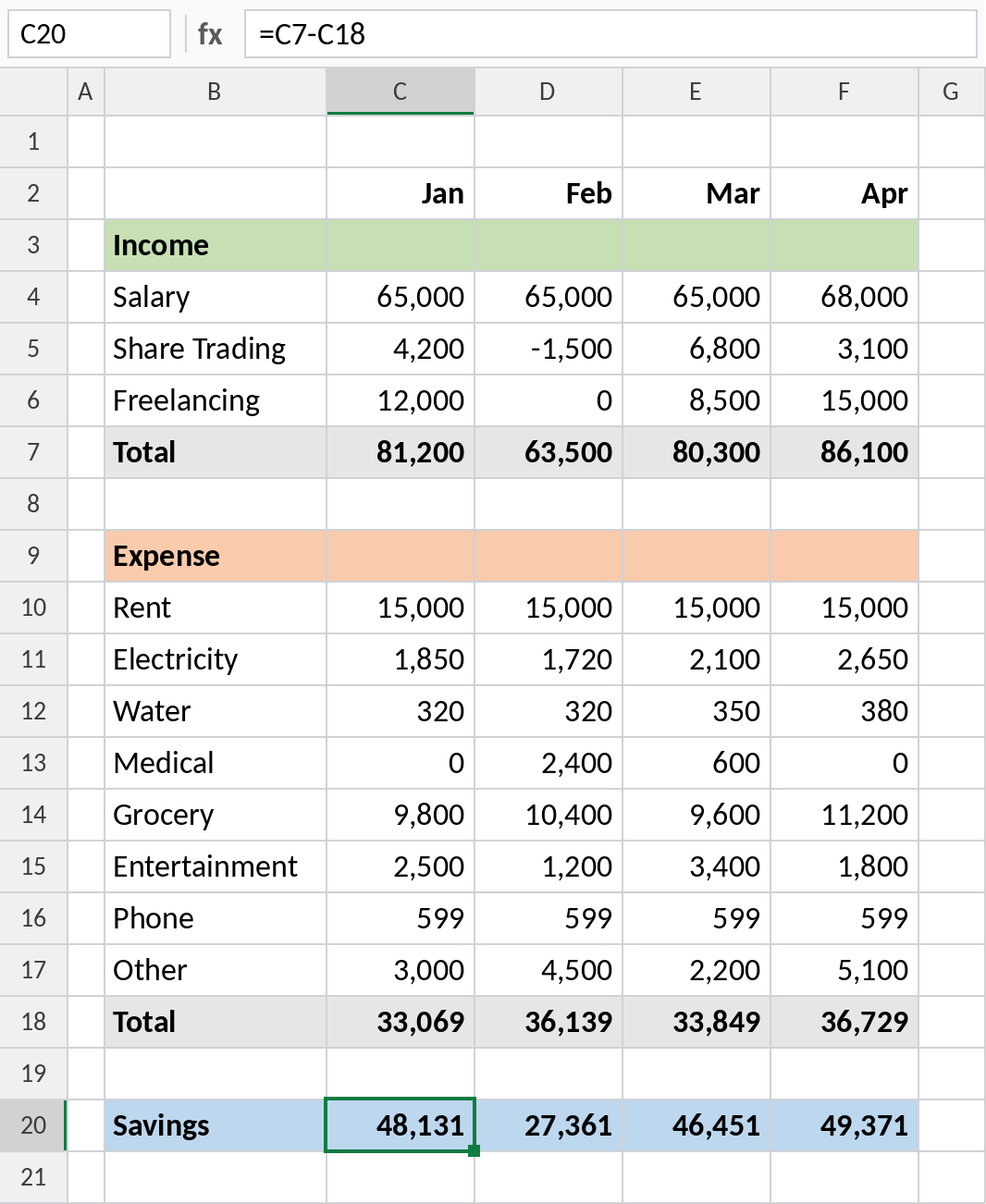
Step 1: Months across the top
Type Jan in C2 and drag the fill handle right to N2. Excel fills Feb to Dec. Make the row bold.
Step 2: The income section
- Type Income in B3. Select B3:N3, click Merge & Center, make it bold and larger and give it a fill colour.
- Below it, list your income sources: Salary, Share Trading, Freelancing. Add any others you have.
- In the next row, type Total.
Step 3: The expense and savings sections
- Two rows down, type Expense in B9 and format B9:N9 the same way.
- List your expenses: Rent, Electricity, Water, Medical, Grocery, Entertainment, Phone, Other. Then type Total.
- Two rows down, type Savings.
- Make the blank rows between sections shorter so the sheet looks compact.
Step 4: Number format
Select the cells where figures will go, right-click → Format Cells → Number, tick Use 1000 Separator and set decimal places to 0. Now 65000 shows as 65,000.
Step 5: The formulas
Total income for January, in C7:
=SUM(C4:C6)Total expense, in C18:
=SUM(C10:C17)Savings, in C20:
=C7-C18Select the three formula cells and copy them across to December. As you type each month’s figures, the totals and savings update by themselves.
Step 6: Yearly totals
Add a summary for the year:
=SUM(C7:N7)for total income, =SUM(C18:N18) for total expense, and total income minus total expense for the year’s savings.
Finishing touches
- Narrow column B to fit the item names.
- Add a thick bottom border under each list, and a grey fill on the Total rows.
- Freeze the top rows and column B (View → Freeze Panes) so labels stay visible when you scroll.
- If you add an item, insert the row inside the list so the SUM range grows with it.
Just need the number? Use the savings calculator on Quick Easy Calculators, our sister site, to see what a monthly saving grows to.