Word has a hidden Calculate command. Select a calculation typed in your document, such as 3+4, click the button, and Word shows the answer in the status bar and copies it so you can paste it.
CommandCalculate (Quick Access Toolbar)
Supports+ − * / % ^ and brackets
Works inWord 2010 and later, Microsoft 365
Video
Step 1: Add Calculate to the toolbar
- Click the small arrow at the end of the Quick Access Toolbar and choose More Commands.
- In Choose commands from, select All Commands.
- Select Calculate, click Add, then OK.
A new button appears on the Quick Access Toolbar. Point to it to see its name.
Step 2: Calculate
- Type the calculation in the document, for example
3+4or(1250*12)+800. - Select it and click the Calculate button.
- The answer appears at the bottom left of the window, in the status bar. Press Ctrl + V to paste it.
Totals in a Word table
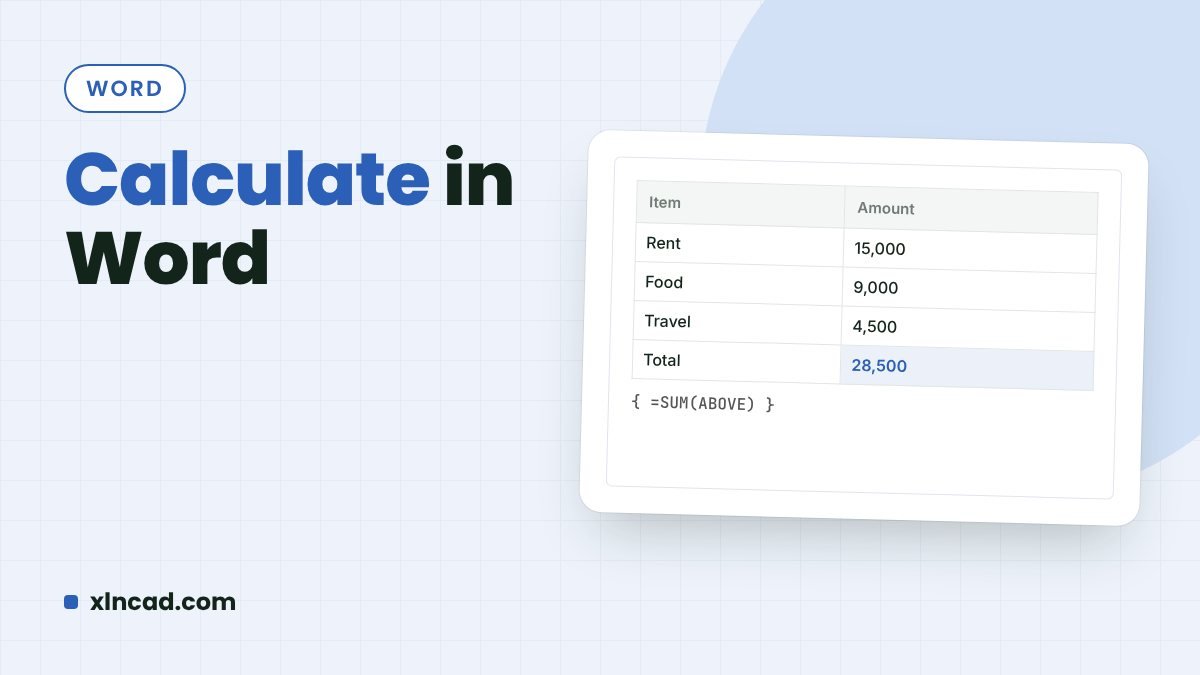
To add up a column in a Word table, click in the empty cell at the bottom and go to Table Layout › Formula. Word suggests =SUM(ABOVE). Click OK.
| Formula | Result |
|---|---|
=SUM(ABOVE) |
Total of the numbers above |
=SUM(LEFT) |
Total of the numbers to the left |
=AVERAGE(ABOVE) |
Average of the numbers above |
=PRODUCT(LEFT) |
Numbers to the left multiplied |
=MAX(ABOVE) |
Largest number above |
If you change the numbers, right-click the result and choose Update Field, or press F9.
FAQ
Why does Calculate give a wrong answer?
It reads the whole selection. Select only the numbers and operators, not words around them.
Can Word tables use cell references like Excel?
Yes: =A1+B2 works, with columns as letters and rows as numbers. For anything bigger, use an Excel table.