Attendance percentage is the number of classes or days attended divided by the total. From a P/A register, COUNTIF does the counting. You can also work out how many more classes a student needs to reach 75%.
From attended and total classes
Divide classes attended by total classes and format the result as a percentage:
=C3/D3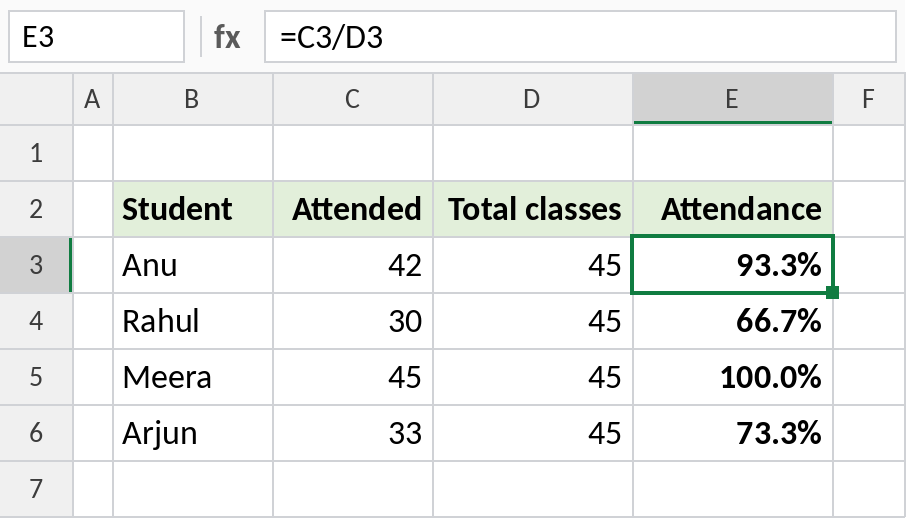
Anu attended 42 of 45 classes: 93.3%. Rahul’s 30 of 45 is 66.7%, below the usual 75% requirement.
How the formula works
0.75*D3-C3is how many classes short of 75% the student is right now.- Each extra class attended adds 1 to both attended and total, so it closes the gap by only 0.25 (1 − 0.75). Dividing by 0.25 gives the classes needed.
- ROUNDUP rounds up to a whole class, and MAX stops negative numbers for students already above 75%.
From a P/A register
Count the P marks and divide by the number of days marked:
=COUNTIF(C3:J3,"P")/COUNTA(C3:J3)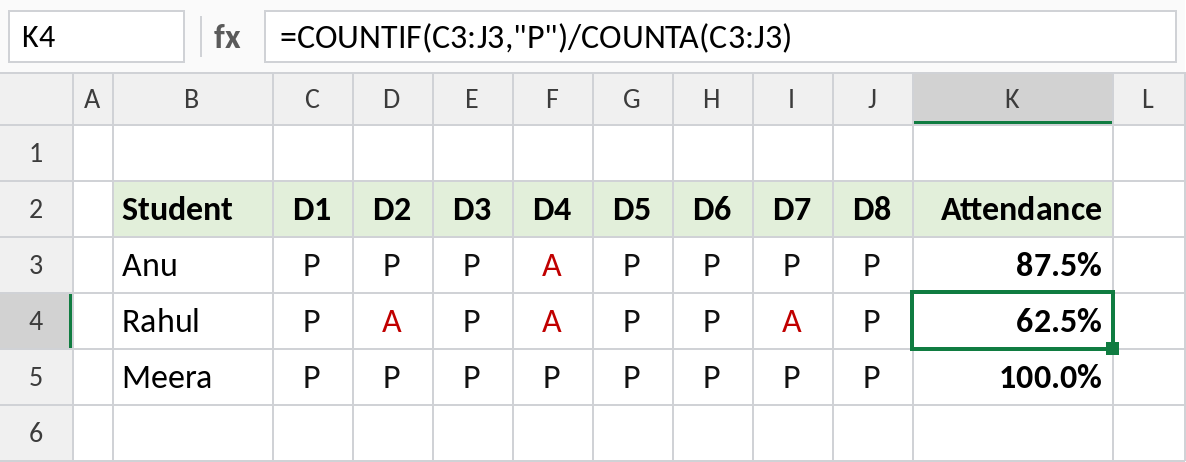
Rahul has 5 P marks out of 8 days: 62.5%. COUNTA counts only marked days, so future blank days don’t lower the percentage.
Classes needed to reach 75%
If every remaining class is attended, how many more does a student need? This formula answers it, and shows 0 for anyone already above 75%:
=MAX(0,ROUNDUP((0.75*D3-C3)/(1-0.75),0))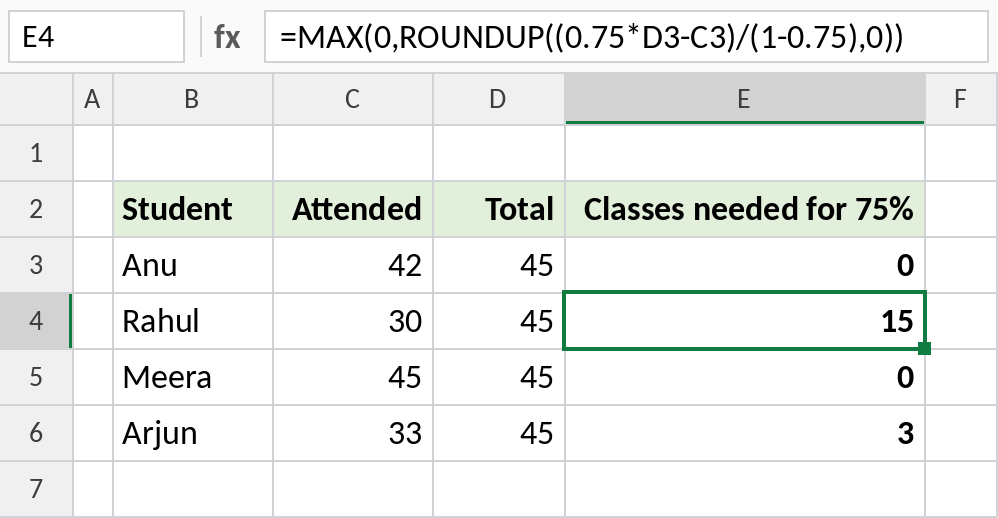
Rahul needs to attend the next 15 classes in a row: (30+15) / (45+15) = 75%.
Variations
| To calculate | Formula |
|---|---|
| Days absent | =COUNTIF(C3:J3,"A") |
| Half days counted as 0.5 | =(COUNTIF(C3:J3,"P")+0.5*COUNTIF(C3:J3,"H"))/COUNTA(C3:J3) |
| Flag below 75% | =IF(C3/D3<75%,"Short","OK") |
| Classes that can still be missed | =MAX(0,INT(C3/0.75-D3)) |
Notes
- Change 0.75 to your institution’s requirement, such as 0.8 for 80%.
- Use conditional formatting to highlight students below the limit.
- COUNTIF isn’t case-sensitive, so p and P both count.
Common errors
| Problem | Cause | Fix |
|---|---|---|
| Percentage too low | Blank future days counted | Divide by COUNTA, not the number of columns |
| Shows 0.93 instead of 93% | Not formatted as a percentage | Press Ctrl+Shift+% |
| Negative classes needed | MAX missing | Wrap in MAX(0, …) |
Practice file
All three examples, including the register.