The Excel COUNTA function counts cells that are not empty. It counts numbers, text, dates, errors and anything else a cell can hold.
value1 |
The first cell, range or value to count. |
|---|---|
value2, ... optional |
More cells, ranges or values, up to 255 in total. |
Table of Contents
Basic example
To count how many orders are in the list, count the filled cells in the Order ID column:
=COUNTA(B3:B10)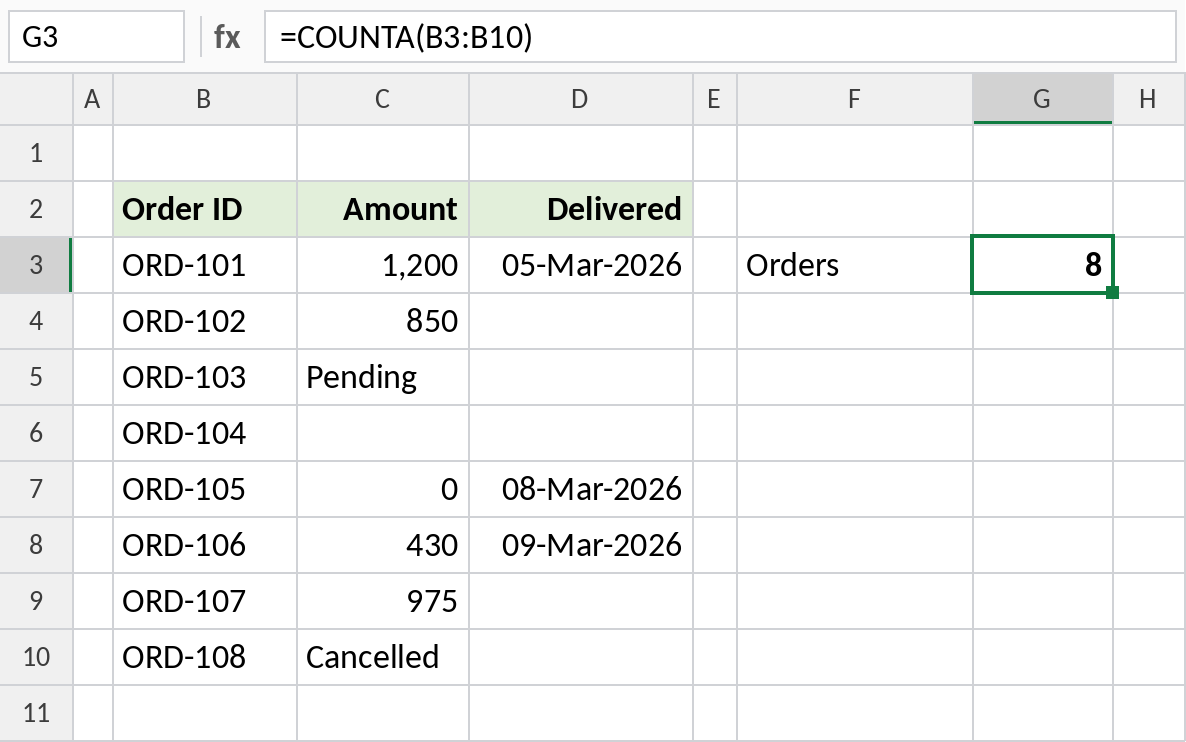
All eight cells contain an ID, so the result is 8. COUNTA is the usual way to count entries in a list of names, IDs or any text.
COUNTA counts text too
In the Amount column, some cells contain text. COUNTA includes them:
=COUNTA(C3:C10)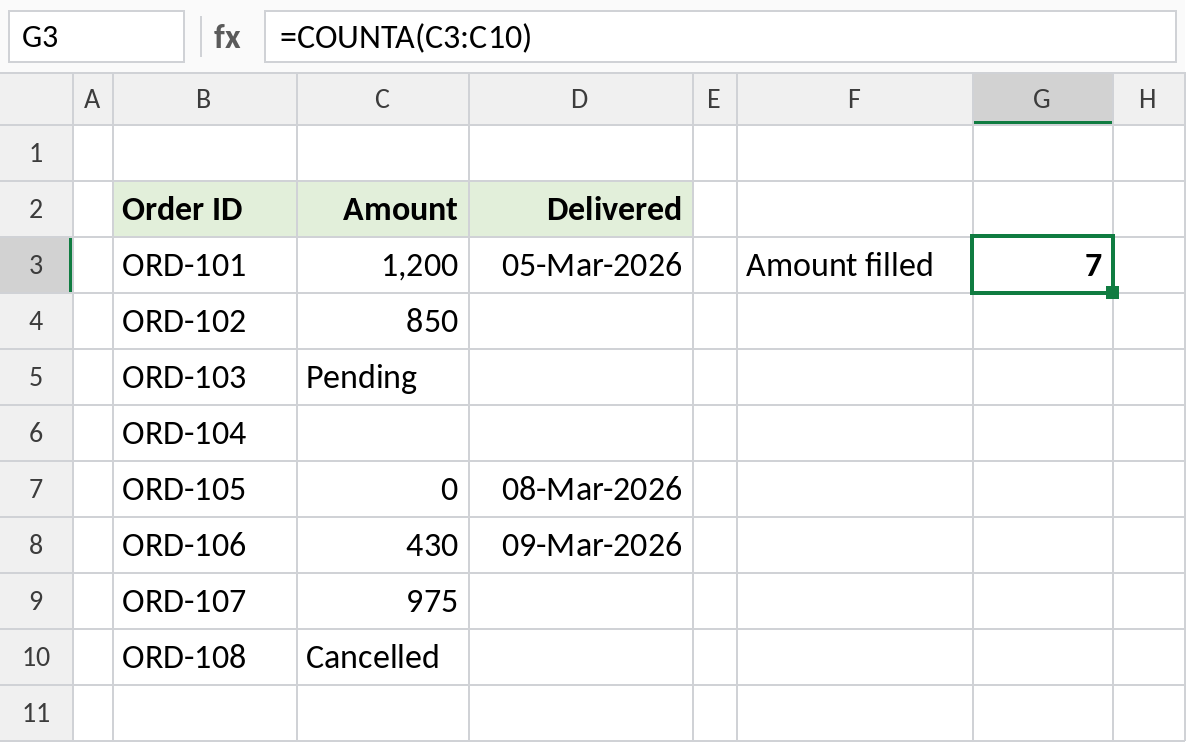
Only C6 is empty, so COUNTA returns 7. COUNT on the same range returns 5, because it skips Pending and Cancelled.
COUNT vs COUNTA vs COUNTBLANK
Run all three on the same range to see how each one sees the data:
=COUNTA(C3:C10)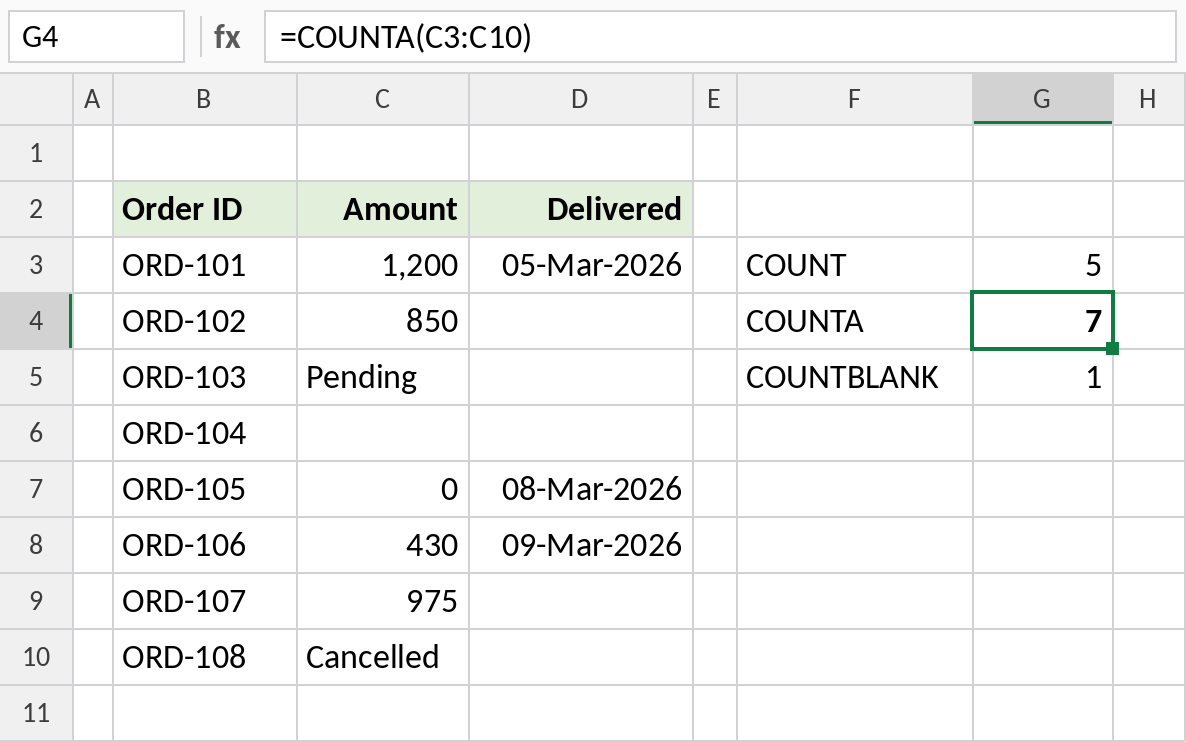
COUNT finds 5 numbers, COUNTA finds 7 filled cells, and COUNTBLANK finds 1 empty cell. COUNTA plus COUNTBLANK always equals the number of cells in the range, here 8.
What COUNTA counts
| Cell contains | Counted? |
|---|---|
| A number, date or 0 | Yes |
| Text | Yes |
An error such as #N/A |
Yes |
| A space typed by mistake | Yes |
A formula that returns "" |
Yes, even though it looks empty |
| Nothing at all | No |
Notes
- COUNTA counts every cell that isn’t truly empty. A cell that looks blank but holds a space or a formula returning
""is counted. - To count only numbers, use COUNT. To count empty cells, use COUNTBLANK.
=COUNTA(B:B)-1counts entries in a whole column, minus the header, which is handy for lists that keep growing.
Common errors
| Problem | Cause | Fix |
|---|---|---|
| Count is too high | Cells that look empty contain spaces or "" formulas |
Select the cells and press Delete, or check them with =LEN(C6) |
| Count includes the header | The range starts at the header row | Start the range one row lower, or subtract 1 |
| Count is lower than the list | The range doesn’t reach the last row | Use an Excel Table or a whole-column reference |
Practice file
All three examples with working formulas.