An AutoCAD script is a plain text file of commands that AutoCAD runs one after another. You don’t need VBA or AutoLISP: if you can type a command at the command line, you can write a script, and draw hundreds of objects, create layers or plot drawings in seconds.
Table of Contents
What is an AutoCAD script file?
A script file is simply the commands and inputs you’d type at the command line, saved in a text file with the extension .scr. You can write one in Notepad, or build hundreds of lines at once in Excel. Scripts are small, quick to write, and they work in AutoCAD LT as well as full AutoCAD.
How to create and run a script
1. Draw the objects once by hand
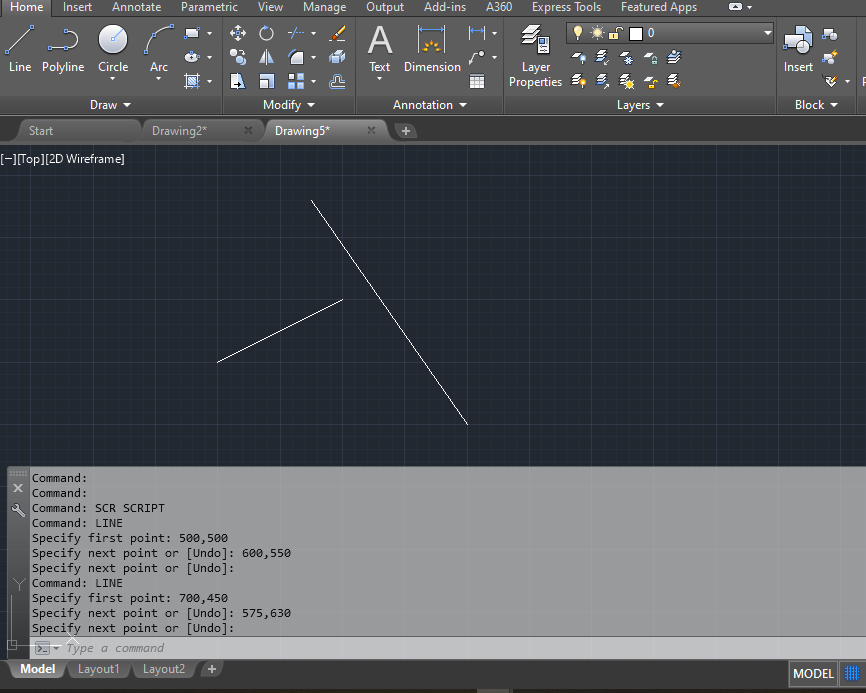
Start by drawing what you want at the command line. Here are two lines: from (500,500) to (600,550), and from (700,450) to (575,630).
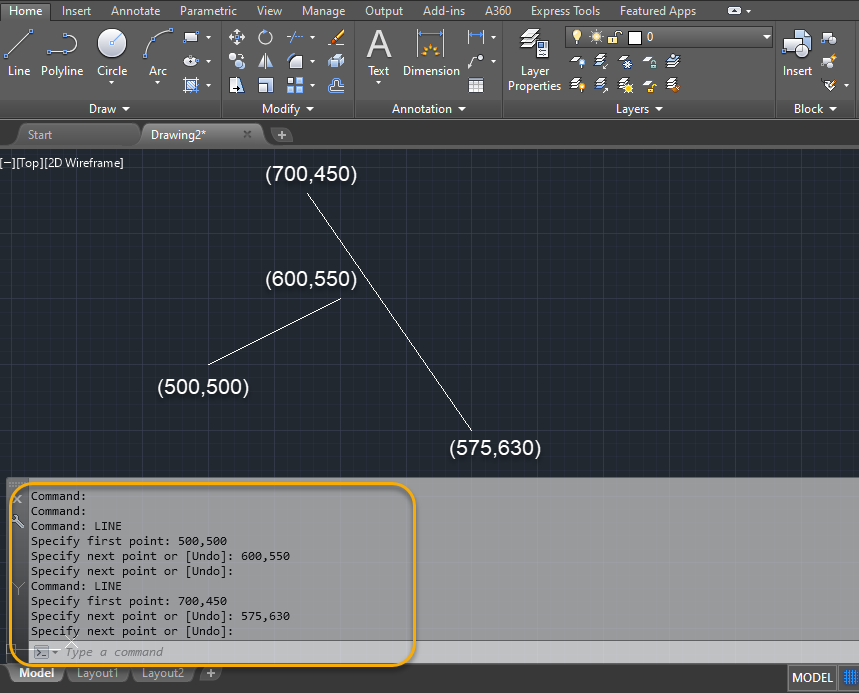
2. Copy the command history into a text file
Press F2 to open the command history, copy the commands, and paste them into Notepad.
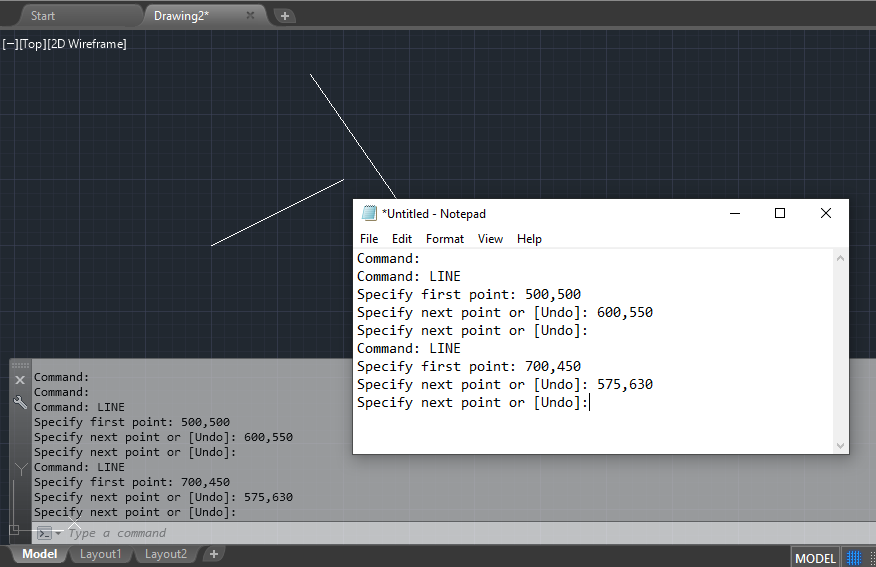
3. Keep only the commands and inputs
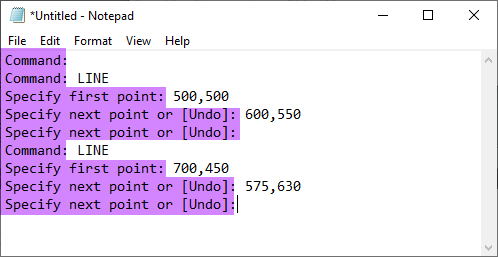
Delete everything AutoCAD printed, such as prompts. The parts to remove are highlighted in pink:
What’s left is the script. Two lines of text draw two AutoCAD lines:
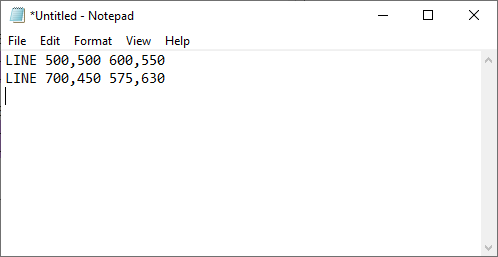
In a script, a space or a line break works like pressing Enter. That’s why there’s a space after the last point of each line: it ends the LINE command.
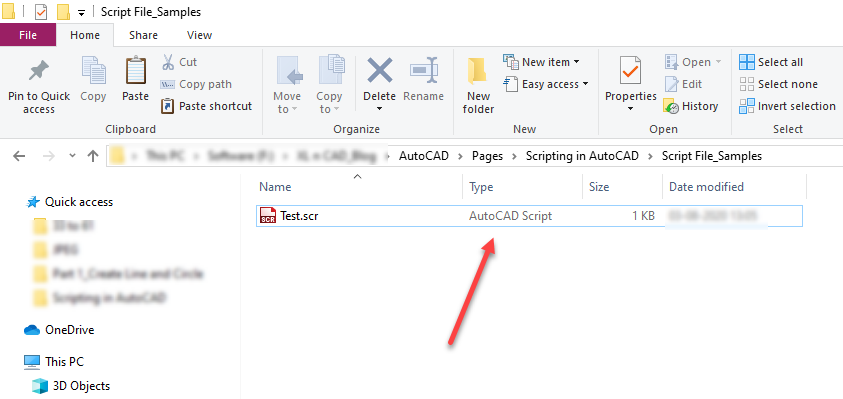
4. Save it as a .scr file
Save the file as Test.scr. In Notepad, choose Save as type: All files, so it isn’t saved as Test.scr.txt.
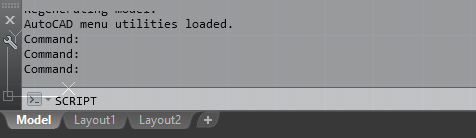
5. Run it with the SCRIPT command
Open a drawing, type SCRIPT and press Enter. You can also drag the .scr file onto the drawing window.
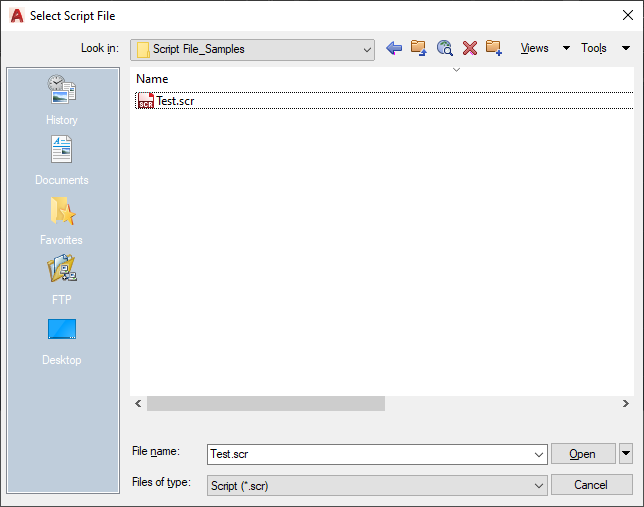
Select Test.scr in the Select Script File dialog and click Open.
AutoCAD draws both lines:
Try it: a script that draws 12 lines
Copy this into Notepad, save it as a .scr file and run it:
LINE 496.24,1692.94 2193.58,2522.55
LINE 625.22,1862.98 1951.11,2481.33
LINE 3065.47,930.31 3065.47,2326.74
LINE 3385.34,930.31 3065.47,930.31
LINE 3385.34,2326.74 3385.34,930.31
LINE 3065.47,2326.74 3385.34,2326.74
LINE 1069.1,1105.74 1069.1,1765.31
LINE 1848.12,1105.74 1069.1,1105.74
LINE 1848.12,1765.31 1848.12,1105.74
LINE 1069.1,1765.31 1848.12,1765.31
LINE 2668.42,1265.48 1729.46,2064.18
LINE 1729.46,2064.18 2668.42,2064.18
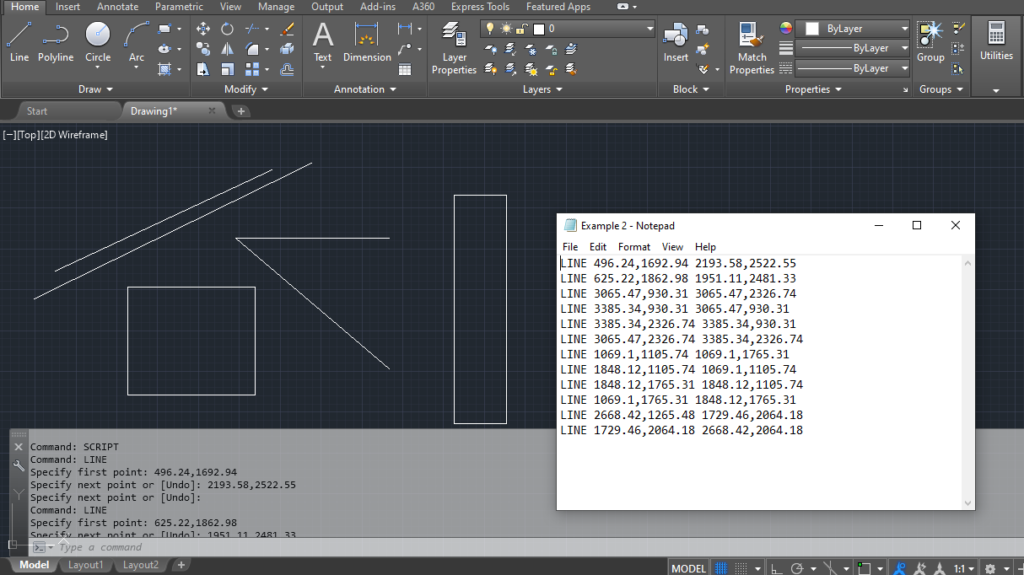
Build scripts in Excel
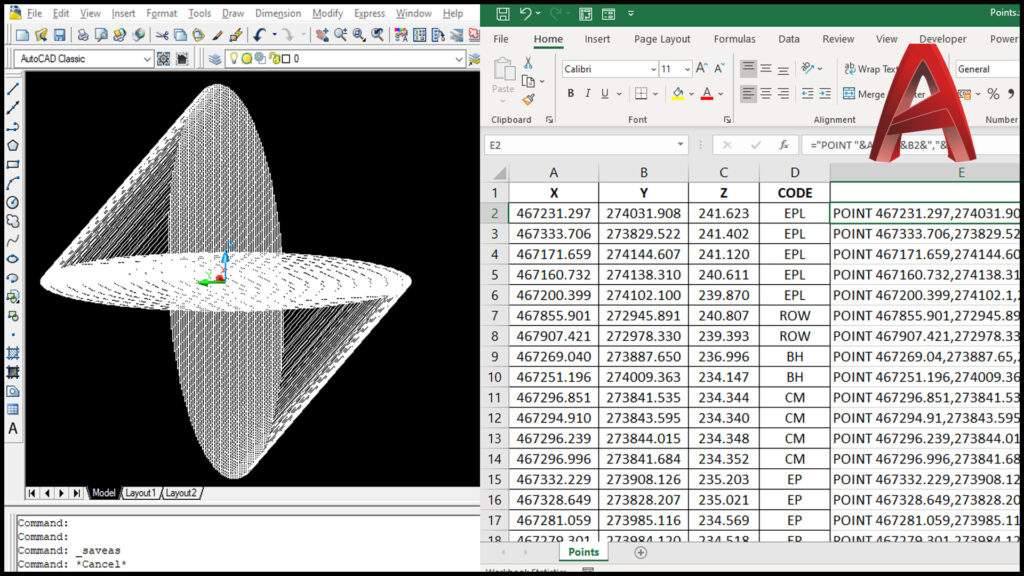
For hundreds of objects, keep the coordinates in Excel and build each script line with a formula. With start X and Y in A2 and B2, and end X and Y in C2 and D2:
="LINE "&A2&","&B2&" "&C2&","&D2&" "Copy the formula down, then copy the results into Notepad and save as a .scr file. The same idea works for points, circles and text, such as ="CIRCLE "&A2&","&B2&" "&C2.
Useful commands for scripts
| Command | Does |
|---|---|
SCRIPT |
Runs a script file |
DELAY 1000 |
Pauses for 1,000 milliseconds, about one second. The longest delay is 32767 |
RSCRIPT |
Repeats the script from the start, for demos or simple animations |
RESUME |
Continues a script you interrupted with Esc or Backspace |
-LAYER, -INSERT, -PLOT |
Command-line versions of commands that normally open a dialog box |
Things to know when writing scripts
Use a hyphen for commands with dialog boxes
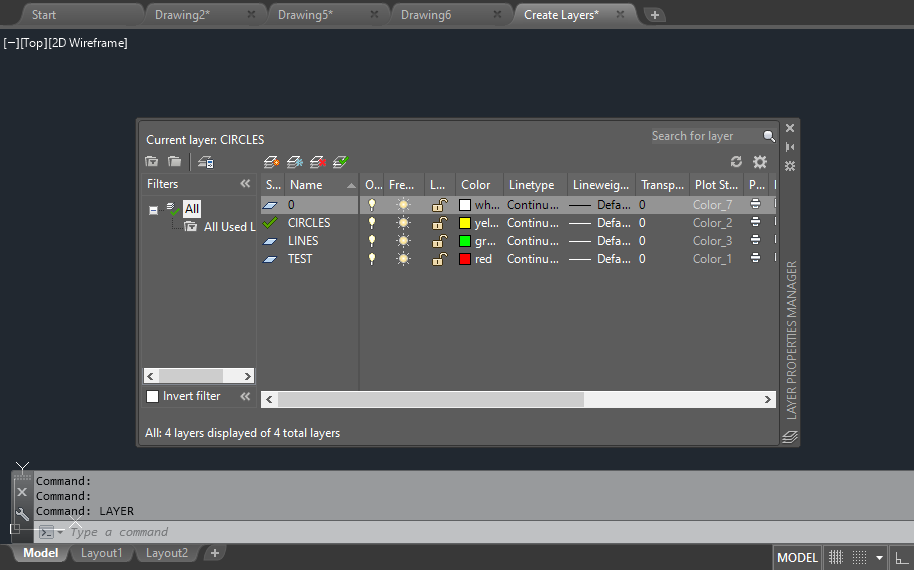
A dialog box stops the script. LAYER opens the Layer Properties Manager:
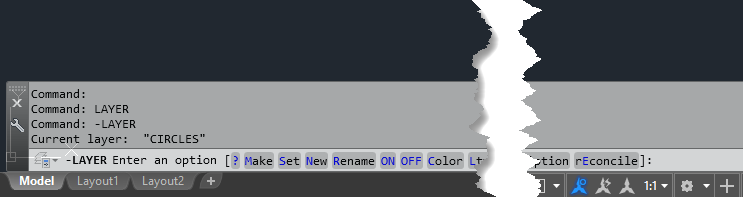
-LAYER with a hyphen shows its options at the command line instead, so the script can carry on:
Add comments with a semicolon
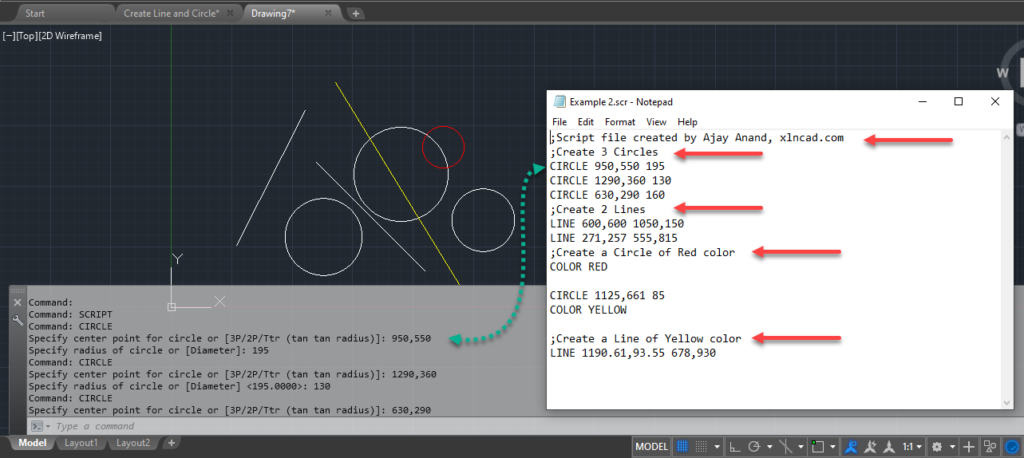
Lines that start with ; are ignored, so you can leave notes for colleagues. This script draws 4 circles and 3 lines, and starts with two comment lines:
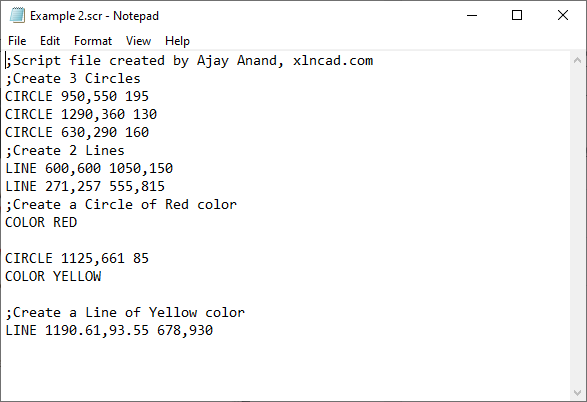
AutoCAD skips the comments and starts with CIRCLE 950,550,195:
Use full command names, not aliases
Aliases can differ between computers and versions, so LINE is safer than L in a script you share. See the full list of AutoCAD commands.
Put names with spaces in double quotes
File paths, file names and layer names that contain spaces must be quoted:
OPEN "E:\Smart City Project\Reports and Drawings\Route Markings-R0"End the file with a line break
If the last command doesn’t run, press Enter after the last line before saving, so the final command is completed.
Scripts, macros or AutoLISP?
| Scripts (.scr) | VBA macros | |
|---|---|---|
| Programming needed | None | Some |
| Works in AutoCAD LT | Yes | No |
| Can make decisions (if/then) | No | Yes |
| Best for | Repeating fixed commands, drawing from coordinates | Reading drawings, working with Excel |
Frequently asked questions
Can I run a script in AutoCAD LT?
Yes. Scripts are one of the few automation tools that work in AutoCAD LT.
Why does my script stop halfway?
Usually a dialog box opened, or there’s a missing or extra space. Use the hyphen version of the command, and check that each input ends with exactly one space or line break.
How do I stop a running script?
Press Esc. Type RESUME to carry on from where it stopped.
Learn AutoCAD scripting step by step
My Udemy course covers scripting from beginner to advanced in six sections:
- Creating objects such as lines and circles
- Using Excel or any spreadsheet to write script files
- Creating layers and changing object colours with scripts
- Creating thousands of text objects, with practical examples
- Importing points into drawings, with practical examples
- Simple animations with scripts
View the AutoCAD Scripting course