AutoCAD VBA macros automate drawing tasks that would take hours by hand: extracting the coordinates of hundreds of points, listing the areas of every polyline, or creating text from a list. Below you’ll learn how to set up VBA in AutoCAD and run the ready-made macros on this site.
Table of Contents
What is VBA in AutoCAD?
VBA (Visual Basic for Applications) is the same programming language used in Excel, built into AutoCAD since the late 1990s. With VBA in AutoCAD you can:
- Automate repetitive work, such as labelling, numbering or modifying many objects at once.
- Extract data from a drawing, such as coordinates, areas and text, straight into Excel.
- Create drawings from data, for example plotting points or placing text from a spreadsheet.
A macro is a single VBA procedure that does one job. You don’t need to know how to program to use the macros here: copy, paste and run.
Before you start: install the VBA module
Since AutoCAD 2010, VBA is no longer installed by default. Type VBAIDE at the command line. If AutoCAD says VBA isn’t installed, it offers a link to download the VBA module for your AutoCAD version from Autodesk. Install it, restart AutoCAD, and you’re ready.
| AutoCAD version | VBA |
|---|---|
| AutoCAD for Windows (full version), including verticals such as Civil 3D | Yes, with the free VBA module |
| AutoCAD LT | No |
| AutoCAD for Mac | No |
How to use the macros on this site
- Copy the code from the macro’s page.
- Open the Visual Basic Editor. Type
VBAIDEand press Enter, press Alt + F11, or go to Manage → Applications → Visual Basic Editor. If you have the menu bar turned on, it’s also under Tools → Macro.
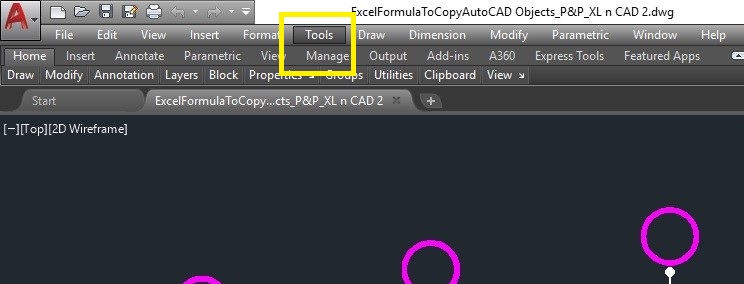
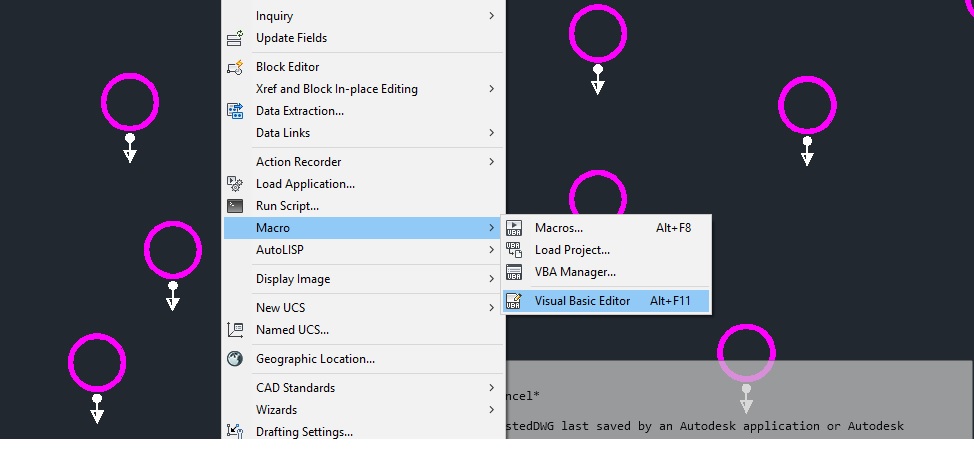
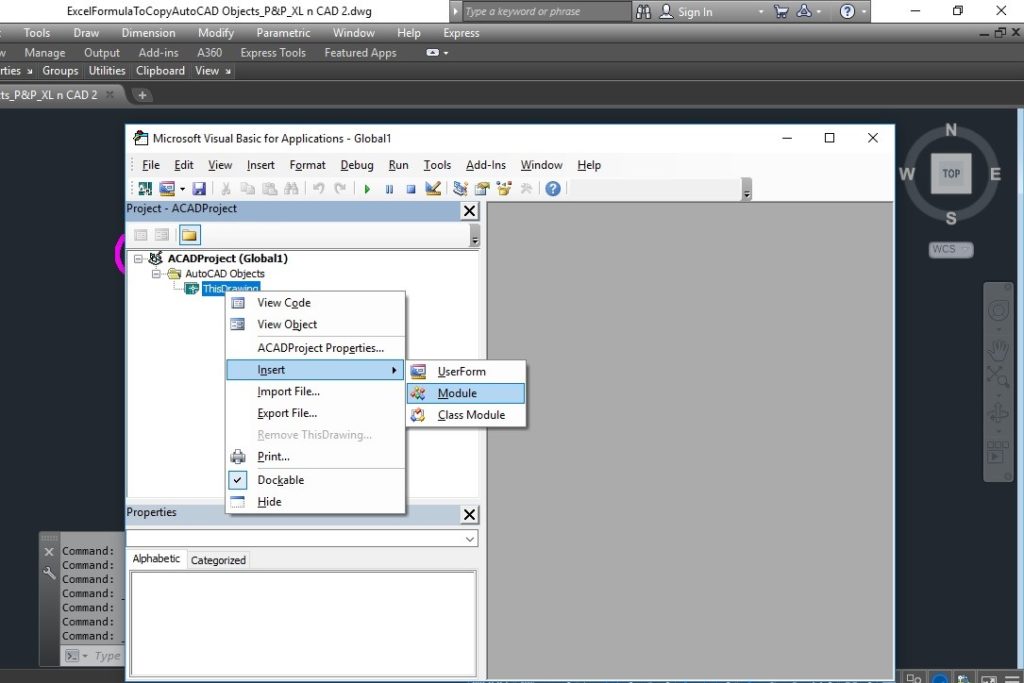
- Insert a module. In the Project pane, right-click the project and choose Insert → Module.
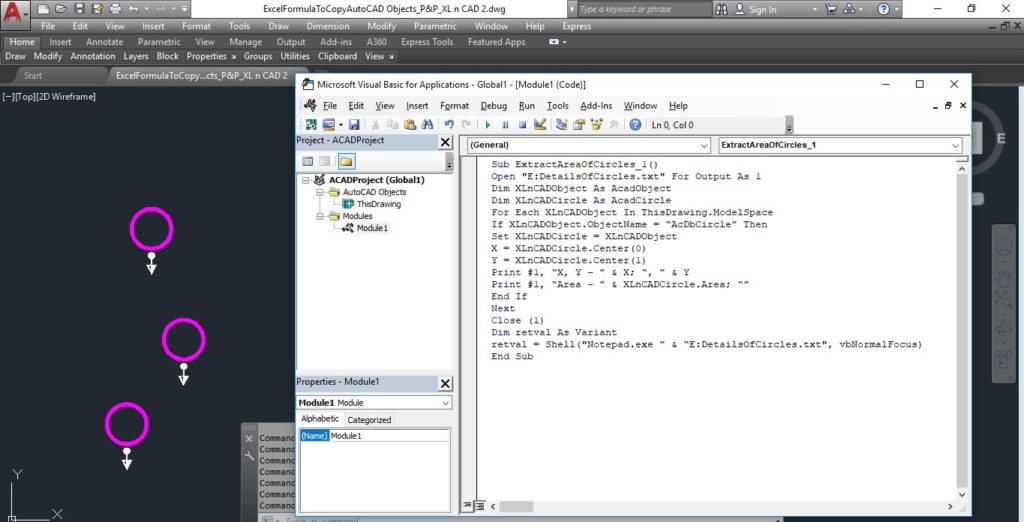
- Paste the code into the new module.
- Run it. Close the editor, type
VBARUN(or press Alt + F8), select the macro and click Run.
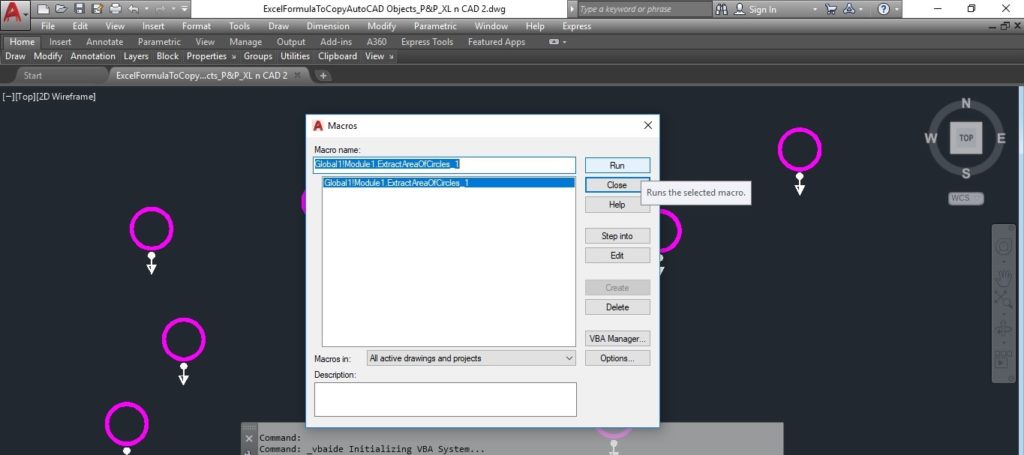
To keep the macro, save the VBA project as a .dvb file from the editor, or with the VBAMAN command. Load it again later with VBALOAD.
Ready-to-use AutoCAD macros
Each link opens the full code with an explanation. Most of these send their results to Excel, so you get a ready-made table of coordinates, areas or text.
Create objects (1)
Extract coordinates (4)
- X, Y, Z coordinates of points
- X, Y, Z coordinates of blocks
- Coordinates of a 2D polyline (LWPolyline)
- Coordinates of a 3D polyline
Extract areas and text (3)
Useful VBA commands in AutoCAD
| Command | Does |
|---|---|
VBAIDE |
Opens the Visual Basic Editor |
VBARUN |
Lists the macros and runs one |
VBALOAD |
Loads a saved .dvb project |
VBAUNLOAD |
Unloads a project |
VBAMAN |
VBA Manager: load, save, embed and unload projects |
Things to know before you run a macro
- Save a copy of the drawing first. Changes made by a macro may not undo cleanly, especially when it modifies many objects.
- Only run code you trust. Macros can change drawings and files on your computer.
- Macros that write to Excel need Excel installed on the same computer.
- Add a description to every macro you write, so you remember what it does months later.
VBA, AutoLISP or scripts?
| VBA | AutoLISP | Scripts (.scr) | |
|---|---|---|---|
| Best for | Working with Excel and other Office apps | Custom commands inside AutoCAD | Replaying a list of commands |
| Programming needed | Some | Some | None |
| Learn more | This page | AutoCAD tips | Scripting in AutoCAD |
Frequently asked questions
Does AutoCAD 2025 or 2026 support VBA?
Yes, through the VBA module that Autodesk releases for each version. Download the one that matches your AutoCAD release.
Why does VBAIDE say VBA isn’t installed?
The VBA module is a separate download. Follow the link AutoCAD shows, install the module, and restart AutoCAD.
Can I use VBA in AutoCAD LT?
No. VBA needs the full version of AutoCAD for Windows. For simple automation in LT, try scripts.
Do I need to know programming to use these macros?
No. Copy the code, paste it into a module and run it. Each macro page explains what to change, such as layer or file names.
Learn AutoCAD programming properly: Programming in AutoCAD course on Udemy