Excel drops leading zeros from numbers, so 00125 becomes 125. To keep or add them for IDs, PIN codes or invoice numbers, use a number format, the TEXT function, REPT for text, or Power Query.
1. Custom number format (keeps the number)
Select the cells → Ctrl + 1 → Custom → type one 0 per digit, such as 0000000000 for 10 digits.
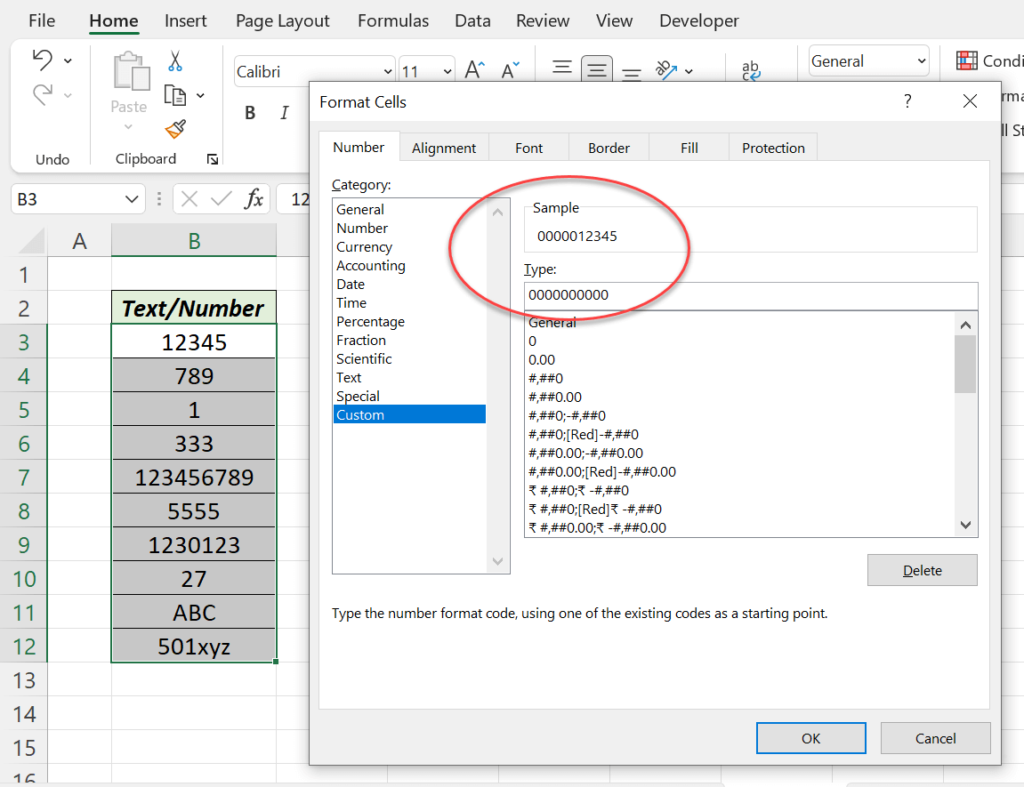
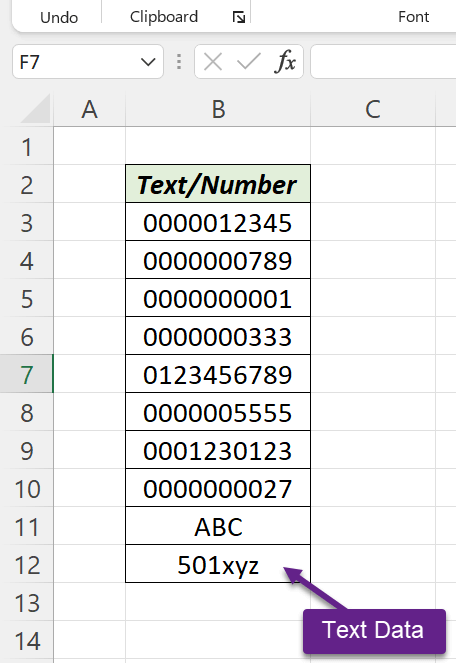
The cell still holds the number, so it sums and sorts normally. The zeros are only shown, and may be lost when saved as CSV.
2. TEXT function (zeros become part of the value)
=TEXT(A1,"0000000000")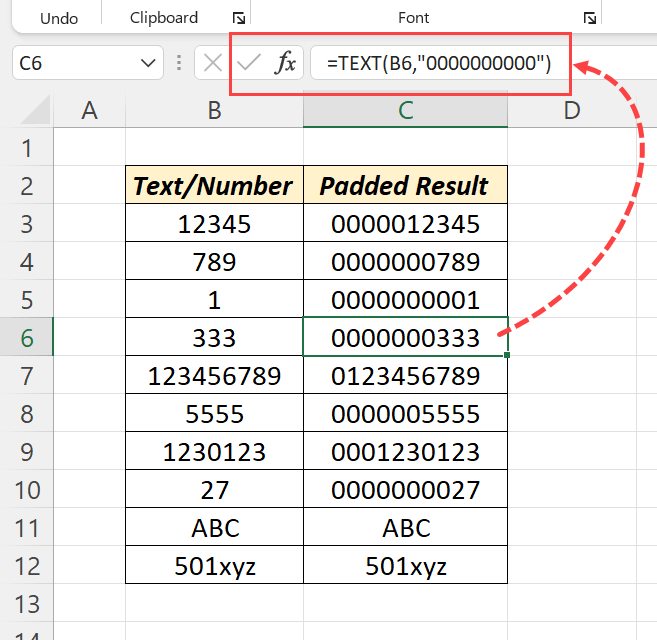
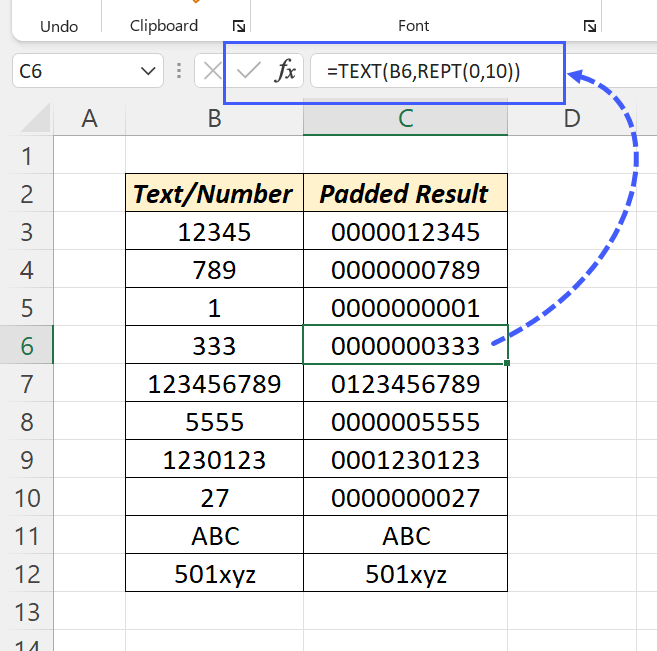
Or set the length with REPT: =TEXT(A1,REPT("0",10)). The result is text, so the zeros survive copying, CSV export and mail merge.
3. REPT for text and numbers
TEXT only works on numbers. For codes that contain letters, add the missing zeros in front:
=REPT("0",10-LEN(A1))&A1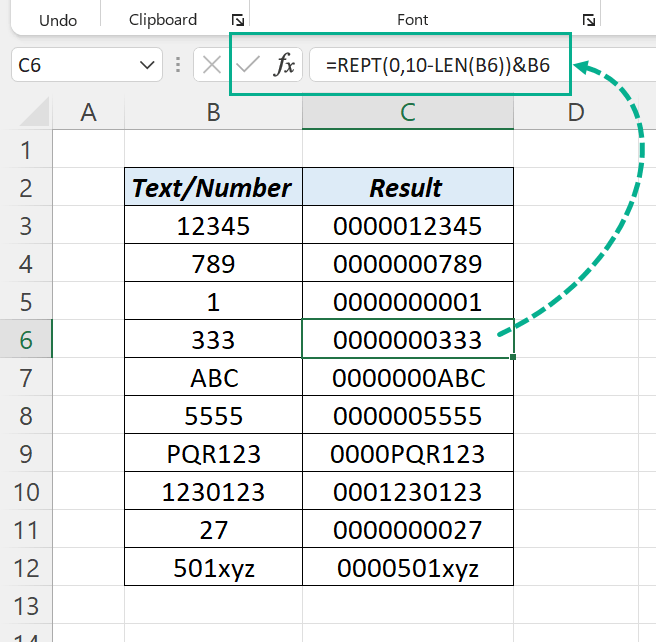
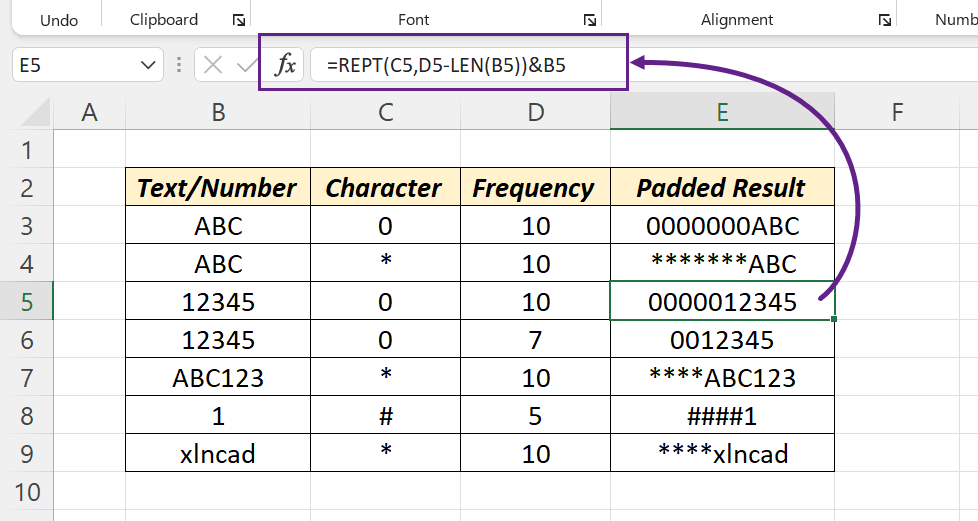
Any character works: =REPT("#",5-LEN(A1))&A1 pads with #. If the value is already longer than 10 characters, wrap it as MAX(0,10-LEN(A1)) to avoid an error.
4. Power Query
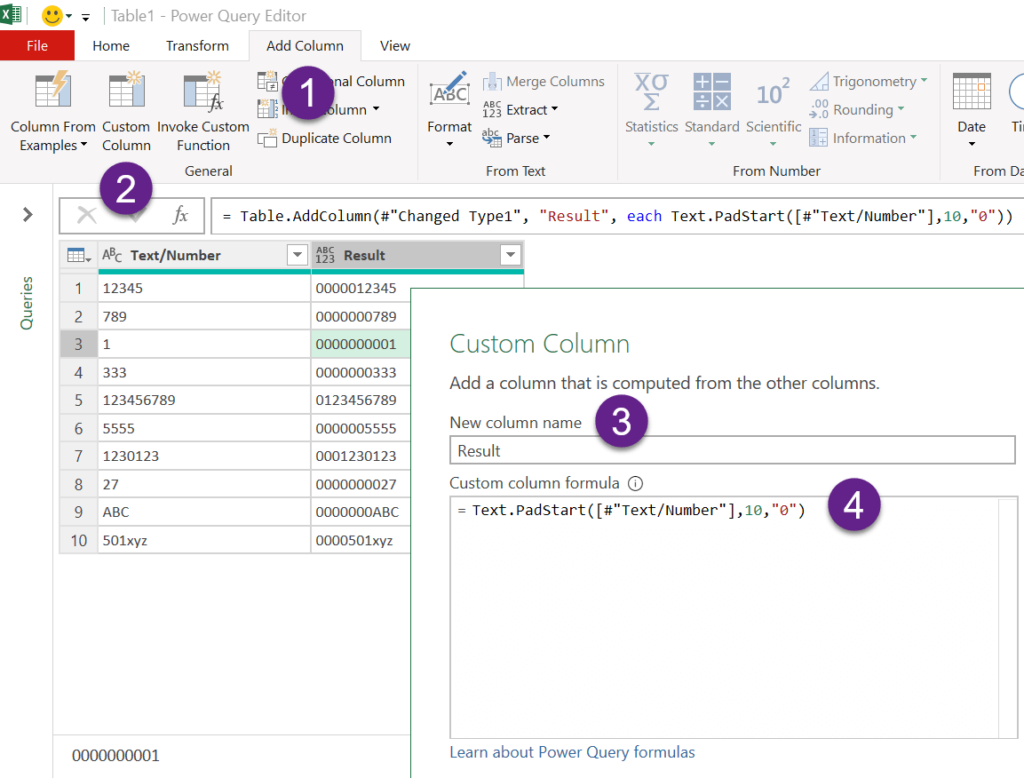
Add Column → Custom Column with:
Text.PadStart(Text.From([#"Text/Number"]),10,"0")Text.From turns numbers into text first, so the same formula works for any column.
5. Keep zeros while typing
- Type an apostrophe first:
'00125. The apostrophe doesn’t show. - Or format the cells as Text before typing.
- When importing CSV files, set the column to Text in Power Query, or use the CSV to Excel converter, which keeps leading zeros.