
A linked picture is a live image of a range. When the cells change, the picture changes too. Use it to show numbers from other sheets on a dashboard, side by side, at any size.
FastestPaste Special → Linked Picture
Hidden toolCamera (Quick Access Toolbar)
UpdatesLive, as the source cells change
Table of Contents
Why use one
Here the Roads sheet shows live pictures of the Total Project Cost and Charts sheets. Change a quantity on Roads and you see the effect on the total straight away, without switching sheets.

Method 1: Paste as Linked Picture
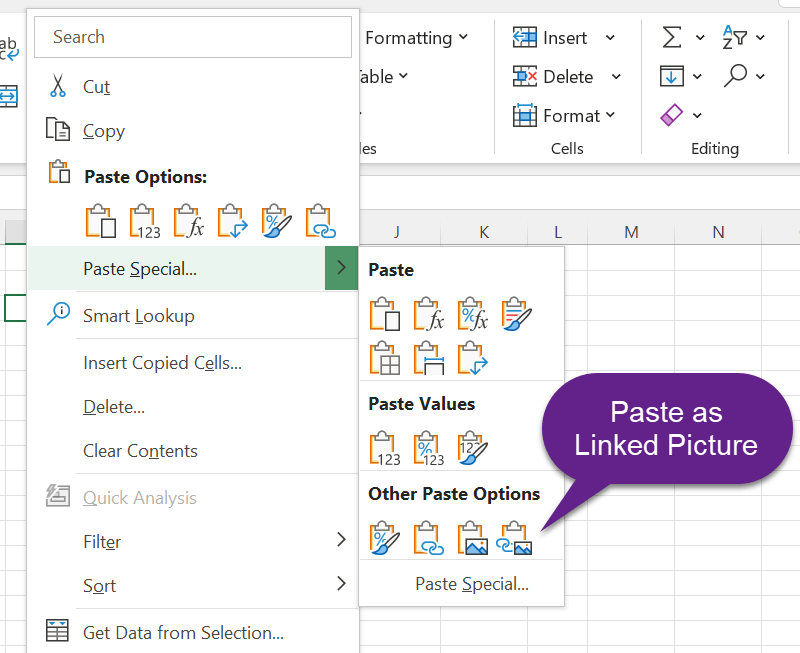
Select and copy the range → right-click where you want it → Paste Special → Linked Picture (I).
Method 2: Camera tool
- Right-click the Quick Access Toolbar → Customize Quick Access Toolbar.
- Choose Commands Not in the Ribbon, select Camera, click Add, OK.
- Select the range, click the Camera button, then click on the sheet.

Not linked: Copy as Picture
Home → Copy ▾ → Copy as Picture creates an ordinary picture. It does not update when the cells change. Use it for a fixed snapshot, as in save a table as a picture.


Working with linked pictures
| To | Do this |
|---|---|
| See or change the source | Click the picture and look at the formula bar, such as ='Total Project Cost'!$B$2:$F$12 |
| Make it dynamic | Point it at a defined name, as in picture lookup |
| Hide the gridlines in it | Turn off gridlines on the source sheet |
| Freeze it | Right-click → Copy, then paste as a normal picture |