
To send a table on WhatsApp or drop it into a report, turn the cells into an image: paste as a picture, use Copy as Picture, save straight to a PNG file, or use a macro.
Table of Contents
1. Paste as a picture
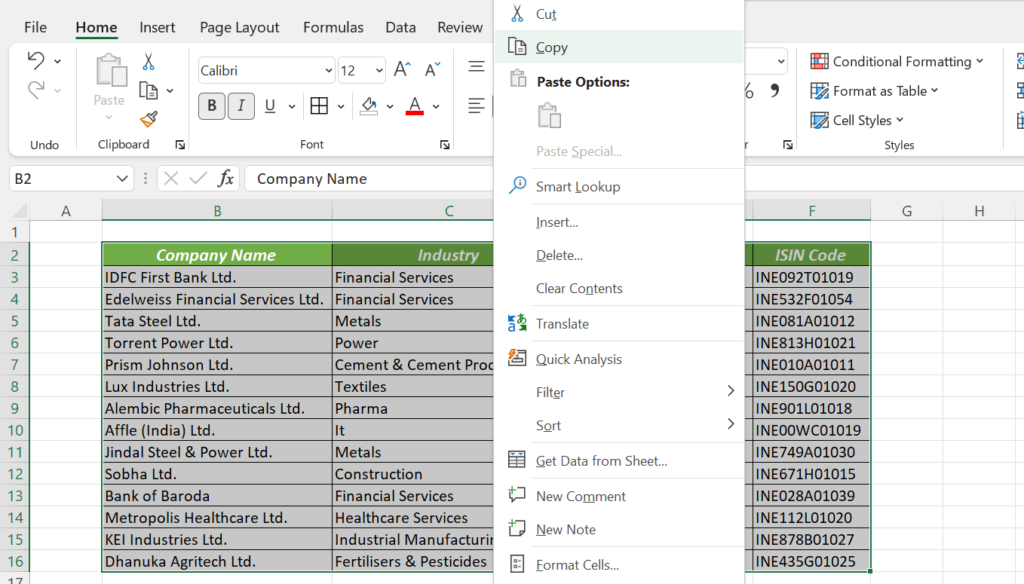
- Select the cells and press Ctrl + C.
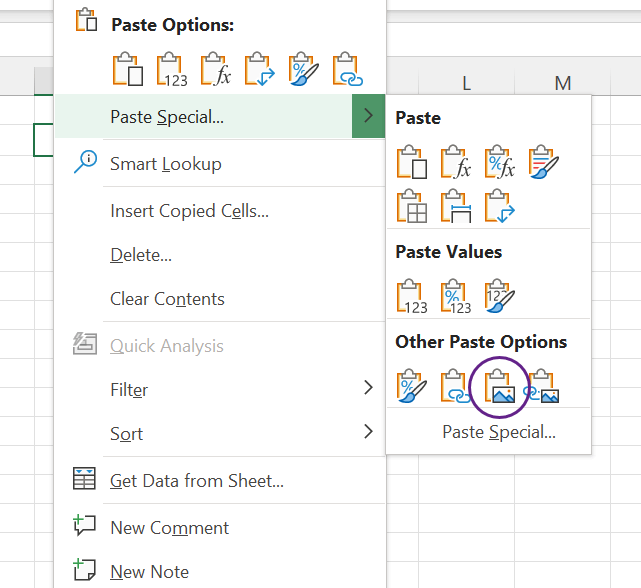
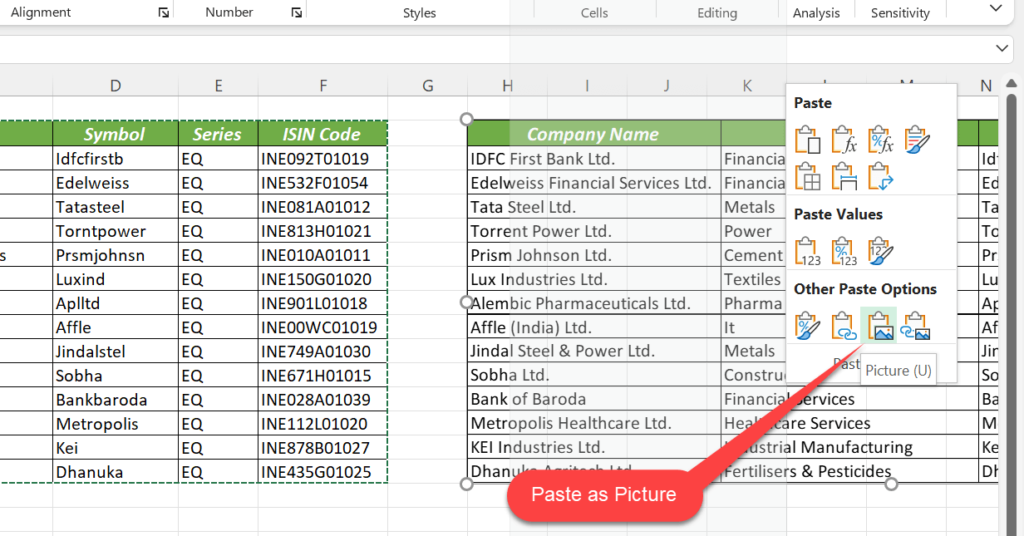
- Right-click where the picture should go and choose Paste Special → Picture (U).
2. Copy as Picture
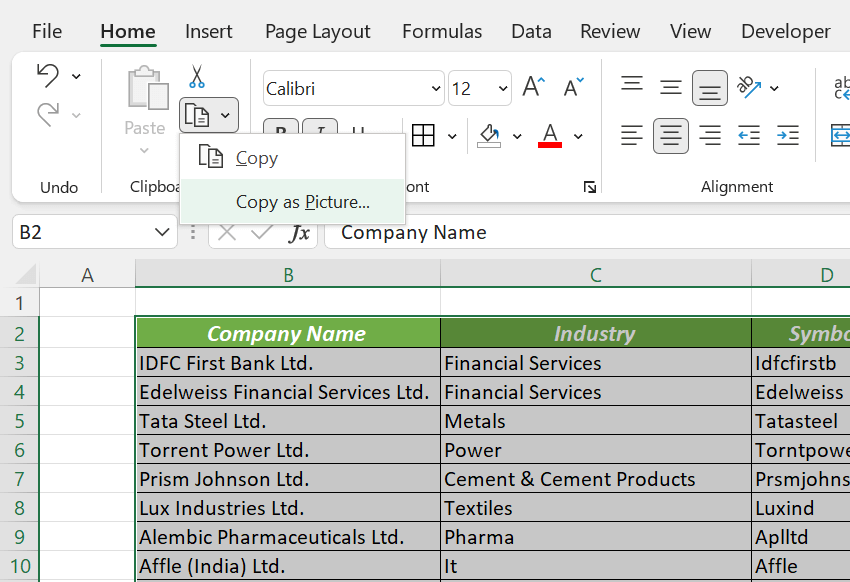
Select the cells, then Home → Copy arrow → Copy as Picture. Choose As shown on screen and click OK, then paste anywhere, including Word, PowerPoint or WhatsApp Web.


3. Save the picture as a file
After method 1 or 2, right-click the picture and choose Save as Picture to save it as PNG or JPG. This is the cleanest image, with no cropping needed.
4. Linked picture that updates
Use Paste Special → Linked Picture (I) instead. The picture changes whenever the cells do, which is ideal for dashboards. See Linked Picture in Excel.
5. A macro
The save selection as picture macro exports the selected cells to a PNG file in one click. A simple version that pastes a picture beside the data:
Sub PasteSelectionAsPicture()
    Selection.CopyPicture Appearance:=xlScreen, Format:=xlPicture
    ActiveSheet.Paste Destination:=Selection.Offset(0, Selection.Columns.Count + 1)
End Sub
6. Screenshot
Press Windows + Shift + S, drag around the cells, then click the notification to save. It’s quick, but the image includes gridlines and is limited to what fits on screen.
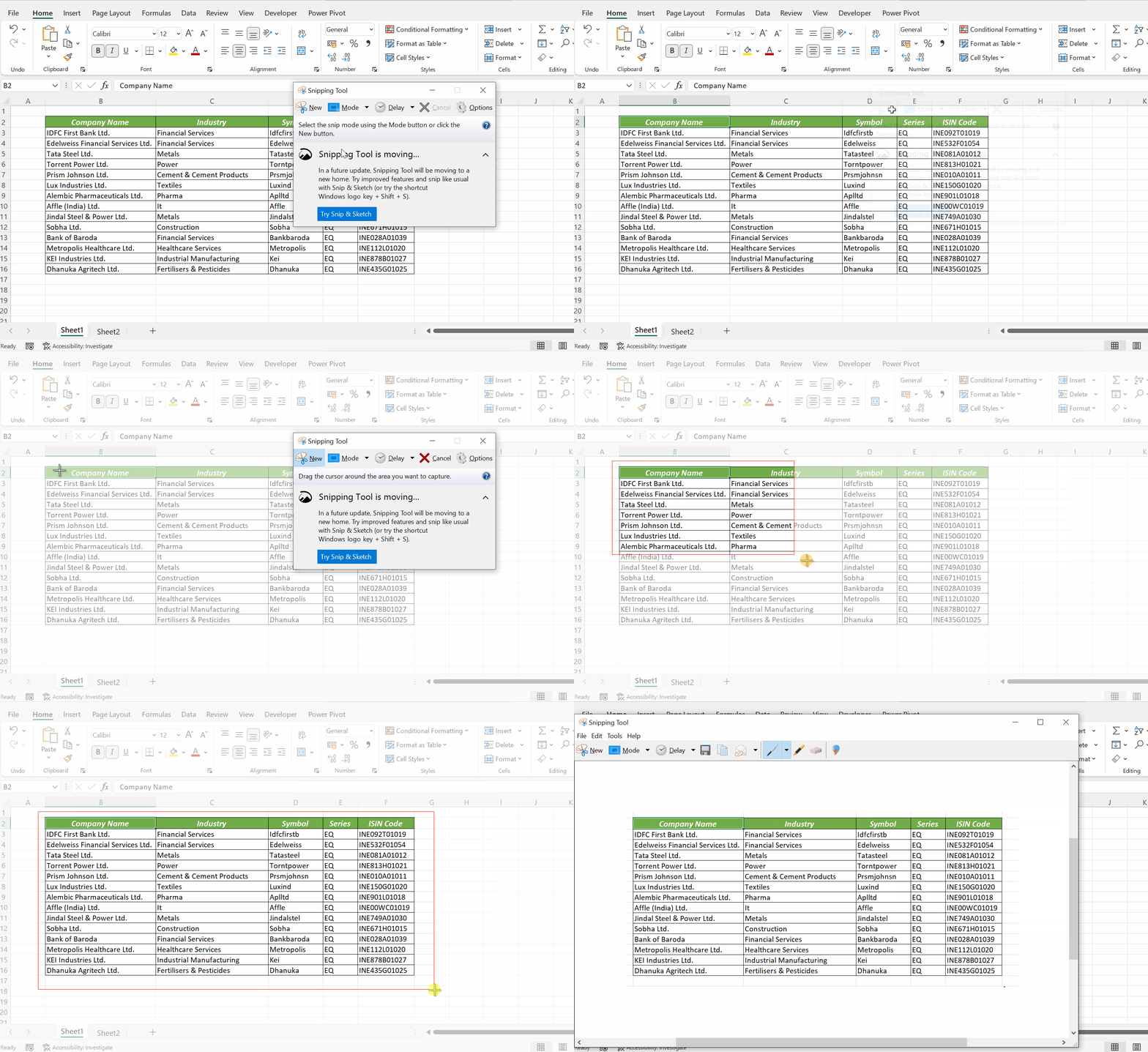
You can also paste a copied range into Paint (Ctrl + V), crop, and save.
Tips for a sharp image
- Turn off gridlines first: View → Gridlines.
- Zoom to 100% before copying.
- Add borders and a header fill so the table reads well without gridlines.