The Excel HSTACK function places ranges side by side into one wider array. Use it to rearrange columns, add calculated columns or line up lists.
array1 |
The first range or array. |
|---|---|
array2, ... optional |
More ranges to add on the right, up to 254. |
Table of Contents
Basic example
To show Product before Region, list the columns in the order you want:
=HSTACK(C3:C10,B3:B10) 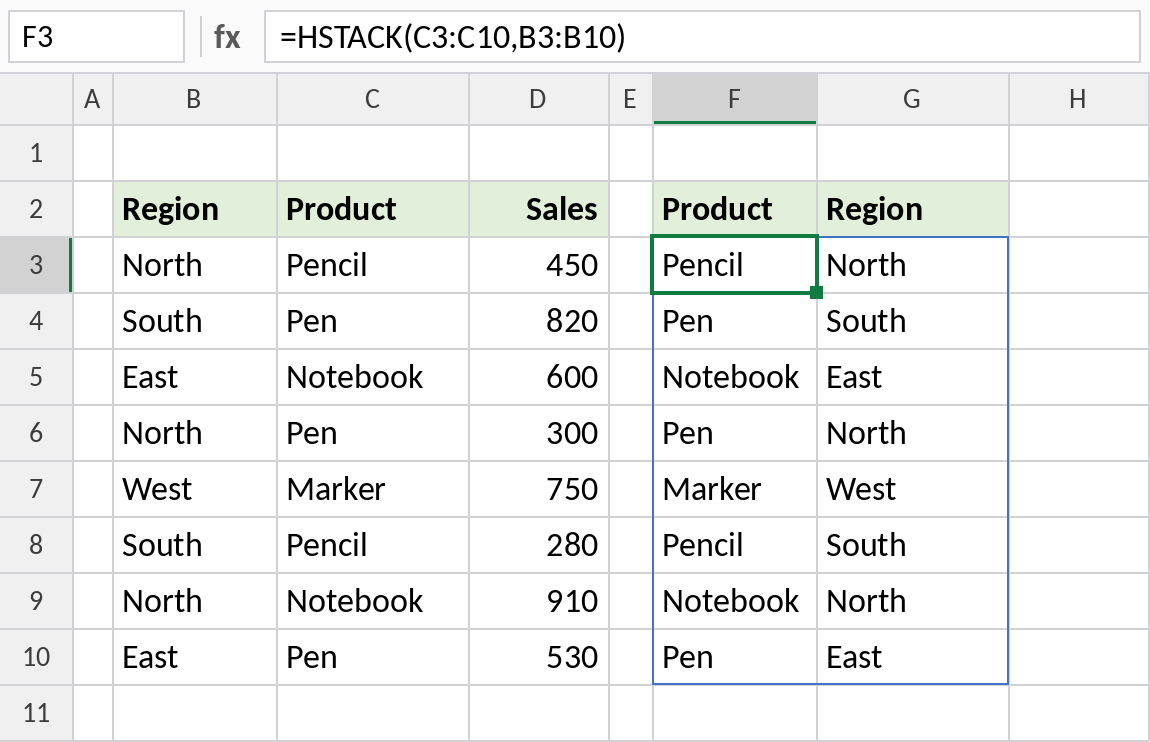
The two columns spill side by side with Product first. The original data doesn’t move.
Add a calculated column
Any argument can be a calculation. This adds a 5% commission column next to region and sales:
=HSTACK(B3:B10,D3:D10,D3:D10*5%) 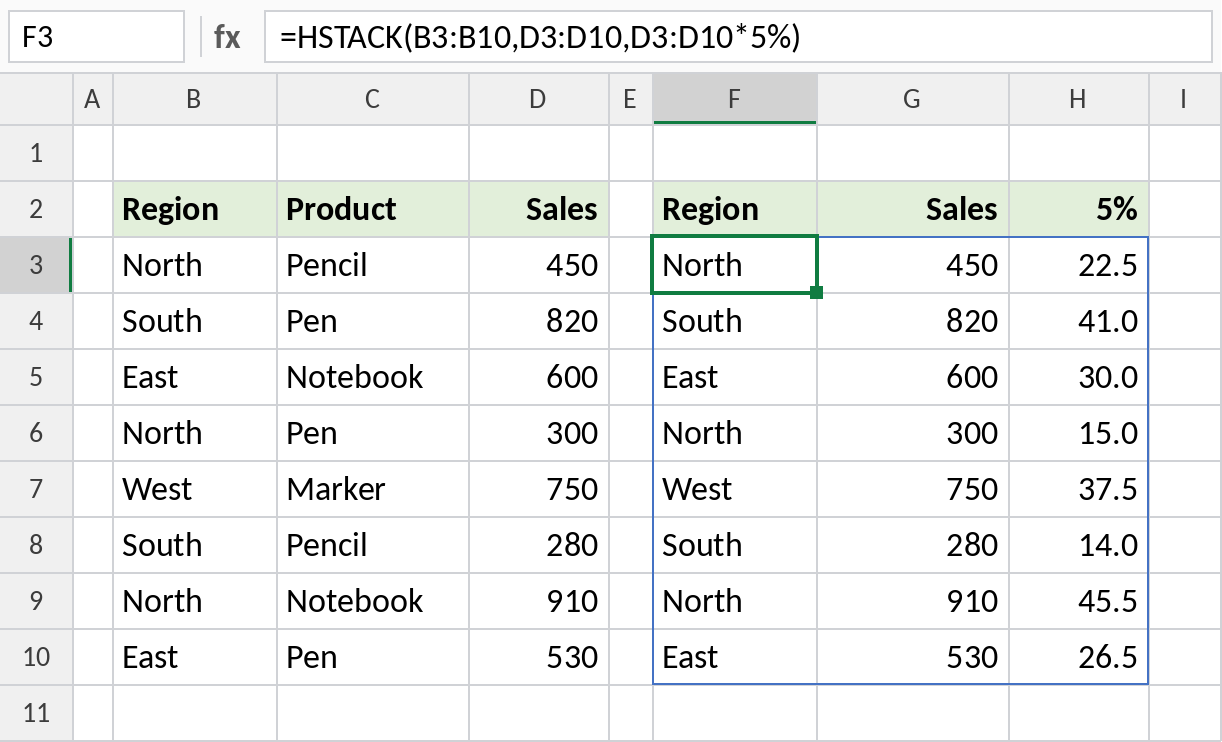
Each row shows the region, the sale and 5% of it: 450 gives 22.5. One formula builds the whole report.
Line up lists of different lengths
Batch A has 4 names and Batch B has 3. HSTACK fills the missing cell with #N/A, so wrap it in IFNA:
=IFNA(HSTACK(SORT(B3:B6),SORT(D3:D5)),"") 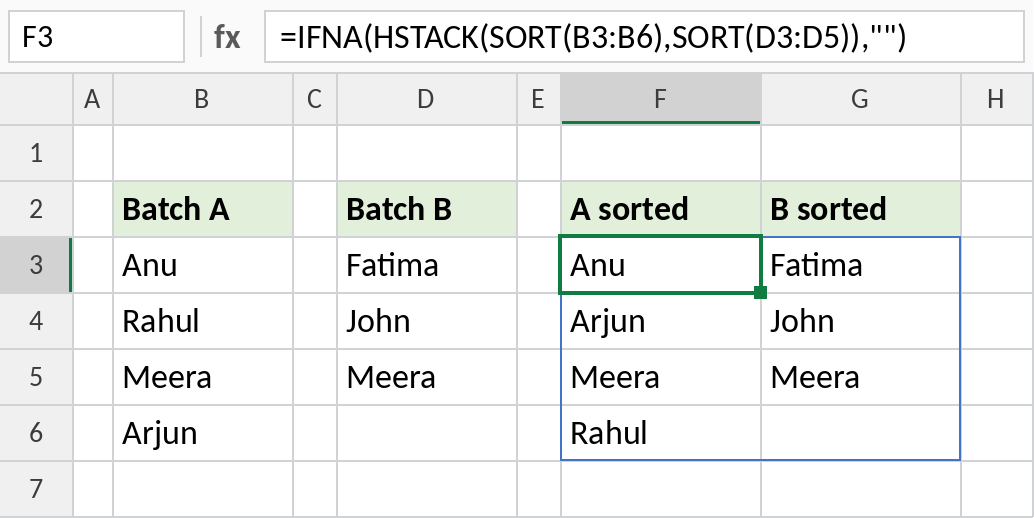
Both lists are sorted and placed next to each other. The empty spot in the last row shows as blank instead of #N/A.
HSTACK vs VSTACK
| HSTACK | VSTACK | |
|---|---|---|
| Combines | Side by side | On top of each other |
| Different sizes | Shorter ranges padded with #N/A below | Narrower ranges padded with #N/A on the right |
| Typical use | Build a report from chosen columns | Combine lists or sheets |
See VSTACK for stacking lists and combining sheets.
Notes
- Ranges are placed left to right in the order you list them.
- If ranges have different heights, the shorter ones are padded with
#N/A. Wrap in IFNA to hide it. - Combine HSTACK with CHOOSECOLS, FILTER and SORT to build a report in one formula.
- The result updates automatically when the source data changes.
Common errors
| Problem | Cause | Fix |
|---|---|---|
#N/A in the result |
Ranges have different heights | Use =IFNA(HSTACK(...),"") |
#SPILL! |
Cells to the right aren’t empty | Clear them |
#NAME? |
Excel 2021 or earlier | Copy and paste the columns, or use CHOOSE with an array |
Practice file
All three examples with working formulas (Excel 2024 or 365).