The Excel OFFSET function returns a cell or range that is a set number of rows and columns away from a starting point. It can also set the size of the range.
reference |
The starting cell. |
|---|---|
rows |
How many rows to move down (negative moves up). |
cols |
How many columns to move right (negative moves left). |
height optional |
How many rows tall the result should be. |
width optional |
How many columns wide the result should be. |
Table of Contents
Basic example
Start at B2, move 3 rows down and 1 column right:
=OFFSET(B2,3,1) 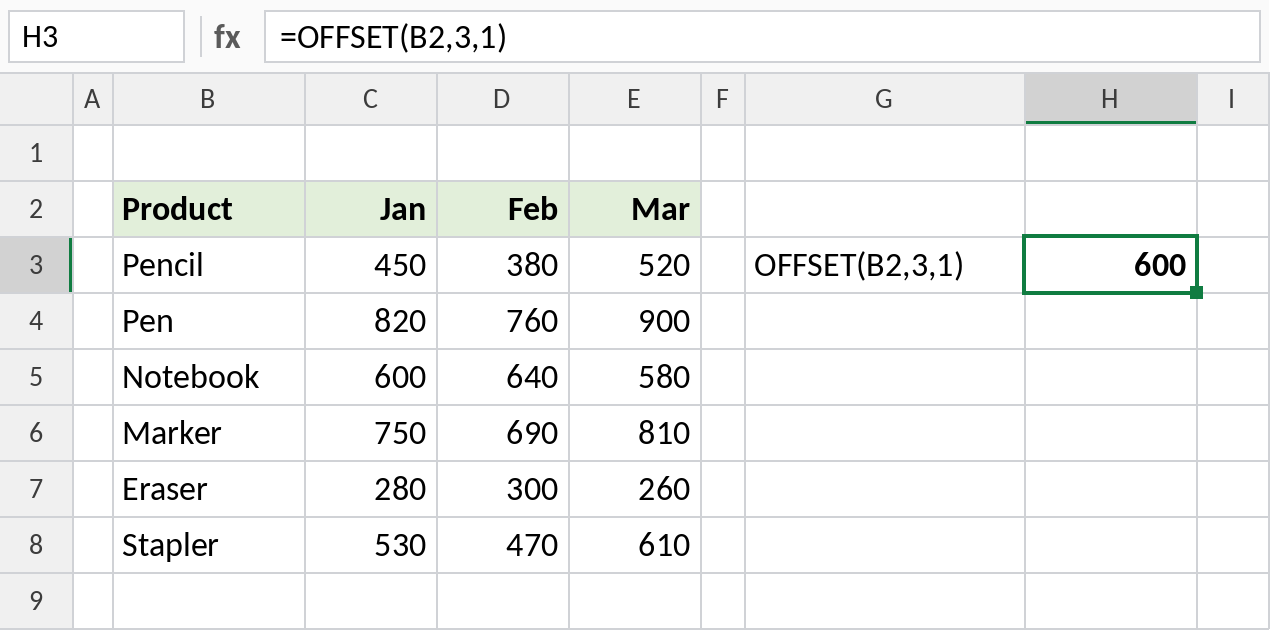
Three rows down from B2 is B5, and one column right is C5, Notebook’s January sale: 600.
Sum a column picked by number
Use height to return a range instead of one cell. Starting at C3, move H3 − 1 columns and take 6 rows:
=SUM(OFFSET(C3,0,H3-1,6,1)) 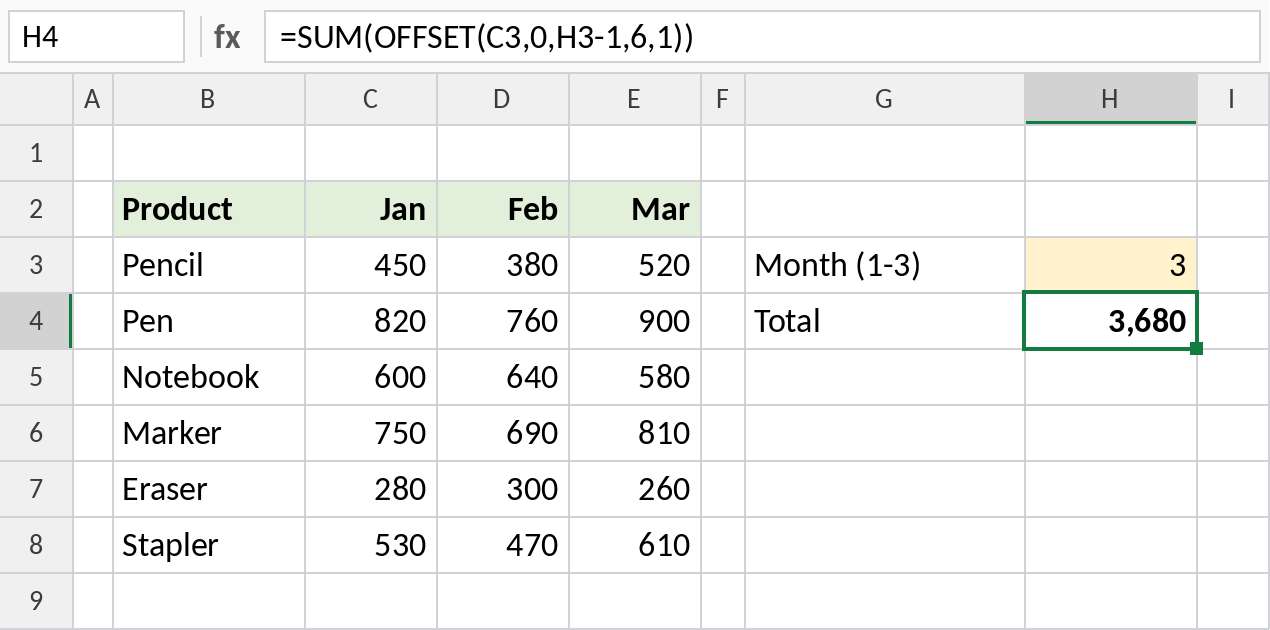
With 3 in H3, OFFSET moves 2 columns to E3 and returns E3:E8. SUM gives the March total: 3,680.
A range that grows with the list
COUNTA counts the products, and OFFSET uses that as the height. Add a product in row 9 and it’s included automatically:
=SUM(OFFSET(C3,0,0,COUNTA(B3:B20),1)) 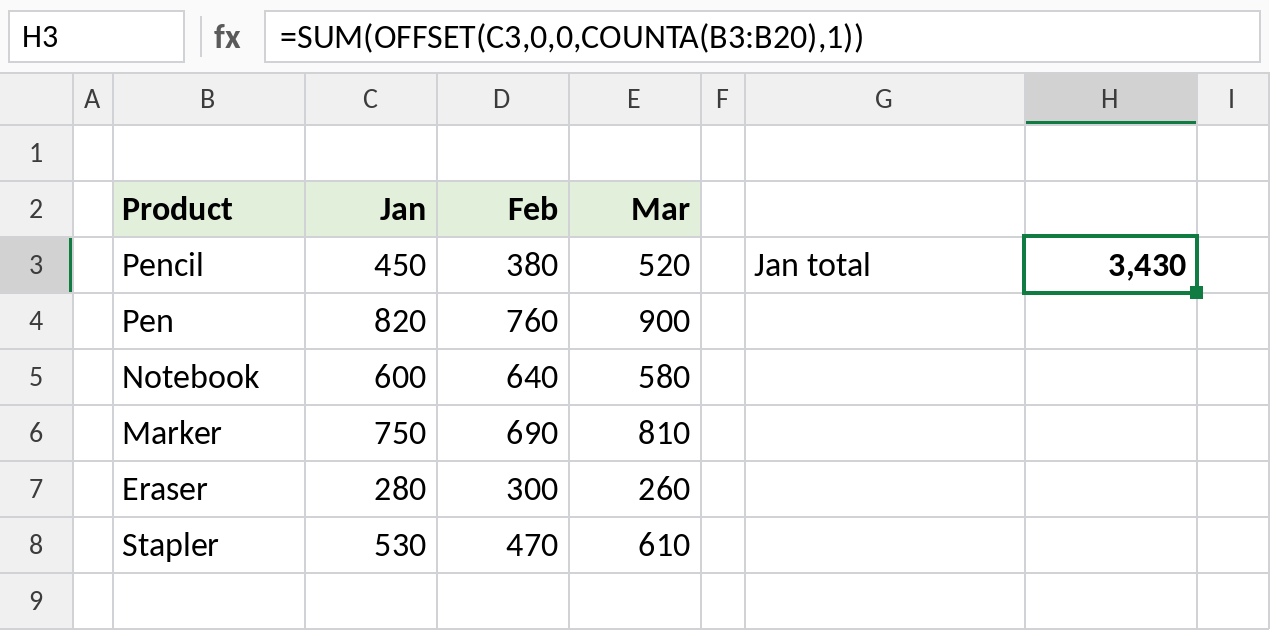
There are 6 products, so OFFSET returns C3:C8 and the total is 3,430. This was the classic way to build dynamic ranges before Excel Tables.
OFFSET arguments at a glance
All starting from B2:
| Formula | Returns |
|---|---|
=OFFSET(B2,1,0) |
B3 |
=OFFSET(B2,0,2) |
D2 |
=OFFSET(B2,1,1,6,1) |
C3:C8 |
=OFFSET(B2,1,1,1,3) |
C3:E3 |
An Excel Table or INDEX is usually a better choice for dynamic ranges today.
Notes
- OFFSET is volatile: it recalculates whenever anything in the workbook changes.
- Negative
rowsorcolsmove up or left. - Without
heightandwidth, the result is the same size asreference. - If the result is a range, wrap OFFSET in a function like SUM, or it spills in Excel 365.
Common errors
| Problem | Cause | Fix |
|---|---|---|
#REF! |
The offset goes past the edge of the sheet | Check the row and column numbers |
#SPILL! or #VALUE! |
A multi-cell range returned without SUM or similar | Wrap it in SUM, AVERAGE and so on |
| Workbook slow | Many OFFSET formulas recalculating | Use INDEX or Excel Tables instead |
Practice file
All three examples plus OFFSET patterns in a cheat sheet.