The Excel CHOOSE function picks a value from a list by its position number. CHOOSE(2,"a","b","c") returns “b”.
index_num |
Which value to return, from 1 to 254. |
|---|---|
value1 |
The value to return when index_num is 1. Can be a number, text, cell or range. |
value2, ... optional |
More values for 2, 3 and so on. |
Table of Contents
Basic example
To turn a 1 to 5 rating into a label, list the labels in order:
=CHOOSE(B3,"Poor","Fair","Good","Very good","Excellent") 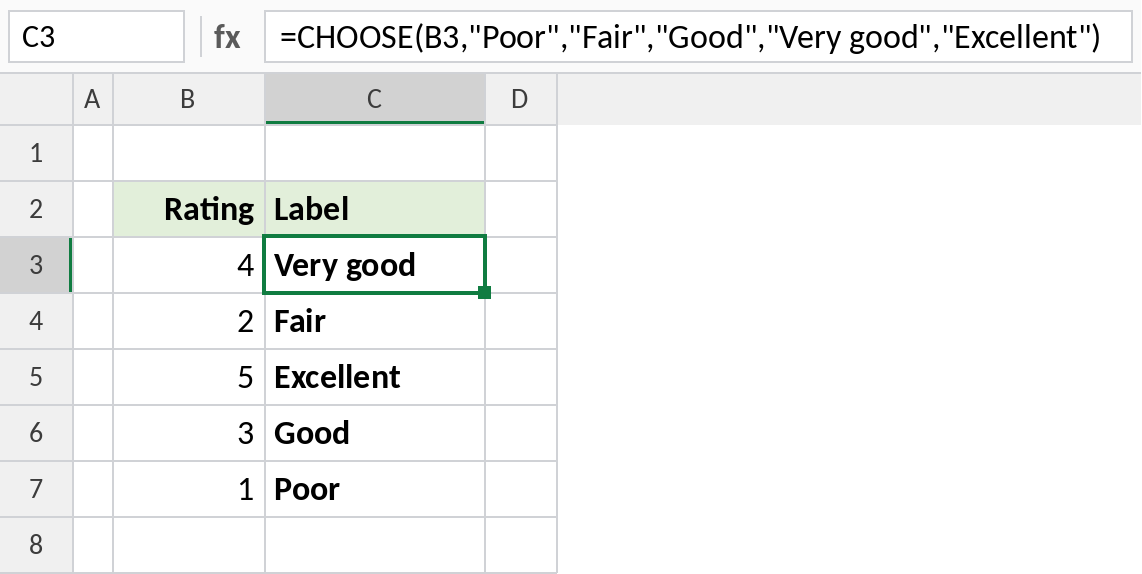
A rating of 4 picks the 4th label: Very good. A rating of 1 returns Poor.
Switch between scenarios
Type 1, 2 or 3 in F3 to pick a growth rate, and the projection updates:
=F4*(1+CHOOSE(F3,C3,C4,C5)) 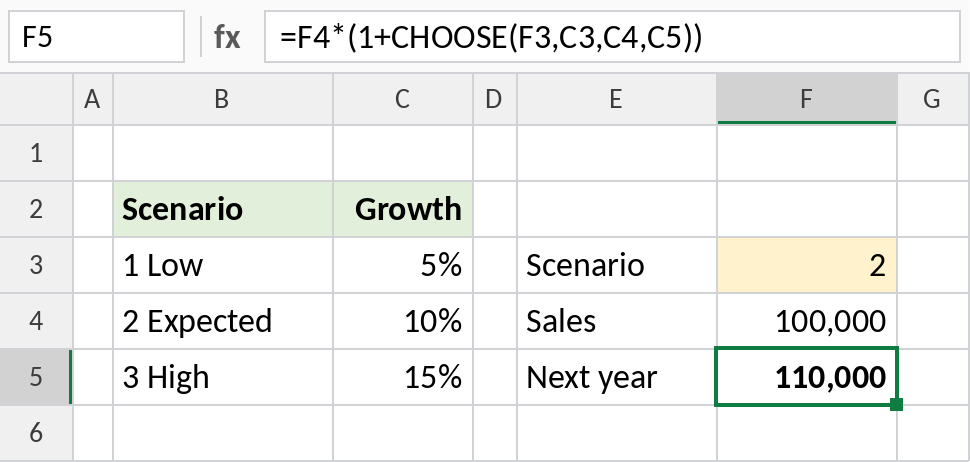
Scenario 2 picks the 10% rate, so 100,000 grows to 110,000. Change F3 to 3 to see the high case.
Choose a whole range
The values in CHOOSE can be ranges. Here, the month number decides which column SUM adds:
=SUM(CHOOSE(H3,C3:C8,D3:D8,E3:E8)) 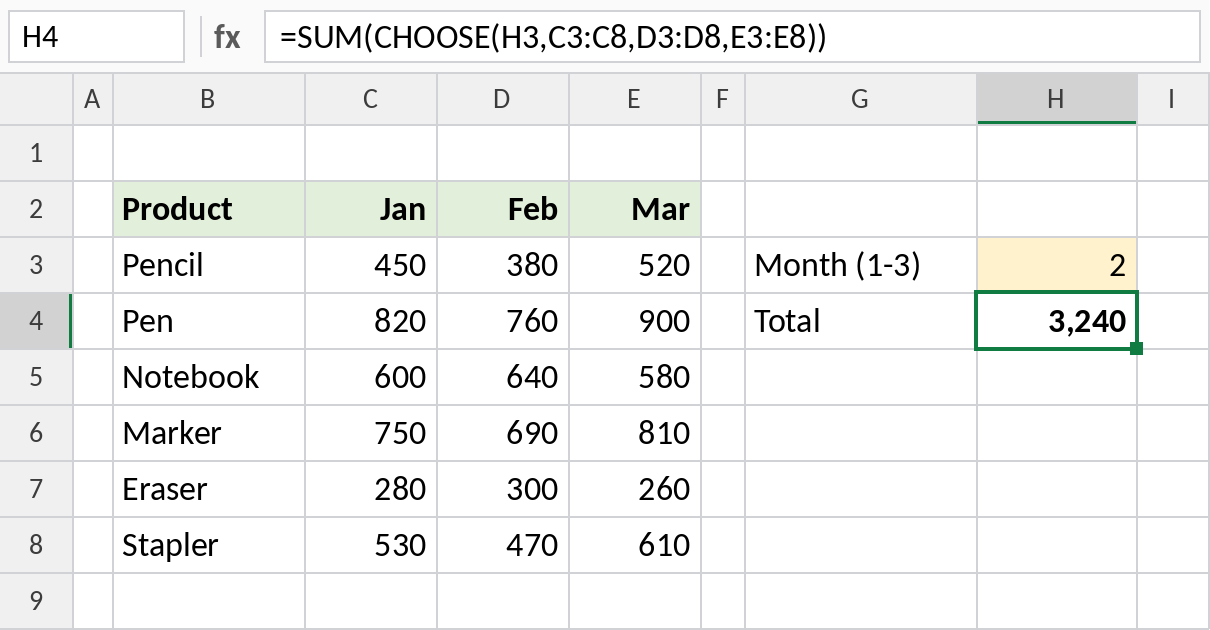
With 2 in H3, CHOOSE returns the Feb column and SUM totals it: 3,240.
CHOOSE vs SWITCH vs INDEX
| Function | Picks by | Example |
|---|---|---|
| CHOOSE | Position number | =CHOOSE(2,"Low","Mid","High") |
| SWITCH | Matching value | =SWITCH(B3,"L","Low","H","High") |
| INDEX | Position in a range | =INDEX(C3:C8,2) |
When the options live in cells, INDEX is usually easier to maintain than typing them into CHOOSE.
Notes
index_nummust be between 1 and the number of values. Anything else returns#VALUE!.- Decimals in
index_numare cut off, so 1.9 acts as 1. - The values can be ranges, which lets CHOOSE switch between whole columns or tables.
- For long lists, keep the options in cells and use INDEX instead.
Common errors
| Problem | Cause | Fix |
|---|---|---|
#VALUE! |
index_num is 0, negative or larger than the list |
Check the number, or wrap with IFERROR |
| Wrong label | Values listed in the wrong order | List them in order of 1, 2, 3… |
| Formula hard to update | Options typed inside the formula | Keep them in cells and use INDEX |
Practice file
All three examples plus the CHOOSE checks in a cheat sheet.