The Excel SORTBY function sorts a range by the values in another range. The column you sort by doesn’t have to be part of the result, and it can even be a calculation.
array |
The range to return, sorted. |
|---|---|
by_array1 |
The range or array to sort by. Same height as array. |
sort_order1 optional |
1 ascending (default), -1 descending. |
by_array2, sort_order2 optional |
More sort keys. |
Table of Contents
Basic example
To list regions and products from best to worst sale without showing the sales figures, return B:C but sort by D:
=SORTBY(B3:C10,D3:D10,-1) 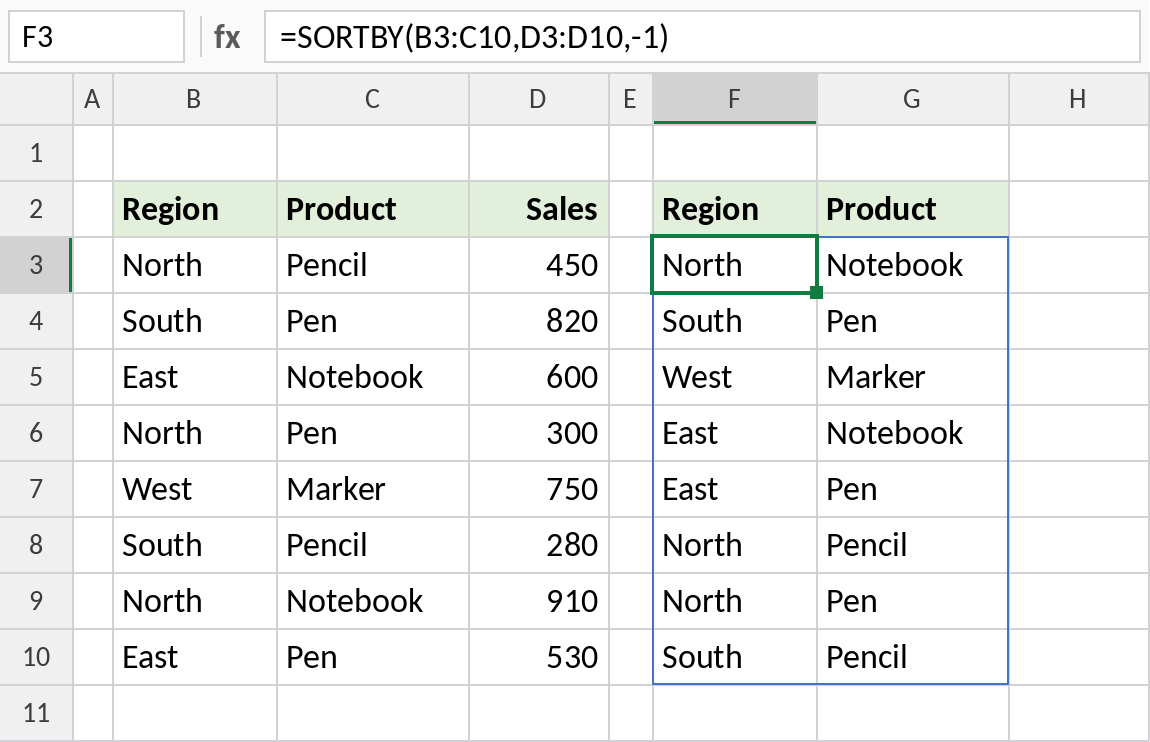
The highest sale, North Notebook, comes first. With SORT, the sort column has to be inside the range you return.
Sort in a custom order
Regions should appear North, South, East, West, not A to Z. XMATCH turns each region into its position in that list, and SORTBY sorts by those numbers:
=SORTBY(B3:D10,XMATCH(B3:B10,{"North","South","East","West"})) 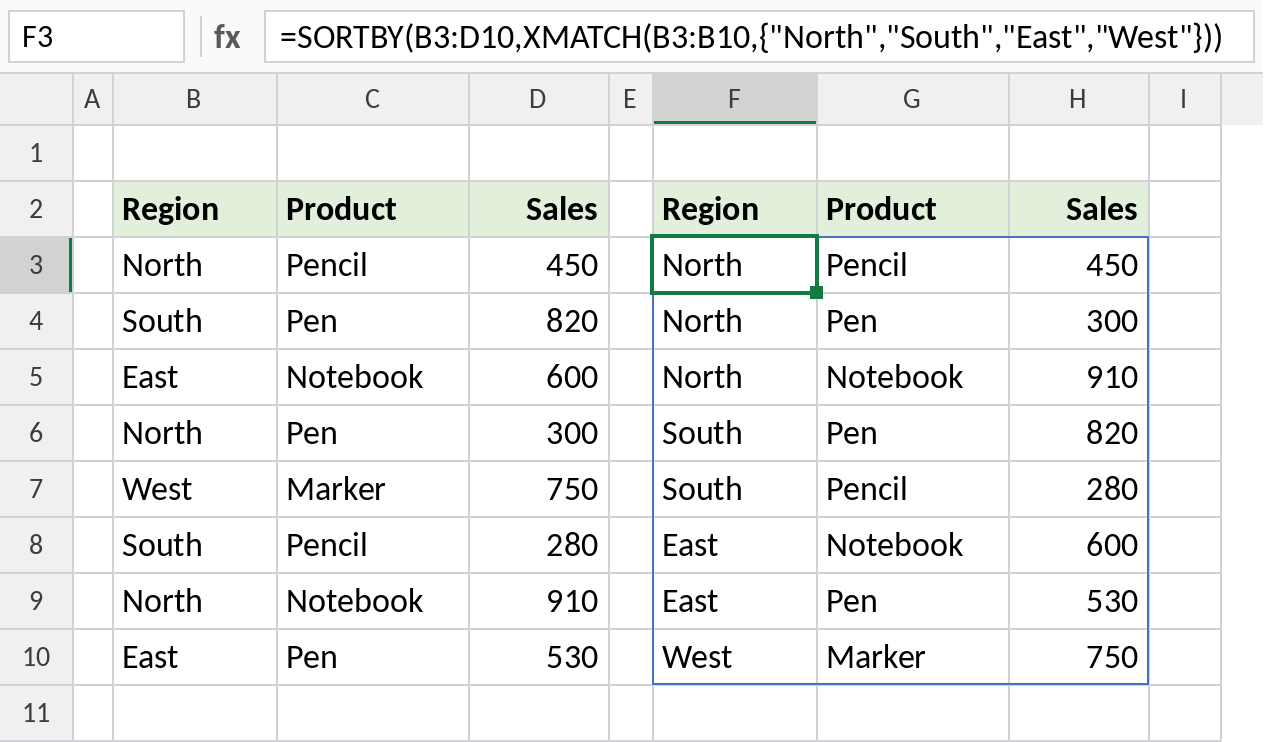
All North rows come first, then South, East and West. Within each region, rows keep their original order.
Sort by a calculation
by_array can be a calculation. Here the products are ranked by their January-to-March total, with no helper column:
=SORTBY(B3:B8,C3:C8+D3:D8+E3:E8,-1) 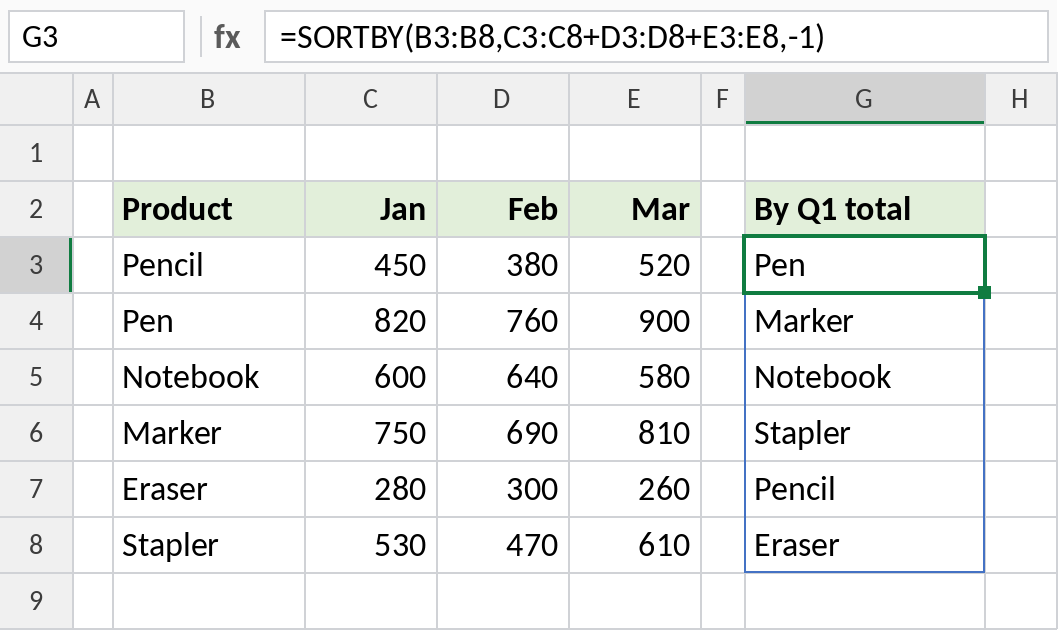
Pen has the highest total (2,480), followed by Marker and Notebook. Eraser, at 840, is last.
SORTBY vs SORT
| SORT | SORTBY | |
|---|---|---|
| Sort key | A column number inside the range | Any range or calculation |
| Return only some columns | No | Yes |
| Breaks if columns move | Yes | No |
| Custom sort order | No | Yes, with XMATCH |
For a plain sort by one column in the range, SORT is shorter.
Notes
by_arraymust be the same height asarray, or SORTBY returns#VALUE!.- Ties keep their original order.
- Keep the spill area empty, or you’ll see
#SPILL!. - SORTBY isn’t available in Excel 2019 or earlier.
Common errors
| Problem | Cause | Fix |
|---|---|---|
#VALUE! |
by_array and array are different sizes |
Make them cover the same rows |
#SPILL! |
Cells in the spill range aren’t empty | Clear them |
| Custom order puts some rows last | Values missing from the custom list | Add every value to the list |
#NAME? |
Excel 2019 or earlier | Use Data → Sort instead |
Practice file
All three examples with working formulas (Excel 2021 or 365).