The Excel MEDIAN function returns the middle value of a set of numbers. Unlike the average, one extreme value can’t drag it far off.
number1 |
The first number or range. |
|---|---|
number2, ... optional |
More numbers or ranges, up to 255. |
Table of Contents
Basic example
Delivery times in days, with one very late order. Compare the median with the average:
=MEDIAN(C3:C7)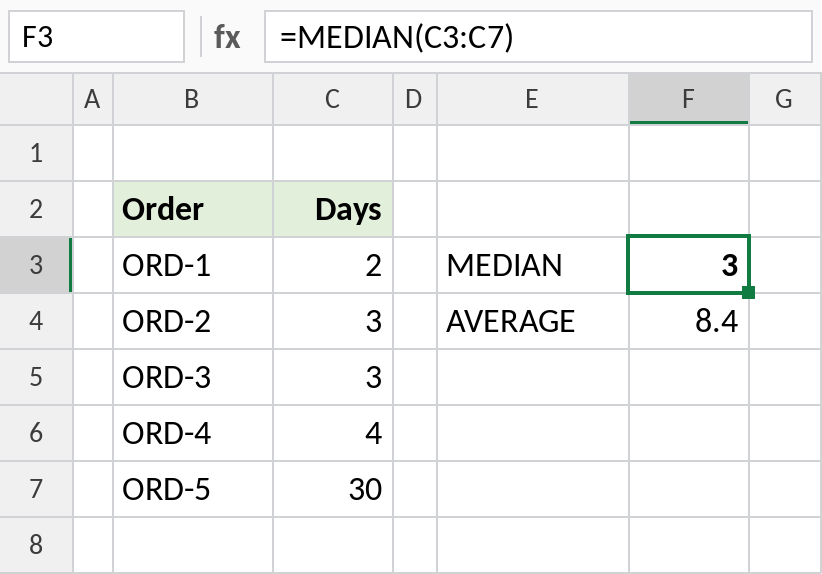
Sorted, the times are 2, 3, 3, 4, 30, so the middle value is 3. The average is 8.4, which no order actually took. The median gives a truer picture of a typical delivery.
An even number of values
With an even count there’s no single middle value, so MEDIAN averages the two in the middle:
=MEDIAN(C3:C8)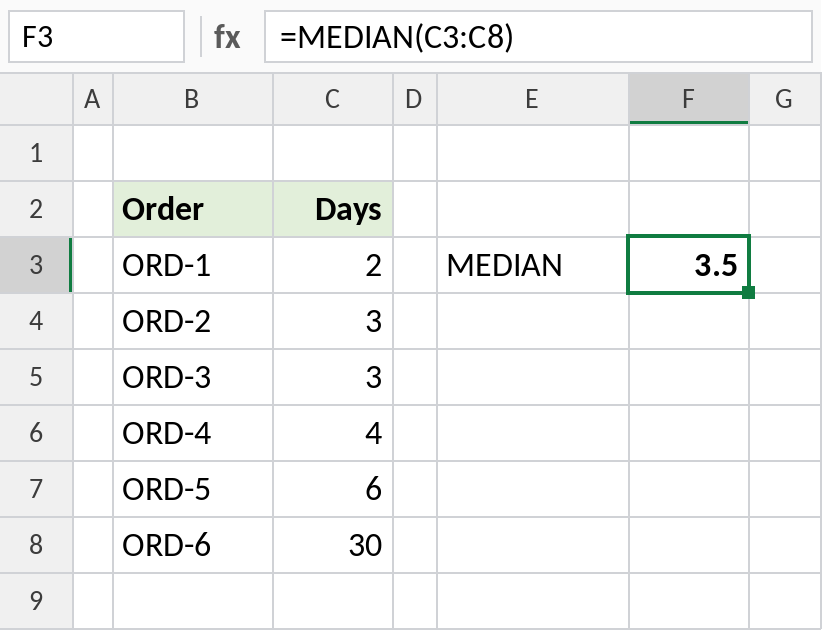
Sorted: 2, 3, 3, 4, 6, 30. The two middle values are 3 and 4, so the median is 3.5.
Median with a condition
There’s no MEDIANIFS, but IF inside MEDIAN keeps only the rows you want:
=MEDIAN(IF(B3:B10="North",D3:D10))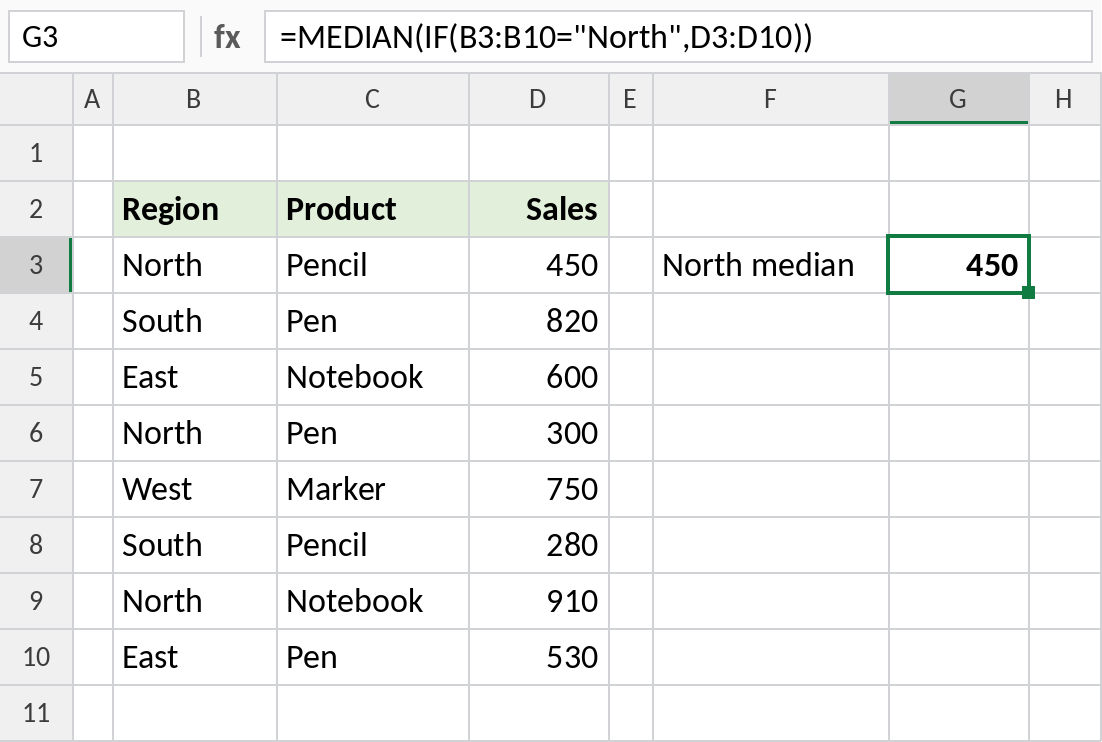
IF keeps the North sales, 450, 300 and 910, and MEDIAN returns the middle one: 450. In Excel 2019 or earlier, confirm with Ctrl+Shift+Enter.
MEDIAN vs AVERAGE vs MODE
For 2, 3, 3, 4, 30:
| Function | Result | Meaning |
|---|---|---|
| MEDIAN | 3 | The middle value |
| AVERAGE | 8.4 | Total ÷ count |
| MODE.SNGL | 3 | The most common value |
Use the median for skewed data such as delivery times, prices and incomes, where a few large values distort the average.
Notes
- MEDIAN ignores text, empty cells and TRUE/FALSE in ranges. Zeros are included.
- You don’t need to sort the data first.
- With an even number of values, the result is the average of the two middle ones.
- For quartiles and percentiles, use QUARTILE.INC and PERCENTILE.INC.
Common errors
| Problem | Cause | Fix |
|---|---|---|
#NUM! |
No numbers in the range | Check the range |
| Median lower than expected | Zeros included for missing values | Leave missing values blank |
| Condition ignored | IF version entered normally in Excel 2019 or earlier | Press Ctrl+Shift+Enter |
Practice file
All three examples plus MEDIAN, AVERAGE and MODE in a cheat sheet.