To sum values between two dates in Excel, use SUMIFS with one condition for the start date and one for the end date. Put the dates in cells so you can change the period without editing the formula.
ProblemTotal the amounts in a date range
Functions usedSUMIFS, COUNTIFS
Works inExcel 2007 and later
Total between two dates
=SUMIFS(C3:C10,B3:B10,">="&F2,B3:B10,"<="&F3)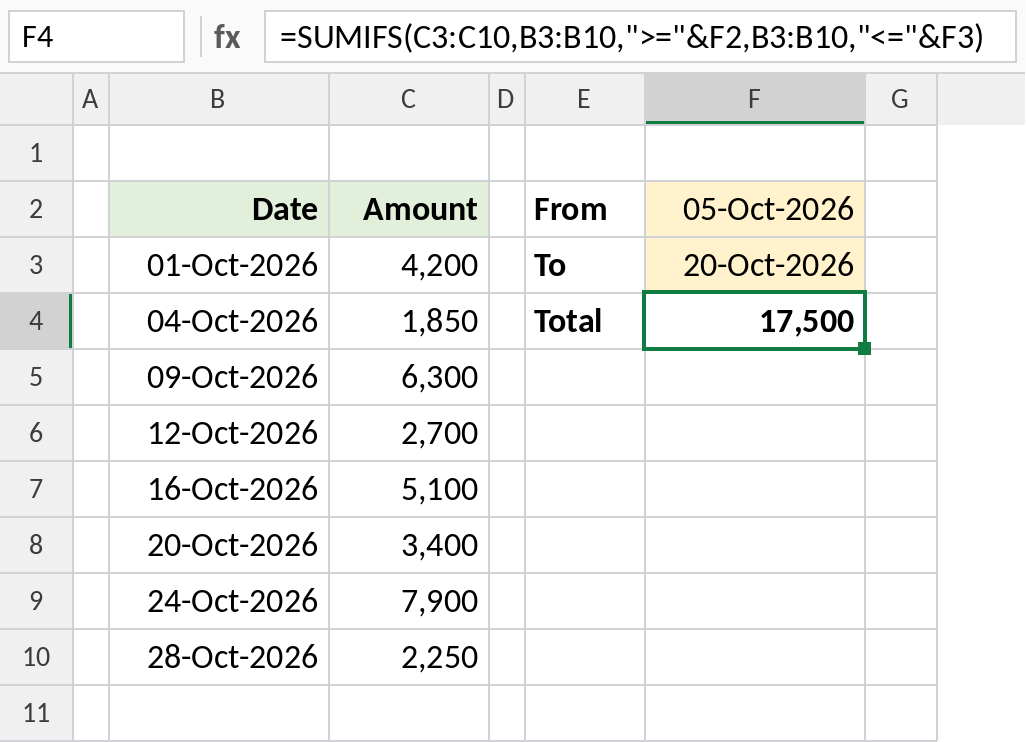
Four expenses fall between 05-Oct and 20-Oct, totalling 17,500. Both dates are included because of >= and <=.
How the formula works
">="&F2joins the operator to the date in F2, giving the condition on or after 05-Oct-2026."<="&F3gives on or before 20-Oct-2026.- SUMIFS adds the amounts only in rows where both conditions are true.
Count between two dates
COUNTIFS takes the same conditions and counts the rows instead:
=COUNTIFS(B3:B10,">="&F2,B3:B10,"<="&F3)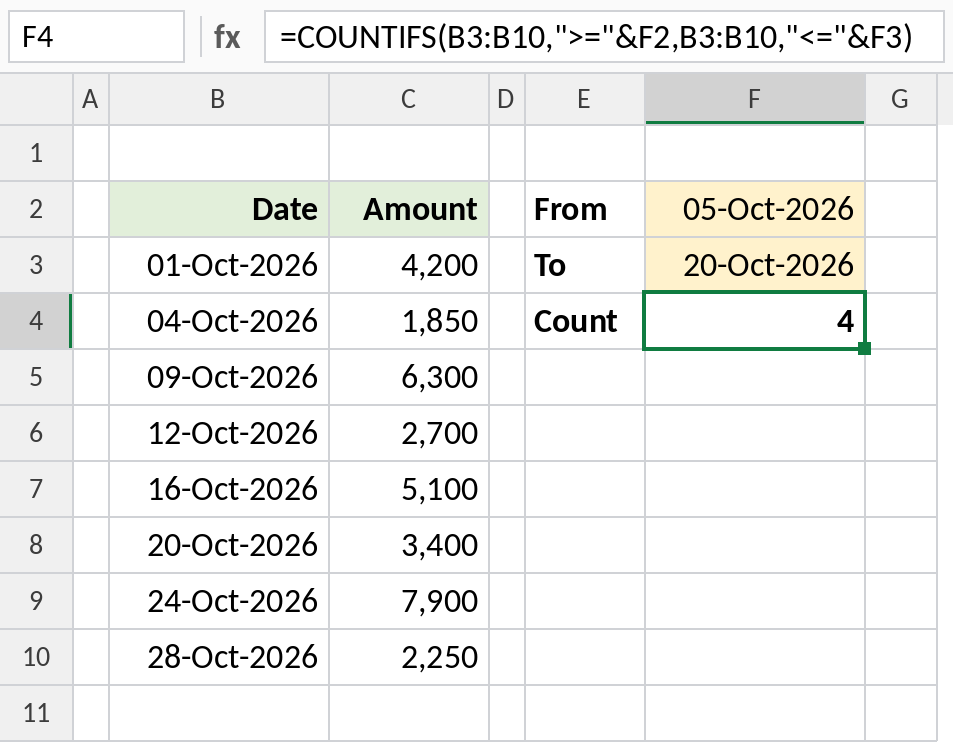
4 entries fall in the period.
Which formula to use
| To get | Formula |
|---|---|
| Between two dates (inclusive) | =SUMIFS(C:C,B:B,">="&F2,B:B,"<="&F3) |
| Excluding the end date | =SUMIFS(C:C,B:B,">="&F2,B:B,"<"&F3) |
| Last 7 days | =SUMIFS(C:C,B:B,">="&TODAY()-6,B:B,"<="&TODAY()) |
| Dates typed in the formula | =SUMIFS(C:C,B:B,">="&DATE(2026,10,5),B:B,"<="&DATE(2026,10,20)) |
| Average in the period | =AVERAGEIFS(C:C,B:B,">="&F2,B:B,"<="&F3) |
Notes
- Keep the operator in quotes and join the date with
&:">="&F2, not">=F2". - If your dates include times, use
"<"&F3+1for the end so the whole last day is included. - Add a third pair for another condition, such as a category:
,D3:D10,"Travel".
Common errors
| Problem | Cause | Fix |
|---|---|---|
| Result is 0 | Dates in column B are text | Convert them to real dates |
| Result is 0 | Condition typed as ">=F2" |
Use ">="&F2 |
| Last day missing | Dates include times | Use "<"&F3+1 |
Practice file
The expense list with the SUMIFS and COUNTIFS formulas. Change the dates in F2 and F3 to try other periods.