The Excel COUNTIFS function counts the rows that meet two or more conditions. For example, how many orders came from North for the product Pen, or how many orders fall between two dates.
criteria_range1 |
The cells to test with the first condition. |
|---|---|
criteria1 |
The first condition, such as "North", ">=500" or a cell reference. |
criteria_range2, criteria2 optional |
More range and condition pairs, up to 127 pairs. |
Table of Contents
Basic example
To count the orders where the region is North and the product is Pen, give COUNTIFS each range followed by its condition:
=COUNTIFS(C3:C14,"North",D3:D14,"Pen") 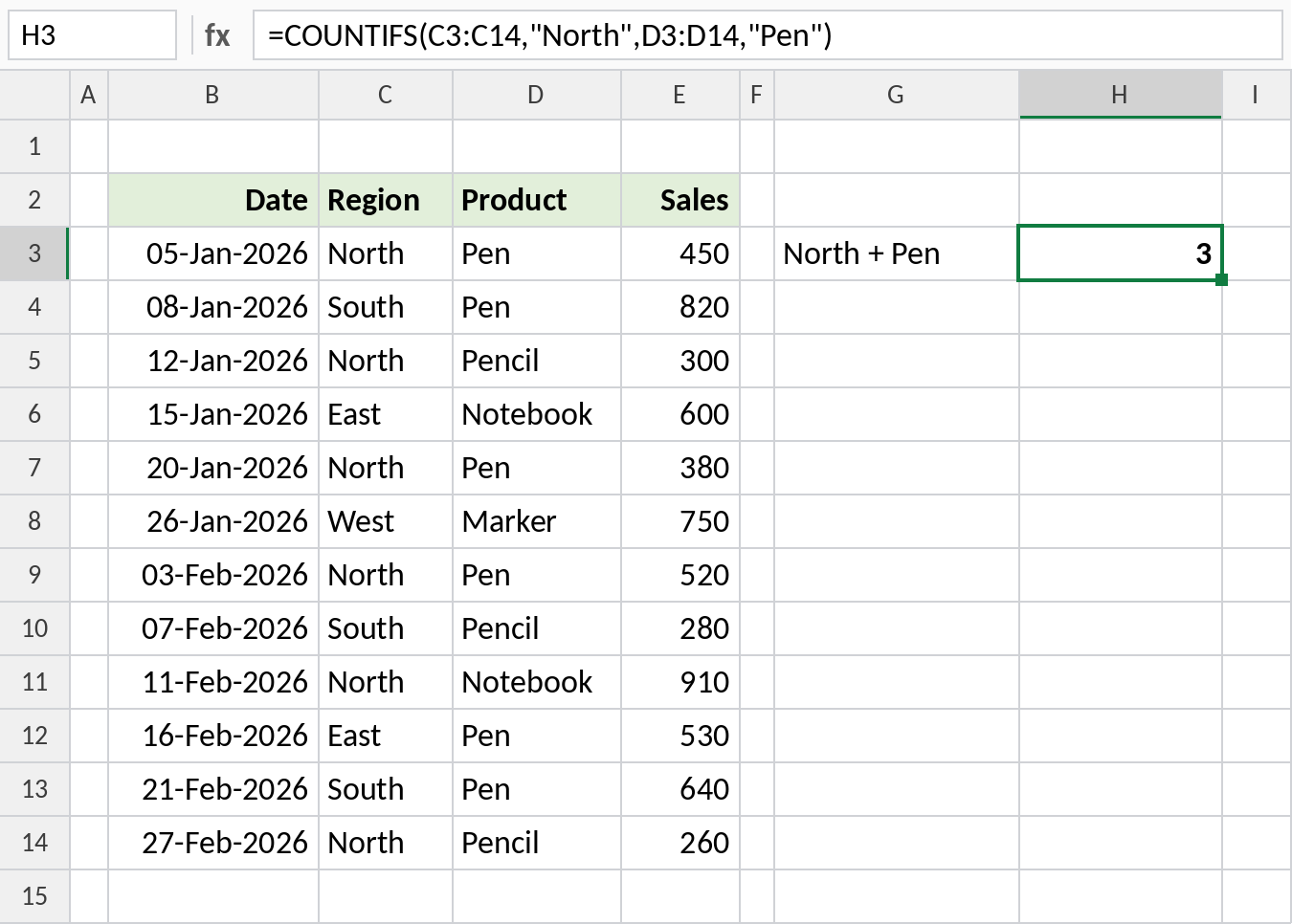
A row is counted only when both conditions are true. Rows 3, 7 and 9 qualify, so the result is 3. Unlike SUMIFS, there is no range to add. COUNTIFS just counts the matching rows.
Count between two numbers
Test the same column twice to set a lower and an upper limit:
=COUNTIFS(E3:E14,">=500",E3:E14,"<=800") 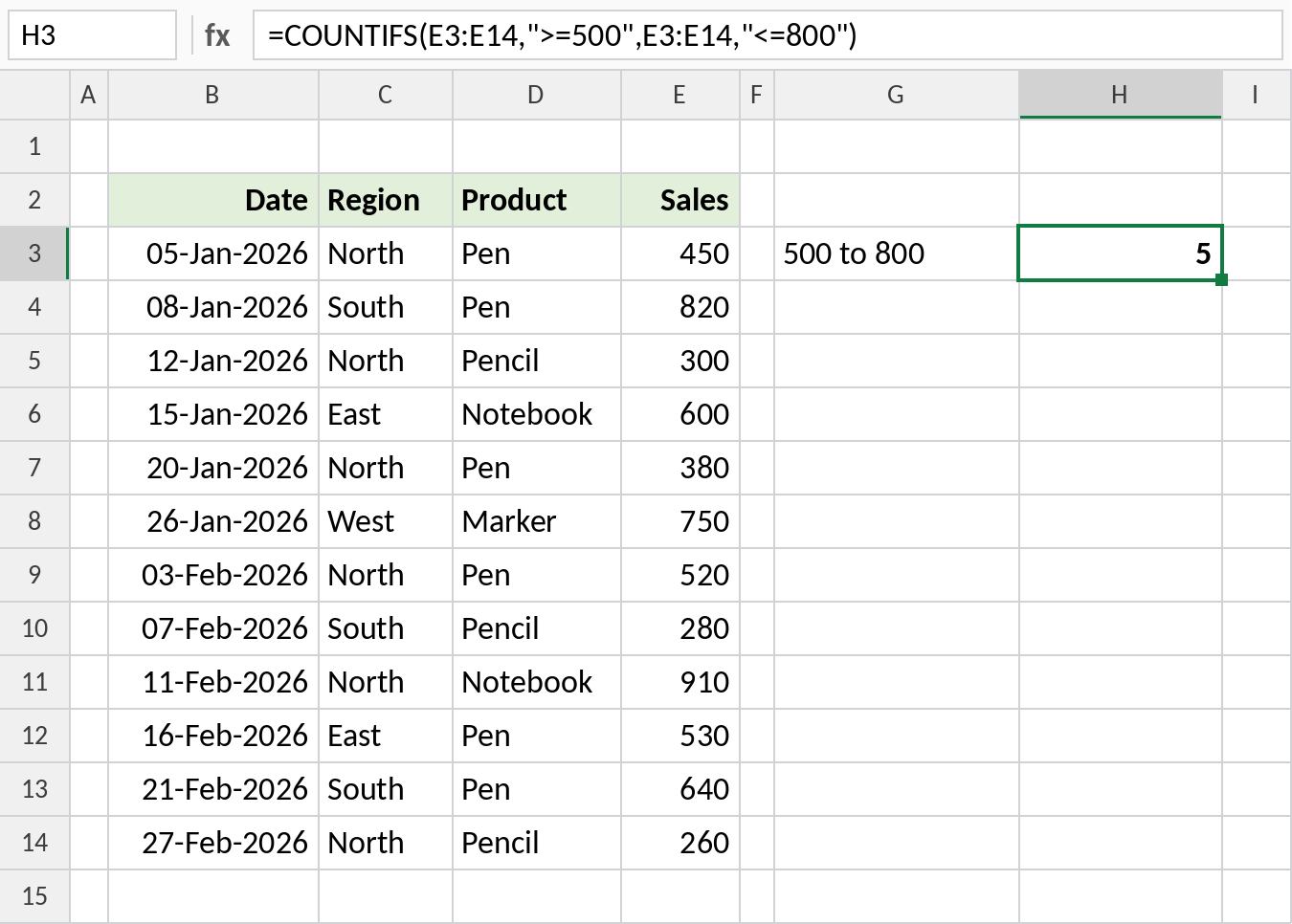
Five sales fall in the range: 600, 750, 520, 530 and 640. Using >= and <= includes the limits themselves. Use > and < to leave them out.
Count between two dates
Put the start and end dates in cells and join them to the operators with &:
=COUNTIFS(B3:B14,">="&H3,B3:B14,"<="&H4) 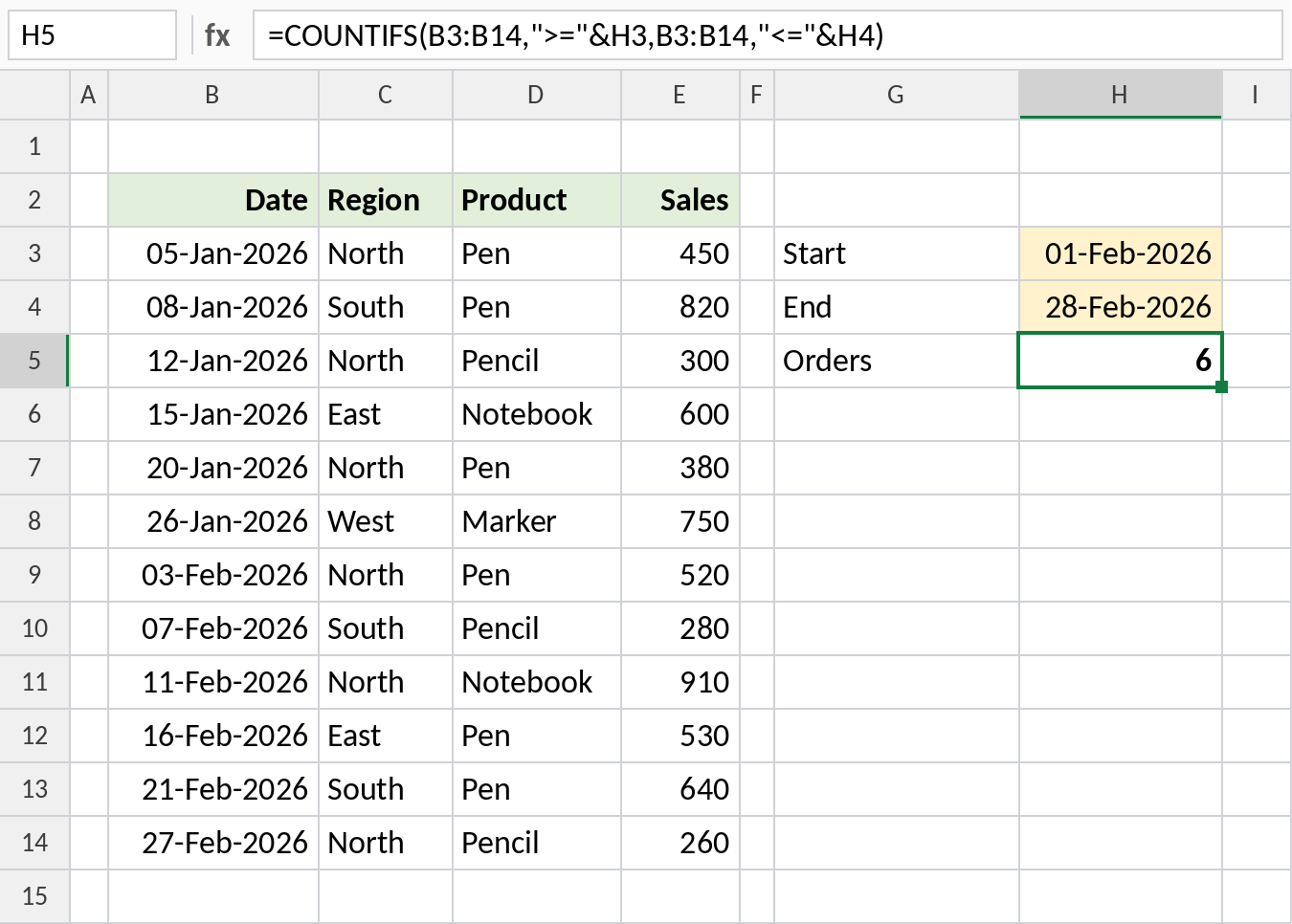
With 01-Feb-2026 and 28-Feb-2026 in H3 and H4, the formula counts the February orders: 6. Change either date and the count updates.
Count with OR logic
COUNTIFS always joins conditions with AND. To count North or South, give the condition as a list in curly braces and add the results with SUM:
=SUM(COUNTIFS(C3:C14,{"North","South"})) 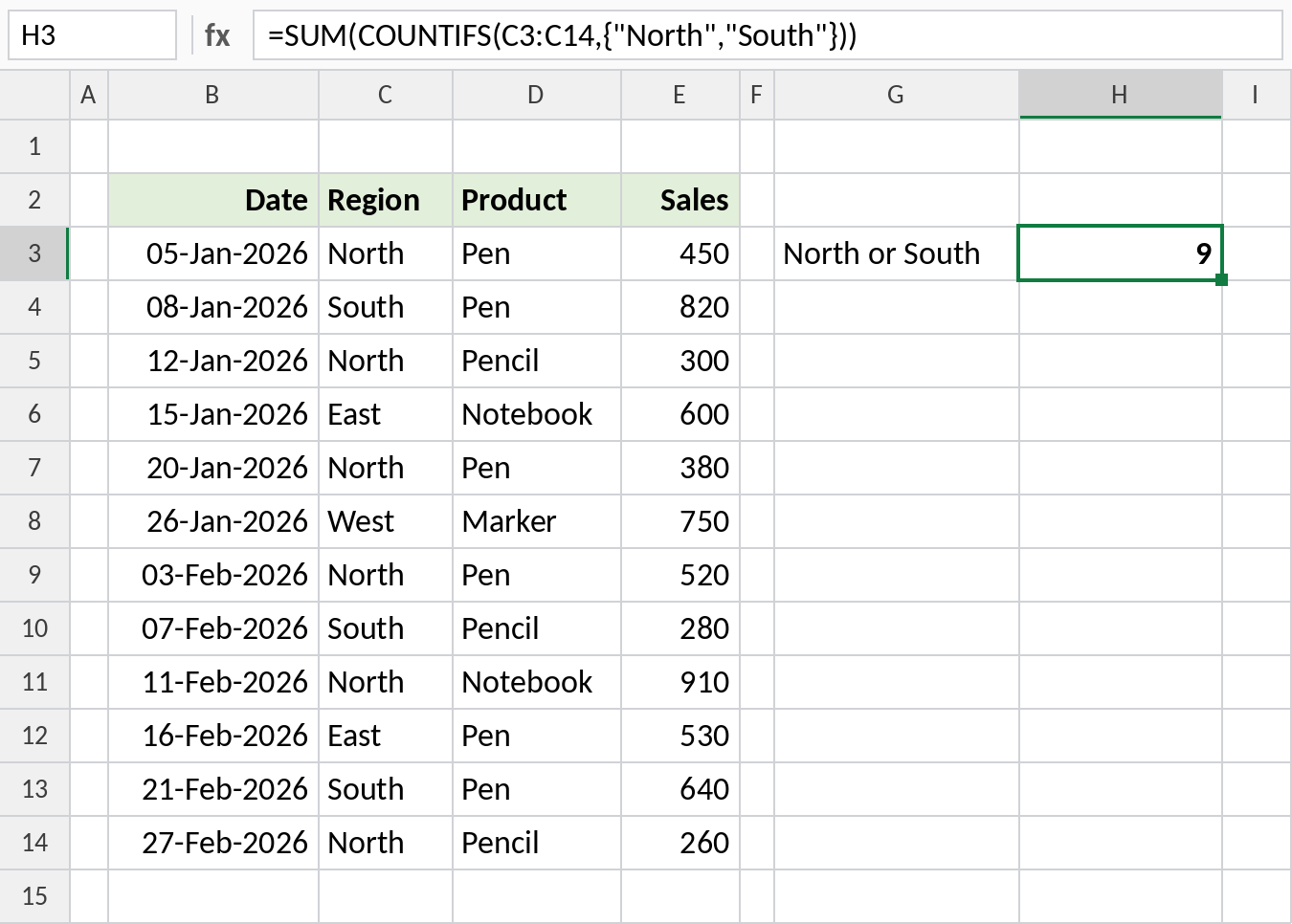
COUNTIFS returns 6 for North and 3 for South, and SUM adds them: 9. This works because a row can’t be both North and South. If the two conditions could match the same row, it would be counted twice.
More conditions you can use
| Formula | Counts rows where… |
|---|---|
=COUNTIFS(D3:D14,"Pen",C3:C14,"<>North") |
the product is Pen and the region is anything but North (3) |
=COUNTIFS(D3:D14,"Pen*") |
the product starts with “Pen”, so Pen and Pencil (9) |
=COUNTIFS(C3:C14,"North",E3:E14,">"&H3) |
the region is North and the sale is above the value in H3 |
=COUNTIFS(E3:E14,"<>") |
the Sales cell is not blank |
=COUNTIFS(E3:E14,"") |
the Sales cell is blank |
The criteria follow the same rules as SUMIF and SUMIFS. See the SUMIF criteria cheat sheet for the full list.
Notes
- A row is counted only if every condition is true (AND logic).
- All ranges must have the same number of rows and columns.
- Text conditions are not case-sensitive.
- With a single pair, COUNTIFS works exactly like COUNTIF.
- COUNTIFS counts rows, not unique values. To count distinct items, use UNIQUE with COUNTA.
Common errors
| Problem | Cause | Fix |
|---|---|---|
#VALUE! |
Ranges are different sizes, such as C3:C14 and D3:D13 |
Make every range cover the same rows |
| Count is 0 | Extra spaces in the data, or dates and numbers stored as text | Clean text with TRIM, convert to real dates and numbers |
| Count too high with OR | Two conditions match the same row, so it’s counted twice | Use SUMPRODUCT or FILTER with ROWS instead |
| Date condition fails | Date typed as text, such as ">=01/02/2026", which reads differently in different regions |
Use a cell reference or ">="&DATE(2026,2,1) |
Practice file
All four examples with working formulas, ready to try your own conditions.