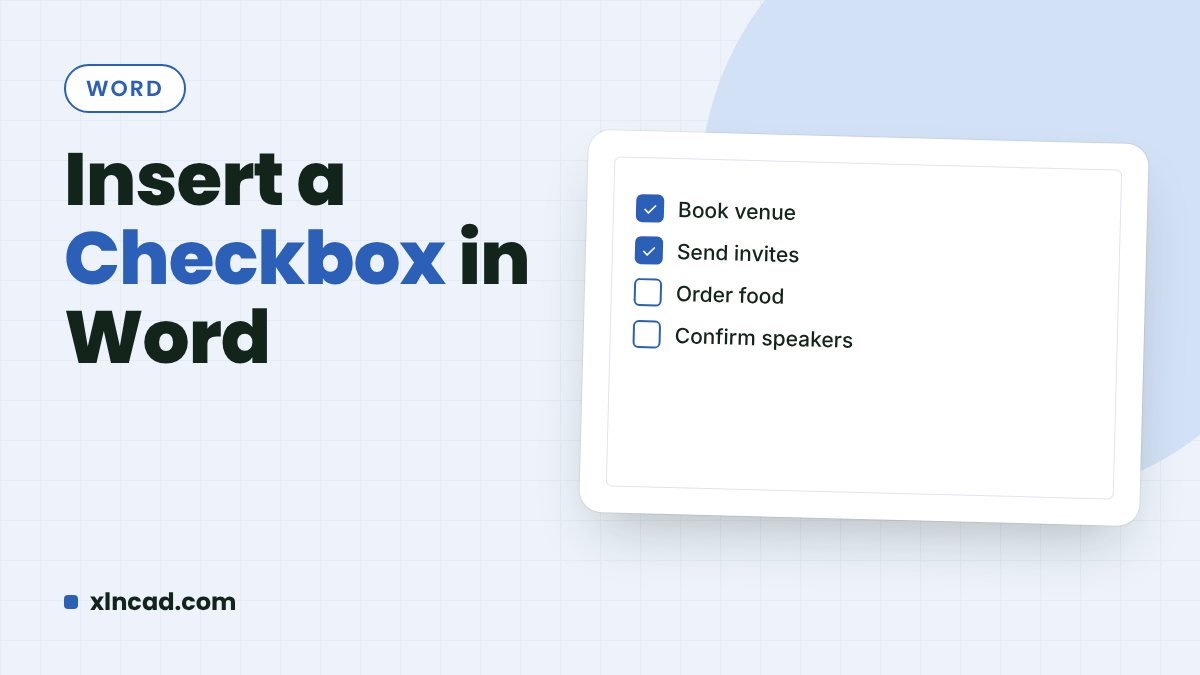
Word has two kinds of checkbox: a clickable one you tick on screen, from the Developer tab, and a printable box symbol for checklists that people tick with a pen.
ClickableDeveloper › Check Box Content Control
PrintableInsert › Symbol, or a box bullet
Works inWord 2010 and later, Microsoft 365
Clickable checkbox
- If you don’t see the Developer tab, go to File › Options › Customize Ribbon, tick Developer and click OK.
- Click where the checkbox should go.
- Go to Developer › Check Box Content Control (the box with a tick).
- Click the box to tick or untick it.
To use a tick (✓) instead of an X, select the checkbox, choose Developer › Properties, click Change next to Checked symbol, and pick the tick from Wingdings 2.
Printable checkbox list
- Select the list.
- Go to Home › Bullets › Define New Bullet › Symbol.
- Choose the Wingdings font and pick the empty box (☐), then click OK.
Each item now starts with an empty box that prints for ticking by hand.
Which one to use
| Need | Use |
|---|---|
| A form people fill in on screen | Check Box Content Control |
| A checklist to print | Box bullet or symbol |
| A form people can’t edit except the boxes | Content controls + Developer › Restrict Editing (Filling in forms) |
FAQ
The checkbox shows an X. How do I show a tick?
Change the Checked symbol in Developer › Properties.
Do clickable checkboxes work in a PDF?
No. Saving as PDF keeps only how they look, not the clicking.