The Excel COLUMN function returns the column number of a cell: 1 for A, 2 for B, and so on. It’s most useful for making formulas adjust as you copy them across.
PurposeColumn number of a cell
ReturnsA number
Available inAll Excel versions, Excel for the web, Google Sheets
reference optional |
The cell or range. Leave it out for the column of the formula’s own cell. |
|---|
Table of Contents
Basic example
With no argument, COLUMN returns its own column. With a reference, it returns that cell’s column:
=COLUMN(D5)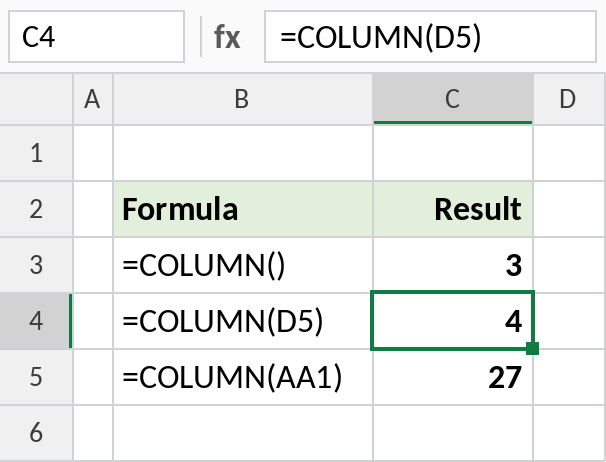
=COLUMN() in column C returns 3, =COLUMN(D5) returns 4, and =COLUMN(AA1) returns 27.
A VLOOKUP you can copy across
VLOOKUP’s column number is usually typed in. Use COLUMN instead, and the number goes up by one each time you copy the formula to the right:
=VLOOKUP($G3,$B$3:$E$8,COLUMN(B1),FALSE)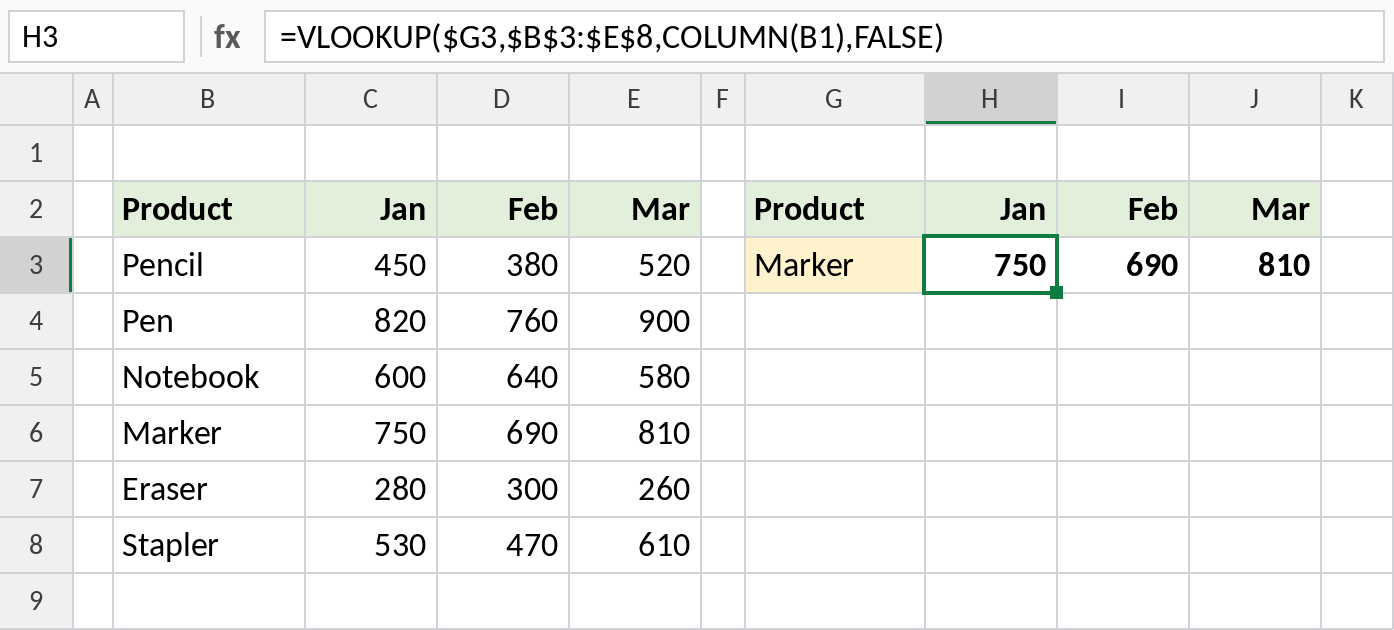
In H3, COLUMN(B1) is 2, so VLOOKUP returns January: 750. Copied to I3 it becomes COLUMN(C1), which is 3, for February.
COLUMN and its relatives
| Function | Returns |
|---|---|
| COLUMN | The column number of a cell |
| COLUMNS | How many columns a range has |
| ROW | The row number of a cell |
| XMATCH | The position of a header, for a column number that follows the header name |
Notes
- COLUMN returns a number, not a letter.
- With a multi-column range, COLUMN returns the first column in older Excel and spills every number in Excel 365.
- For column numbers that survive inserted columns, match the header name with XMATCH instead.
Common errors
| Problem | Cause | Fix |
|---|---|---|
| Wrong column returned | Offset not matching the table’s first column | Point COLUMN at a cell in the right starting column |
#REF! |
Referenced cell deleted | Update the reference |
Practice file
Both examples in one workbook.