The Excel SMALL function returns the Nth smallest value in a range: the 2nd lowest price, the 3rd earliest date, and so on.
array |
The range of numbers. |
|---|---|
k |
The position from the bottom: 1 for the smallest, 2 for the second smallest, and so on. |
Table of Contents
Basic example
To find the second-lowest sale, give SMALL the range and k = 2:
=SMALL(D3:D10,G3) 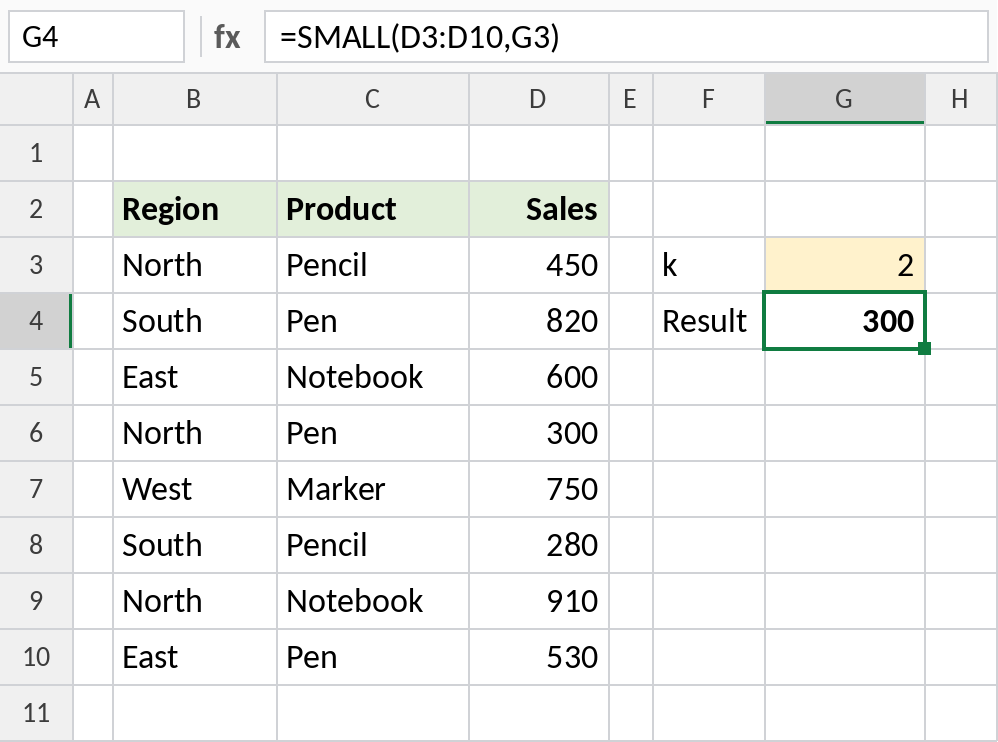
The lowest sale is 280, so the second lowest is 300.
List the bottom 3
Put 1, 2 and 3 in a column and point k at them:
=SMALL($D$3:$D$10,F3) 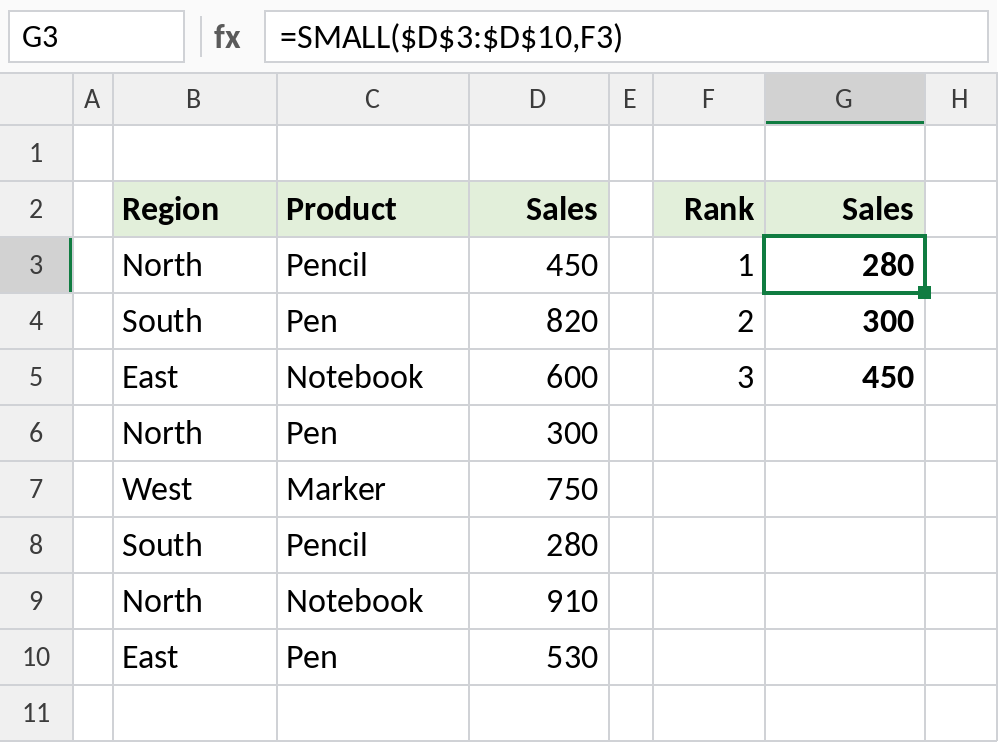
The three lowest sales are 280, 300 and 450. These are the orders worth following up on.
Sort numbers with a formula (any Excel version)
ROWS counts how many rows the expanding range covers: 1 in the first row, 2 in the next, and so on. Use it as k and fill down:
=SMALL($D$3:$D$10,ROWS($D$3:D3)) 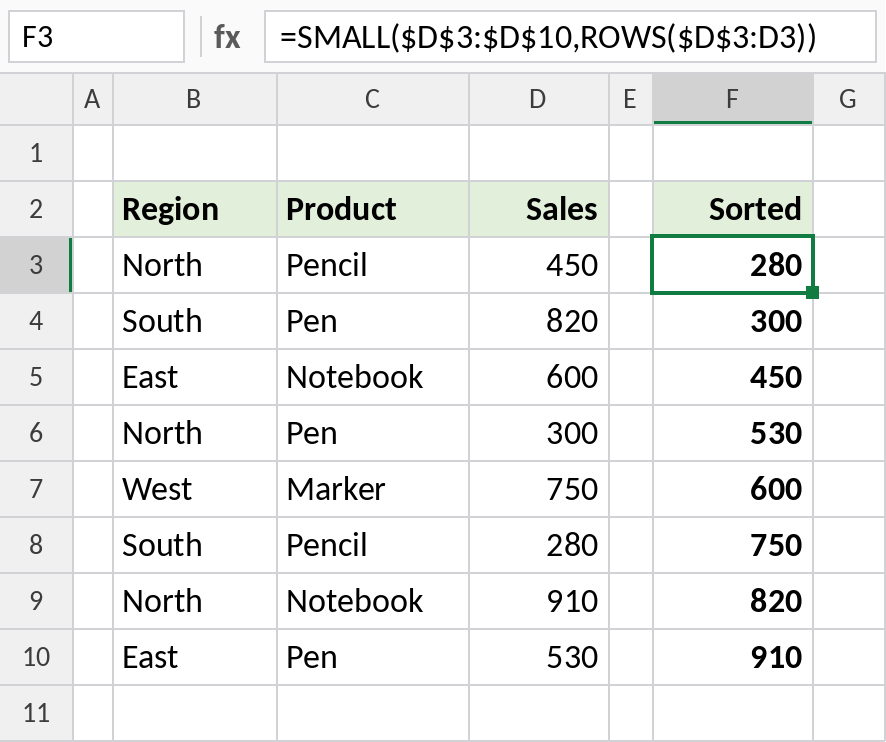
The column fills with every sale from 280 up to 910. This works in every Excel version. In Excel 365, SORT does it in one formula.
SMALL at a glance
| Formula | Result | Same as |
|---|---|---|
=SMALL(D3:D10,1) |
280 | MIN(D3:D10) |
=SMALL(D3:D10,COUNT(D3:D10)) |
910 | MAX(D3:D10) |
=SMALL(D3:D10,0) |
#NUM! |
k must be at least 1 |
Notes
- SMALL ignores text, blanks and TRUE/FALSE in the range.
- Duplicates each take a position.
- On dates, SMALL returns the Nth earliest date.
- For the Nth largest value, use LARGE.
Common errors
| Problem | Cause | Fix |
|---|---|---|
#NUM! |
k is 0, negative or larger than the number of values | Use a k between 1 and the count |
Sorted list ends in #NUM! |
The formula was filled past the number of values | Wrap with IFERROR(...,"") |
| List doesn’t sort correctly | The range moved when filling down | Lock it: $D$3:$D$10 |
Practice file
All three examples plus the SMALL checks in a cheat sheet.