To turn marks into grades in Excel, test the highest grade first and work down, with one IF inside another. In Excel 2019 and later, IFS does the same with fewer brackets, and a lookup table is easiest to change.
ProblemGrade or category from a score
Functions usedIF, IFS, VLOOKUP
Works inIF and VLOOKUP: all versions. IFS: Excel 2019 and later
Nested IF
=IF(C3>=90,"A+",IF(C3>=80,"A",IF(C3>=70,"B",IF(C3>=60,"C","F"))))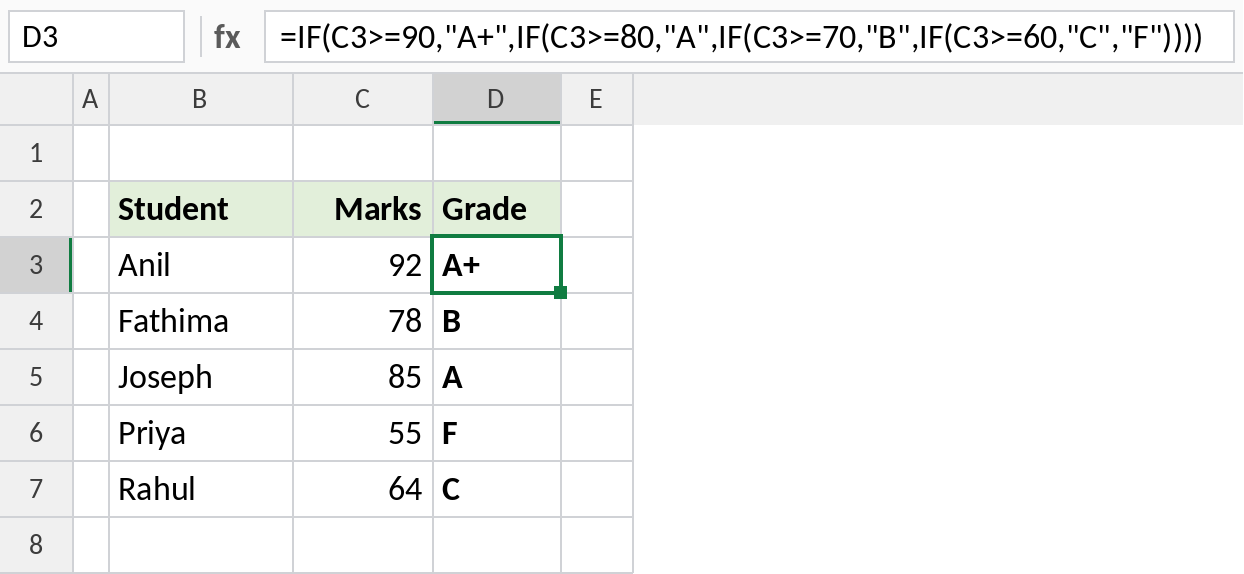
Excel checks the conditions in order and stops at the first TRUE one. Joseph's 85 fails >=90 but passes >=80, so he gets A.
How the formula works
- The first IF asks: is the mark 90 or more? If yes, the answer is A+ and Excel stops.
- If not, the next IF checks 80 or more, and so on down to 60.
- Anything that fails every test gets the last value, F. That's why the highest grade is tested first.
IFS: no nesting
=IFS(C3>=90,"A+",C3>=80,"A",C3>=70,"B",C3>=60,"C",TRUE,"F")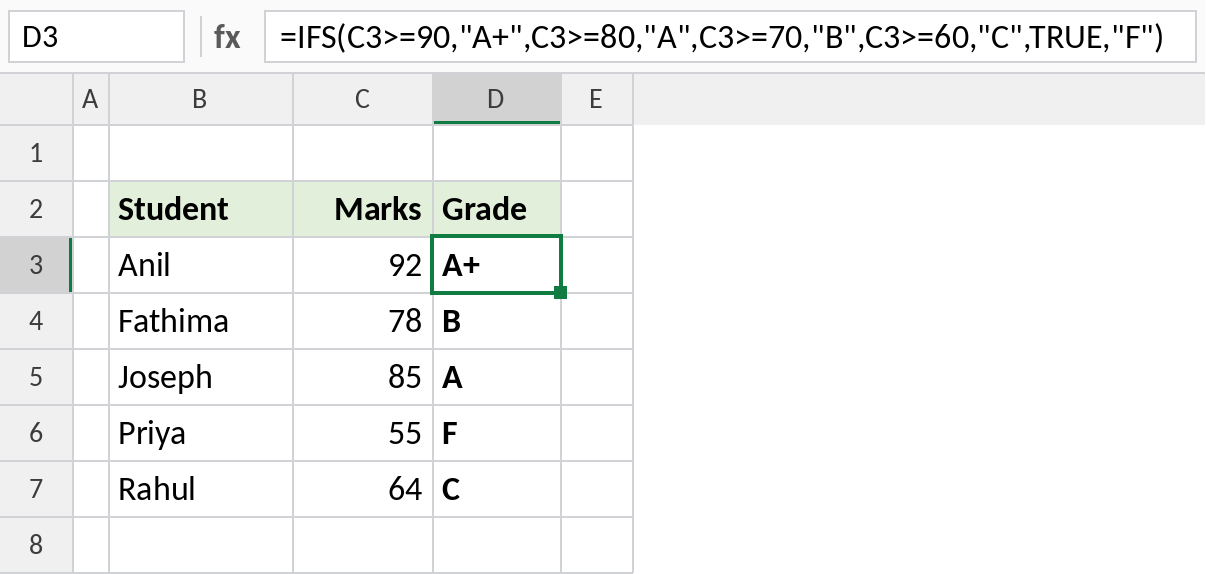
Each condition is followed by its result. TRUE,"F" at the end catches everything below 60.
Lookup table: easiest to change
List the minimum mark for each grade in ascending order, and let VLOOKUP find the right band:
=VLOOKUP(C3,$F$3:$G$7,2,TRUE)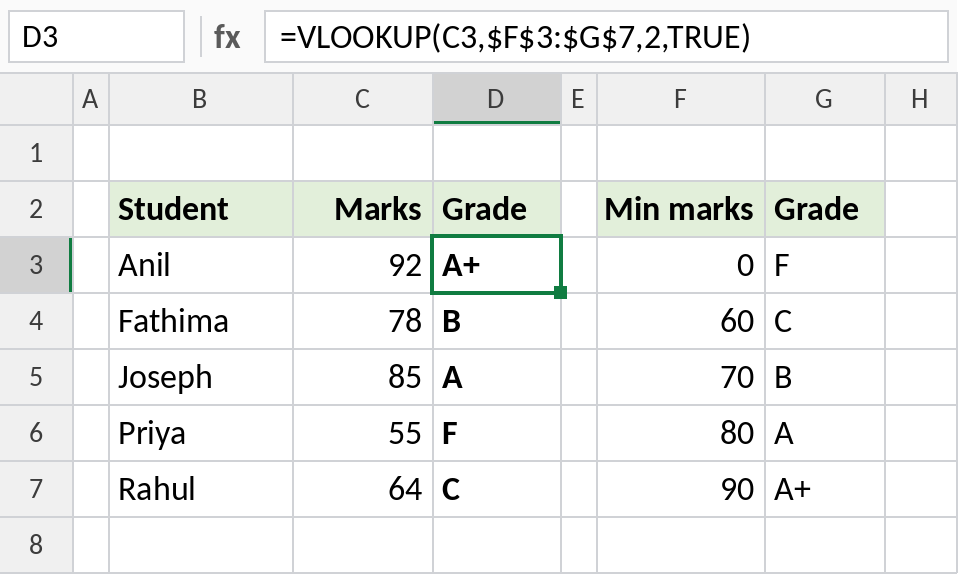
To change a grade boundary, edit the table. The formula stays the same. More on this in exact vs approximate match.
Which formula to use
| To get | Formula |
|---|---|
| Nested IF (any version) | =IF(C3>=90,"A+",IF(C3>=80,"A",IF(C3>=70,"B",IF(C3>=60,"C","F")))) |
| IFS (2019 and later) | =IFS(C3>=90,"A+",C3>=80,"A",C3>=70,"B",C3>=60,"C",TRUE,"F") |
| Grade table | =VLOOKUP(C3,$F$3:$G$7,2,TRUE) |
| Grade table (365) | =XLOOKUP(C3,$F$3:$F$7,$G$3:$G$7,,-1) |
| Pass or fail | =IF(C3>=40,"Pass","Fail") |
Notes
- Test from the highest band down, or every mark above 60 gets C.
- Use
>=so the boundary mark goes to the higher grade. - The grade table must be sorted from smallest to largest for VLOOKUP with TRUE.
Common errors
| Problem | Cause | Fix |
|---|---|---|
| Everyone gets the same grade | Tests in the wrong order | Start with the highest band |
#N/A from IFS |
No condition was TRUE | Add TRUE,"F" at the end |
#N/A from VLOOKUP |
A mark below the first row of the table | Start the table at 0 |
Practice file
Students and marks with all three methods and the grade table.