To check whether a cell contains a word, such as “pen”, anywhere in it, combine SEARCH with ISNUMBER inside IF. To check whether a cell holds any text at all, use ISTEXT.
Contains a word, anywhere
SEARCH returns the position of “pen” if it’s found, or an error if not. ISNUMBER turns that into TRUE or FALSE:
=IF(ISNUMBER(SEARCH("pen",B3)),"Yes","No")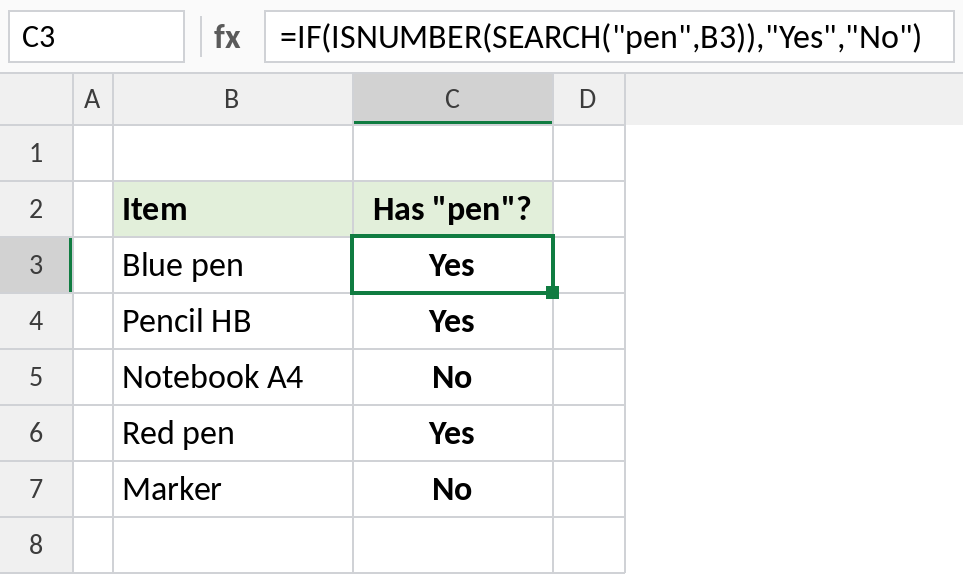
Blue pen and Red pen show Yes. So does Pencil HB, because “pencil” contains “pen”. See the third example to avoid that.
How the formula works
SEARCH("pen",B3)returns the position of “pen” in B3: 6 for Blue pen.- If “pen” isn’t there, SEARCH returns
#VALUE!. ISNUMBERturns a position into TRUE and the error into FALSE, and IF shows Yes or No.
Contains any text at all
ISTEXT checks whether a cell holds text rather than a number. It’s useful for spotting entries such as N/A in a column of figures:
=IF(ISTEXT(B3),"Text","Number")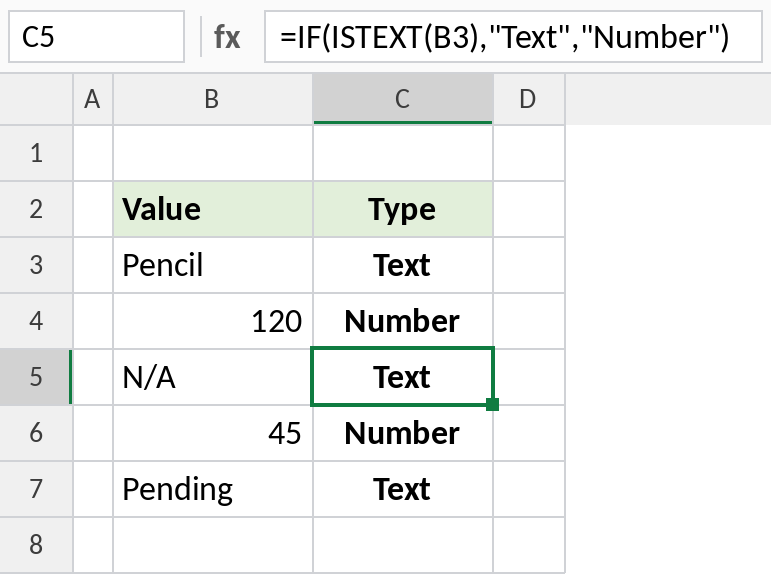
N/A and Pending are text, so a SUM of this column would skip them.
Match the word, not part of it
Wildcards give you more control. "*pen" means “ends with pen”, so Pencil HB no longer matches:
=IF(COUNTIF(B3,"*pen"),"Yes","No")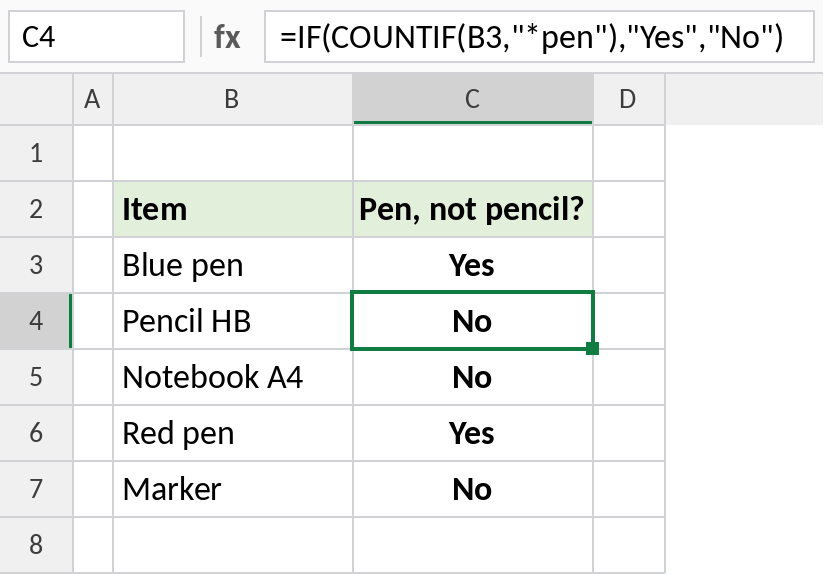
Only Blue pen and Red pen show Yes. Use "*pen*" for “contains” and "pen*" for “starts with”.
Contains-text formulas
| To check | Formula |
|---|---|
| Contains, any case | =ISNUMBER(SEARCH("pen",B3)) |
| Contains, exact case | =ISNUMBER(FIND("Pen",B3)) |
| Starts with | =COUNTIF(B3,"pen*")>0 |
| Contains any of several words | =SUM(COUNTIF(B3,{"*pen*","*marker*"}))>0 |
| Contains a word from a cell | =ISNUMBER(SEARCH(E2,B3)) |
Notes
- SEARCH ignores upper and lower case. Use FIND when case matters.
- SEARCH also accepts wildcards, such as
SEARCH("p?n",B3). - To count how many cells contain the word, use
=COUNTIF(B3:B7,"*pen*").
Common errors
| Problem | Cause | Fix |
|---|---|---|
| Everything shows No | Text has extra characters, or the wrong word | Check the search word |
| Unwanted matches | The word appears inside another word | Use a wildcard pattern or add spaces |
| Case is ignored | SEARCH isn’t case-sensitive | Use FIND |
Practice file
All three examples plus the formula table.