The Excel AND function returns TRUE only when every condition you give it is TRUE. If any one is FALSE, the result is FALSE.
logical1 |
The first condition, such as C3>=60. |
|---|---|
logical2, ... optional |
More conditions, up to 255 in total. |
Table of Contents
Basic example
To check whether each student scored at least 60 in both Maths and Science, give AND both tests:
=AND(C6>=60,D6>=60) 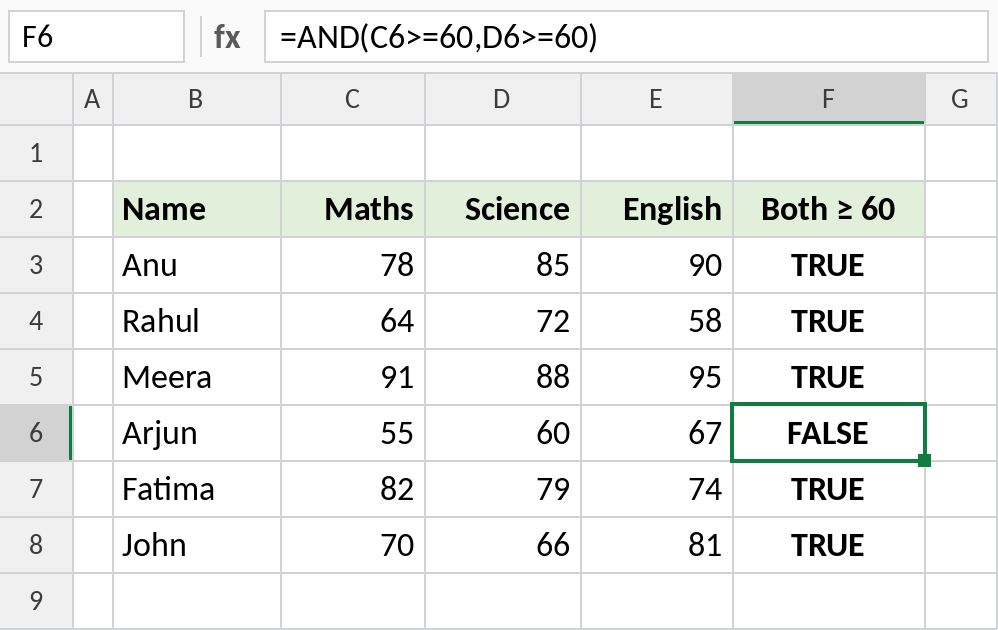
Arjun has 60 in Science but only 55 in Maths, so AND returns FALSE. Everyone else passes both tests and gets TRUE.
Use AND inside IF
AND on its own shows TRUE or FALSE. Put it inside IF to return your own labels. This requires 60 in all three subjects:
=IF(AND(C4>=60,D4>=60,E4>=60),"Pass","Fail") 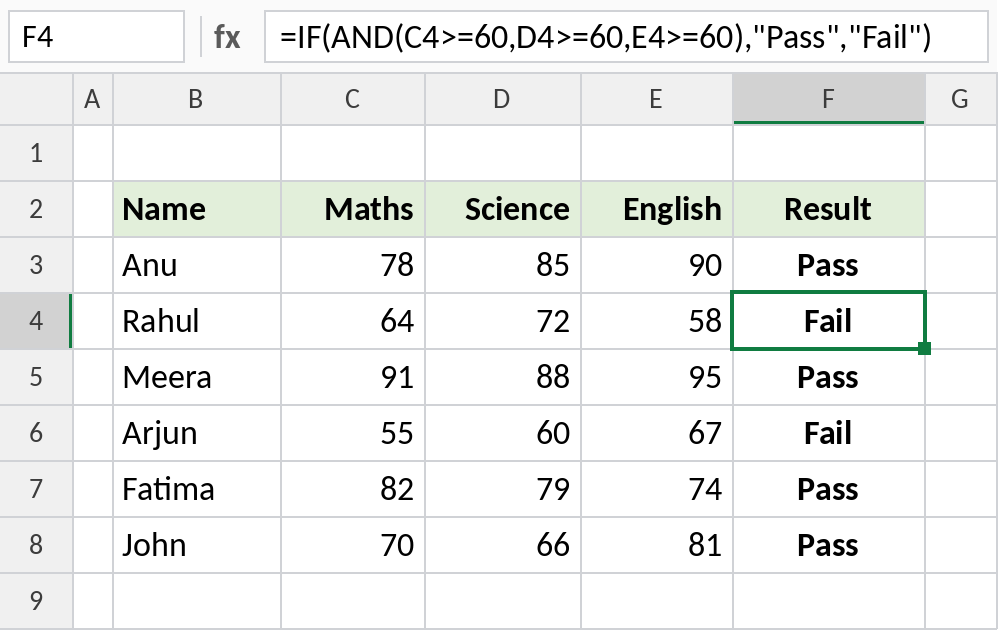
Rahul scored 64 and 72 but only 58 in English, so he gets Fail. One failed condition is enough to make AND FALSE.
Check if a value is between two numbers
Test the same cell against a lower and an upper limit:
=AND(C3>=70,C3<90) 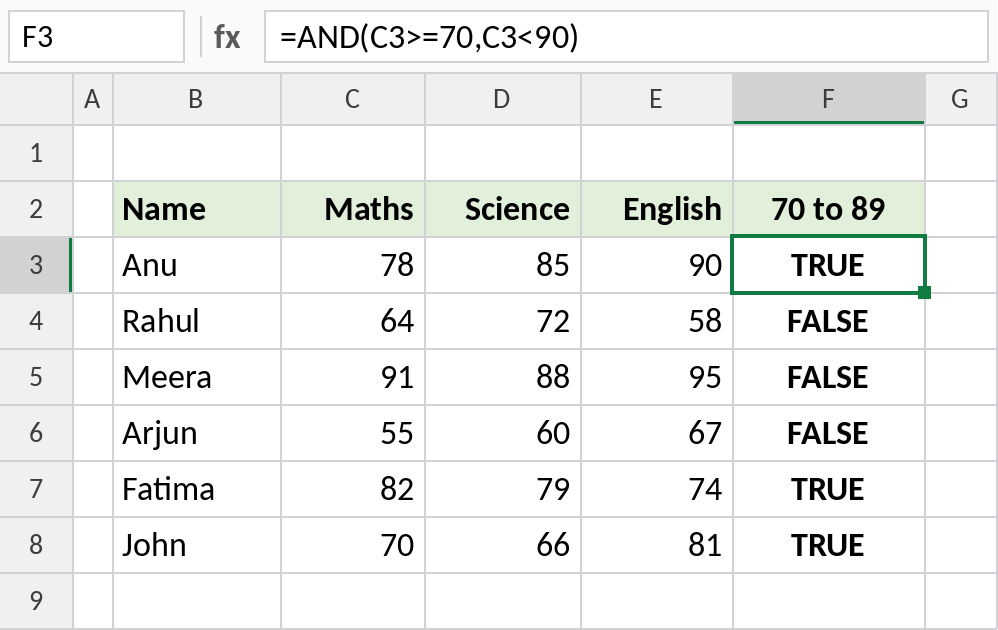
78, 82 and 70 fall between the limits and return TRUE. 91 is too high and 64 too low, so they return FALSE. >= includes 70, and < leaves out 90.
How AND works
| Condition 1 | Condition 2 | AND result |
|---|---|---|
| TRUE | TRUE | TRUE |
| TRUE | FALSE | FALSE |
| FALSE | TRUE | FALSE |
| FALSE | FALSE | FALSE |
For “at least one is TRUE”, use OR instead. To reverse a result, use NOT.
Notes
- AND returns TRUE only if every condition is TRUE.
- You can test up to 255 conditions.
- AND is most useful inside IF, in conditional formatting rules and in data validation.
- Text values in a range are ignored. If there are no TRUE/FALSE values at all, AND returns
#VALUE!.
Common errors
| Problem | Cause | Fix |
|---|---|---|
#VALUE! |
The arguments contain no logical values, such as =AND(B3:B8) on a text range |
Write a comparison for each condition, such as C3>=60 |
| Always FALSE | Impossible condition, such as C3>90 and C3<70 |
Check the limits and operators |
#NAME? |
Text in a condition typed without quotes | Write B3="North", not B3=North |
Practice file
All three examples with working formulas.